Send Telegram messages through Automation
The Messaging app element in Automation helps you send Telegram messages outside your chatbot. You can use it to send payment links, order updates, deal confirmations, and other automated notifications from your Telegram account, rather than a chatbot.
Let’s talk about how to send Telegram messages through Automation.
Connect Telegram
To get started, install the Telegram Chat in SendPulse app and connect your Telegram account.
The app will automatically create a chatbot in the Chatbots section. You will need to select it in the Messaging app element for this setup to work, even though your messages will be sent from your Telegram account, not this chatbot.
Check your CRM contacts
Only CRM contacts with an email address or phone number and a linked Telegram account can receive messages outside your chatbot.
An email address or phone number is required to run your flow, and a linked Telegram account appears in the Chatbots field of the contact card.
To check this, go to CRM > Contacts and open a contact card. If a contact card has multiple email addresses or phone numbers, messages will be sent to the primary contact.
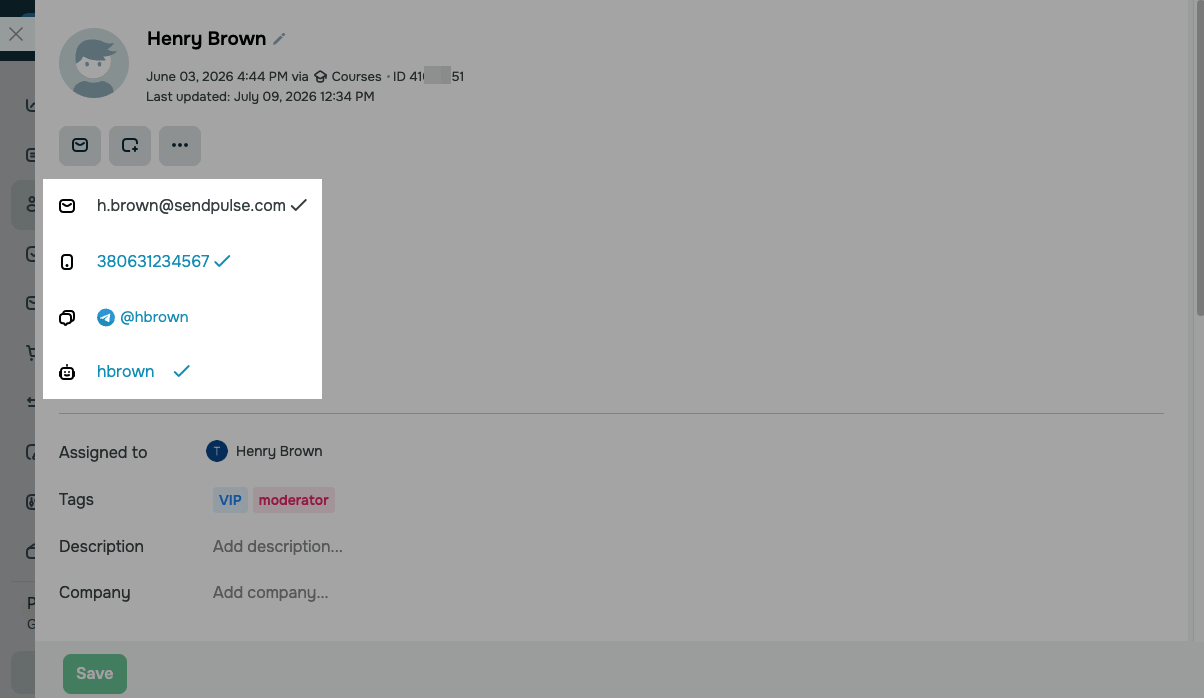
To link a chatbot contact to a CRM contact manually, click Add contact from chatbot in the Chatbots field, then paste a chat link from the Chats section.
You can also start a conversation with a contact from their contact card. The app will then link the Telegram account to the contact automatically.
Create an automation and set a flow start
Let's use the following example: a team member confirms an order and moves a deal to the next pipeline stage.
Go to the Automation section and create a new automation.
Read also: Automate CRM deal management.
In the Auto-flow start element, choose the Deal stage update trigger in the Monitor event field, then fill in its fields: the deal pipeline, stages, and source.
To send messages to all of a contact's email addresses and phone numbers, turn on the Send to all contact's email addresses or phone numbers toggle.
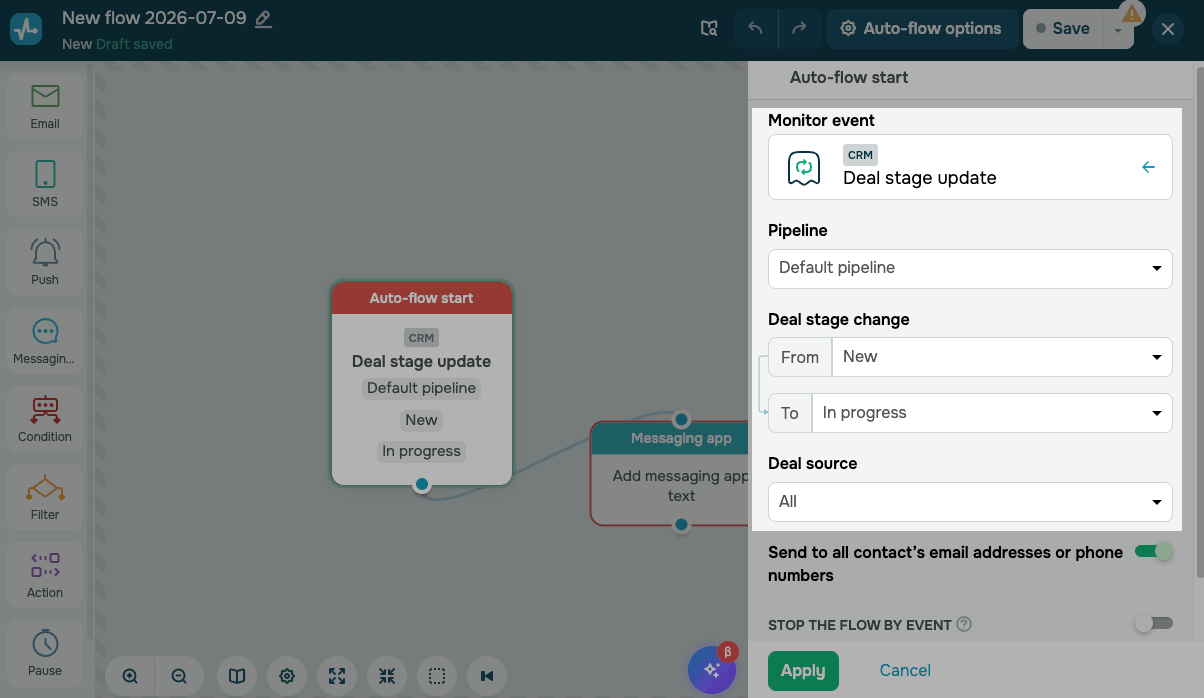
Once you're done, click Apply.
Add the Messaging app element
This element will send a message to your contacts outside of your chatbot.
Drag the Messaging app element to the workspace and link it to the Auto-flow start element.
Set a sending time. In the Chatbot drop-down list, select the chatbot created by the Telegram Chat in SendPulse app. These chatbots are labeled with a dedicated icon.
The element sends messages from your connected Telegram account.
If you select a regular Telegram chatbot, your message will be sent through that chatbot, not your Telegram account.
Type in your message. Since the flow starts with a deal trigger, you can use deal variables with the _deal suffix in your text. To give you an idea, add the {{price_deal}} variable to insert a deal price.
You can also use CRM contact variables and mailing list variables. The variables a contact enters your flow with will be available in every flow element.
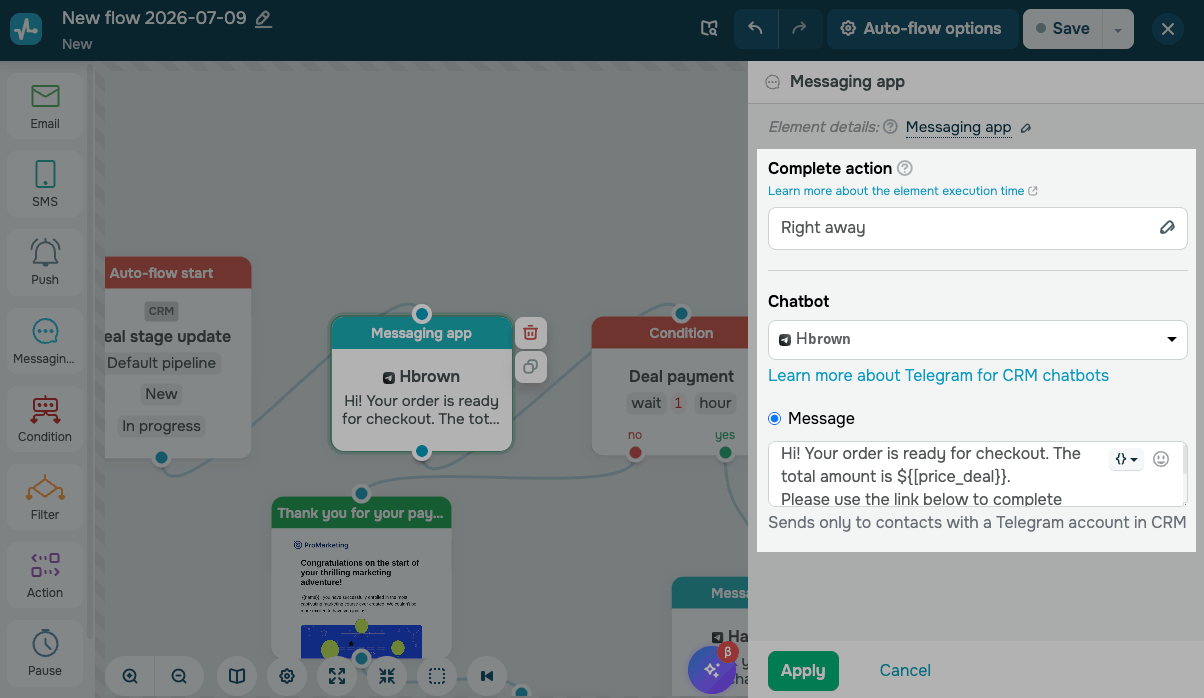
Once you’re done, click Apply.
Track deal payments
Branch your flow based on whether the customer has made a payment.
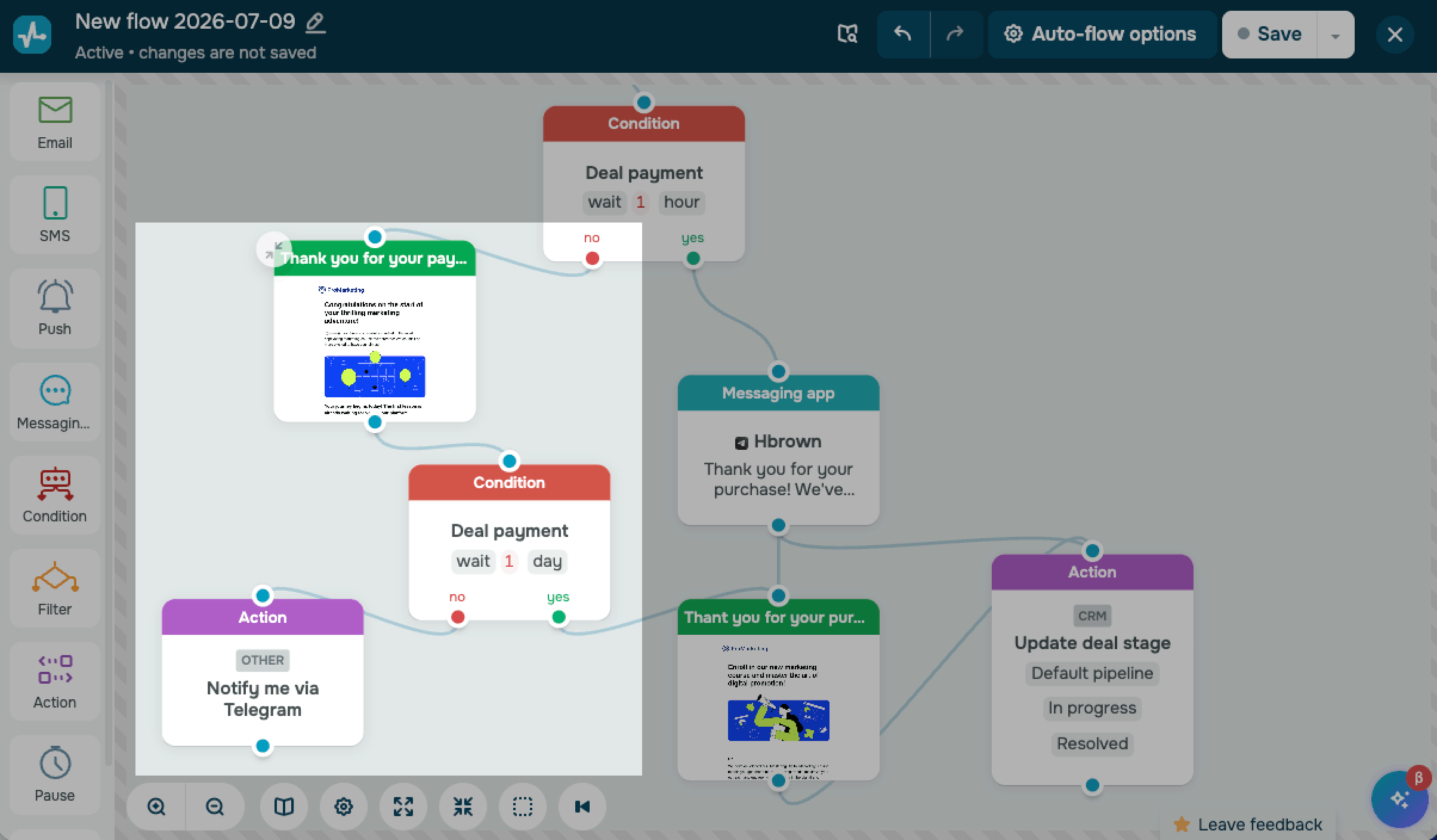
Add the Condition element with the Deal payment condition, then set a payment waiting period, for example, 1 hour.
Confirm payments
If your customer makes a payment within this time, they proceed to the Yes branch.
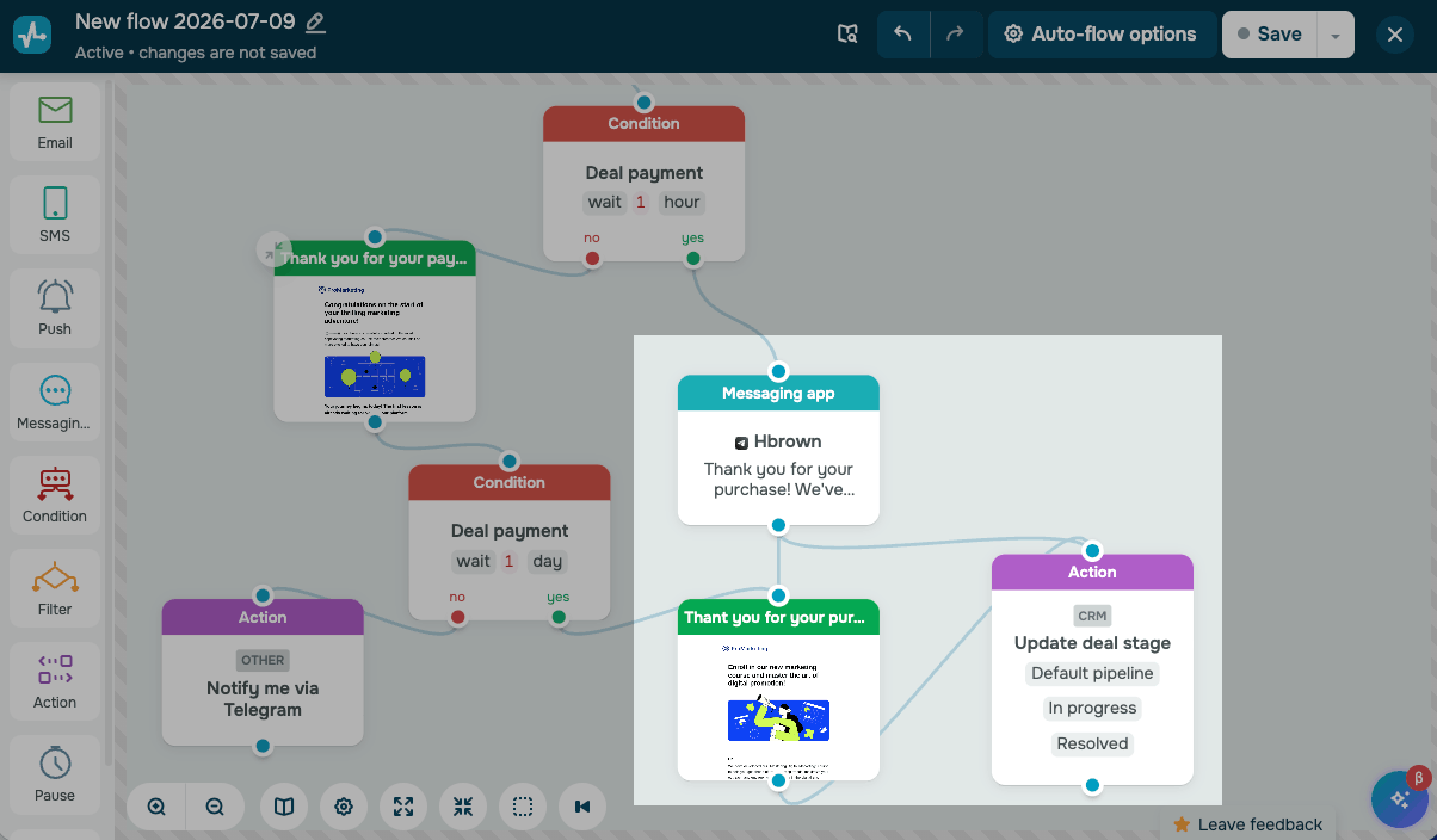
To thank the customer for their purchase through your Telegram account, add another Messaging app element with a message like "Thank you for your purchase! We've successfully received your payment of ${{price_deal}}."
Next, add the Email element to send an email with order details and next steps.
To move your deal to its final stage, for example, Successfully closed, add the Action element with the Update deal stage CRM action at the end of the flow branch.
Send a payment reminder
If the customer does not make a payment within this time, the contact proceeds to the No branch.
Add the Email element to send a payment reminder.
After the email, you can add another Condition element with the Deal payment condition and a longer waiting period, for example, 1 day.
If the customer pays later, your flow continues along the Yes branch. Then, you can send an email with order details and move your deal to its final stage.
If the customer still doesn’t make a payment, add the Action element with the Notify me via Telegram action to receive a notification about it.
Save and launch your flow
Once your flow is ready, click Save and run it.
As soon as your contact's deal moves to the selected stage, they will receive a message from your Telegram account.
Message delivery
You can run your flow using any trigger as long as the contact has an email address or phone number. Since Telegram accounts are linked to CRM contacts, we recommend prioritizing flows that start with CRM triggers.
Contacts without an email address or phone number, as well as contacts without a linked Telegram account, pass through the Messaging app element without receiving your message and proceed along the flow.
Flow messages are delivered to the Telegram account linked to your contact in the Chatbots section. The chatbot you select in the Messaging app element does not change the recipient.
If multiple chatbots are linked to a CRM contact, your message will be sent through the primary one.
Message statistics
Once you launch your flow, track message delivery in your automation statistics. The element statistics show your contact's email address or phone number, the time they passed through the element, and the delivery status.
If a contact has no linked Telegram account, your message gets the Not delivered status. The same status appears next to your contact's email address or phone number.
If your selected chatbot is deleted, contacts pass through the element without receiving messages. An Action required indicator appears on the element in the builder and in your statistics.
If your Telegram account is temporarily disconnected, the element shows the Disconnected status. To resume sending, reconnect the same account in the app.
When a user replies to your message, the conversation appears in Chats, where you can continue messaging manually.
 Last Updated: 22.07.2026




or