Notify me via Telegram in the Action element
The Notify me in Telegram action in Automation sends an instant notification to your Telegram account when a contact reaches this point in your flow. Use it to monitor events in real time, such as when a contact doesn't open an email or a deal stalls at payment.
Let's talk about how to configure the Notify me in Telegram action in the Action element.
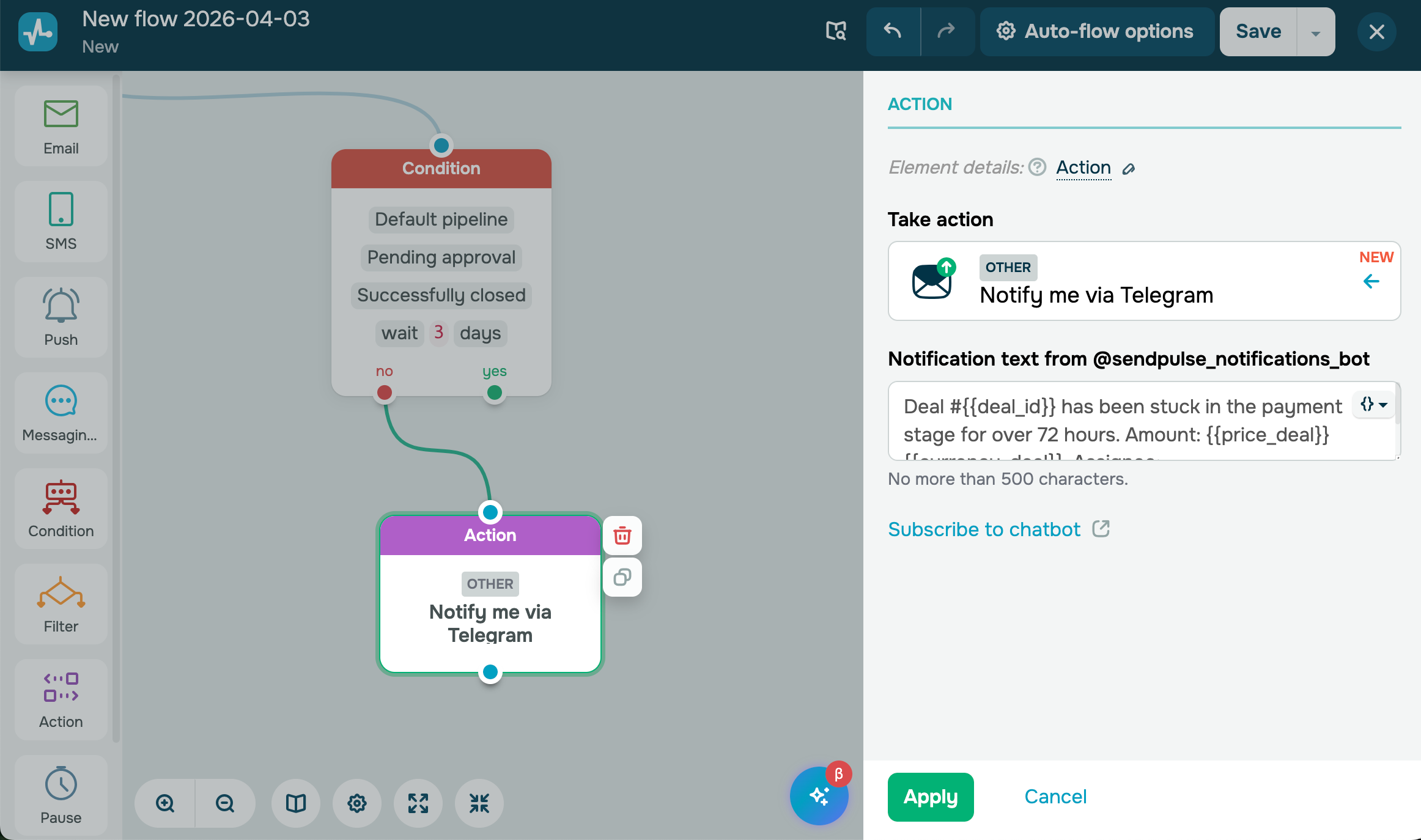
Subscribe to the chatbot
To receive notifications, subscribe to the @sendpulse_notifications_bot. Click "Subscribe to the bot", and you will be redirected to the Telegram app. Then, click START in the chat window. Once you subscribe, the chatbot will be able to start delivering notifications from your SendPulse account.
Add the Action element
Go to Automation and drag the Action element to the workspace. In the settings that appear, go to the Other category and select Notify me in Telegram.
You can also rename the element to distinguish it from others in your flow. Click Element name and enter up to 253 characters. Once you save the settings, the new name appears when you hover over the element in the builder.
Create the message
Enter the notification text you want to receive. You can use contact and deal variables to include relevant data in the message. Here's what it can look like:
Deal #{{deal_id}} has been stuck in the payment stage for over 72 hours. Amount: {{price_deal}} {{currency_deal}}. Assignee: {{responsible_name}}.
The input field supports the following HTML tags for basic formatting:
<b>text</b> |
Makes the text bold |
<i>text</i> |
Makes the text italicized |
<u>text</u> |
Underlines the text |
<s>text</s> |
Applies |
<code>text</code> |
Makes the text monospaced. Use it to highlight code while preserving spacing and line breaks |
<pre>text</pre> |
Makes the text monospaced. Use it to highlight code while preserving spacing and line breaks |
<a>text</a> |
Adds a hyperlink to the selected text |
Note: Using unsupported tags, such as <h1>, will cause delivery failures. Use only the tags listed above.
Keep the following in mind when setting up this action:
- The input field supports up to 500 characters. If variable values expand the text beyond this limit after the flow runs, the final Telegram message will not be truncated.
- To send notifications to multiple Telegram accounts, add several Notify me in Telegram elements to your flow.
- A single Telegram account can receive notifications from multiple SendPulse accounts.
- If a flow is triggered by an invited user, notifications are sent to the Telegram account of the primary account owner, not the invited user.
Save the element
Once you enter your message, click Apply. The element is now ready and will send a Telegram notification every time a contact reaches this step in the flow.
To test the setup, run your flow and see if the Telegram notification includes the correct variable values.
 Last Updated: 03.04.2026





or