Change variable in the Action element
The Change variable action helps you update a contact's variable value at a specific point in your flow. Use it to record key events in a contact's journey, such as adding order details after a purchase, changing a deal assignee, or raising the counter value.
SendPulse identifies contacts using the email or phone variable.
Let's talk about how to configure the Change variable action.
Add the Action element
Drag the Action element to the workspace. In the settings that appear, go to the Other category and select Change variable.
You can also rename the element to distinguish it from others in your flow. Click Element name and enter up to 253 characters. Once you save the settings, the new name will appear when you hover over the element in the builder.
Configure the variable
Select the variable you want to update and enter its new value.
The list of available variables depends on your flow trigger. If your flow starts with a mailing list, you can select from that list's variables. If your flow starts with a CRM event, you can select from CRM contact variables.
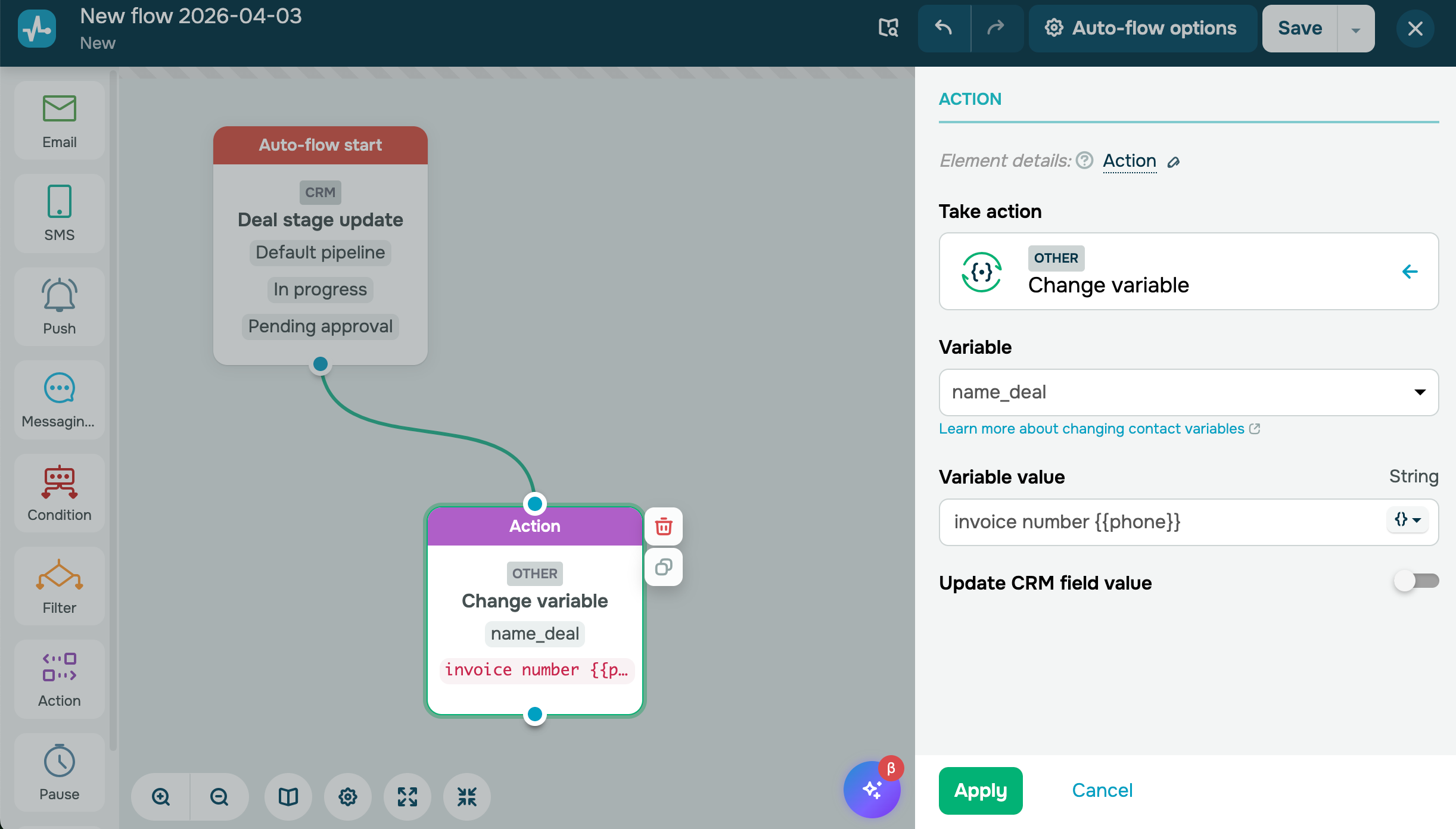
Update the value in the CRM system
If your flow is triggered by a deal event, you can only use CRM data or update your CRM deal card.
Deal variables have the _deal suffix, and contact variables don't. Read also: Use CRM variables in Automation.
If you enter an invalid variable value, the update will not be applied, and the current value in the CRM will remain unchanged.
To synchronize the new variable value with the deal card, turn on the Update value in CRM toggle.
Tip: Let's say your deal moves to the "Awaiting payment" stage. In this case, you can use the Action element to automatically add an invoice number to name_deal and set currency_deal based on the client's selection. The deal card in the CRM system will be updated automatically.
Set a value for a Date variable
If you select a Date variable, you can use the {{CurrentDate}} expression to set today's date. Use {{CurrentDate+N}} / {{CurrentDate-N}} to set a date N days in the future or past. You can also specify hours and minutes. The system applies your account's time zone to these values.
Tip: Let's say your mailing list has a variable that saves the date of the last sent email. You can check if it is empty or older than {{CurrentDate-7}} and send the next email accordingly. Once you send it, replace the saved date with {{CurrentDate}} for contacts who received your email.
Use a formula for Number and Date variables
If you select a Number or Date variable, you can apply a formula to calculate the new value automatically. This helps you add days to a date, calculate percentages, measure time between events, and more.
To do this, select the Insert formula checkbox and enter an expression in the Variable value field.
Read more: Use date and number formulas in the Action element.
Save the element
Once you configure the variable and its value, click Save. The Action element is now ready and will update the contact variable for every contact who reaches this point in the flow.
To test this setup, open your mailing list or CRM contact card after the flow runs and check if the variable holds the expected value.
 Last Updated: 03.04.2026





or