




















Trusted by 200,000 customers. Loved by 6K+ reviewers

ufs rocher dominos jooble viessmann puma samsung lot swatch karcher PWC radisson tata jackwolfskin sofitel

Integrate LinkedIn seamlessly into your workflow

Use the same playbook you already run on every other inbox. No dedicated pipeline or LinkedIn expert needed.

Add LinkedIn to your messaging stack

Add LinkedIn to your messaging stack

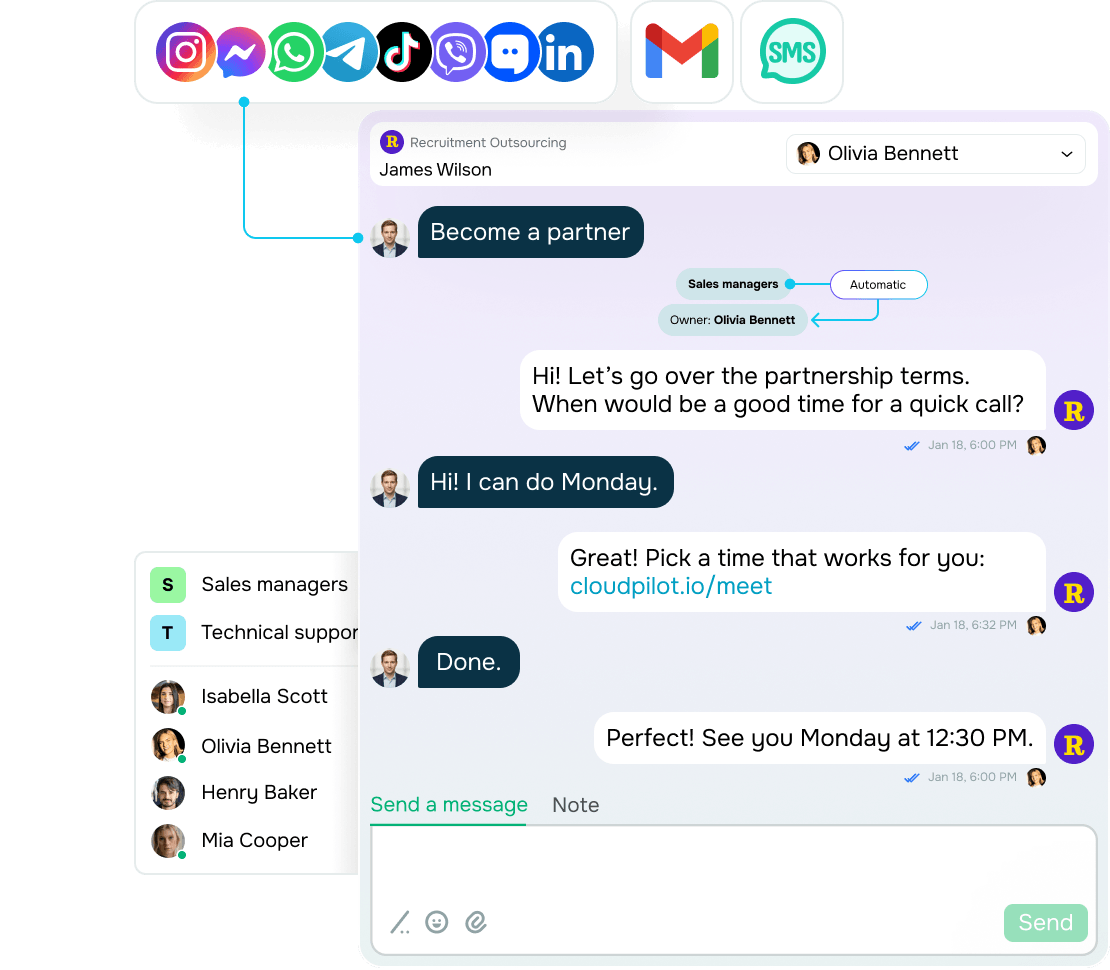
When LinkedIn runs on its own, chats with clients and partners tend to slip through the cracks. Once you integrate LinkedIn with SendPulse, you'll never have to juggle browser tabs again. Every LinkedIn conversation lives right where you need it.

Keep your team in sync and on schedule with internal notes, shared message templates, and chat handoffs — all in a single omnichannel inbox.

Guide every lead to the next step

Guide every lead to the next step

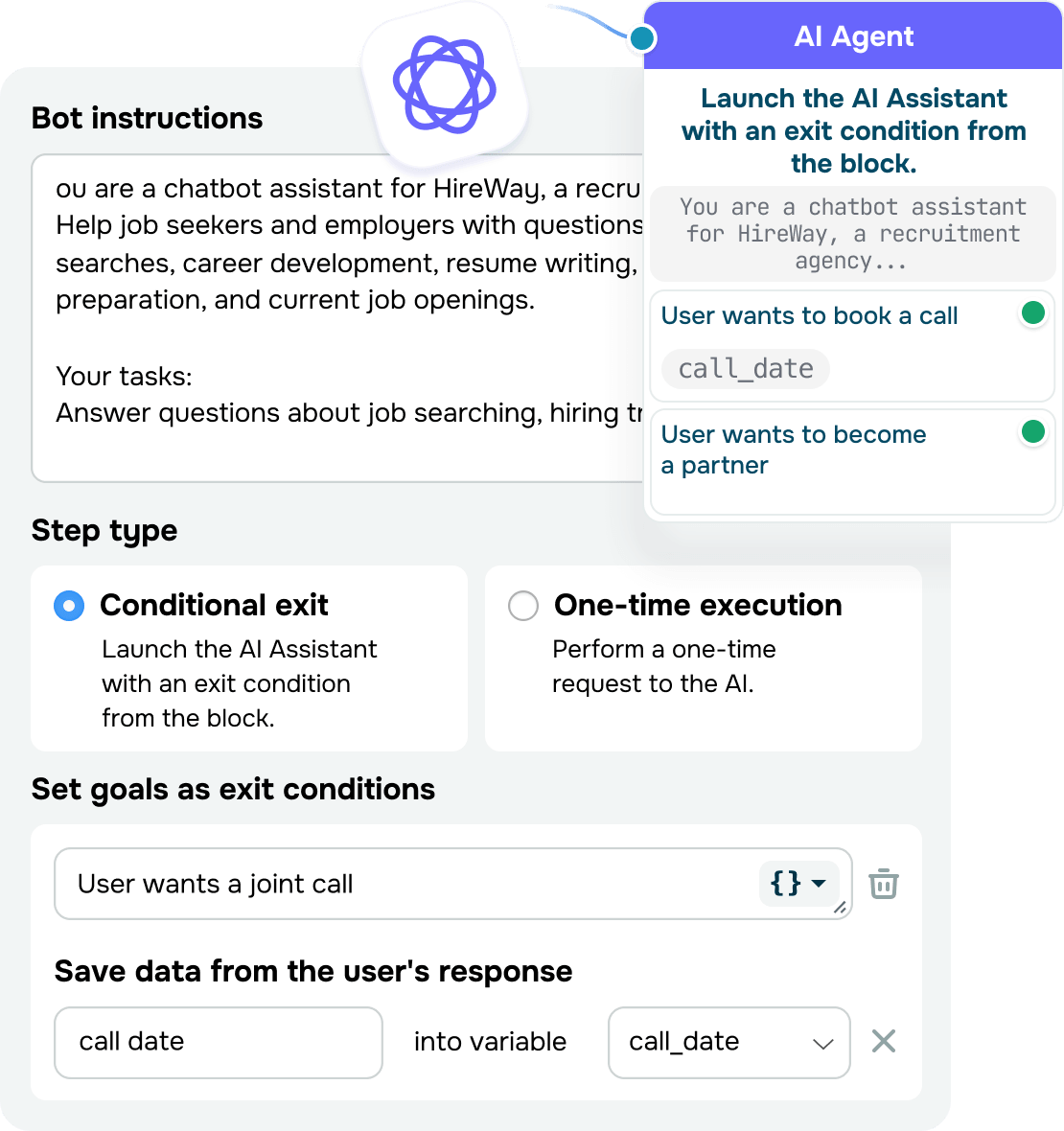
A first reply just opens the door, but it doesn't move the deal forward. To capture a hot lead on time, power up your chatbot with a built-in AI assistant that digs into the prospect's needs and automatically qualifies them for you.

Your chatbot will also save every detail from the chat and create related CRM deals on its own, so your team can jump straight to nurturing instead of chasing follow-ups.

Keep deals moving through your pipeline

Keep deals moving through your pipeline

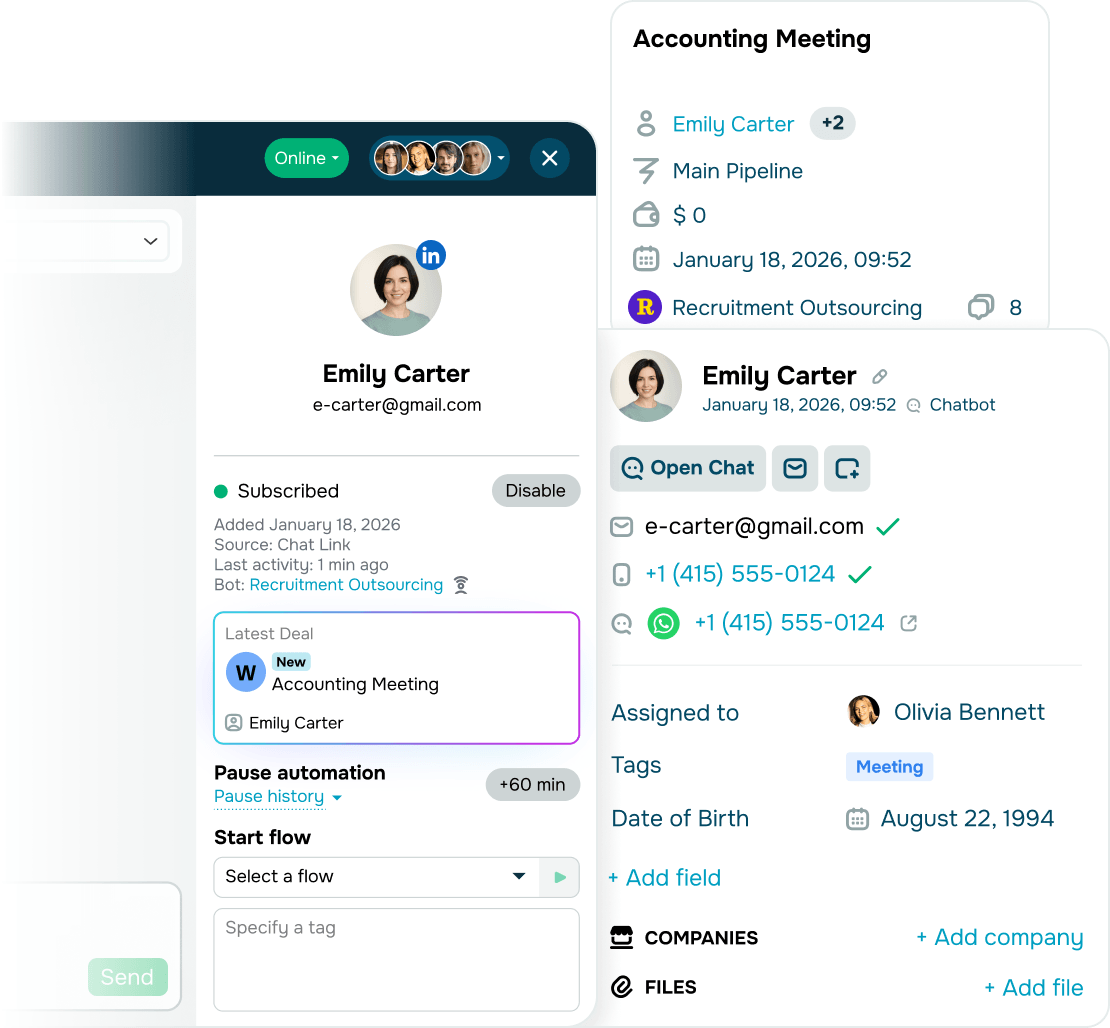
Key details often stay buried in conversations or in your sales rep's memory, so your team has no idea where the deal stands.

The fix is simple: set up a flow once and let it take care of the rest. Payments get logged, messages reach the right teammate based on tags or variables, and every LinkedIn connection lands in your built-in CRM. No more spreadsheets or copy-pasting.

Reply to everyone, even at scale

Reply to everyone, even at scale

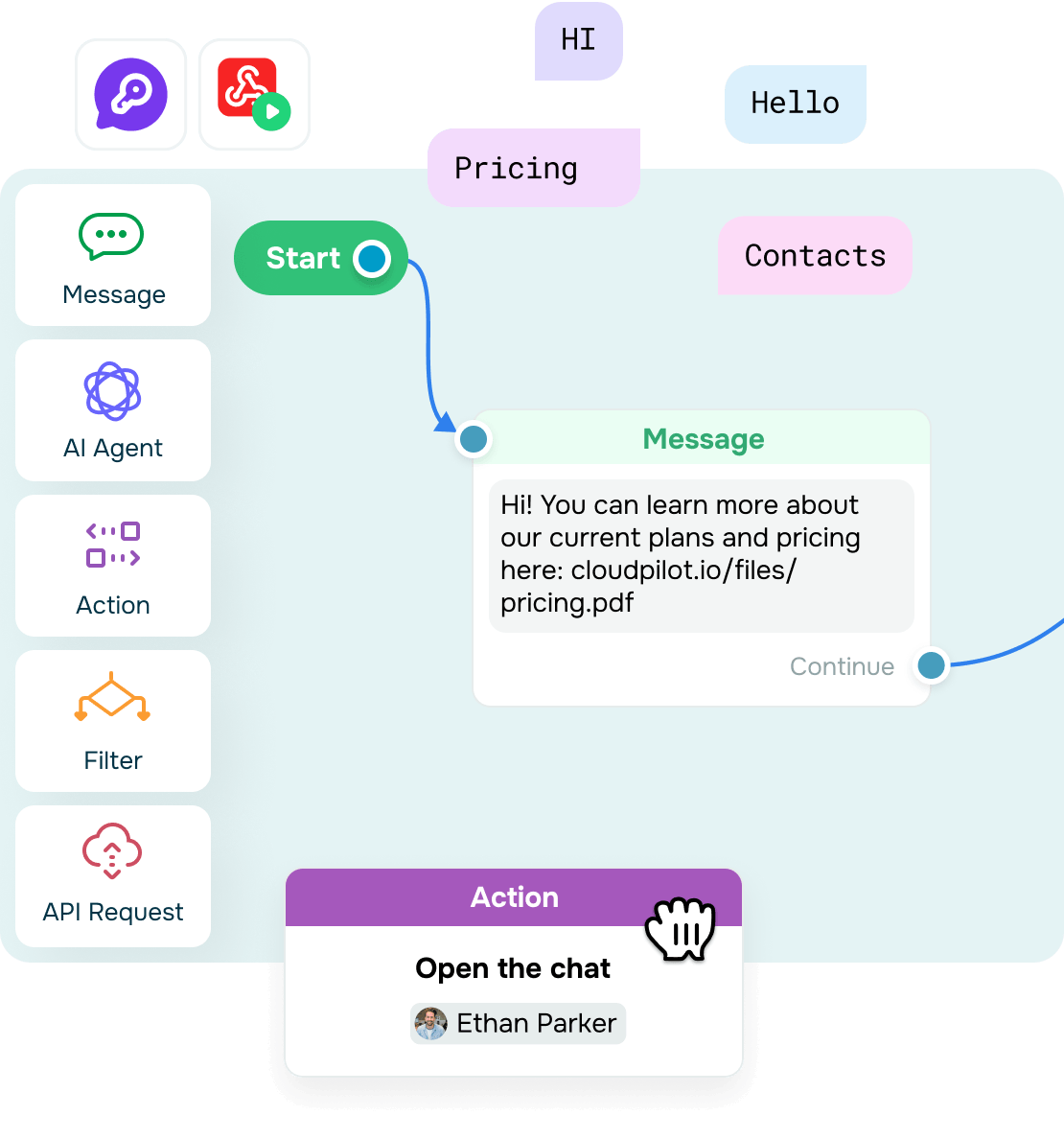
Repetitive questions about pricing and features roll in every day, evenings and weekends included. Your reps end up spending more time repeating the same answers than moving real deals forward.

A chatbot changes that. Once it's set up, it works around the clock, sending replies or pointing people to the right file or page. Your chatbot's messages feel personal, even when you're not the one typing them.

And if a question falls outside the script, your chatbot hands it over to your team, so no lead has to wait for a reply.

Why automate LinkedIn messaging

Cut the busywork out of LinkedIn and focus on the people behind the messages.

icon
Free to try

Automate your LinkedIn conversations for free, no credit card required. Upgrade your pricing plan only when you're ready.

icon
Single, intuitive interface

Manage LinkedIn chats alongside every other conversation on a single screen. Say goodbye to juggling files, tabs, and tools.

icon
Shared access to what matters

Give your whole team access to chat history, contact details, notes, and message templates.

icon
Less busywork

Let your chatbot run keyword triggers, answer common questions, and qualify leads to keep the routine off your hands. You step in only when your expertise is actually needed.

icon
Streamlined lead management

Build clear workflows in your CRM. Save and organize lead data, track deals, and assign tasks across your team with ease.

icon
Nothing to rebuild

Make LinkedIn a natural part of your sales, recruiting, or partnerships without changing your workflow around it.

How to automate LinkedIn conversations

Add LinkedIn to your omnichannel inbox in just 4 steps:

  • Set up your SendPulse account

    Set up your SendPulse account

    Create or log in to your SendPulse account. Install the Snov.io LinkedIn to SendPulse Chatbots app from SendPulse's app directory, following this guide. The integration is free and runs on SendPulse's free chatbot builder plan.
  • Create a Snov.io account

    Create a Snov.io account

    Create or log in to your Snov.io account. A slot costs $69/month per LinkedIn account. To keep the integration active, you'll need to renew your Snov.io plan regularly.
  • Connect your LinkedIn account to Snov.io

    Connect your LinkedIn account to Snov.io

    Once you've paid for your slot, connect your LinkedIn account under "LinkedIn Accounts" and run the data sync. Within 10–15 minutes, your chats and connections will appear. You can opt for importing your current chat history or starting new chats with connections you haven't messaged yet.
  • Send your data to SendPulse

    Send your data to SendPulse

    Copy your API keys from Snov.io and paste them into SendPulse. Once you select your LinkedIn account, your conversations will appear in the "Chatbots" section.
app

Keep all LinkedIn chats at your fingertips

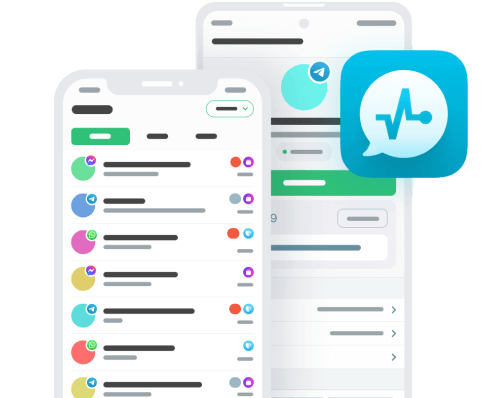
Run your LinkedIn conversations from your phone. Message leads and partners, track deals, and keep up with your team from anywhere.

Things to keep in mind

A quick heads-up before you integrate LinkedIn with SendPulse.

icon

Message delays

LinkedIn messages have a short delay: up to 5 minutes to appear, up to 4 minutes to send. This is because LinkedIn has no external API, so messages route through Snov.io.

icon

No buttons

LinkedIn doesn't support buttons or interactive menus, but you can send unlimited text messages, emojis, and links.

icon

Inbound communication

You can only message your connections or people who reach out to you first. LinkedIn isn't the right fit for mass outreach.

icon

Subscriber limits

Every contact counts as a subscriber under your chatbot builder plan. To stay within this limit, import chats only with people you've already messaged.

Learning hub

Get a closer look at the SendPulse and LinkedIn integration.
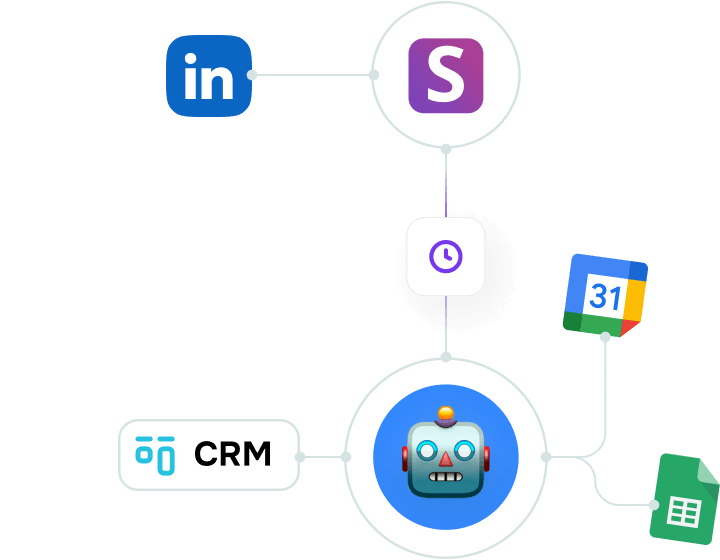
How does LinkedIn chat automation work in SendPulse?
How does LinkedIn chat automation work in SendPulse?

LinkedIn connects to your omnichannel inbox and chatbot through a partner integration with Snov.io. Since LinkedIn has no official external API, the integration can't guarantee instant delivery. You can reply using emojis and permanent links without buttons, which keeps your LinkedIn chats looking like normal conversations.
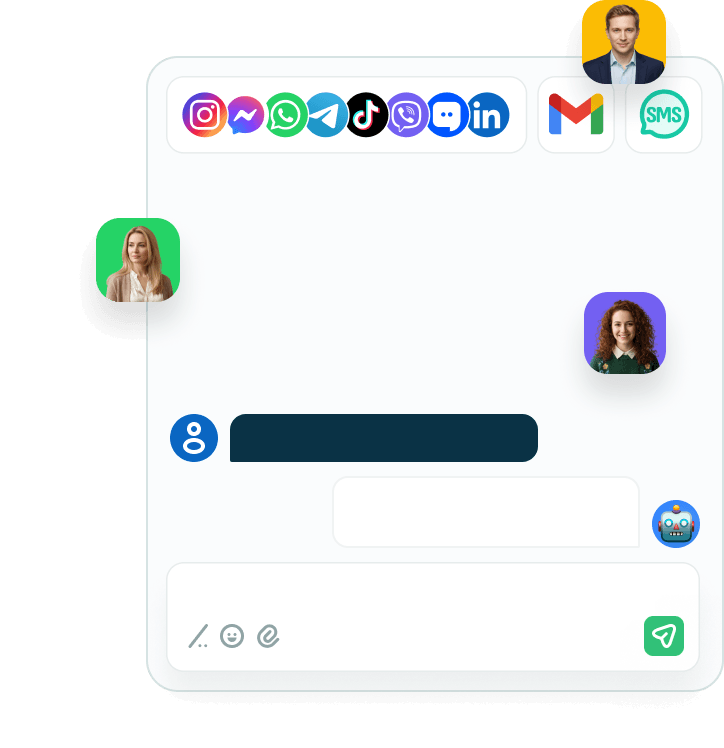
Why automate LinkedIn chats?

Why automate LinkedIn chats?

Your LinkedIn chats will live in the same shared inbox as your other conversations, so you won't have to switch between platforms and tabs. You can also import all your chats or just the new ones, which gives you control over your chatbot subscriber limit.

On top of that, LinkedIn chat automation helps you capture leads. Your chatbot picks up on keywords in incoming messages, pulls details from the conversation, and sends them to your CRM. Then, your team starts working on a qualified lead right away, instead of digging through chats and entering data manually.

With LinkedIn chat automation, you can also:

  • Send text messages and emojis
  • Share an unlimited number of links to external pages and files
  • Receive and view file attachments
  • Create and save reply templates for common messages

To keep your teamwork running smoothly, assign contacts to teammates right in the chat.

You'll find all these features in SendPulse's mobile app too, ready whenever you're away from your desk.
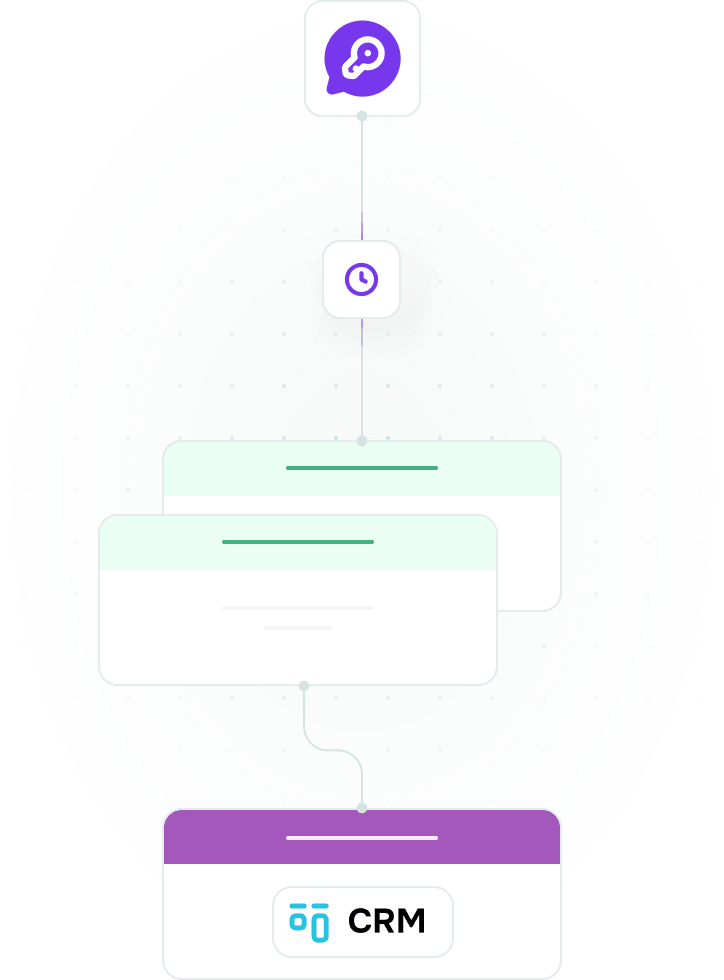
Are there any limitations to this integration?

Are there any limitations to this integration?

Only inbound communication. The LinkedIn integration is built exclusively for inbound communication. It prohibits mass messaging to anyone outside your existing connections.

Pricing terms. To keep your integration up and running, you'll need to renew your Snov.io plan and pay $69/month per LinkedIn account. On SendPulse's side, the integration runs on the free chatbot builder plan, but it's tied to your subscriber limit, which you can raise by upgrading your pricing plan. Every LinkedIn connection counts as a subscriber, so the more connections you have, the faster you hit that limit.

A few more things to keep in mind about LinkedIn chatbot flows:

  • Flows can only be triggered by a keyword in a message, not by replies to comments.
  • The "Message" element supports text, emojis, and links only.
  • Buttons and interactive menus aren't available.

Message delays. Since LinkedIn has no official external API, message exchange isn't instant. An incoming message can take up to 5 minutes to arrive, and a reply takes up to 4 minutes to send.
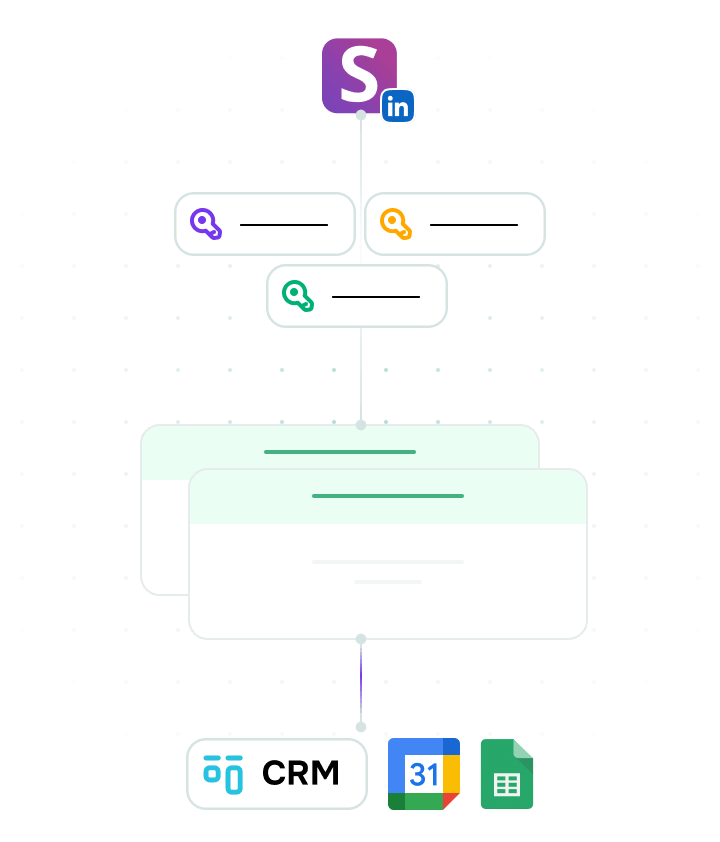
How can I optimize LinkedIn workflows using SendPulse?

How can I optimize LinkedIn workflows using SendPulse?

LinkedIn chat automation brings your chats into SendPulse's omnichannel inbox.

  1. Once you're connected, start building a chatbot flow. Pick 3 or 5 keywords that come up most often in messages, such as pricing, demo, or partnership terms. Your chatbot will react to these keywords and take the conversation from there.
  2. Sync your chats with CRM. To capture leads and log the gist of each conversation on autopilot, send data from LinkedIn chats to SendPulse using tags or variables. That info flows straight into your CRM and turns into contacts or deals, so there's a lot less manual data entry to worry about.

LinkedIn chat automation only supports inbound communication with your existing connections.

FAQ

LinkedIn has no official external API. Instead, this integration runs through Snov.io, so receiving a message can take up to 5 minutes, and sending one can take up to 4 minutes.

LinkedIn chat automation is available with SendPulse's free chatbot builder plan. You'll also need to create a Snov.io account, get a paid Snov.io plan, and purchase a slot at $69/month per LinkedIn account.

No. LinkedIn prohibits mass messaging to anyone you haven't connected with, and violating that rule will put your account at risk of a ban. SendPulse's integration with LinkedIn is designed strictly for inbound communication with your existing contacts.

No, LinkedIn chats don't support buttons. Use text messages, emojis, and permanent links to files or external pages instead.

Yes. In SendPulse, anyone you've started a conversation with counts as a subscriber under your chatbot builder plan. If you have a lot of LinkedIn connections, that limit can fill up fast. Once it does, conversations with new connections won't show up in your inbox until you free up space or upgrade.

Absolutely! Use the "Load past chats" setting to bring in existing conversations. To import LinkedIn connections you haven't messaged yet, use "Load empty chats." Or leave both settings off only to add chats with new contacts going forward.

Scale your LinkedIn communication across one connected workspace

Keep every deal and prospect on track, all within your CRM.