Integrate LinkedIn with SendPulse-powered chatbots
With the Snovio LinkedIn to SP Chatbots app, you can connect your LinkedIn account to SendPulse through Snov.io, a partner service, and manage your LinkedIn conversations without leaving SendPulse.
Integration features:
- receive and reply to LinkedIn messages in Chats, alongside your other conversations;
- import your existing LinkedIn conversations, or start with an empty chatbot and receive only new messages;
- automatically reply to messages with keyword-based flows;
- save lead data to the CRM system.
If you rely on LinkedIn for most of your outreach, for example, to search for leads or candidates, this integration helps you reply to them from a single place and keeps the full conversation history accessible to your team.
Let’s talk about how to install the app, connect your LinkedIn account, and manage the integration.
Install the app
Go to App directory > Applications, then search for Snovio LinkedIn to SP Chatbots. Next to the app, click Install. You can also click Preview to open the app page and click Install.
In the next window, go over the list of permissions the app requires and click Grant consent.
Connect your LinkedIn account
To connect your LinkedIn account, you’ll need a Snov.io account with a paid LinkedIn slot and your LinkedIn login credentials. The integration runs through Snov.io.
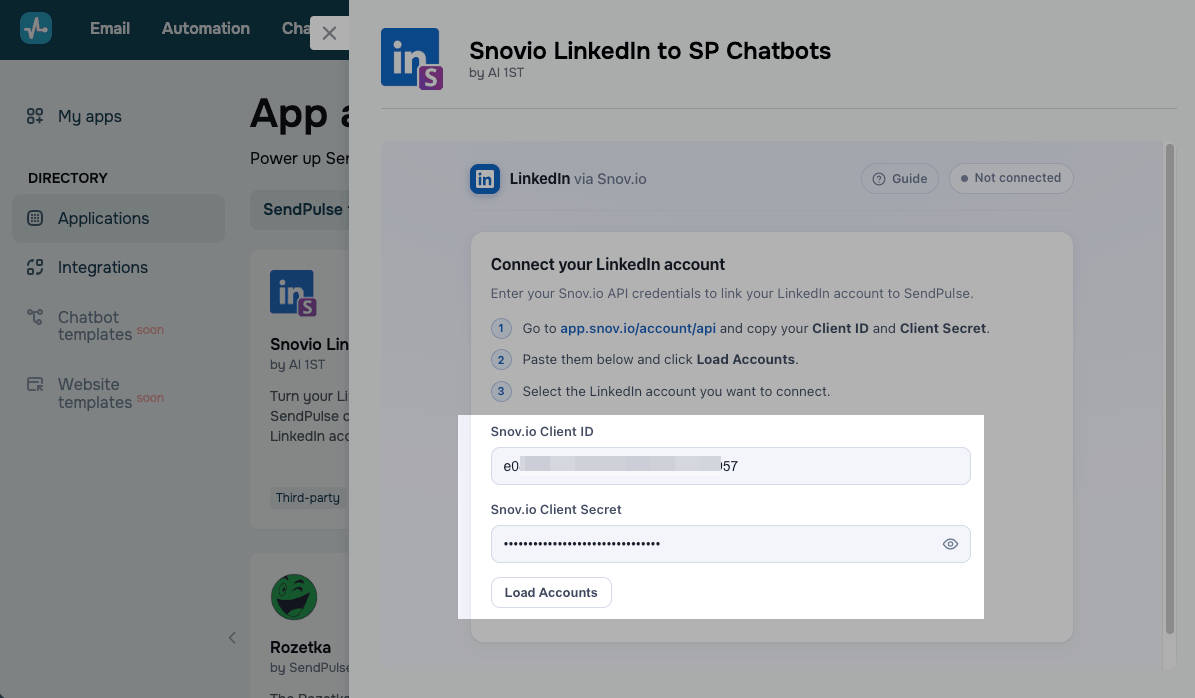
In the app window, paste your Snov.io API keys into the Snov.io Client ID and Snov.io Client Secret fields, then click Load Accounts.
Choose your LinkedIn account. Decide if you want to import your existing conversations, then click Connect Account.
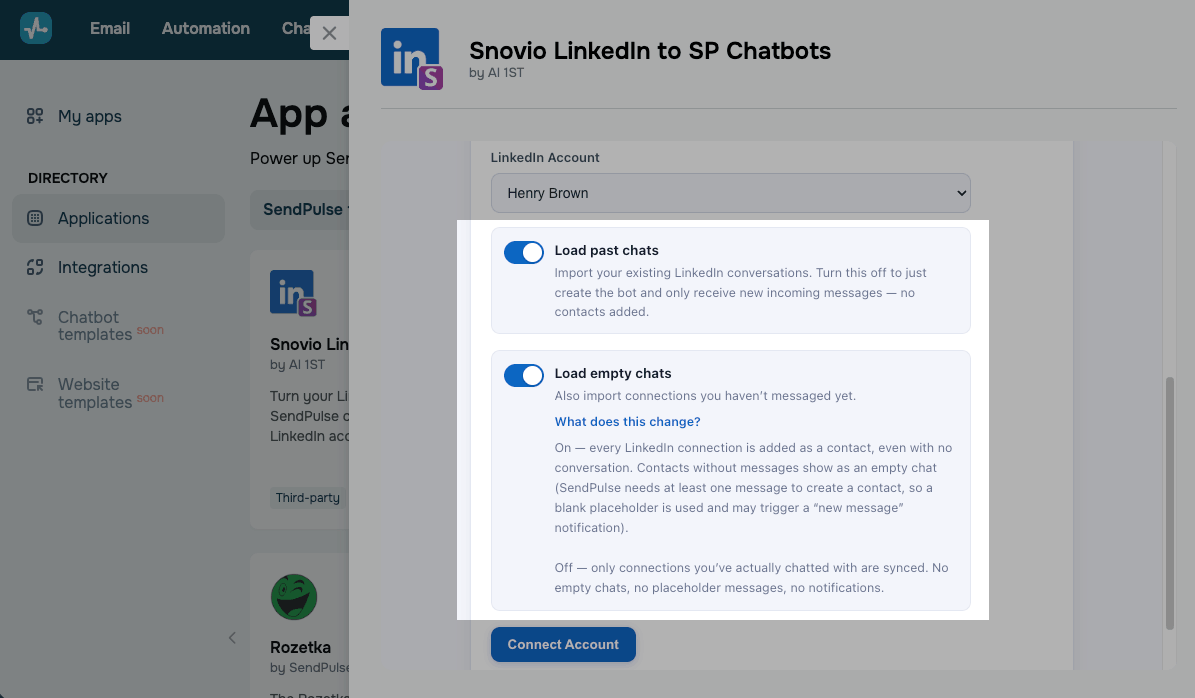
SendPulse creates a dedicated chatbot for each connected LinkedIn account.
Read more: Create a LinkedIn chatbot.
Once you connect your account, your chatbot automatically appears in the Chatbots section under the Bridge channel, where you’ll be able to start creating triggers and flows.
Manage the app
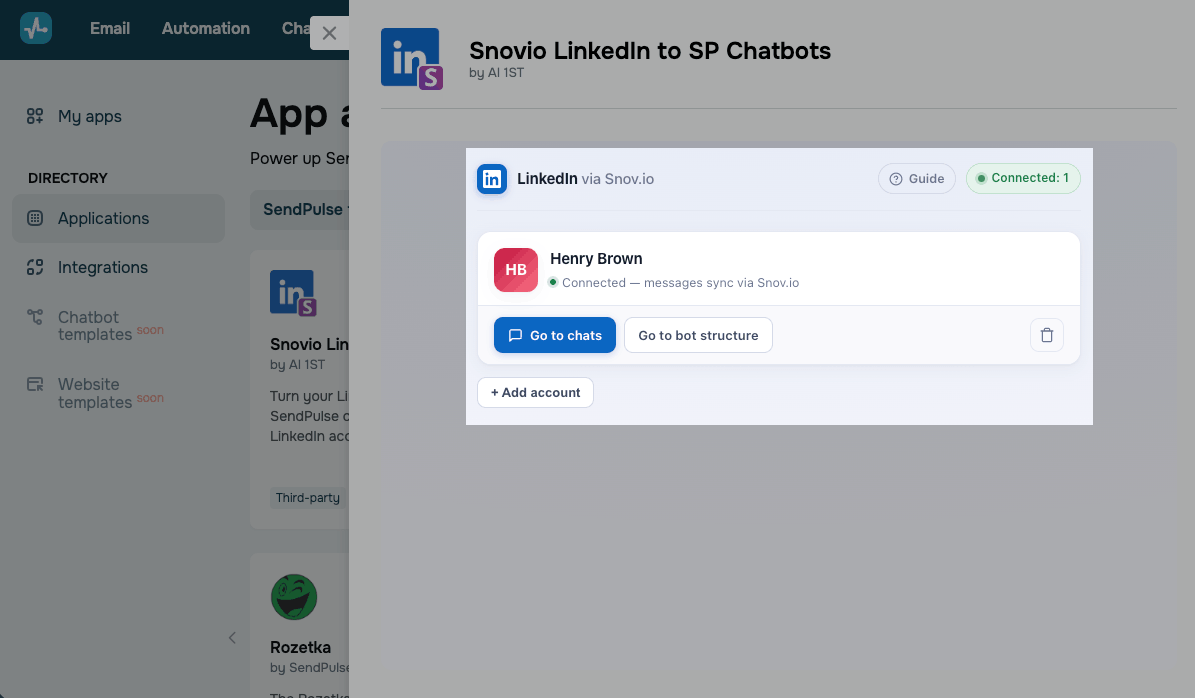
In the app window, you can manage your connected accounts and the integration.
To learn more about the integration's limitations and troubleshooting tips, see Run your LinkedIn conversations from SendPulse Chatbots.
To chat with your LinkedIn connections, click Go to chats.
To build chatbot flows, click Go to bot structure.
Read more: Automate your LinkedIn communication, Create a chatbot structure, and Tips on chatbot flow design.
To connect another LinkedIn account, click Add account.
To remove a connected account, click the trash can icon.
If you remove a connected account or uninstall the app, SendPulse will delete the chatbot created for that LinkedIn account.
To uninstall the app, go to My apps. Find the installed app and click the three dots next to it. Select Delete.
 Last Updated: 20.08.2026





or