Create a LinkedIn chatbot
With the Snovio LinkedIn to SP Chatbots integration, you can connect your LinkedIn account to SendPulse and manage your LinkedIn conversations without leaving SendPulse.
Let’s talk about how to integrate your LinkedIn account with SendPulse-powered chatbots through Snov.io.
LinkedIn chatbot benefits and use cases
With a LinkedIn chatbot, you can automate routine replies and manage your LinkedIn messages alongside your other communication channels. This helps you support sales and marketing activities, manage client communication at an agency, or stay in touch with your LinkedIn network.
With this integration, you can:
- add LinkedIn to your shared inbox to reply to messages from all sources in a single place;
- automatically reply to messages based on keywords;
- integrate with ChatGPT to answer free-form questions;
- save inquiries to the CRM system, so your team can follow up on them;
- assign conversations to team members when a lead is ready to buy or asks a complex question.
Here’s how teams can use it:
- A recruiting agency can automate candidate communication. Their chatbot sends a job description link to everyone who messages the company account, and a recruiter can continue the conversation with the full message history. To do this, create a trigger with the keyword
vacancy, and build a flow with the Message element that sends the link. - A B2B sales team can record every inquiry as a deal in the CRM system, so leads from LinkedIn move through the same pipeline as leads from your other sales channels. To do this, build a flow where the Message element with the Wait for the subscriber's response option asks the lead about their request, and the Action element creates a deal.
- A marketing agency or a solo marketer can reply to all clients in one place, and their chatbot can cover LinkedIn messages outside of working hours. To do this, create a trigger with the keywords
pricinganddemo, and build a flow with the AI Agent element that gives leads a first reply and shares your booking page link.
Basics
The integration runs through Snov.io. Connect your LinkedIn account to Snov.io, and it will sync your LinkedIn conversations with SendPulse.
To connect an account, you need a LinkedIn slot in Snov.io. A slot is a paid add-on, and each one supports a single LinkedIn account.
Snov.io syncs messages in batches rather than delivering them in real time. Expect delays of up to 5 minutes to receive a message and up to 4 minutes to send one. These delays are expected behavior, not an error, so avoid building flows that rely on instant replies.
Keep the following in mind when using this integration:
- Message requests from people you have not connected with do not sync. Accept the invitation on LinkedIn first, and the conversation will appear in SendPulse after the next sync.
- When someone messages you for the first time, Snov.io needs time to recognize them. Their first message may arrive with an extra delay, and the contact can appear before their name loads.
- You can receive and send messages with attachments. Subscribers receive attachments as a file link, not as a native file.
- LinkedIn does not support buttons in messages, so flows use text and links instead.
- LinkedIn restricts bulk messaging to people outside of your network, so use it for inbound communication with your existing connections, and don’t send bulk messages to people you're not connected with.
Getting started
Before you set up the integration, make sure you have everything you need:
| A SendPulse account with the Chatbots section | This integration is free to use and included in the free chatbot builder plan. |
| A Snov.io account | A free Snov.io account is enough, but you’ll need to reactivate your free plan every 30 days. Otherwise, syncing stops. |
| A LinkedIn account | You’ll need to enter your LinkedIn login credentials in Snov.io. |
| A LinkedIn slot in Snov.io | A slot is a paid Snov.io add-on.
Snov.io accounts have no slots by default. Each slot supports one LinkedIn account. |
LinkedIn can temporarily restrict new accounts, even without any automation involved. If your account is new, warm it up for about a month before using it for this integration. Complete your profile and add connections gradually.
Sending too many connection requests can also trigger a restriction, especially if people don't accept them.
Connect your LinkedIn account to Snov.io
In this integration, Snov.io sends and receives your LinkedIn messages. Start by connecting your LinkedIn account to it.
Buy a LinkedIn slot
To add a LinkedIn account to Snov.io, you’ll need a slot for it.
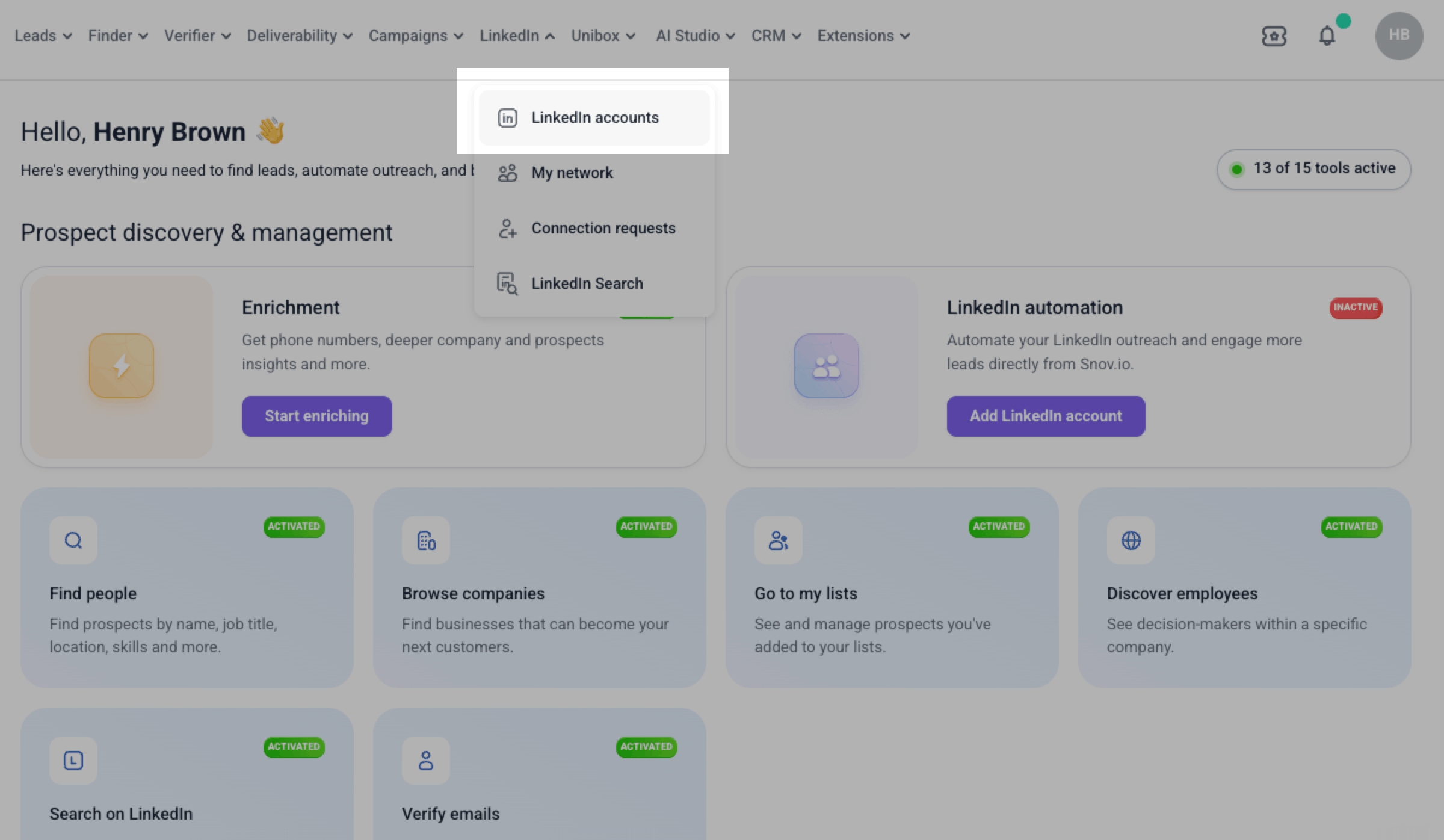
Log in to your Snov.io account, then go to LinkedIn > LinkedIn accounts.
Click Add LinkedIn slots.
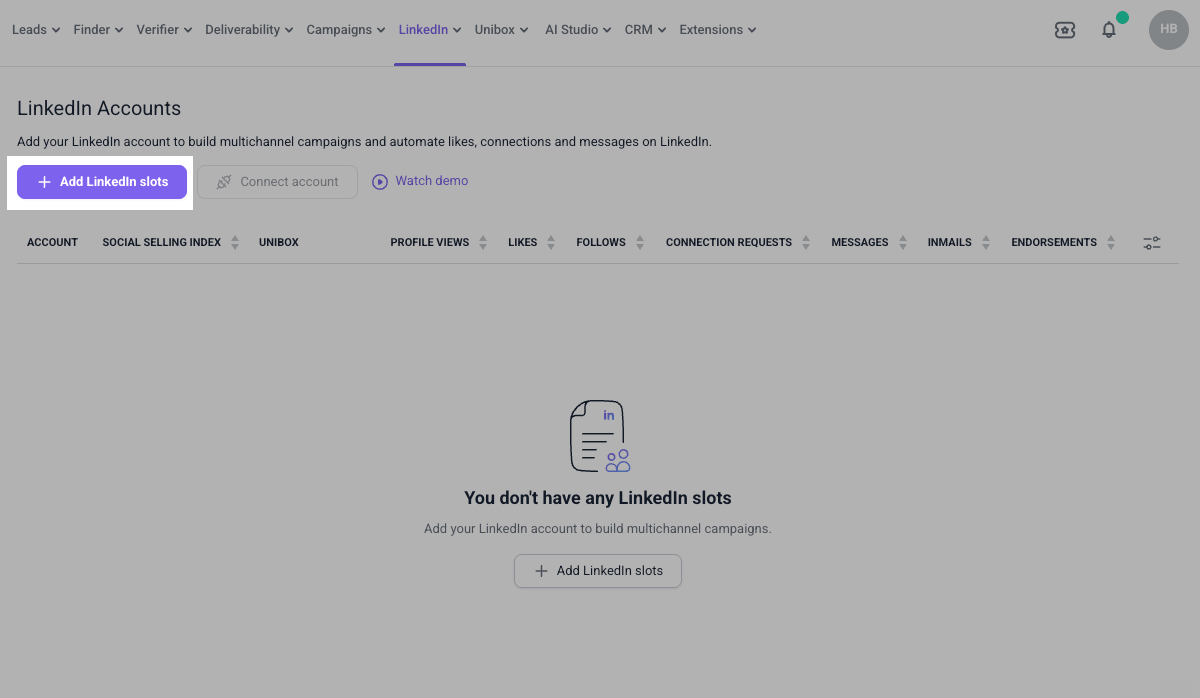
In the pop-up window, select a number of slots. One slot corresponds to one LinkedIn account. Click Proceed to payment and pay for the slots. The slot you bought will appear on the LinkedIn Accounts page.
Add your LinkedIn account
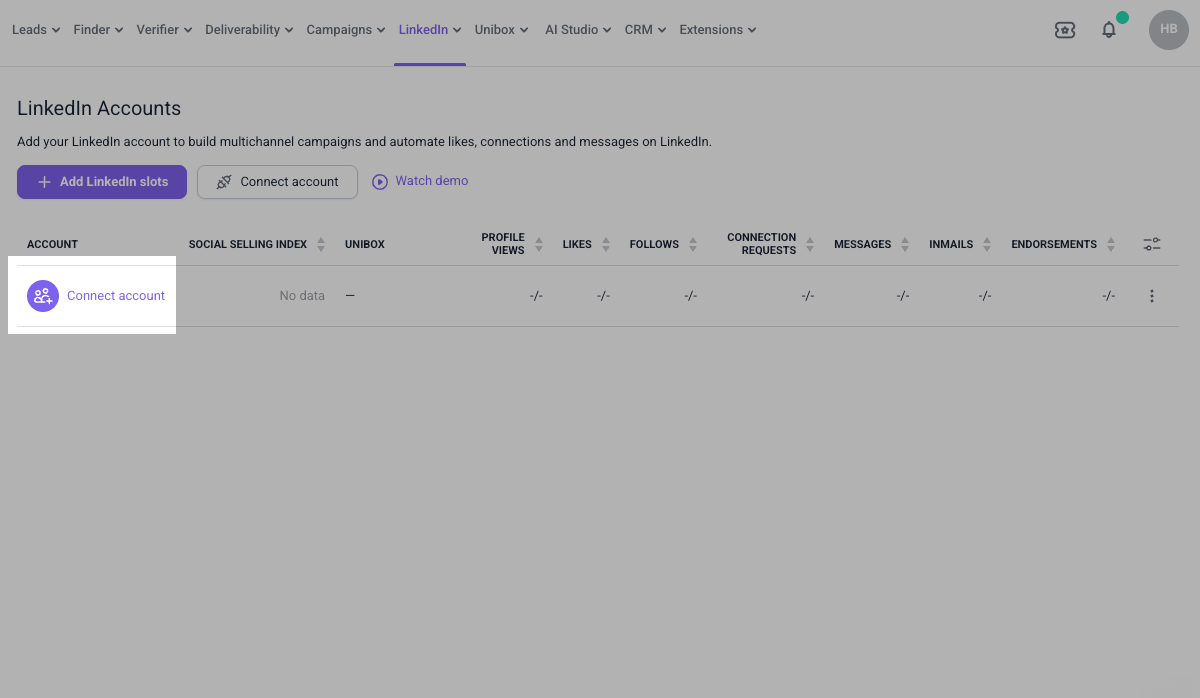
Next, connect the LinkedIn account whose conversations you want to manage through SendPulse. Click Connect account next to the empty slot.
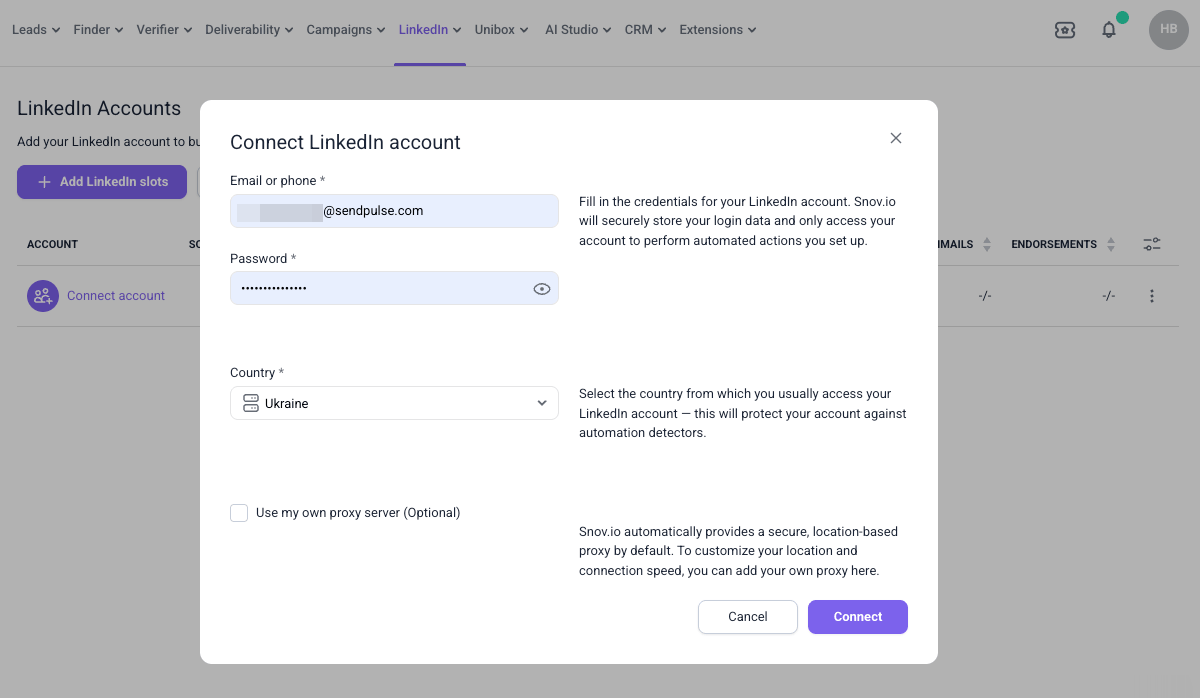
A pop-up window will appear. In the Email or phone field, enter your LinkedIn email address or phone number. In the Password field, enter your LinkedIn password. In the Country field, select the country you usually log in to LinkedIn from. This helps avoid triggering LinkedIn's security checks.
To use your own proxy server, select the Use my own proxy server checkbox. Click Connect.
You’ll need your LinkedIn password to connect your account. If you signed up with Google and don't have a password yet, set one on the LinkedIn password reset page. LinkedIn will email you a reset code so that you can create a new password.
Snov.io will start connecting to your LinkedIn account and assign a dedicated proxy. Keep the page open until this process is complete.
LinkedIn may ask you to confirm the connection. If it does, check your email for a verification code. In the Account verification window, enter the code and click Verify.
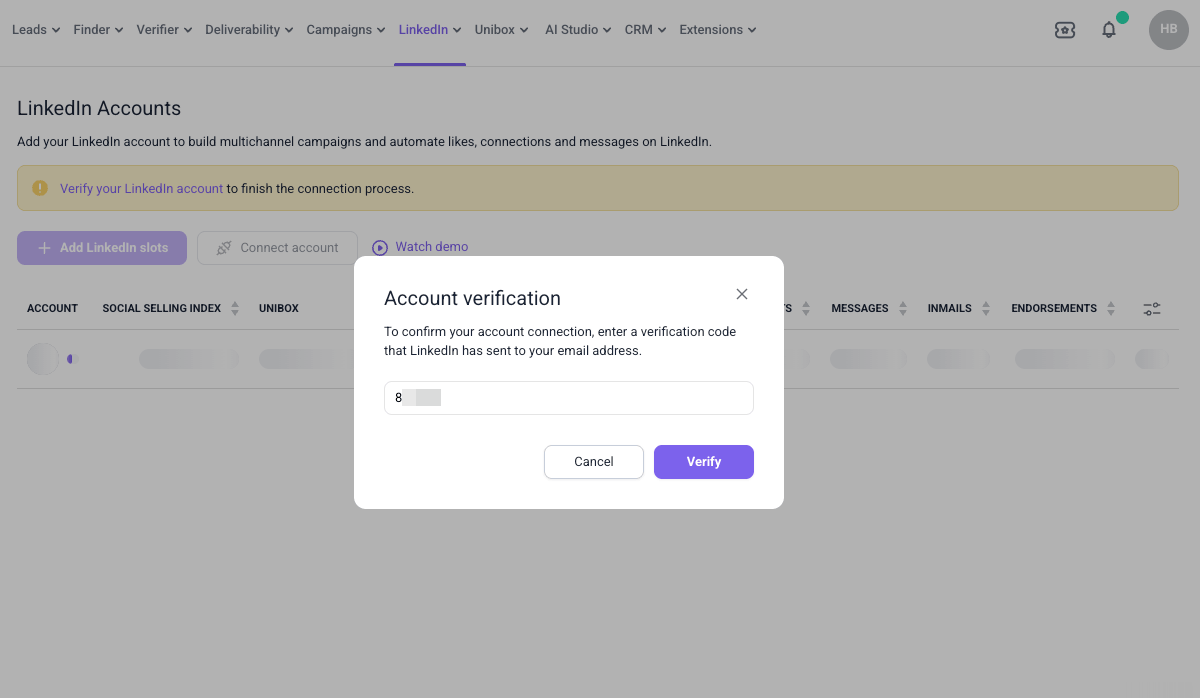
Snov.io will now load your account data. This can take up to 15 minutes. When it's done, the account status changes to Active.
Copy your Snov.io API keys
To connect your Snov.io account to SendPulse, you’ll need your Snov.io API keys.
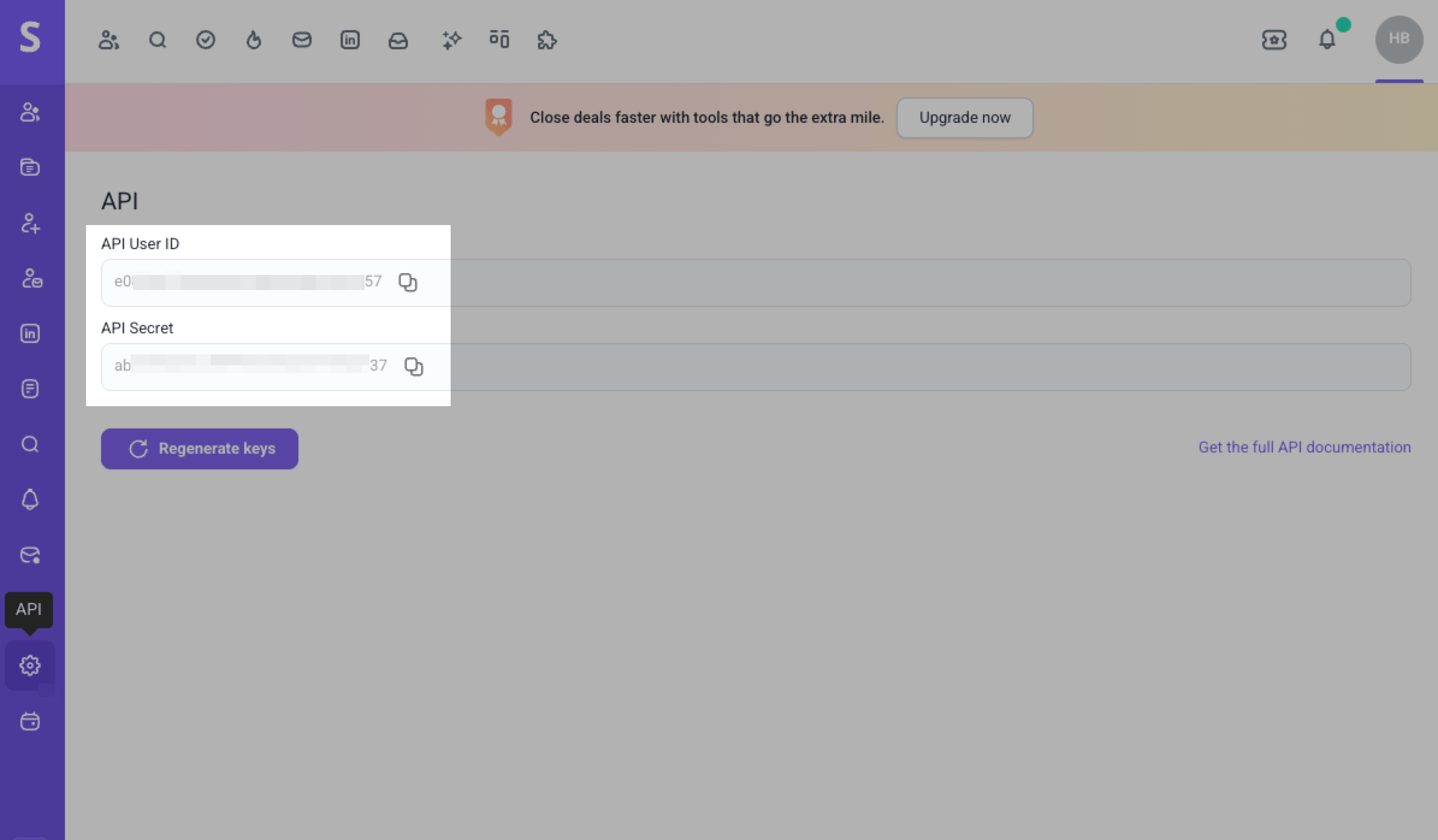
In the upper-right corner of your Snov.io account, click your profile icon and select Account. Go to the API section. Copy the API User ID and API Secret values.
Connect your LinkedIn account to SendPulse
Once your LinkedIn account appears in Snov.io, install the app, then connect your account to SendPulse.
Install the app
To install the app, in your SendPulse account, go to the App directory > Applications. Find the Snovio LinkedIn to SP Chatbots app and click Install. Go over the list of permissions the app requires and click Grant consent.
Load your LinkedIn account
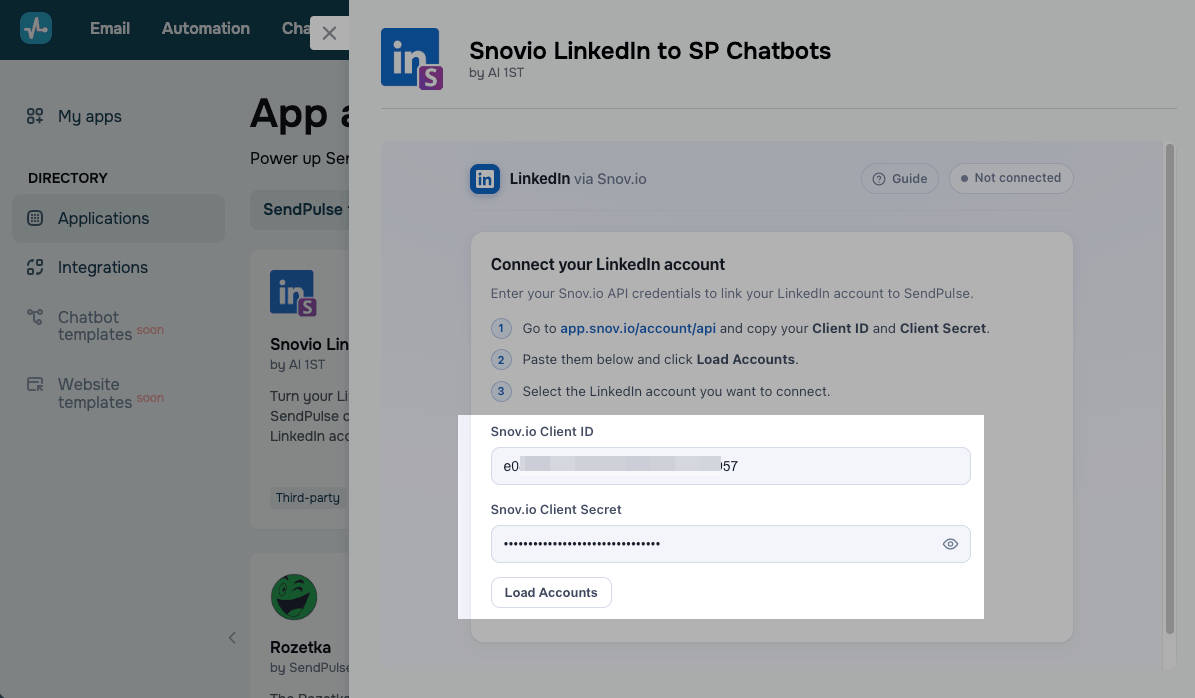
To connect your LinkedIn account, in the Snov.io Client ID and Snov.io Client Secret fields, paste the copied values. Click Load Accounts.
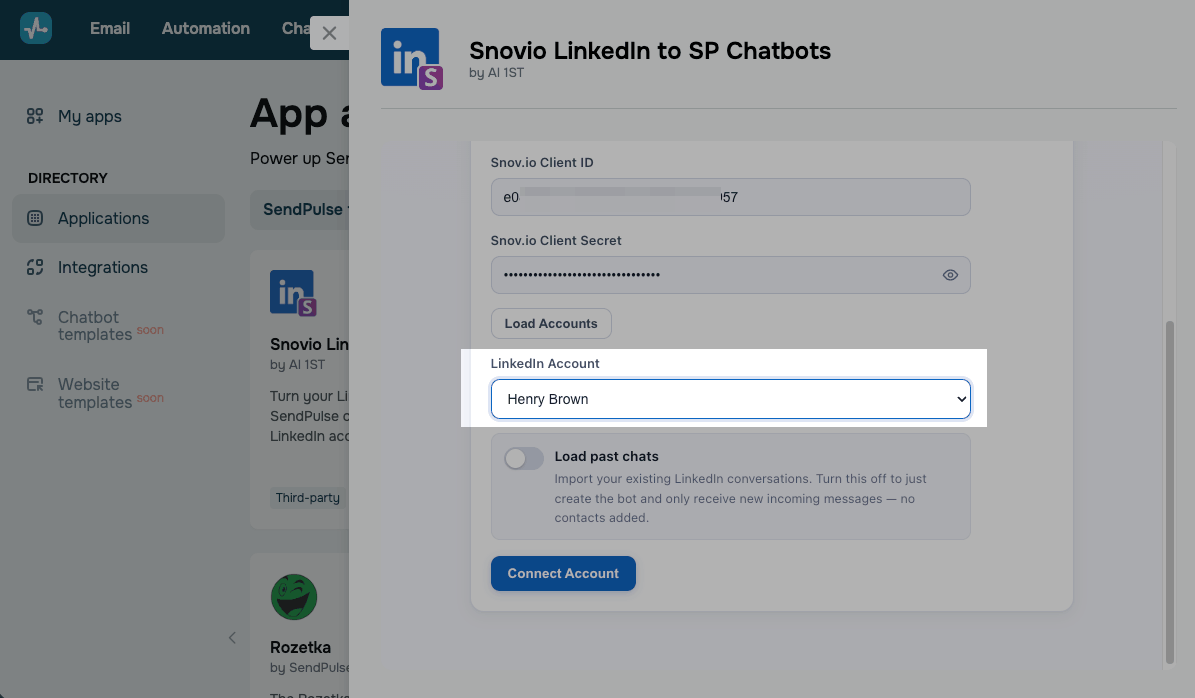
In the LinkedIn Account drop-down list, select the account you want to use. If you've purchased multiple LinkedIn slots in Snov.io, you'll see all your connected accounts listed here. Each account you connect gets its own chatbot.
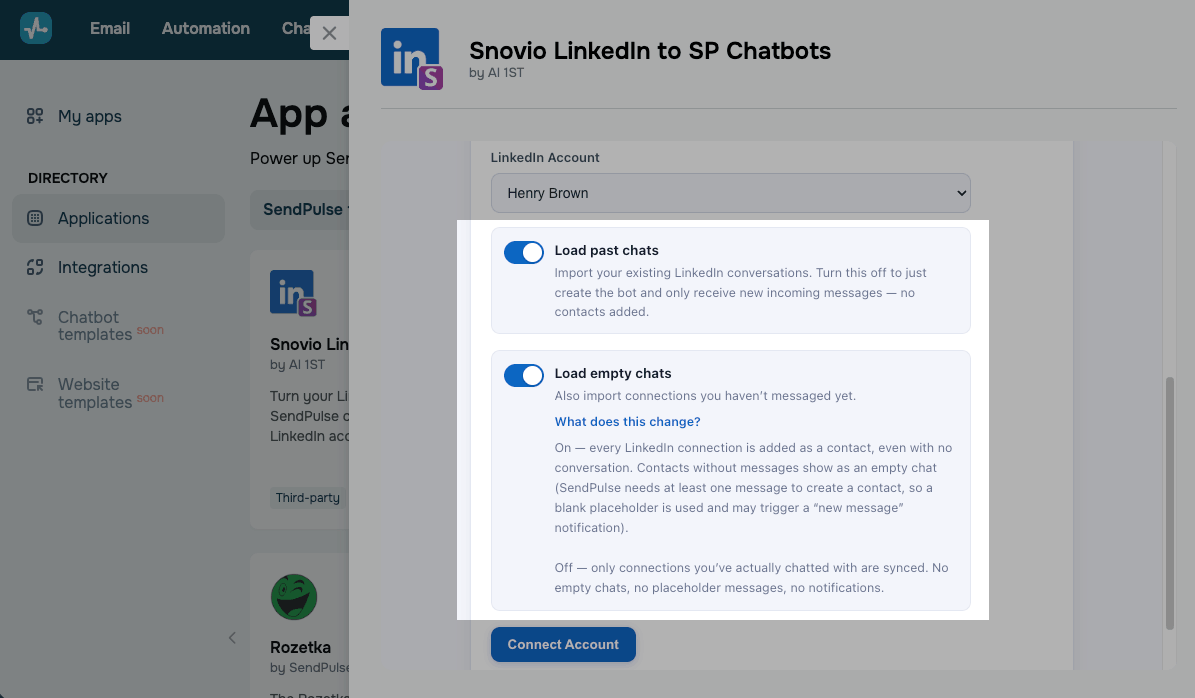
Choose chats to load
Use these two toggles to decide whether to import your existing LinkedIn conversations:
| Load past chats | Imports your existing LinkedIn conversations to SendPulse.
If you turn off this toggle, the integration creates a chatbot with no subscribers. Chats appear only after you receive new messages on LinkedIn. |
| Load empty chats | Imports all your connections, even ones you've never messaged. These appear as empty chats and can trigger new message notifications.
If you turn off this toggle, only conversations with at least one message get imported. An empty chat is a connection you’ve never exchanged messages with. If someone messages you and you don't reply, this chat doesn't count as empty. |
Every imported contact counts as a subscriber toward your chatbot pricing plan limit. If your LinkedIn account has hundreds of connections, importing all chats can consume a large part of your limit. Once you reach it, the integration will stop adding new subscribers.
Add your account
Once you've chosen the loading options, click Connect Account.
Your conversations start loading in the background, and new chat notifications appear in your account, which is expected during the import.
The import takes 5–50 minutes, depending on how many connections you have. Conversations load from oldest to newest, so your most recent chats appear at the top of the inbox with the correct dates.
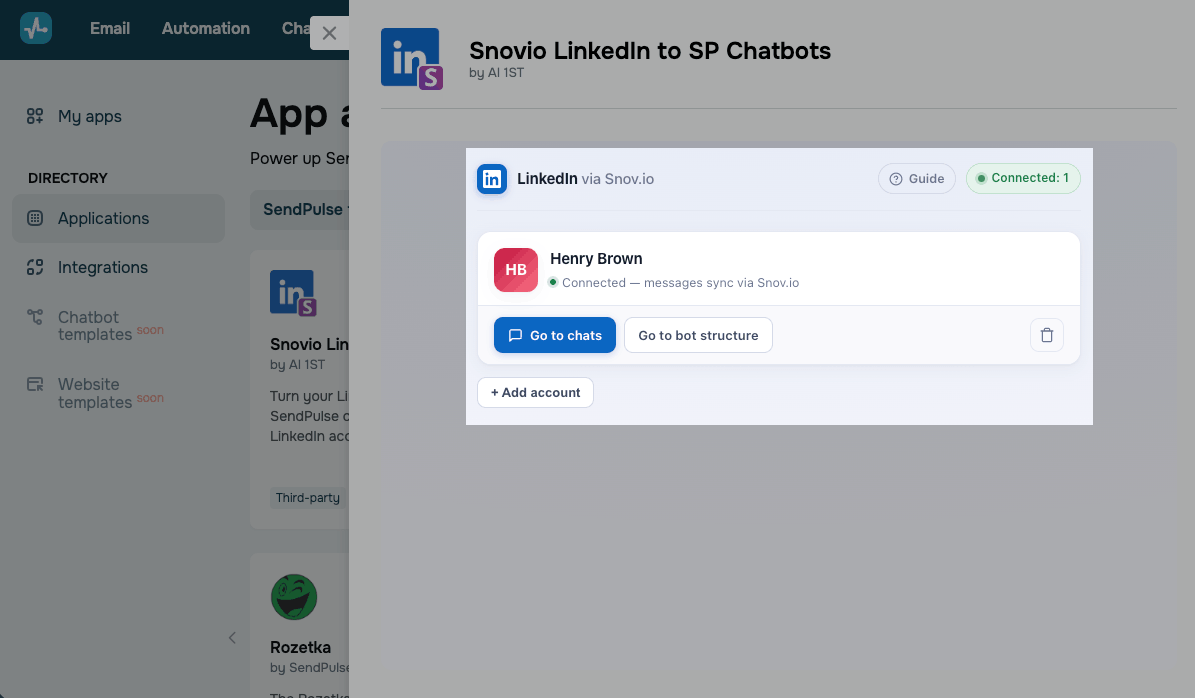
Once your account is connected, its card appears in the app window with the Connected status.
To open LinkedIn conversations in your chatbot, click Go to chats.
To build chatbot flows, click Go to bot structure.
Set up your chatbot
Once you connect your account, your chatbot appears automatically in the Chatbots section, under the Bridge channel. From there, you can create triggers and flows.
Your chatbot name combines the LI prefix with your LinkedIn account name.
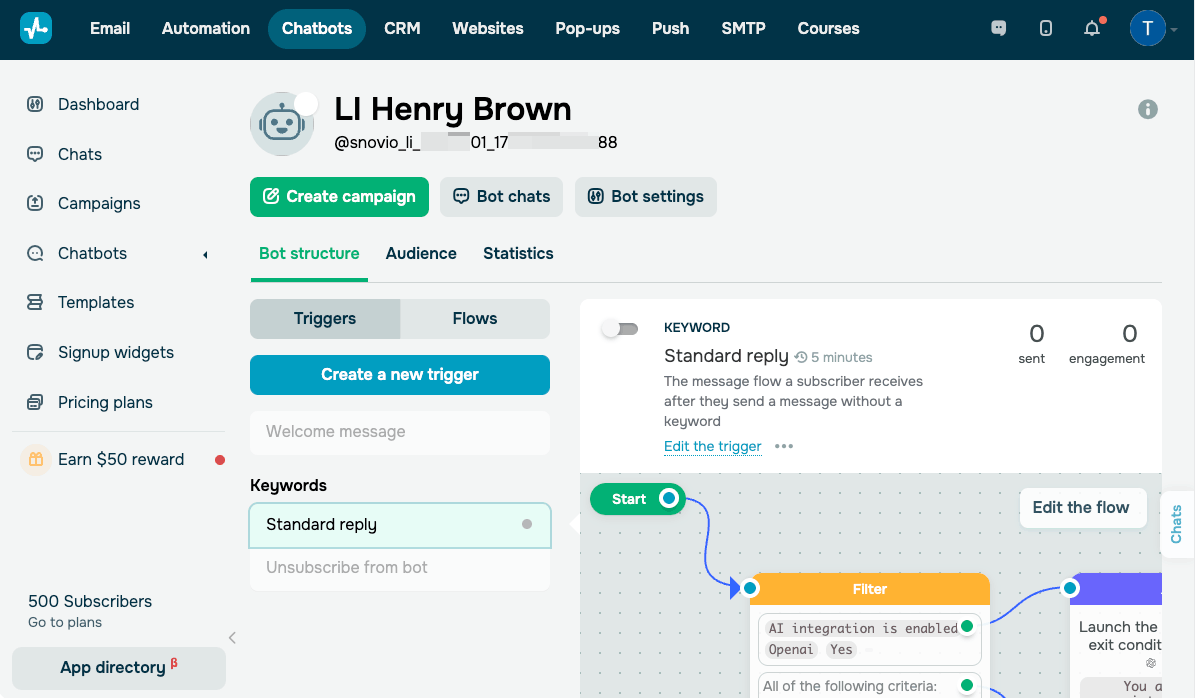
The Standard reply is set up by default. You can also create your own triggers using keywords.
Your chatbot runs a flow when an incoming message contains the keyword. For example, you can send your price list to anyone who messages "price," or share a booking page link with people requesting a demo outside your working hours.
Build your flows around text and links to your website, calendar, or files directly in your messages.
Map out the key conversations your chatbot will handle, and build flows using chatbot builder elements. You can also manage your flow branches using the Filter and AI Agent elements.
Read more: Automate your LinkedIn communication, Create a chatbot structure, Tips on chatbot flow design.
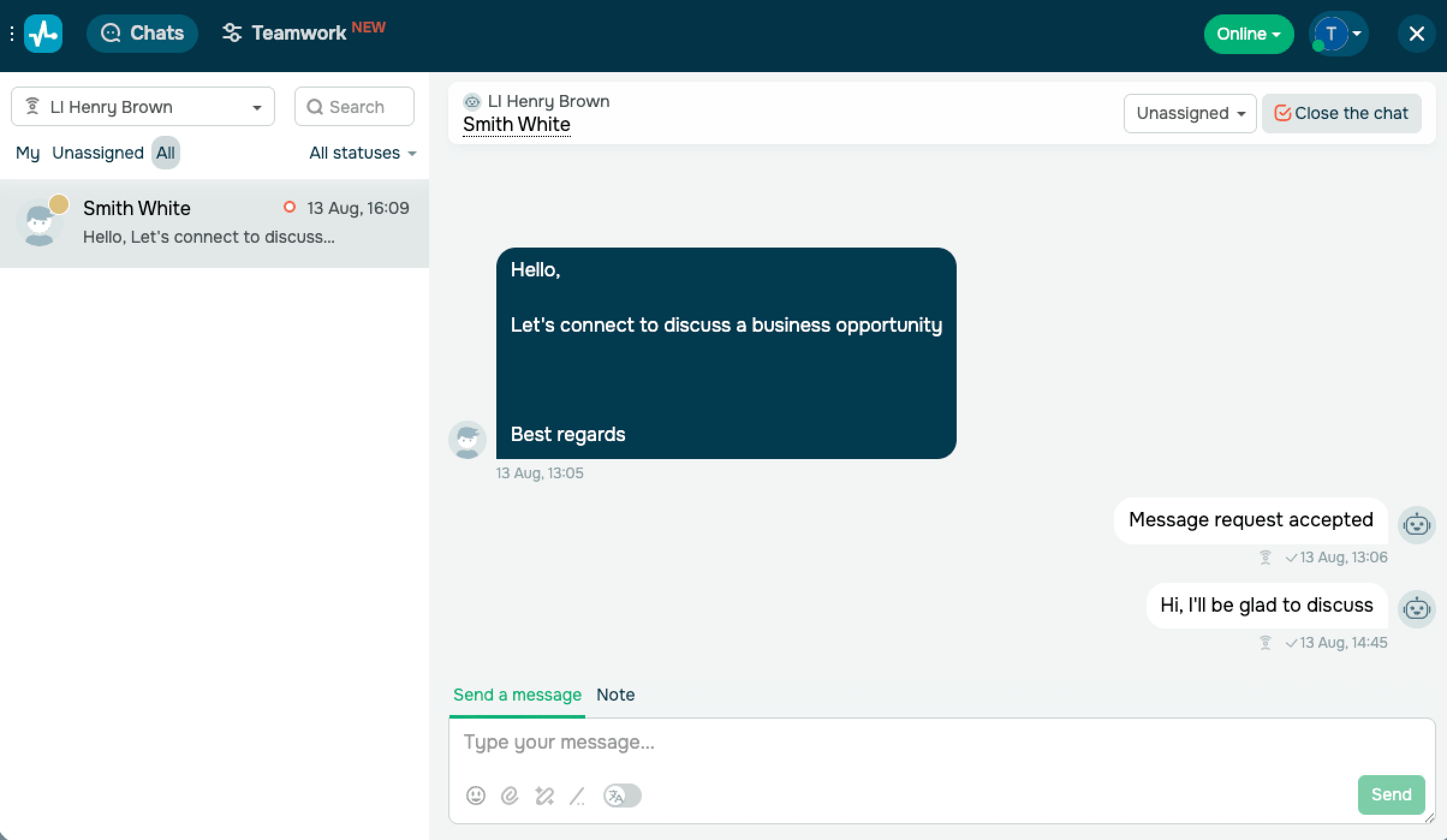
To chat with your LinkedIn connections, click Go to chats in the app window. Alternatively, you can go to the Chatbots section. Select your LinkedIn chatbot and click Bot chats. You can read and reply to messages just like you would in any other messaging channel.
 Last Updated: 20.08.2026


or