Integrate SMS with SendPulse-powered chatbots
With the SMS Chat in SendPulse app, you can get a dedicated phone number, create an SMS chatbot, and reply to incoming text messages without leaving SendPulse.
Integration features:
- register a dedicated phone number and create an SMS chatbot for each country;
- automatically reply to incoming messages with keyword-based flows;
- message customers and manage conversations from other sources in Chats.
If your customers prefer texting, for example, for order updates or appointment confirmations, this integration helps you automate your SMS messages and keep every conversation in one place.
Let’s talk about how to install the app, register a phone number, and manage the integration.
Install the app
Go to App directory > Applications, then search for SMS Chat in SendPulse. Next to the app, click Install. You can also click Preview to open the app page and click Install.
In the next window, go over the data the app wants to access, and click Accept.
Register a phone number
An SMS chatbot uses a phone number registered in your recipients' country. That phone number can send SMS messages only within that country.
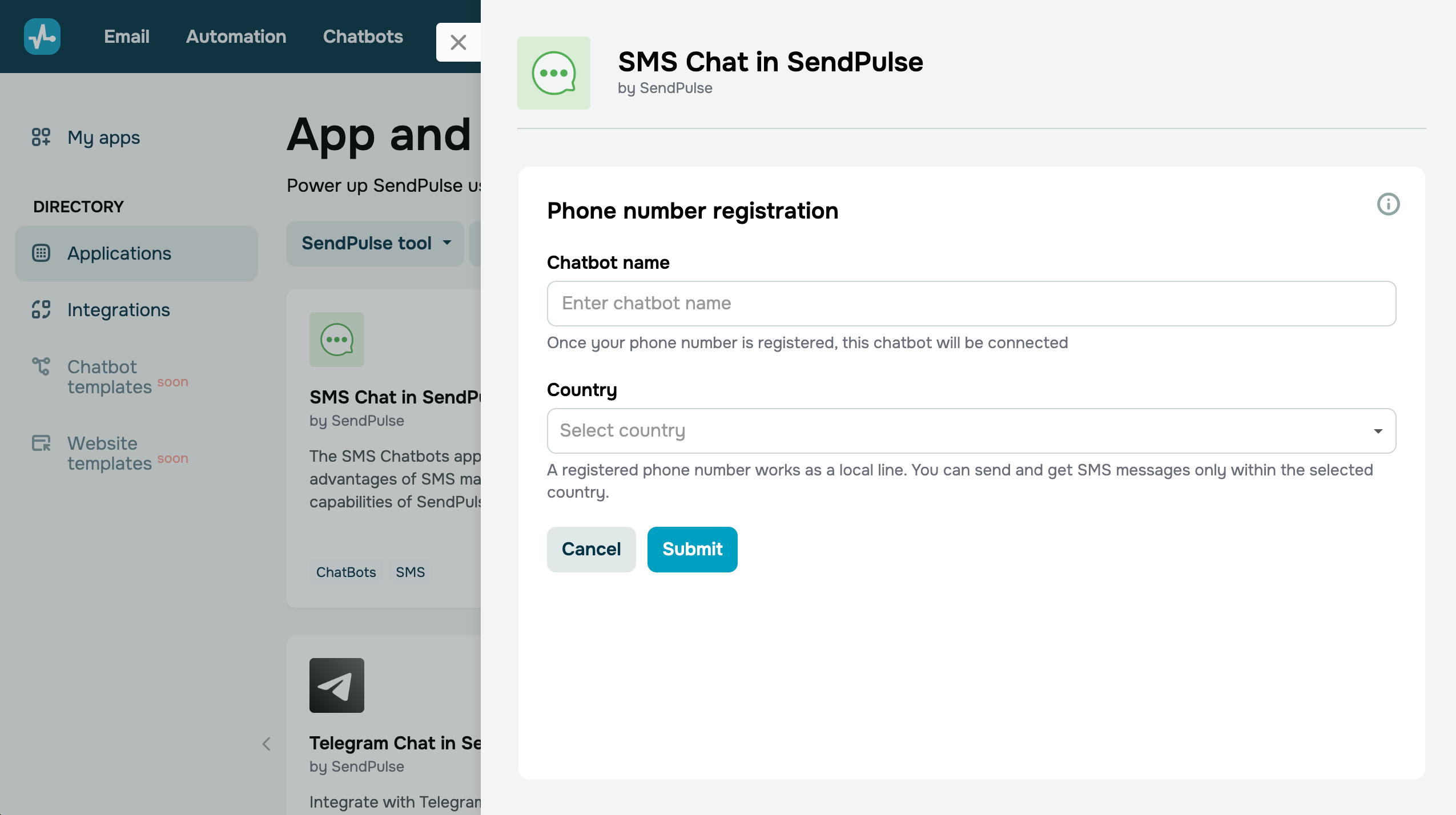
In the app window, click Add number. Enter a chatbot name and select the country where you plan to send SMS messages.
Depending on the country, the form may include more fields. Before submitting, check the pricing terms and estimated review time, and make sure your account balance covers the registration fee and monthly charges.
To learn more about the required fields for each country and phone number pricing, see Create an SMS chatbot.
Once your request is approved, you will receive an email with your registered phone number, and your chatbot will appear in the Chatbots section.
Manage the app
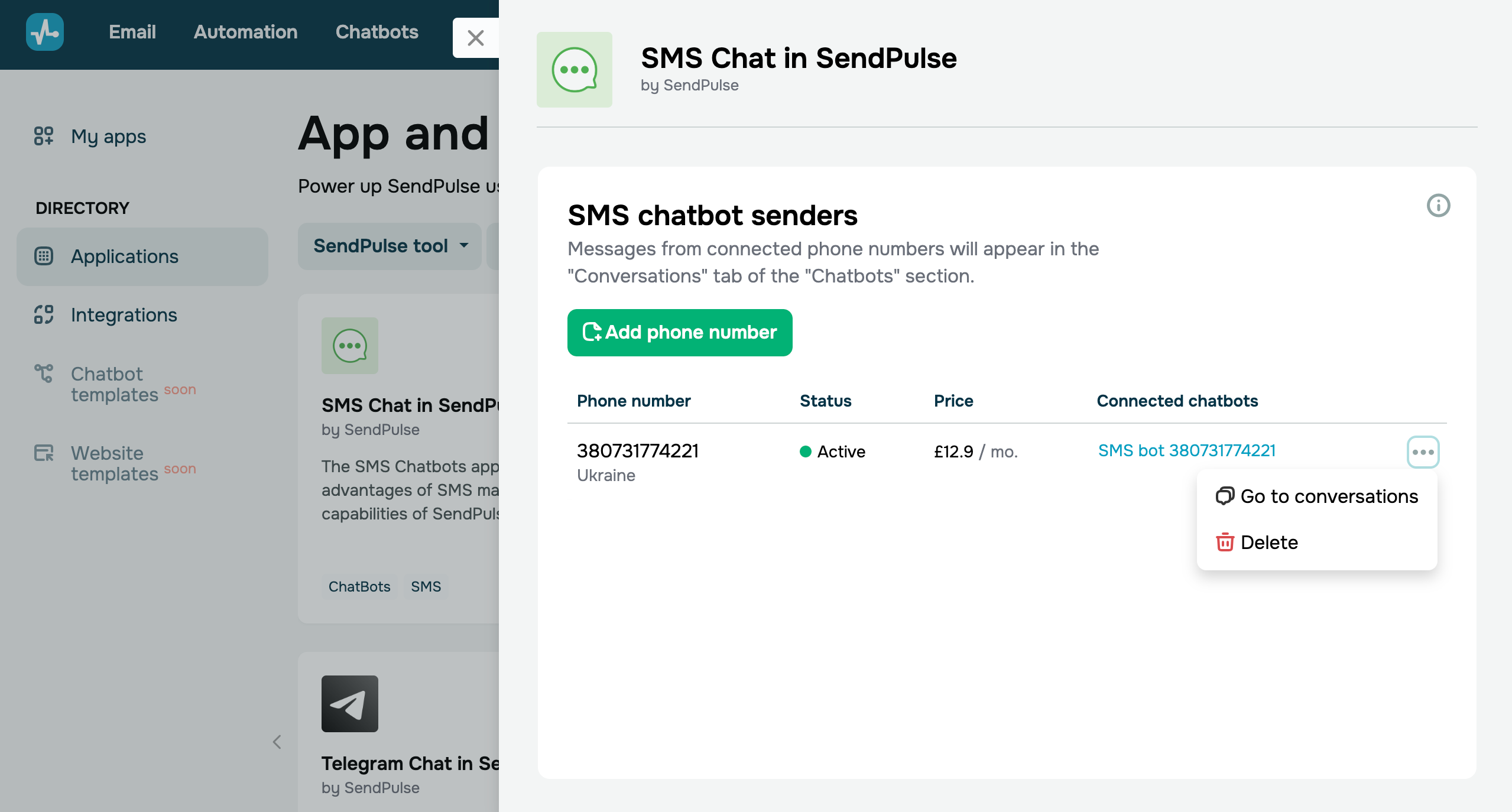
In the app window, you can manage your phone numbers and chatbots.
To go to your chatbot, click its link in Connected bots.
To open your conversations, click the three dots and select Open chats.
To register a phone number for another country, click Add number.
To build automated flows for your new chatbot, create triggers using keywords. Reply to subscribers just as you would in other messaging channels.
Read more: Create an automated SMS chatbot flow, Create your bot structure, and Tips on chatbot flow design.
To uninstall the app, go to My apps. Find the installed app and click the three dots next to it. Select Delete.
 Last Updated: 20.08.2026





or