Integrate Telegram with SendPulse's CRM system and chatbot builder
With the Telegram for CRM and chatbots app by SendPulse, you can connect your Telegram account to SendPulse and send messages to clients directly from the CRM system or your chatbots.
Integration features:
- Send Telegram messages within CRM contact cards or through chatbot conversations.
- Automatically create a bot in the Chatbots section and build flows.
- View and manage all conversations in the Chats section.
This integration helps you manage all customer interactions in a single interface and respond faster without switching between devices or apps.
In this article, we’ll walk you through how to connect your Telegram account, manage integrations, and send messages through the CRM system and SendPulse-powered chatbots.
Install the app
Go to App directory > Apps and search for Telegram Chat in SendPulse. Open the app, then click Install in the pop-up window.
In the next window, go over the data the app will access, then click Accept to grant permission.
Connect Telegram
Choose one of the available methods to connect your Telegram account:
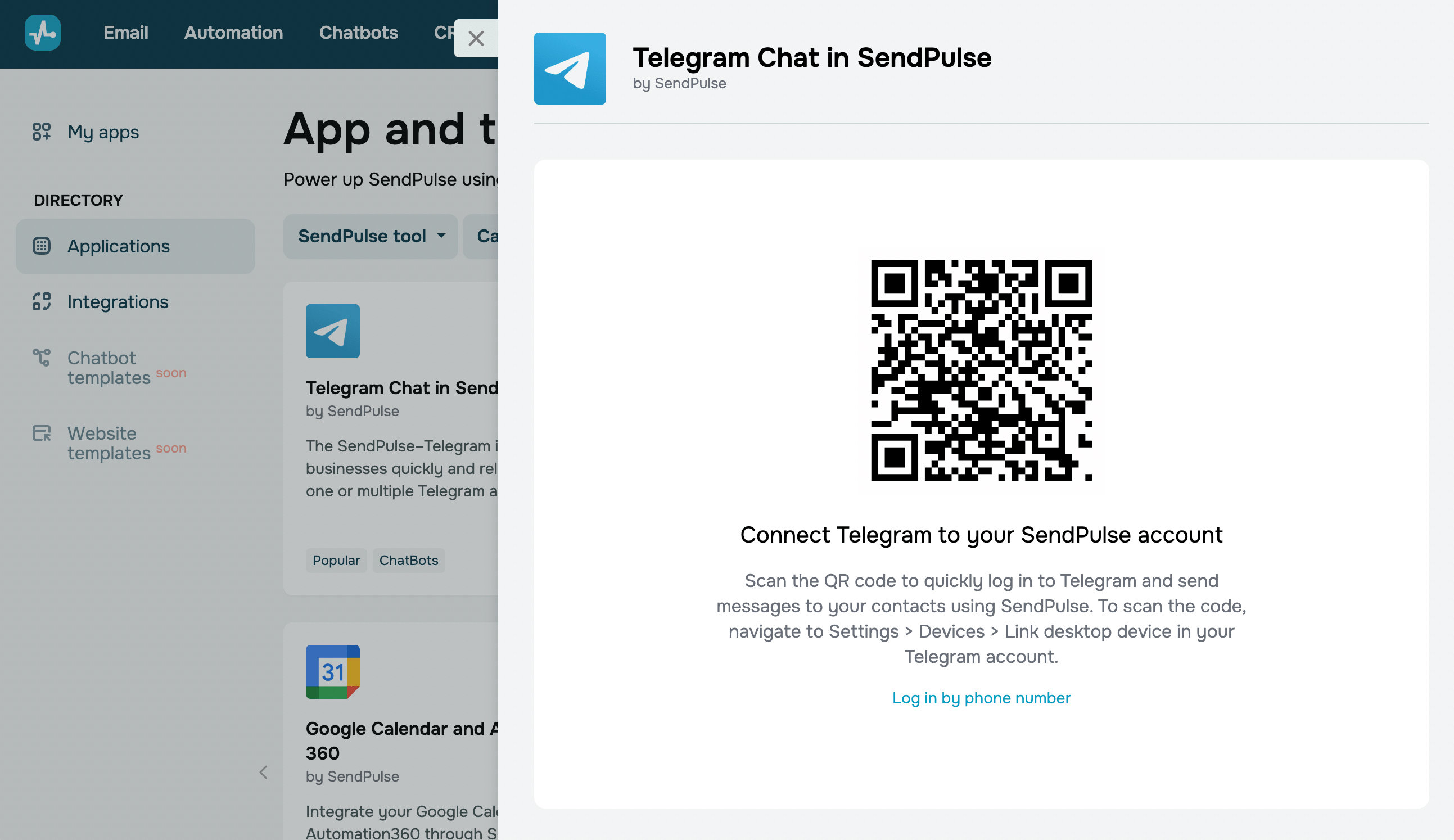
| Using the QR code | On your mobile device, open the Telegram app, go to Settings > Devices, and tap Link desktop device. Point your camera at the QR code on the screen and scan it. |
| Using your phone number | Click Log in with phone number. Enter the phone number linked to your Telegram account and click Get code. Copy the code you receive in the Telegram app and paste it into the field. |
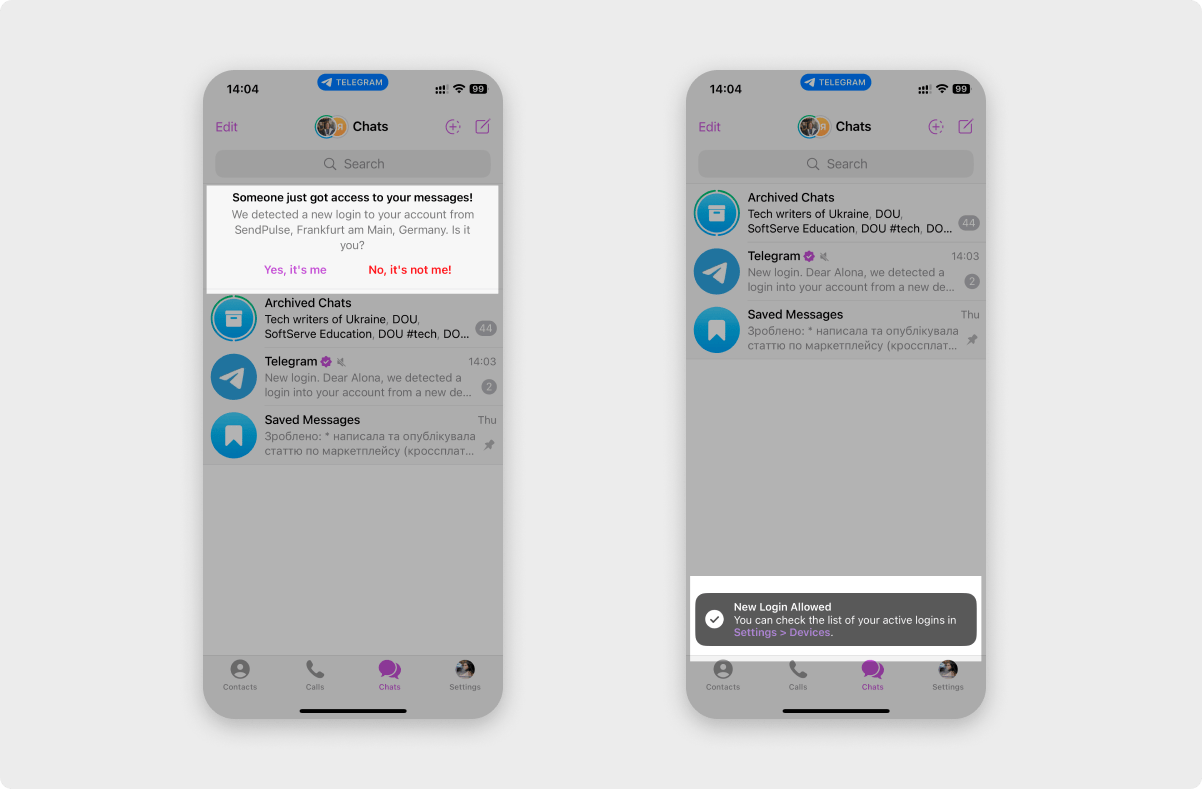
To allow message sending through the app, open Telegram and approve the access request.
Manage the app
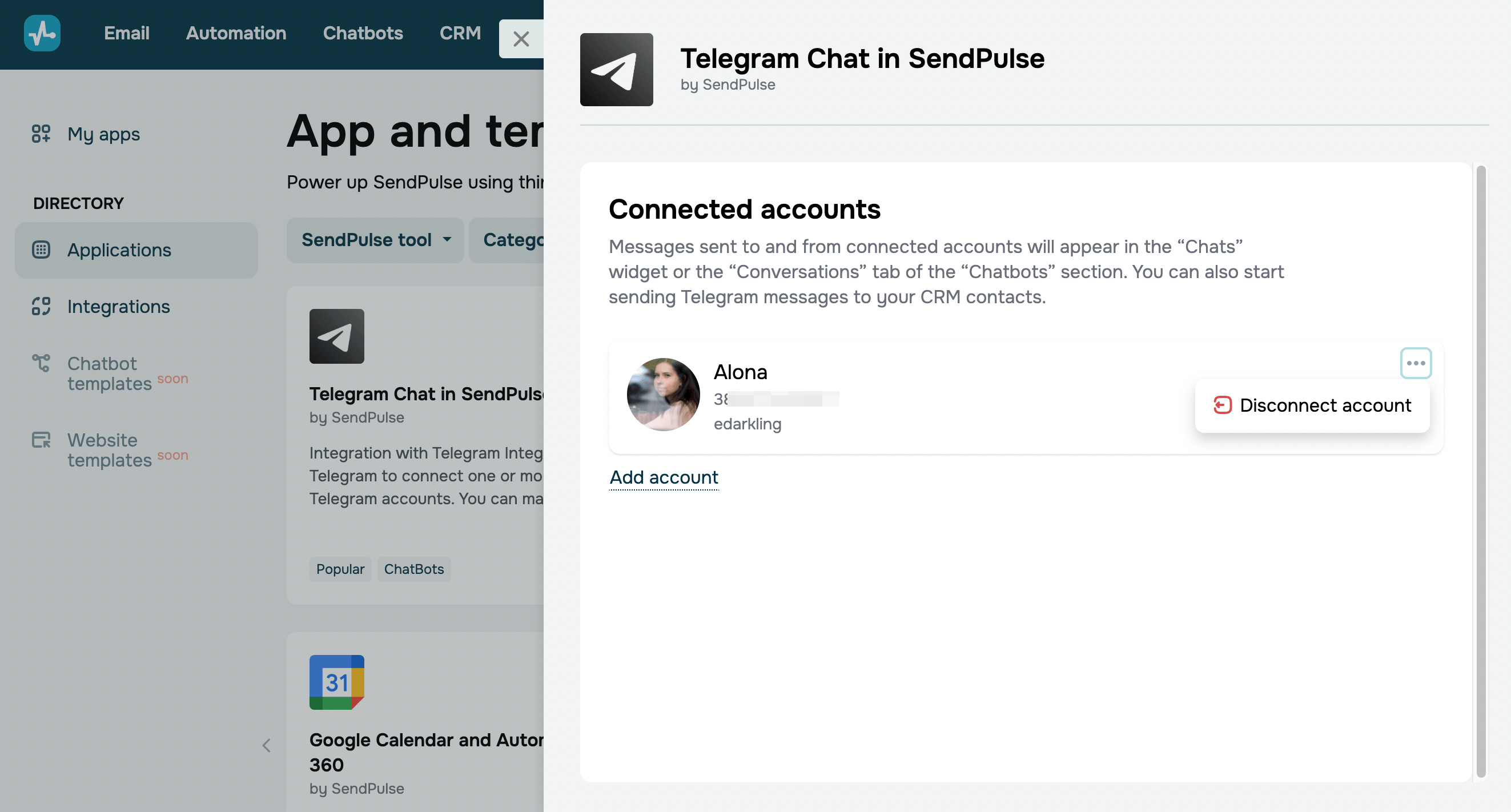
Once connected, your Telegram account will appear on the list of connected accounts. On the app page, you can remove the current phone number or add a new one.
You can then send messages, manage conversations, and more in the CRM and Chatbots sections.
Manage sessions
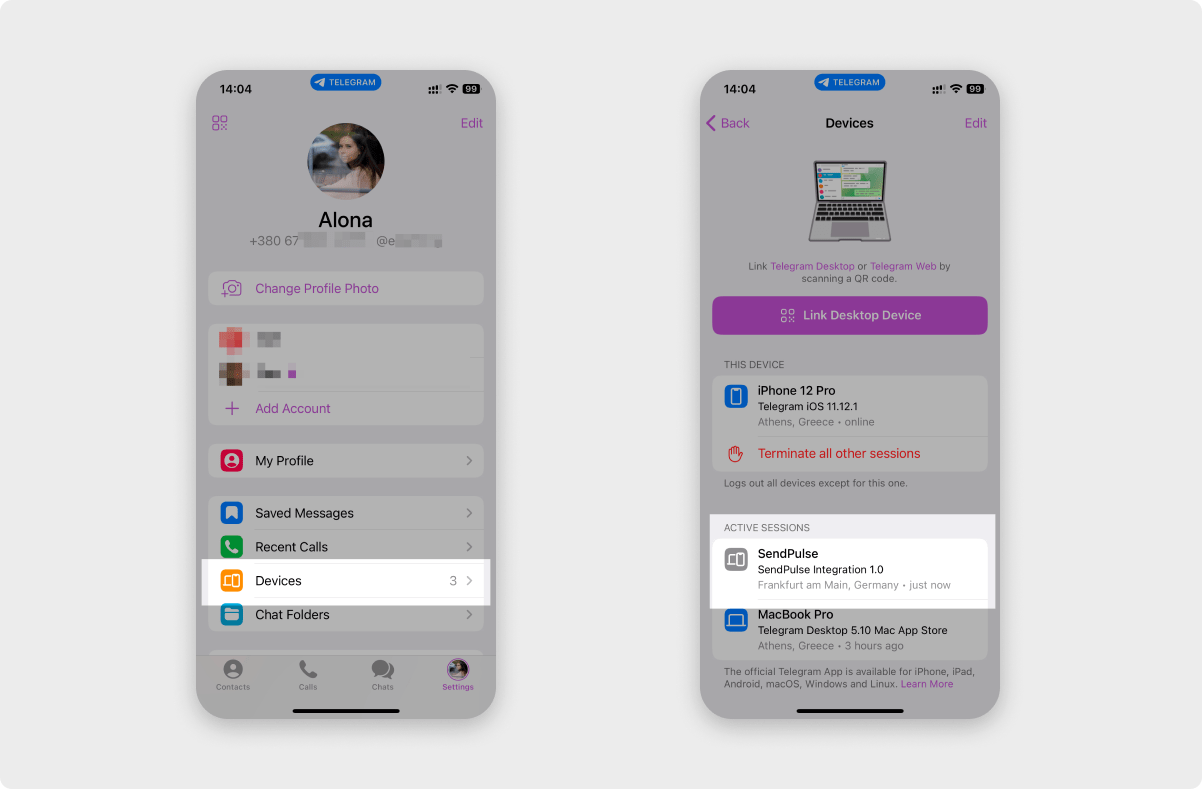
Telegram creates a dedicated session for every connection. You can only link one Telegram account to one app.
If you don't have access to SendPulse but need to disconnect your account, open the Telegram app, go to Settings > Devices > Active sessions, and remove your session manually.
Use the app
In the CRM section
Open a CRM contact card. To send a message, click a phone number or Telegram username and select Start chat. A window where you can start a conversation will appear.
Your recipient’s phone number must be linked to a Telegram account. If the phone number or messaging app field is not filled in, the button will not appear.
In the Sender field, choose which connected Telegram account to send your message from. Then, enter your message in the next field and click Send.
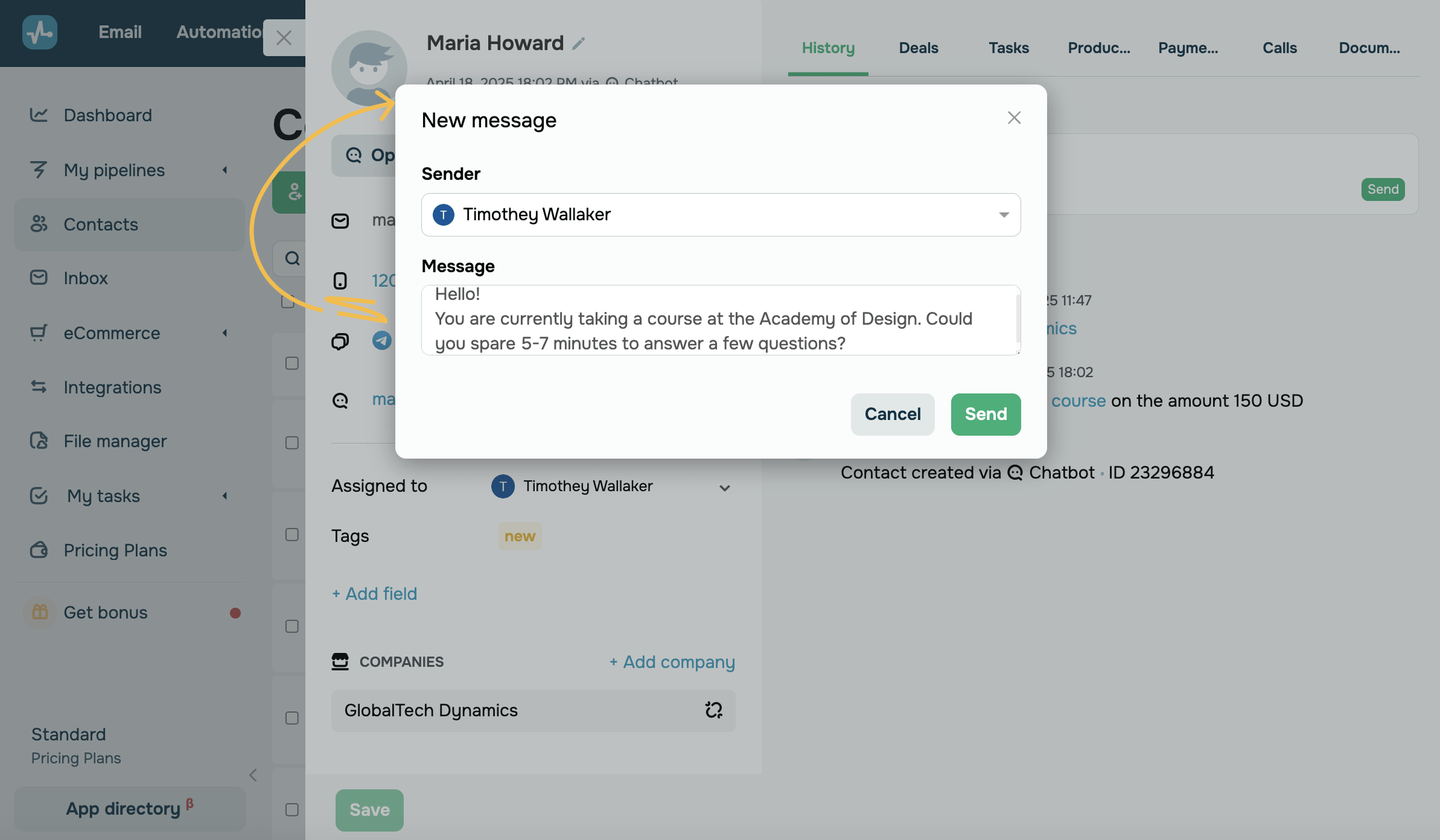
When the user replies, conversation history will appear in the Chats section, where you can continue messaging.
To return to the conversation, click Open chat in the contact card or go to the Chatbots section.
In the Chatbots section
Once your Telegram account is connected, the app automatically creates a chatbot. You can use this bot to chat manually and build flows.
To send the first message to a user, go to the Chats section in the created bot and click Business-initiated message. In the form, fill out the following:
| Sender | Select a connected Telegram account to send your message. |
| Telegram | Enter the user's Telegram username. |
| Message | Type in your message. |
Once you fill out the form, click Send — your message will be delivered via Telegram.
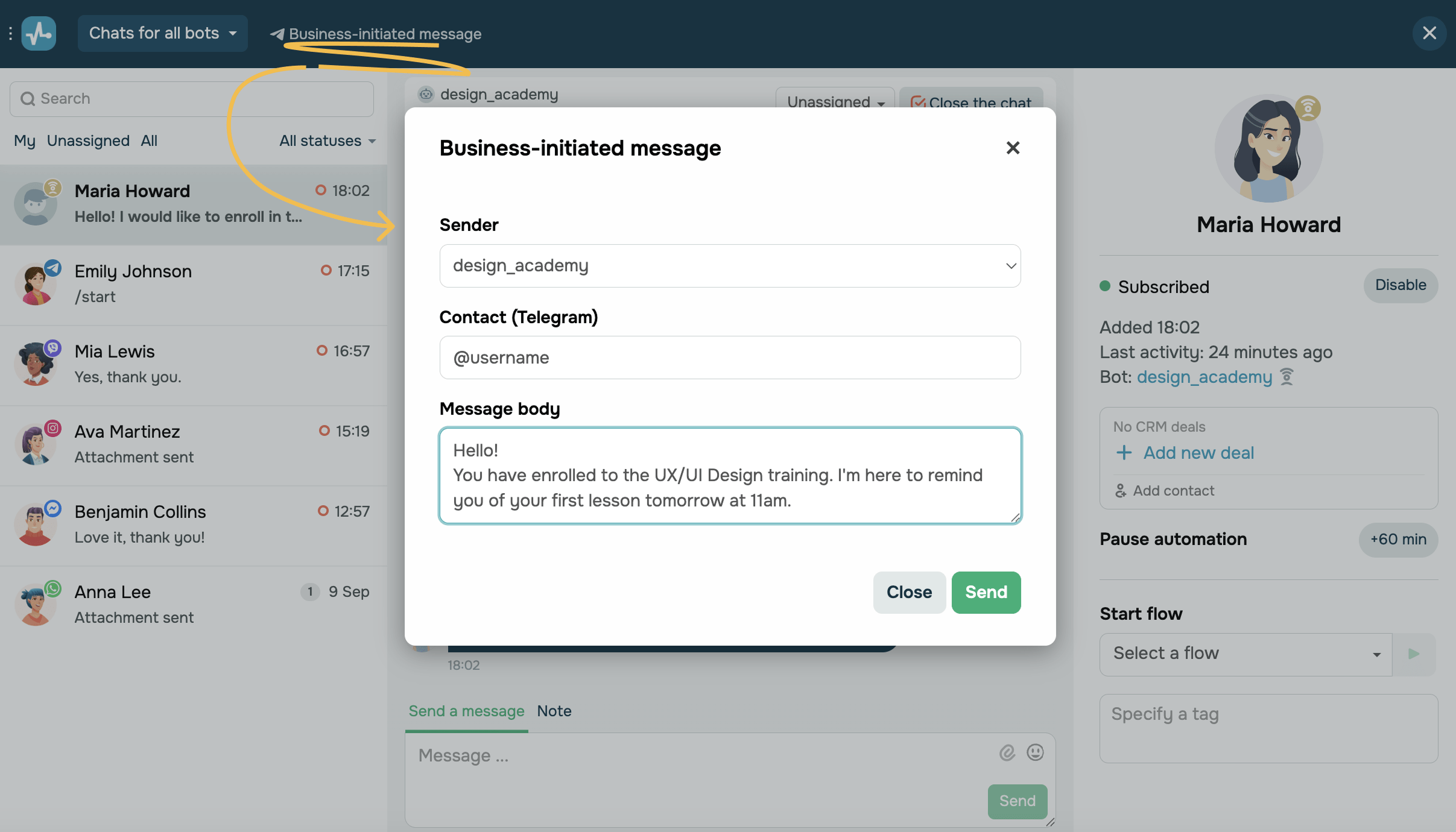
You can continue the conversation and get replies in this chat. In the sidebar, you can also add user data and create deals to run automated flows.
Keep in mind that chatbots created using the app have the following limitations:
- They only show chat history from the moment of connection.
- Messages can include only text and media — buttons and other interactive elements are not supported by Telegram.
- Group chats, channels, calls, and other advanced Telegram features are not supported.
You can start Telegram conversations and trigger basic automated flows using the integration. To set up a chatbot as an automated assistant, connect it using the standard method.
If you've accidentally disconnected your chatbot, you can open the app and follow the previous steps to reconnect it.
 Last Updated: 23.06.2025





or