Integrate Google Calendar with SendPulse CRM system
Using the Google Calendar and CRM app, you can integrate Google Calendar with SendPulse's CRM system and add events from your calendar to CRM tasks and vice versa. This setup helps your team stay on track and aware of key company events.
Integration features:
- Automatically create contacts, tasks, and deals in the CRM system using Google Calendar events and show them in your CRM calendar;
- Automatically assign calendar events to specific team members in your CRM pipeline or task board;
- Sync assigned CRM tasks with team members’ Google Calendars;
- Run automations triggered by new tasks and deals.
In this article, we will talk about how to integrate with Google Calendar and save events to your deal pipeline or task board.
Install the app
Go to App directory > Applications, and search for Google Calendar and CRM. Next to the app, click Install.
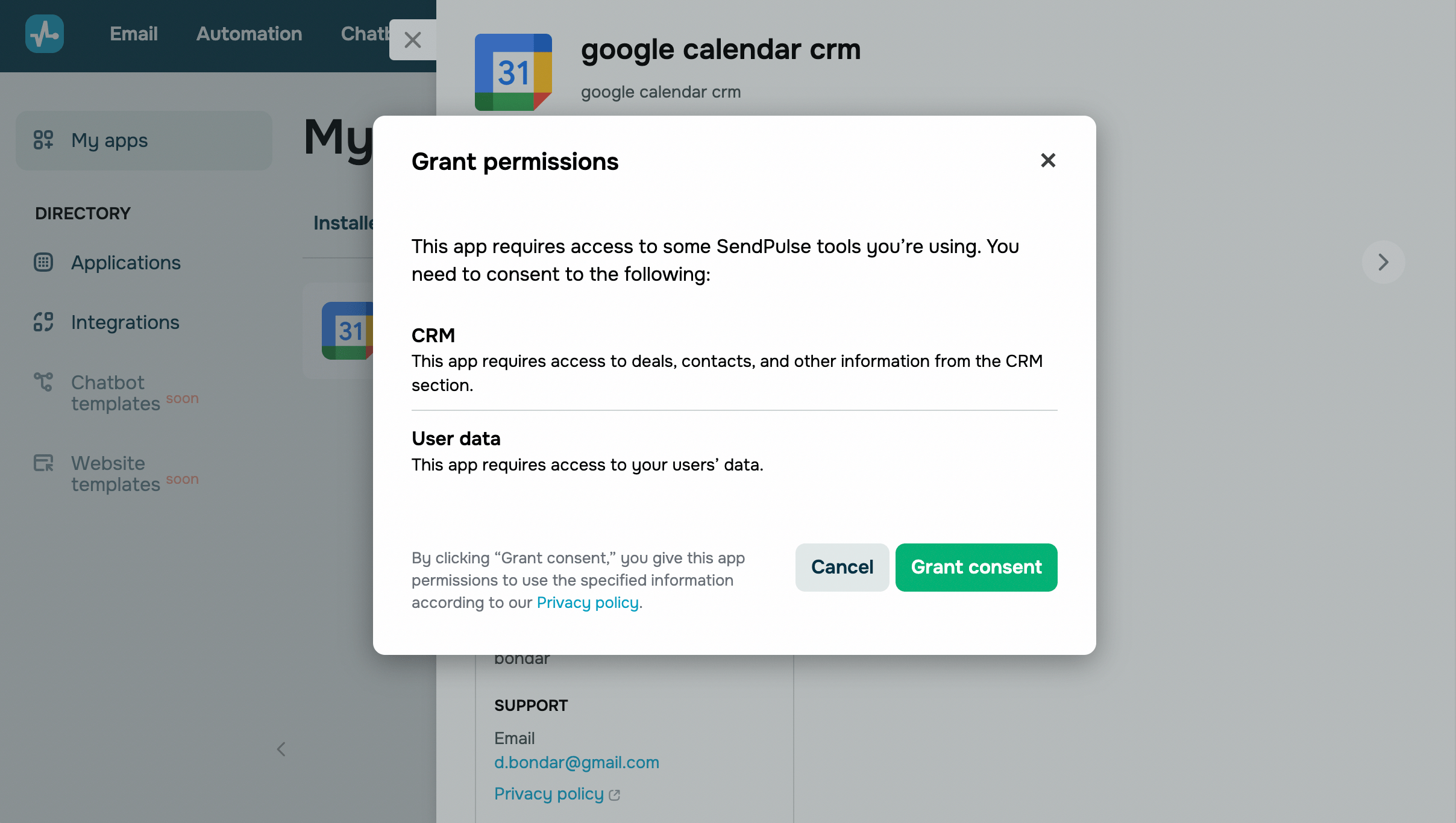
In the next modal window, view the data the app wants to access, and click Grant consent.
Set up the app
Connect your Google account
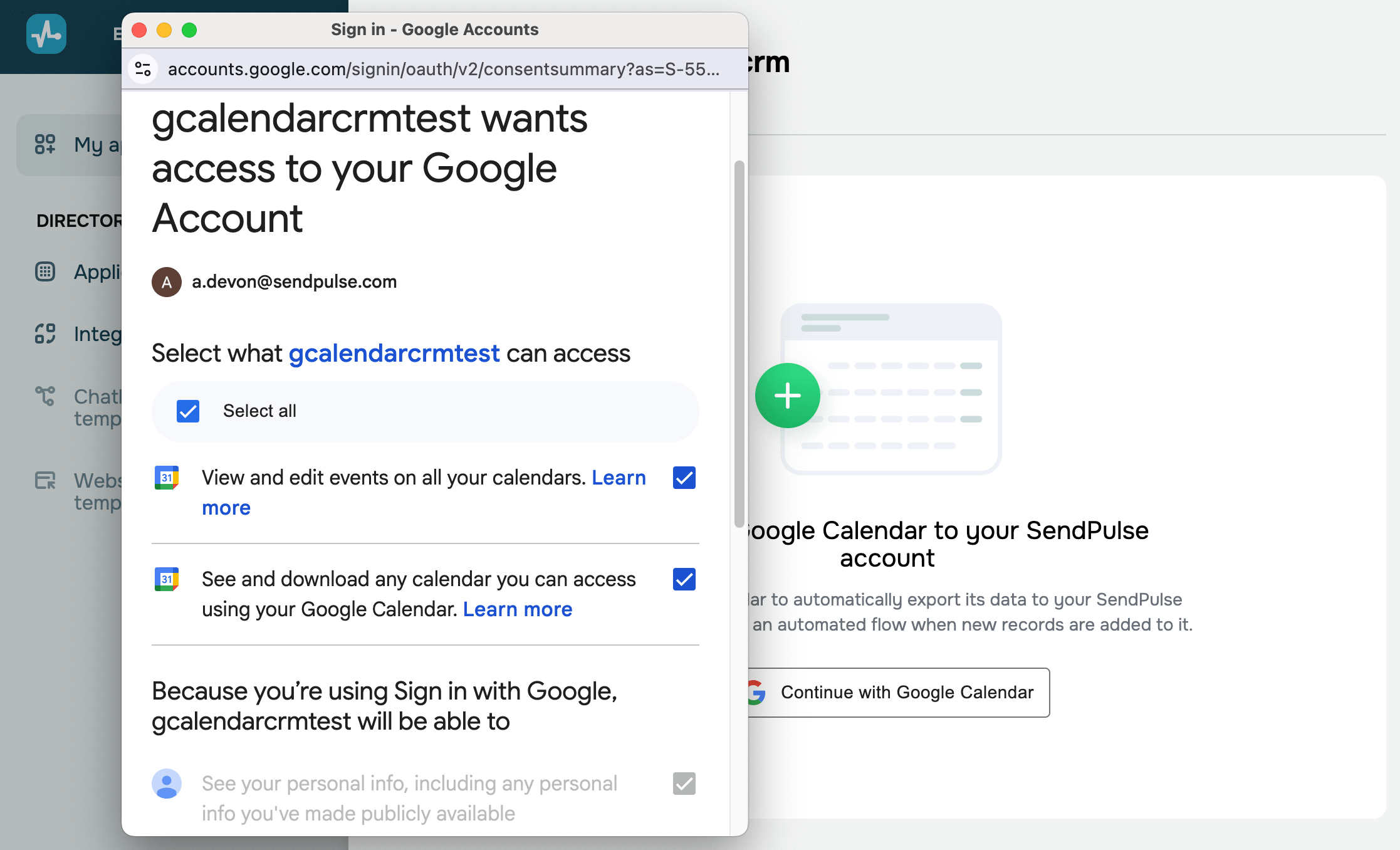
On the app page, click Сontinue with Google Calendar.
Log in to the Google account you want to connect, and click Continue. Grant permission to view and edit data in your calendars.
Select your calendars
To add calendars, select the Pro pricing plan or above in the CRM system.
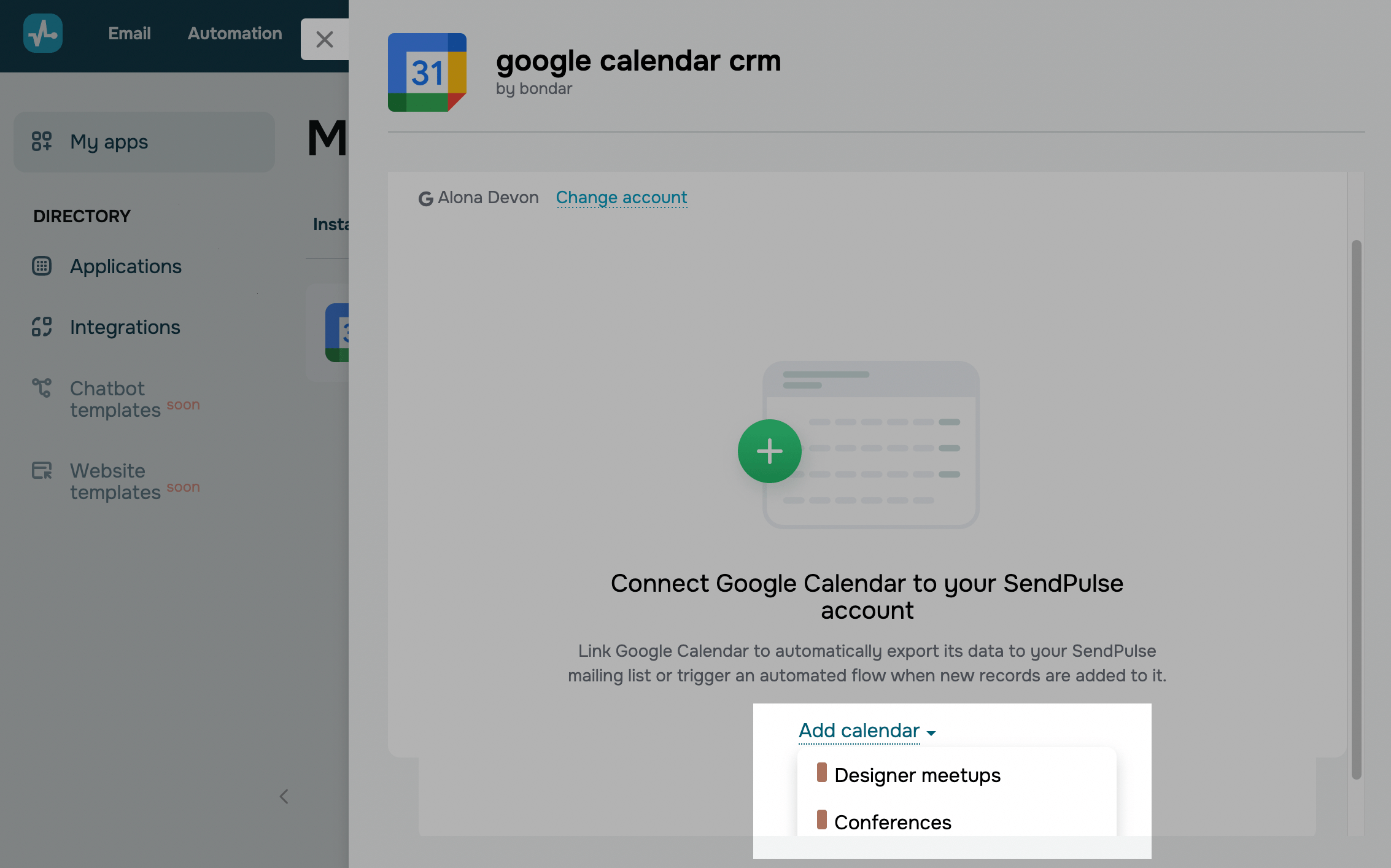
Click Add calendars and select a calendar to import events from. You can choose one or multiple calendars, but each calendar can have only one automation.
Save events to your pipeline or board
Link your pipeline
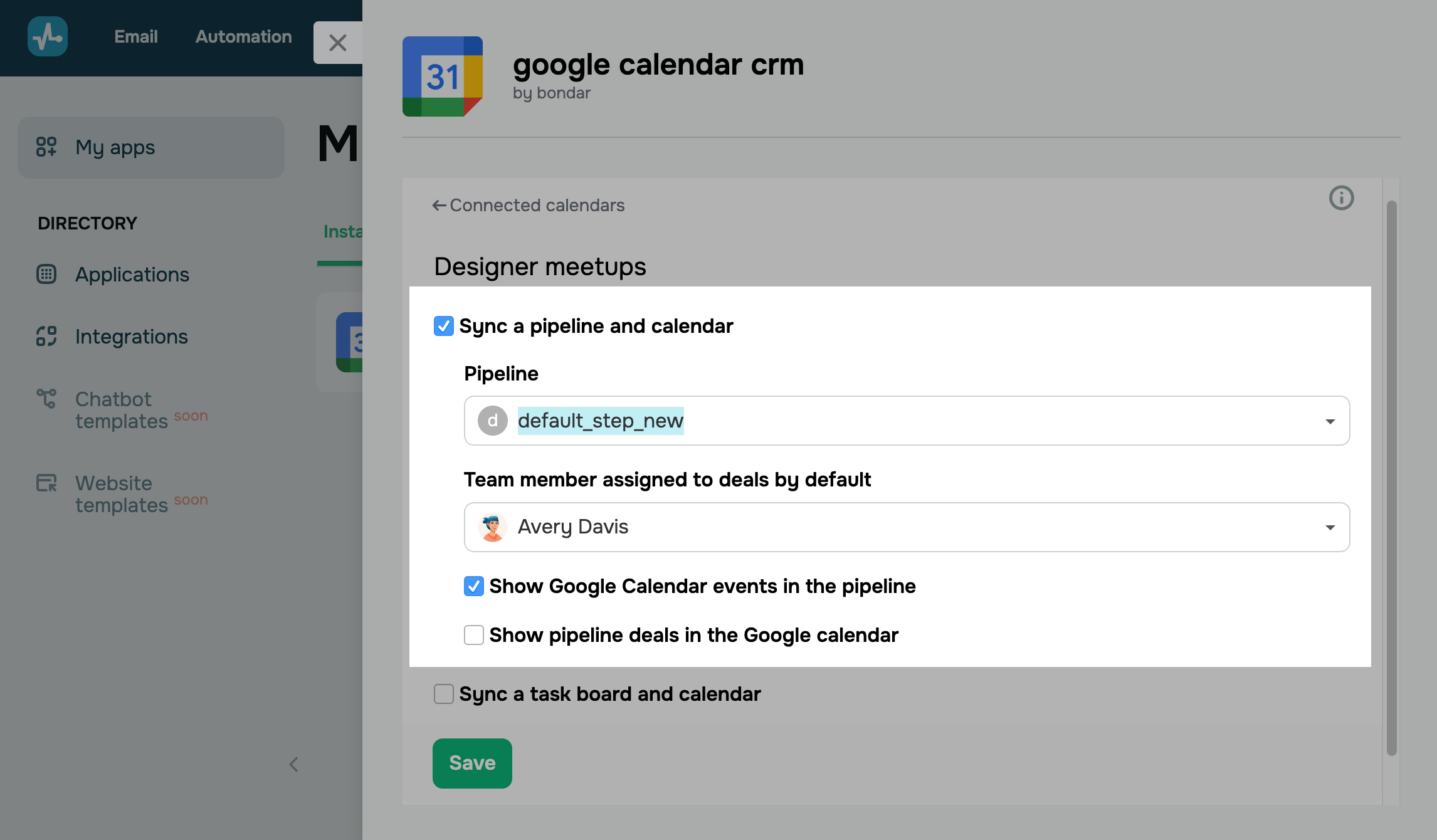
To save events and create deals in your pipeline, select the Sync a pipeline and calendar checkbox.
Every event has a deal and a contact linked to that deal.
When a deal is assigned to a team member who has an integrated Google calendar, it will automatically appear in their calendar.
Select the pipeline and deal stage where you want to add events. Assign a team member to your Google Calendar events.
Enable more features for this pipeline.
| Show Google Calendar events in the pipeline | Shows your assigned team member’s calendar events in the pipeline. |
| Show pipeline deals in the Google calendar | Shows pipeline deals in your assigned team member’s Google calendar. |
Link your board
To save events and create tasks in your board, select the Sync a task board and calendar checkbox.
Every event has a task and a contact linked to that task.
When a task is assigned to a team member who has an integrated Google calendar, it will automatically appear in their calendar.
Select the board and task stage where you want to add events. Assign a team member to your Google Calendar events.
Enable more features for this pipeline.
| Show Google Calendar events in the board | Shows your assigned team member’s calendar events in the pipeline. |
| Show board tasks in the Google calendar | Shows board tasks in your assigned team members’s Google calendar. |
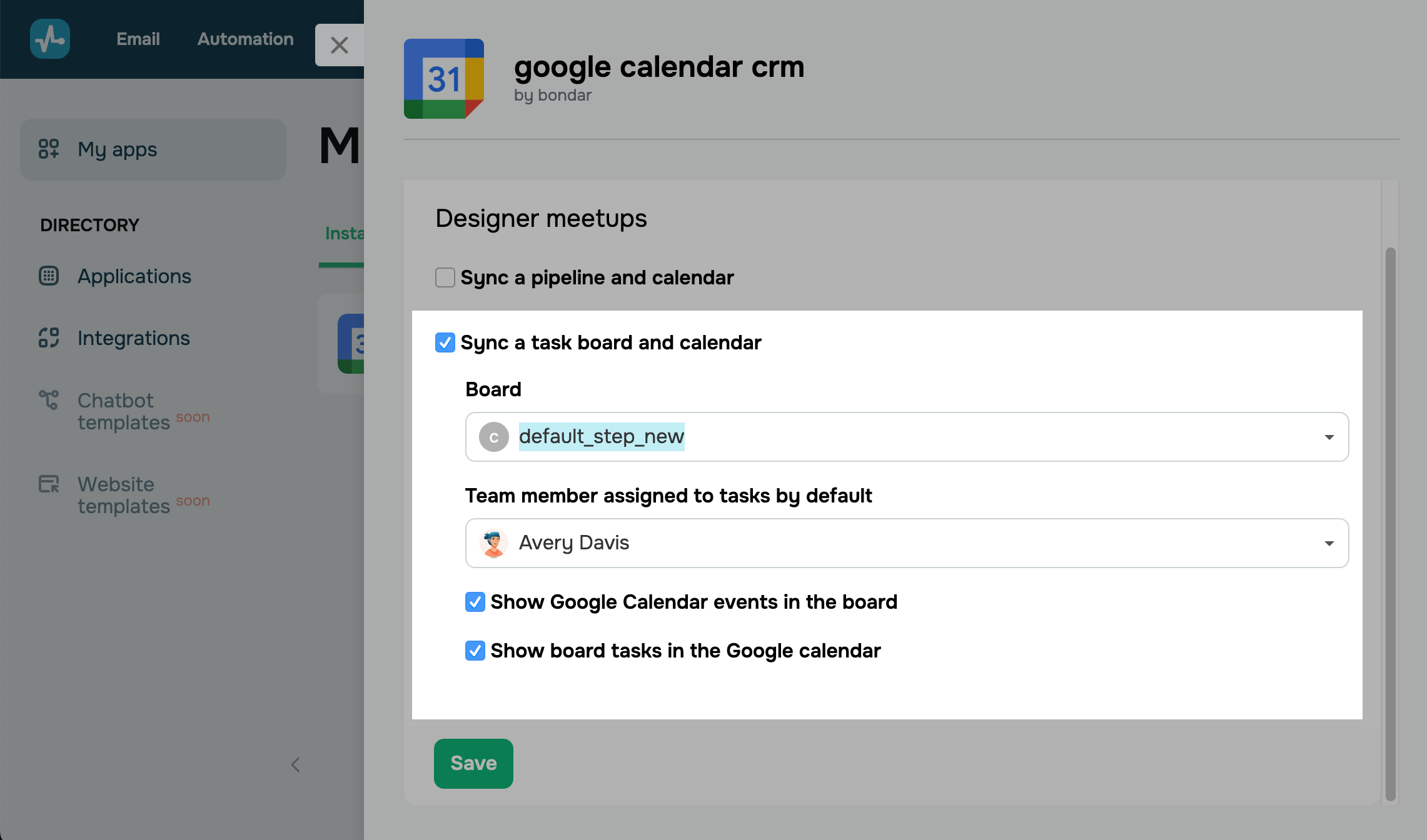
Once you set up the app, click Save.
Your data will be synchronized with Google Calendar only once you save the integration. Events added to your calendar before the integration will not appear in the CRM system.
Google Calendar events are saved to the CRM system once every 15 minutes.
Manage the app
To view the list of integrated calendars and received events, go back to the app page.
When you start adding Google Calendar events, their total number will appear next to your calendar is integrated with.
To add more calendars for each team member, click Add calendar and set them up.
To manage your integration, click the three dots next to a calendar and select an action:
| Disable | Pauses your calendar integration. |
| Settings | Opens a page where you can customize integration settings. |
| Delete | Permanently deletes your calendar integration and all its custom settings. Created deals and tasks will appear only in the CRM system. |
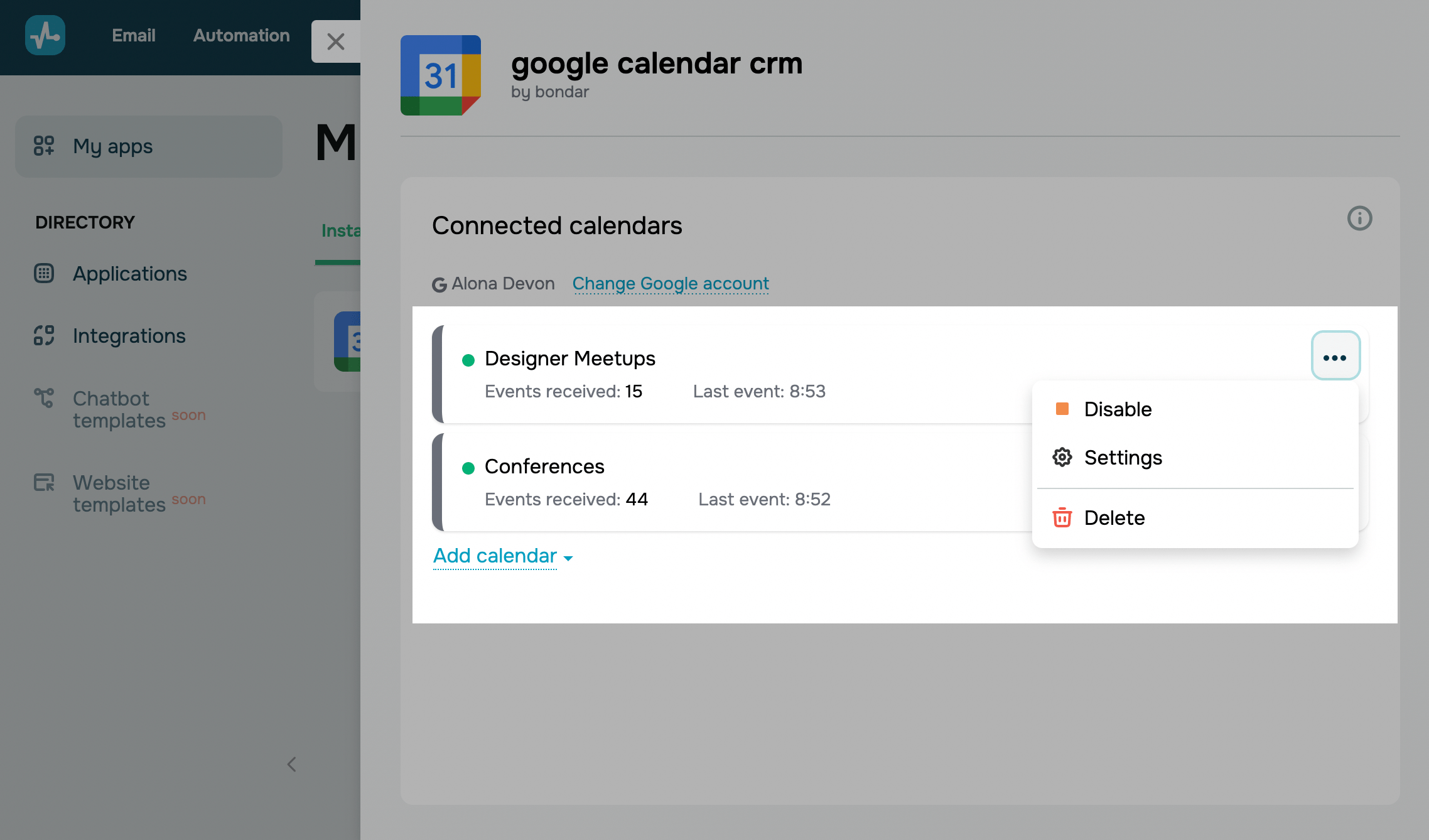
To switch the account owner, click Change Google account. In the next window, confirm the action and follow the steps outlined in Connect your Google account.
 Last Updated: 15.04.2025





or