View assignment answers
Use Assignment answers to review students’ submissions and post comments across courses in one place.
For example, you can track pending assignments, view graded submissions, and monitor resubmissions to see student progress.
Let’s talk about how to find, filter, and review assignment answers.
Open assignment answers
You can open assignment answers in a course, on a student card, or on the Assignment answers page.
In a course
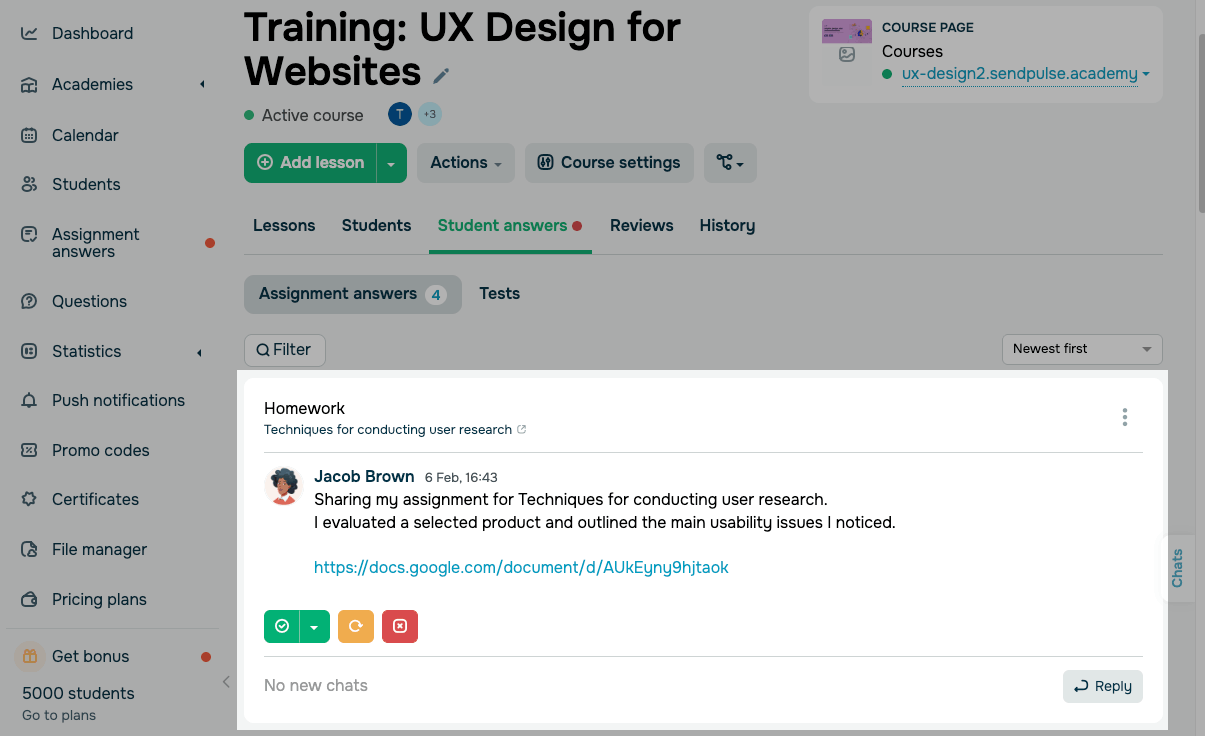
To view assignment answers in a specific course, go to Student answers > Assignment answers.
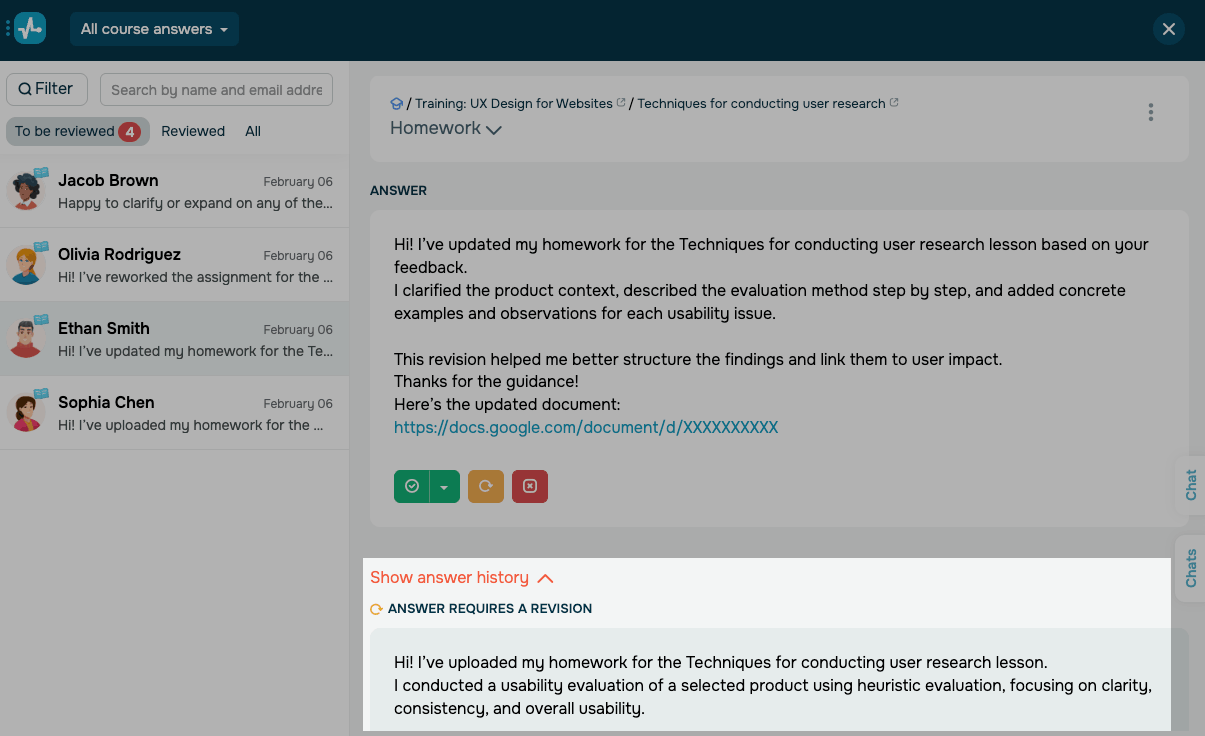
The assignment answer list shows each submission’s student, course, date, and assessment status.
To comment on a specific answer, click Reply.
On a student card
To see a specific student’s assignment answers, open their card. Go to the Assignment answers tab. Select the answer you want to review.
Across all courses
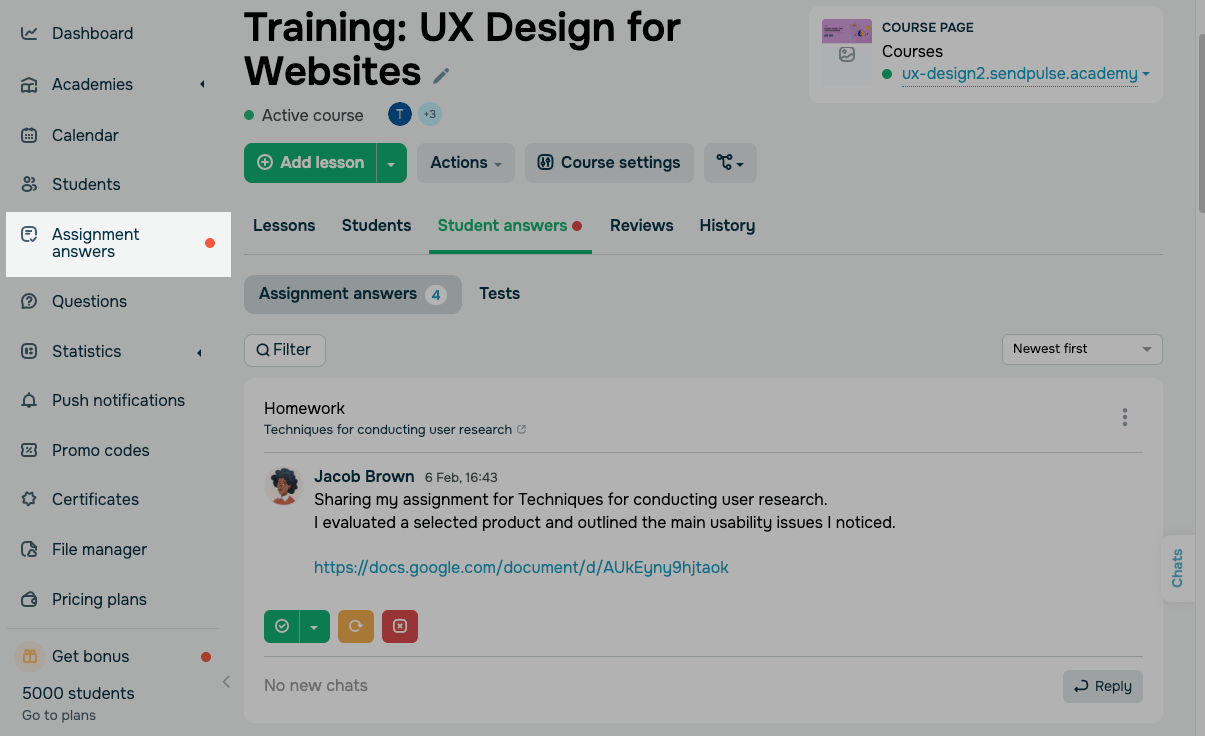
To view answers across all courses, go to Assignment answers.
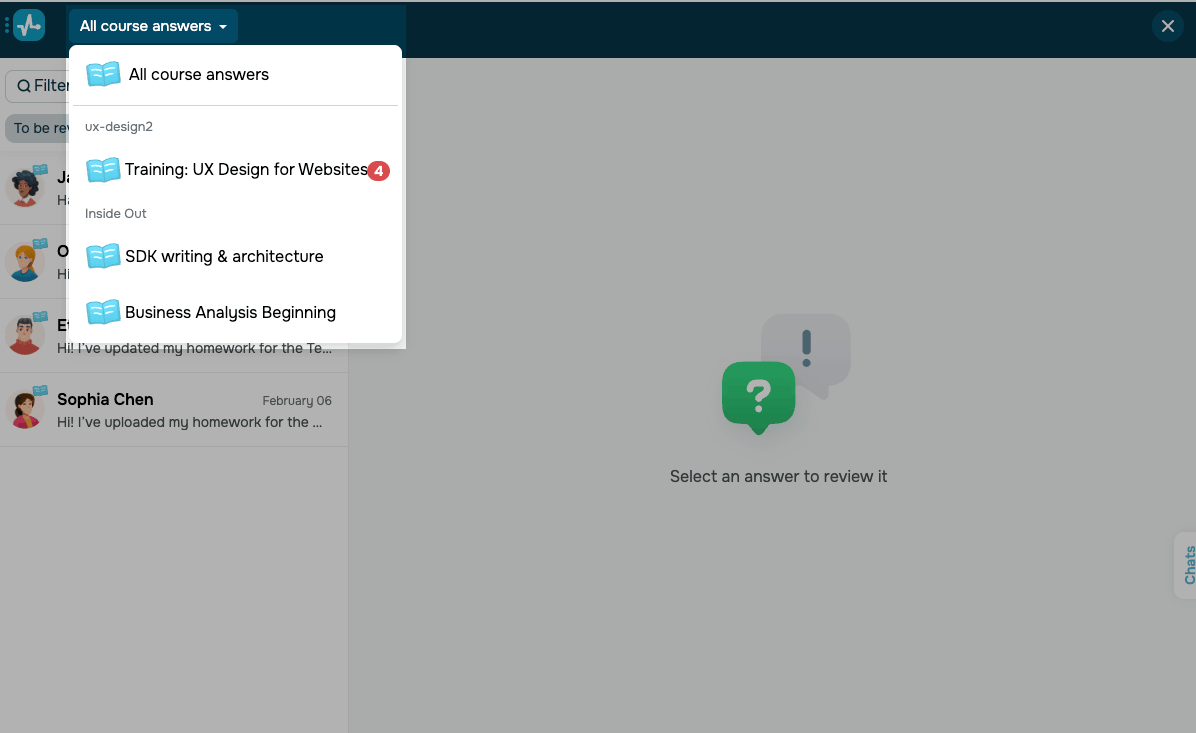
To view answers from all courses, in the navigation menu, click All course answers. To view answers from a specific course, select a course from the list.
Filter answers
To find a specific student’s assignment answers, enter their name or email address in Search by name and email address.
To switch between statuses, use the following tabs:
| To be reviewed | Shows answers that need to be reviewed and scored. |
| Reviewed | Shows answers you’ve already reviewed. |
| All | Shows all assignment answers. |
To narrow down the list, click Filter and apply a filter:
| Status | Filter answers by assignment status.
Options include: All statuses show all submissions. Accepted means an instructor approved the assignment. Accepted automatically means the system approved the assignment. Accepted and scored means an instructor approved the assignment and added a score. To be revised means the student must resubmit their assignment. Rejected means the instructor did not accept the assignment. Accepted without student’s answer means the instructor accepted the assignment without a submission. |
| Lesson | Show student answers from a specific lesson. |
| Group | Show student answers from a specific student group. |
| Assigned to | Show student answers assigned to an instructor for review. |
| Tags | Show student answers with selected tags. |
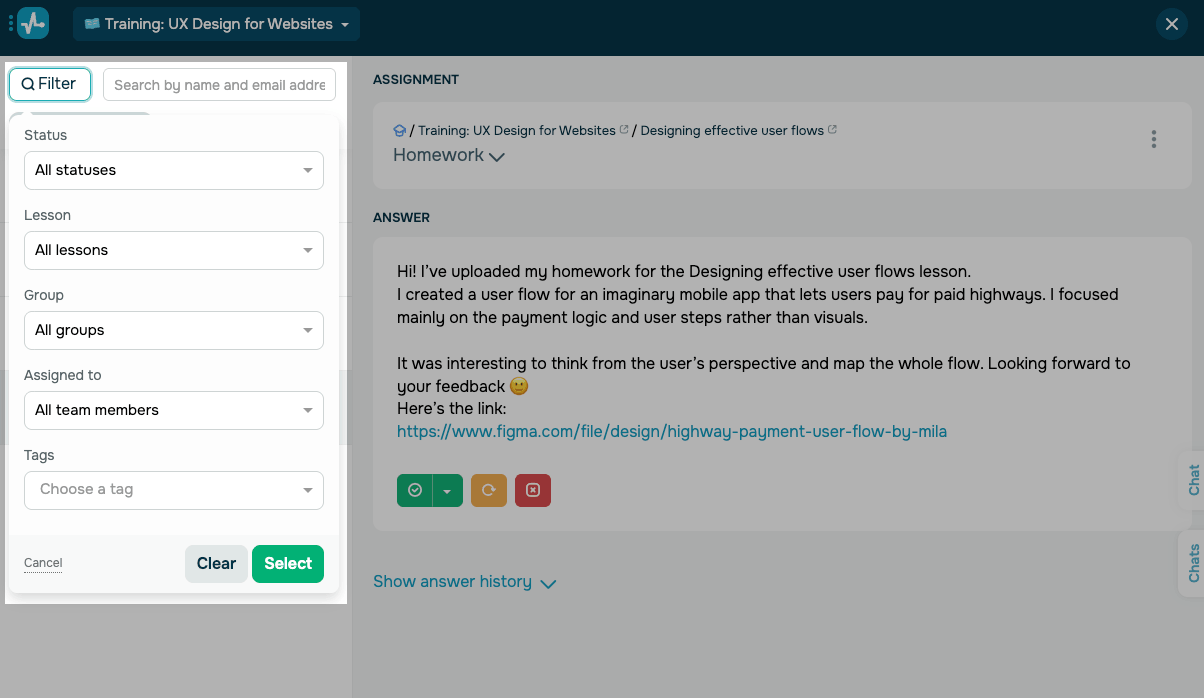
To apply the filter, click Select. To clear all filters, click Clear.
View answer history
If you return an assignment for revision, the student can submit a new version.
To view history, click Show answer history.
History stays empty until the student submits a new assignment answer.
Read also: Review assignments.
 Last Updated: 16.02.2026




or