View student card data
A student's card acts as a profile that features their contact details, courses, progress, assignments, and question history. It can help you quickly find and manage information about every student.
In this article, we’ll talk about how to find and view student cards.
Click a student's name on the list to expand and view their card.
General information
On the left, you will see their name, registration date and time, the source where the student came from, and contact info.
The following options are also available:
| Send push notification | Send a web push notification to your student. Select a course, and enter a message title and text. |
| Send email | Send an email to your student. Once you click this option, you will be redirected to your email client. |
| Go to CRM contact card | Go to your student's CRM contact card in a new tab. |
| Block | Remove your student's access to their account. |
| Delete | Remove your student from the course. All their course progress will be lost. |
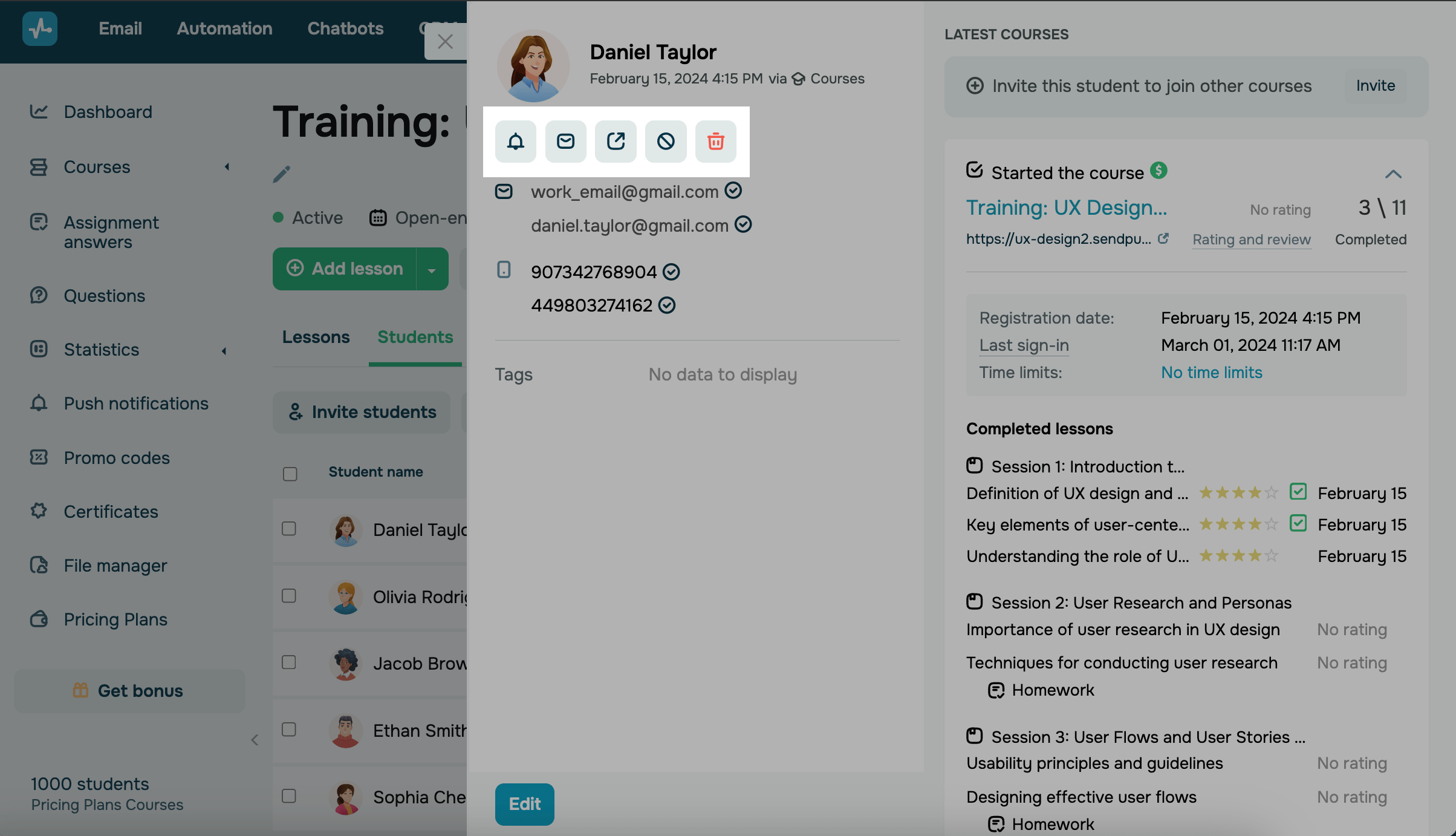
To edit or add information, click Edit.
Student activity tabs
On the right, you’ll see your student's course actions in the Courses, Assignments, and Questions tabs.
Courses
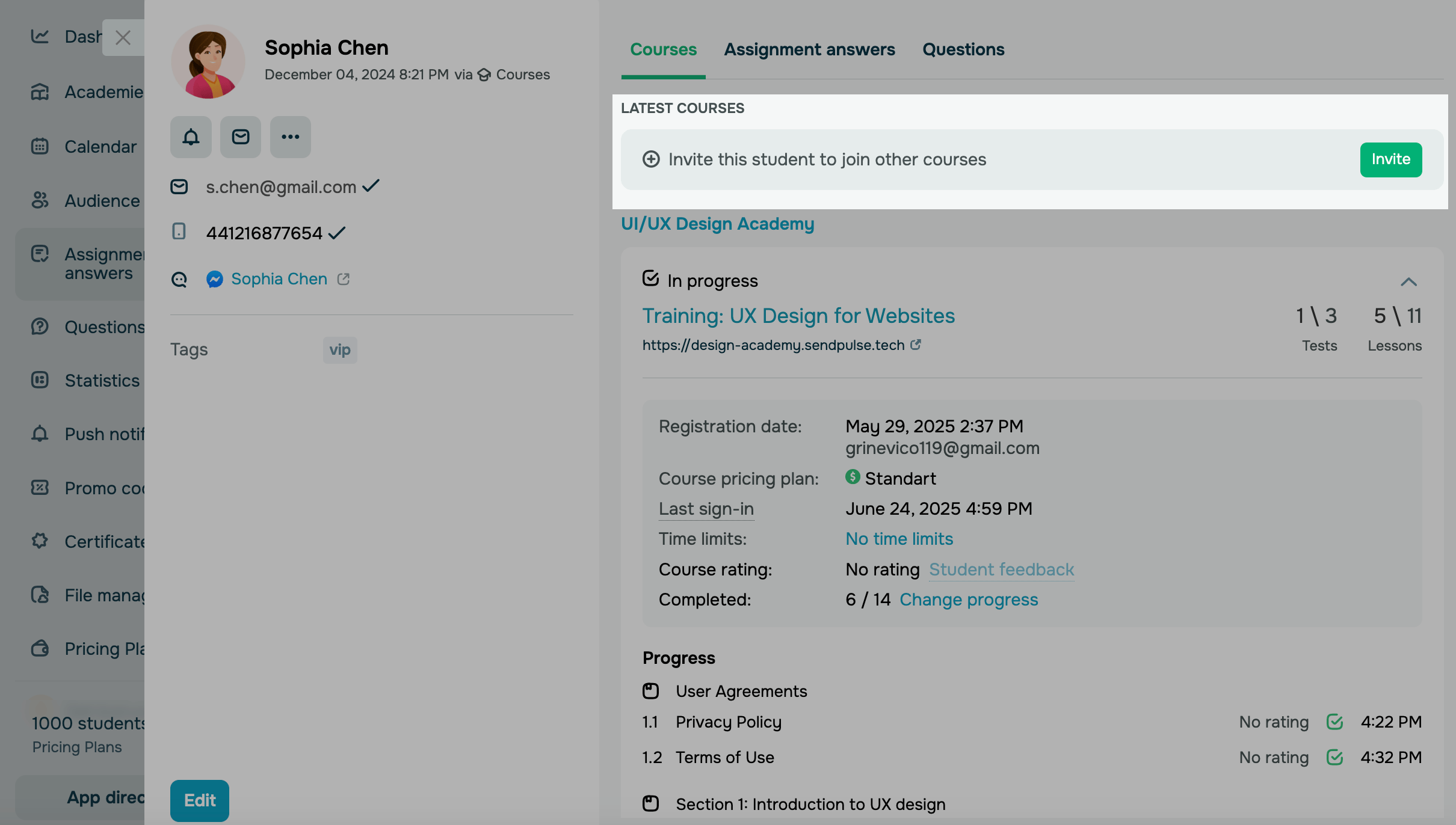
In the Courses tab, you will see your course name, progress, pricing plan, website link, registration date, the student’s course review, and their total number of lessons completed.
Click the arrow to see more information about the course.
| Registration date |
Date and time when the student signed up for your course. The time matches the set time zone in your account settings. You’ll also see the email address your student used to sign up. |
| Course end date |
Date and time when the student met your course completion criteria. This field appears only in the cards of students who have completed your course. |
| Last sign-in |
Date and time of the student's last sign-in to their account. Click the link to view your student’s login history, including their browser, operating system, region, and the dates and times of recent logins. |
| Course pricing plan | Student's current pricing plan and payment status. |
| Time limits | Date and time when your course time limit was reached and access was revoked. |
| Course rating | Student's feedback after course completion.
Click Student feedback to view it in a modal window. |
| Course progress |
Number of completed lessons, tests, and received certificates.
|
You can manually change a student’s course progress, for example, to mark lessons as completed or reset their progress if needed. Go to your course and click Change progress.
A modal window will show a list of all course elements where you can change your student’s course progress. To mark items as completed, select them. To reset progress, clear them. Select the I confirm the change to the student's progress checkbox and click Change progress.
If you mark a test as completed, it will be set to the maximum score. If a completed lesson includes an assignment, it will be submitted automatically.
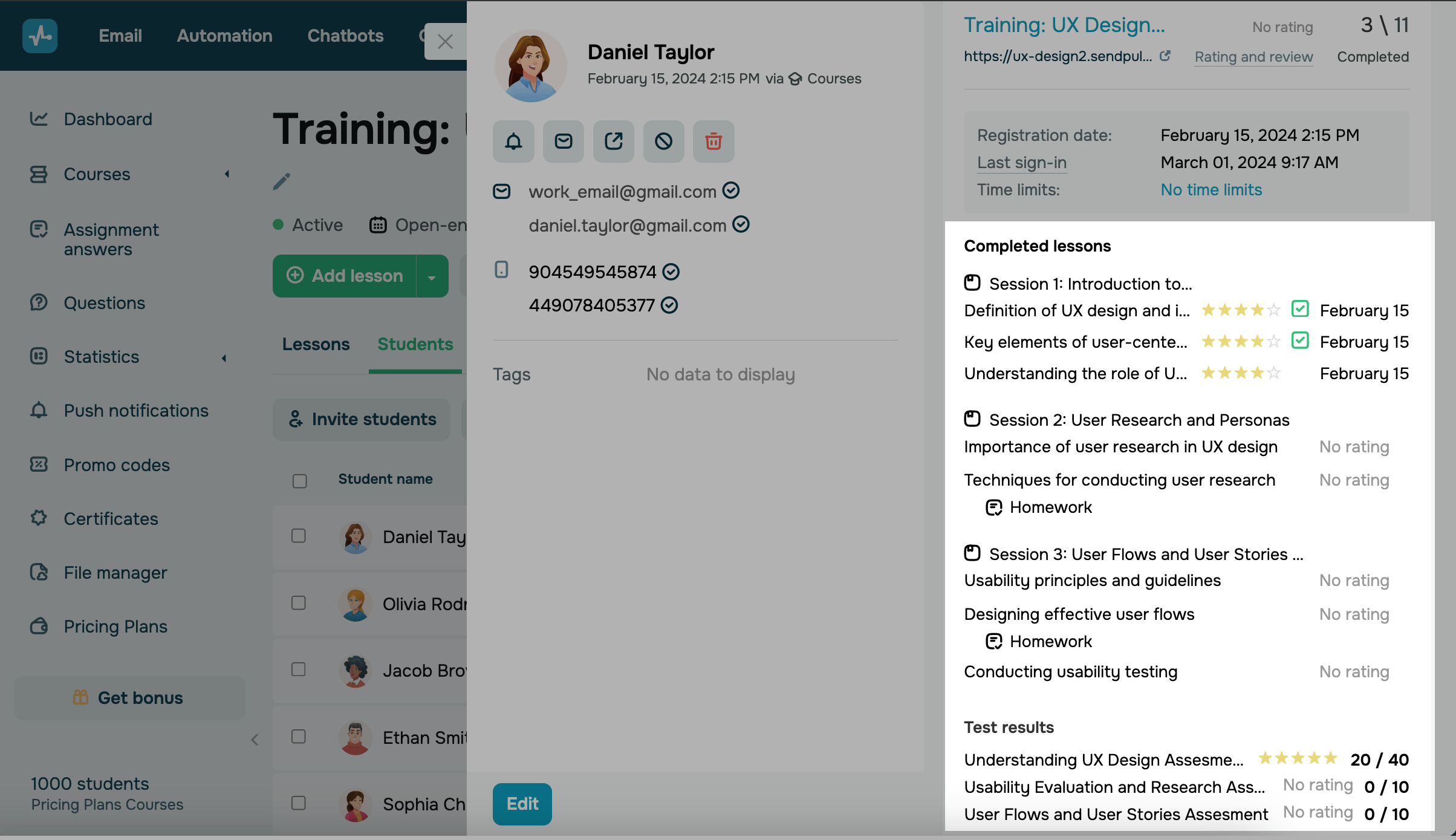
Below, you will see the list of lessons, progress statuses, your student's review (if they provided one after a lesson or test), and their test scores. To view all test answers that student selected, click their name, and view their answer in the sidebar that appears.
This list includes only the lessons accessible to your student under their course pricing plan.
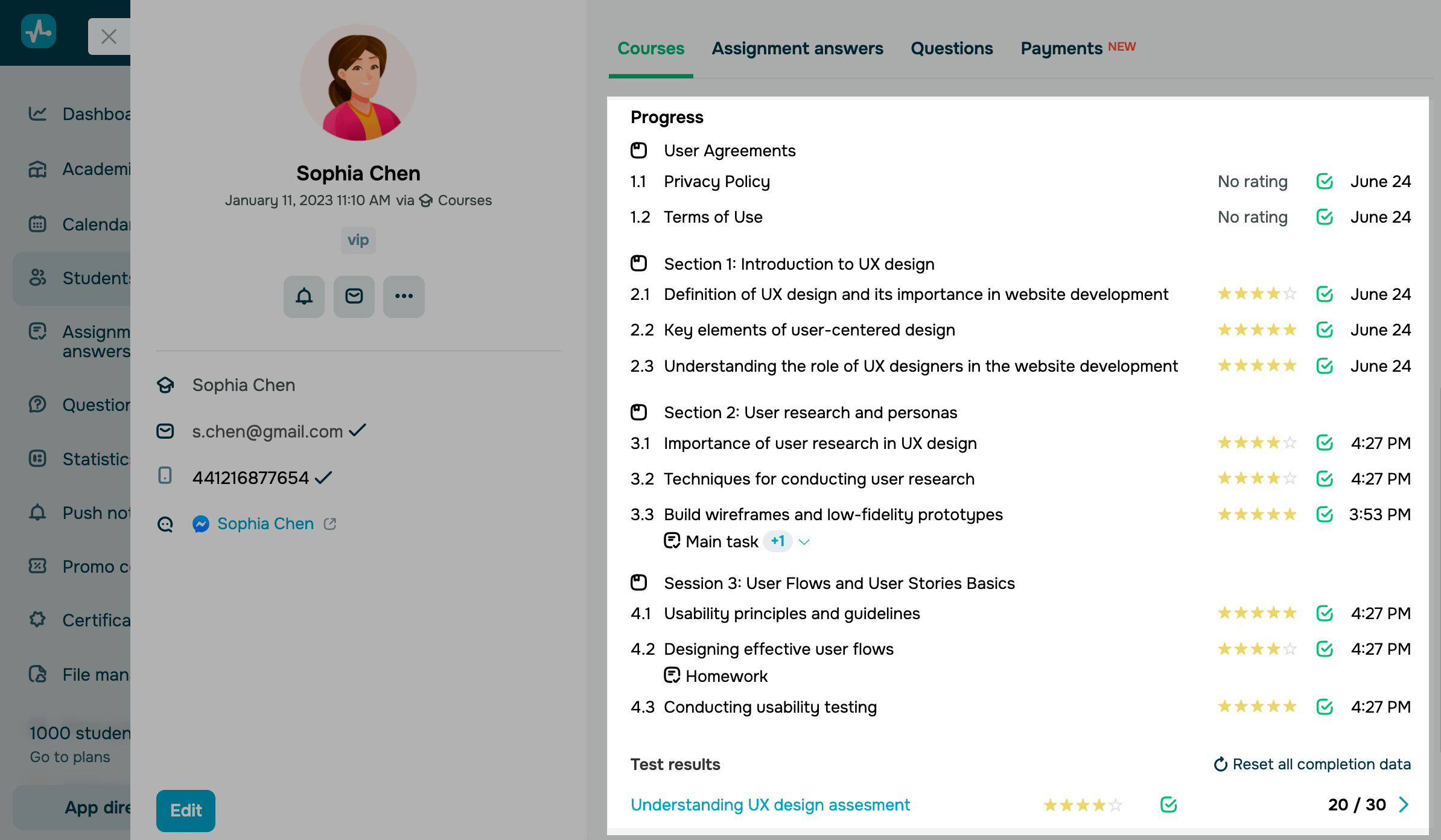
You can also invite a student to other courses. Click Invite in the upper right part of their student card. In the opened modal window, select an email address from which you will send your invitation email. Then, select your course, the student's email address, and your email language. Click Invite.
Assignment answers
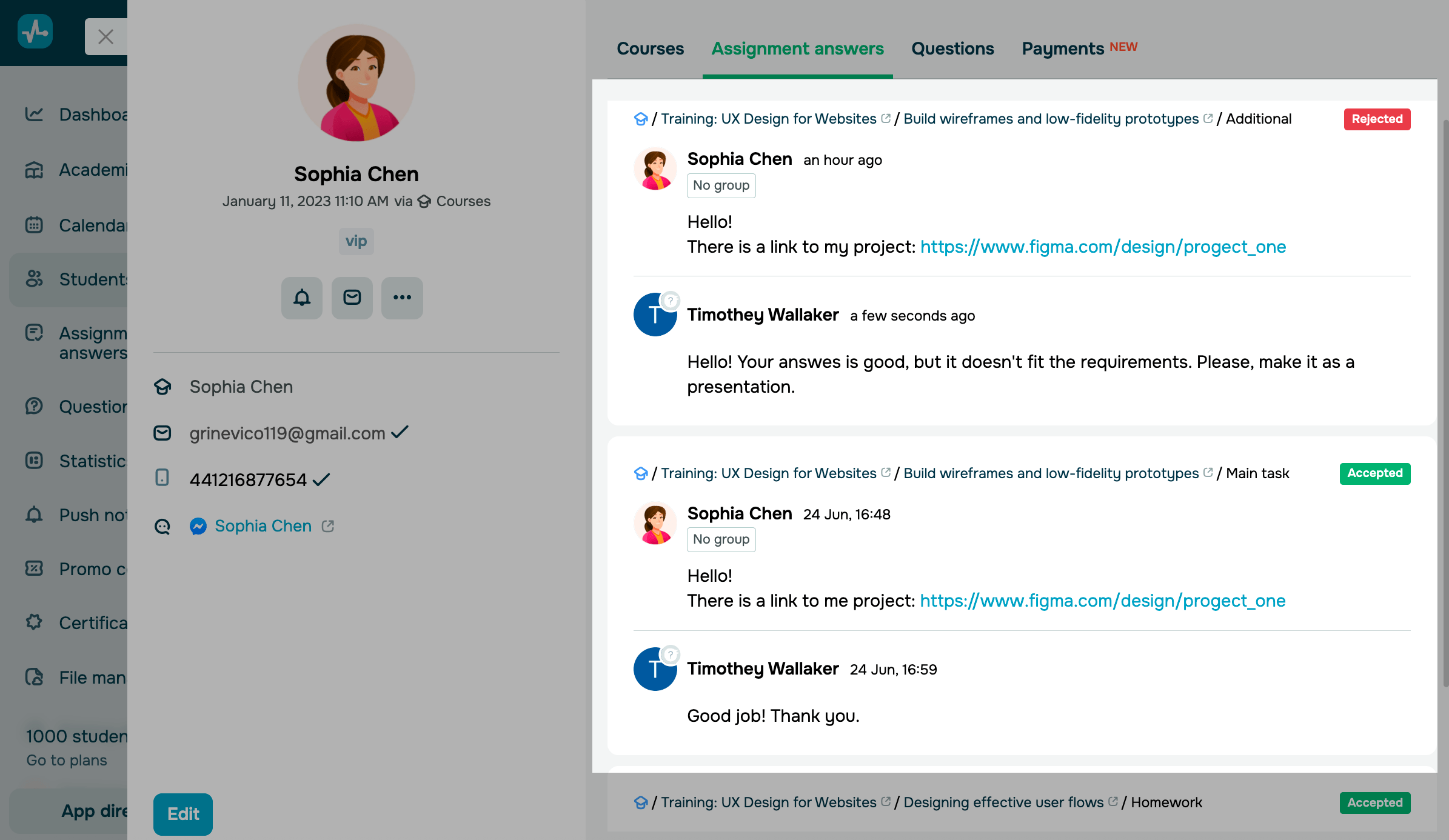
The Assignment answers tab shows your student’s course assignments:
- Related course and lesson.
- Assignment status (
Accepted,To be reviewed, orRejected). - Instructor feedback.
Questions
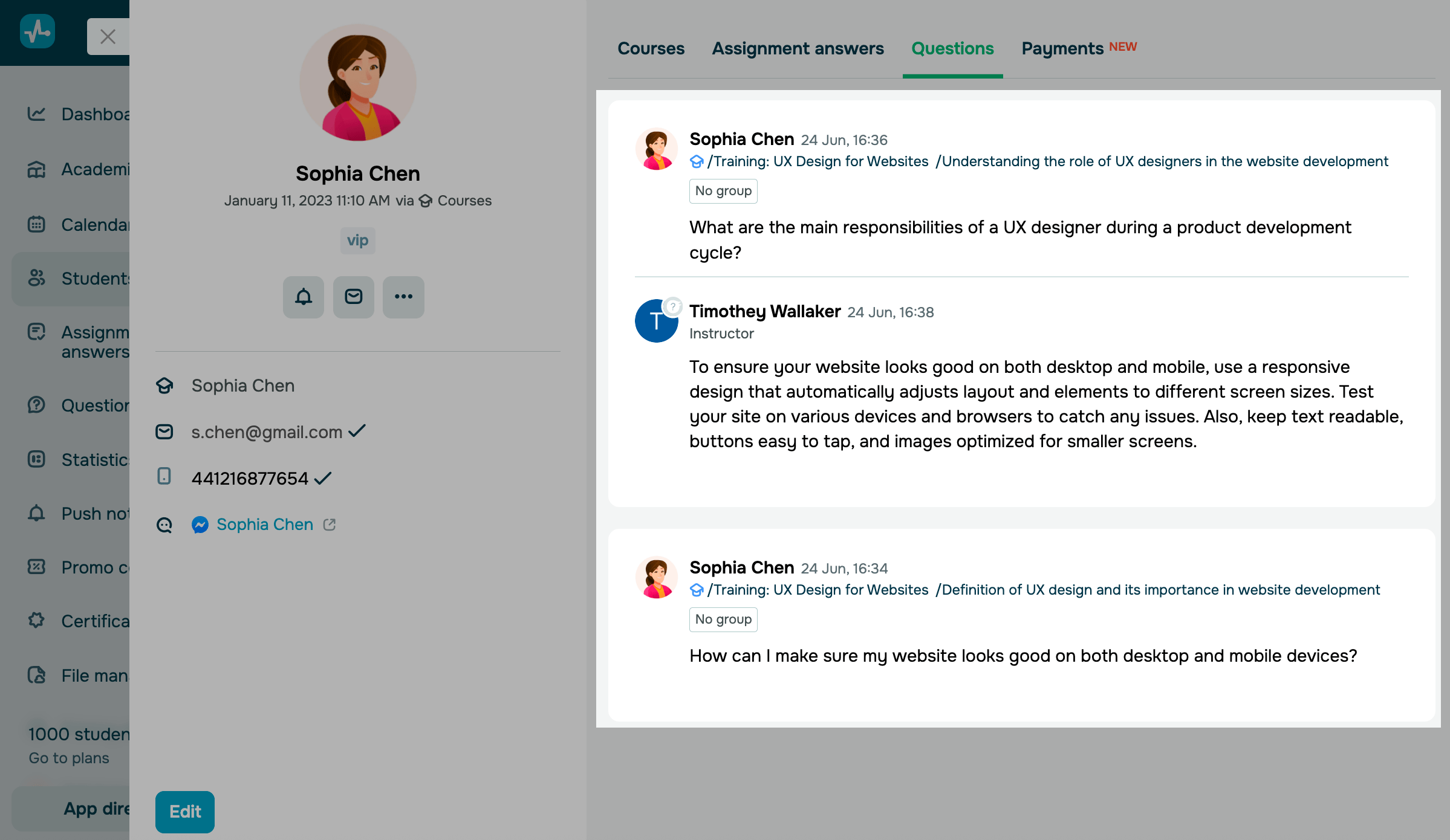
The Questions tab shows your student’s course questions:
- Related course and lesson.
- Question text.
- Instructor feedback.
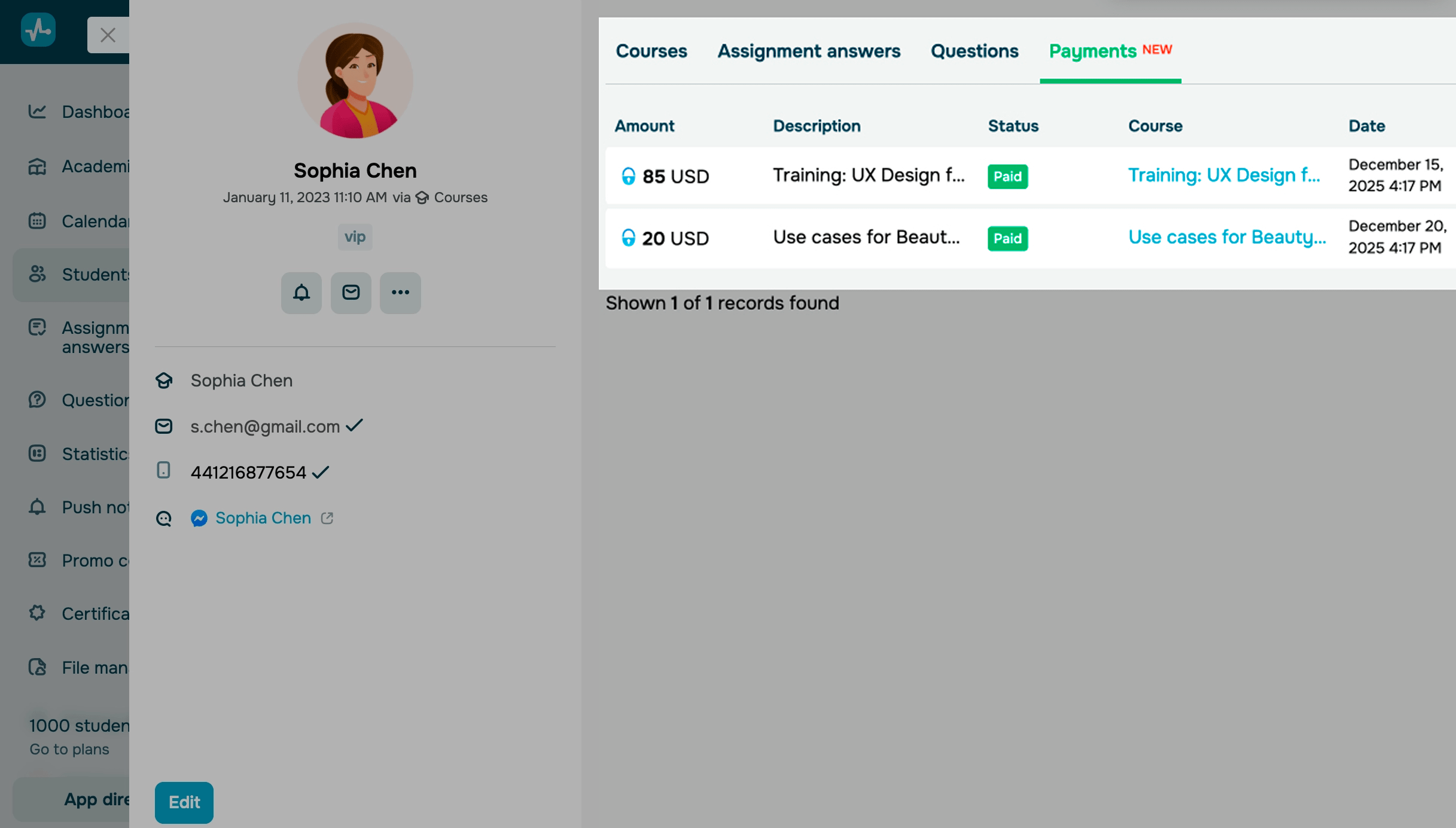
Payments
The Payments tab shows all payments a student has made while taking your course. Each transaction shows the amount paid, payment date, status, description, and purchased course.
Emails
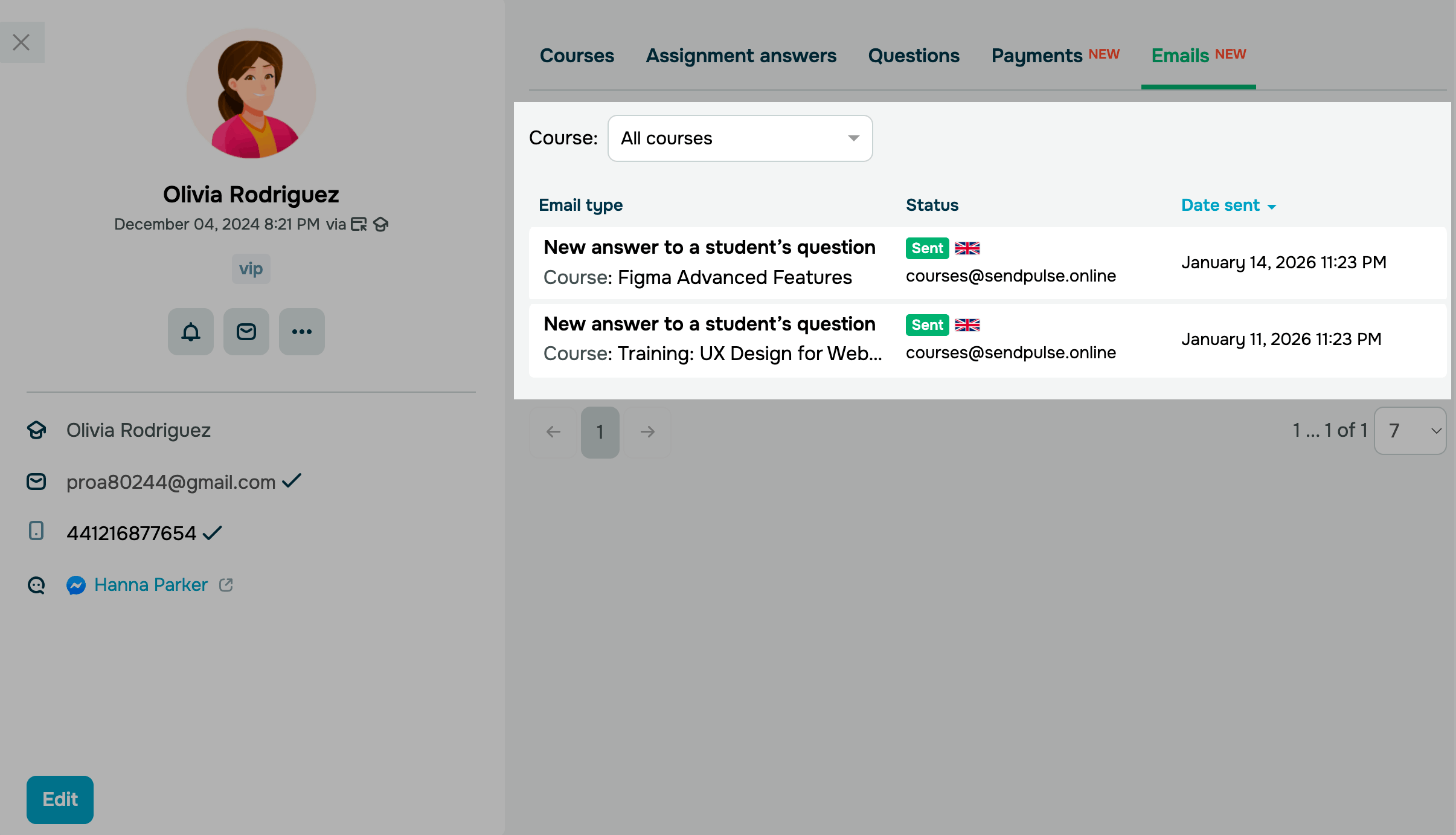
In the Emails tab, you can see all system email that were sent to a user during their studies.
To filter the list by a specific course, select it from the drop-down list in Courses.
Each email shows the following:
- email type;
- course;
- sending status;
- sender email address;
- language;
- date received.
 Last Updated: 19.09.2025





or