Review assignments
Use assignment review features to evaluate student submissions and add scores in your course.
For example, in a course with practical tasks, students submit assignments, and you evaluate each one to decide if they can move to the next module or should revise their work.
Let’s talk about how to review assignment answers.
To evaluate an assignment, open assignment answers in a course, on the Assignment answers page, or on a student card.
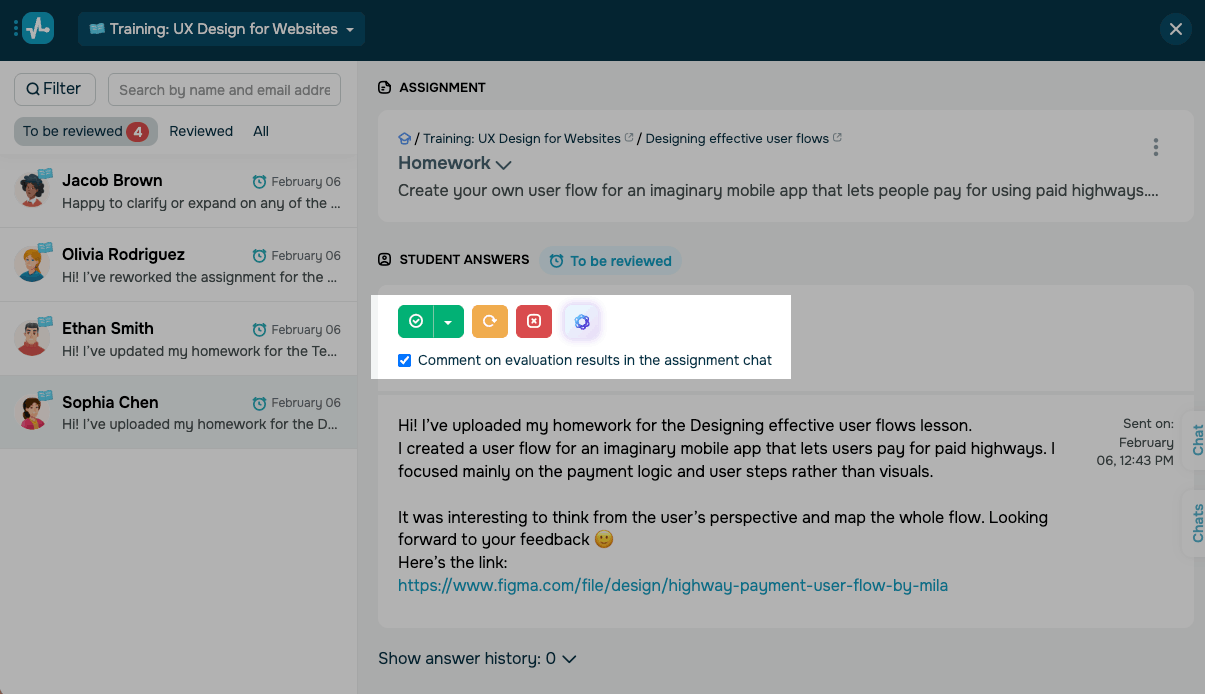
Review your student’s answer and choose an action:
| Accept | Accept the assignment without scoring it. |
| Accept and score | Accept the assignment and add a score.
To accept and score an assignment, open the list next to Accept. Select Accept and score. Enter the student’s score and the maximum score, then confirm. |
| Return for revision | Send the assignment back so the student can improve their answer. |
| Reject | Reject the assignment. |
You can also add detailed feedback on a specific student's answer. Select the Comment on evaluation results in the assignment chat checkbox. After evaluation, enter your comment text in the Type in your message field and click Send.
The comment is attached to the answer that the instructor evaluates. If the student later submits a new answer and receives a new score, the comment will appear as a separate message linked to the new answer.
 Last Updated: 28.01.2025





or