Reply to assignment answers from students
Start assignment chats to talk to students about their homework and share your feedback.
For example, if you run a design course and a student submits a draft logo that does not meet the brief, you can guide them on what to improve and give detailed feedback before they resubmit.
Let’s talk about how to start an assignment chat and send a message.
Start an assignment chat
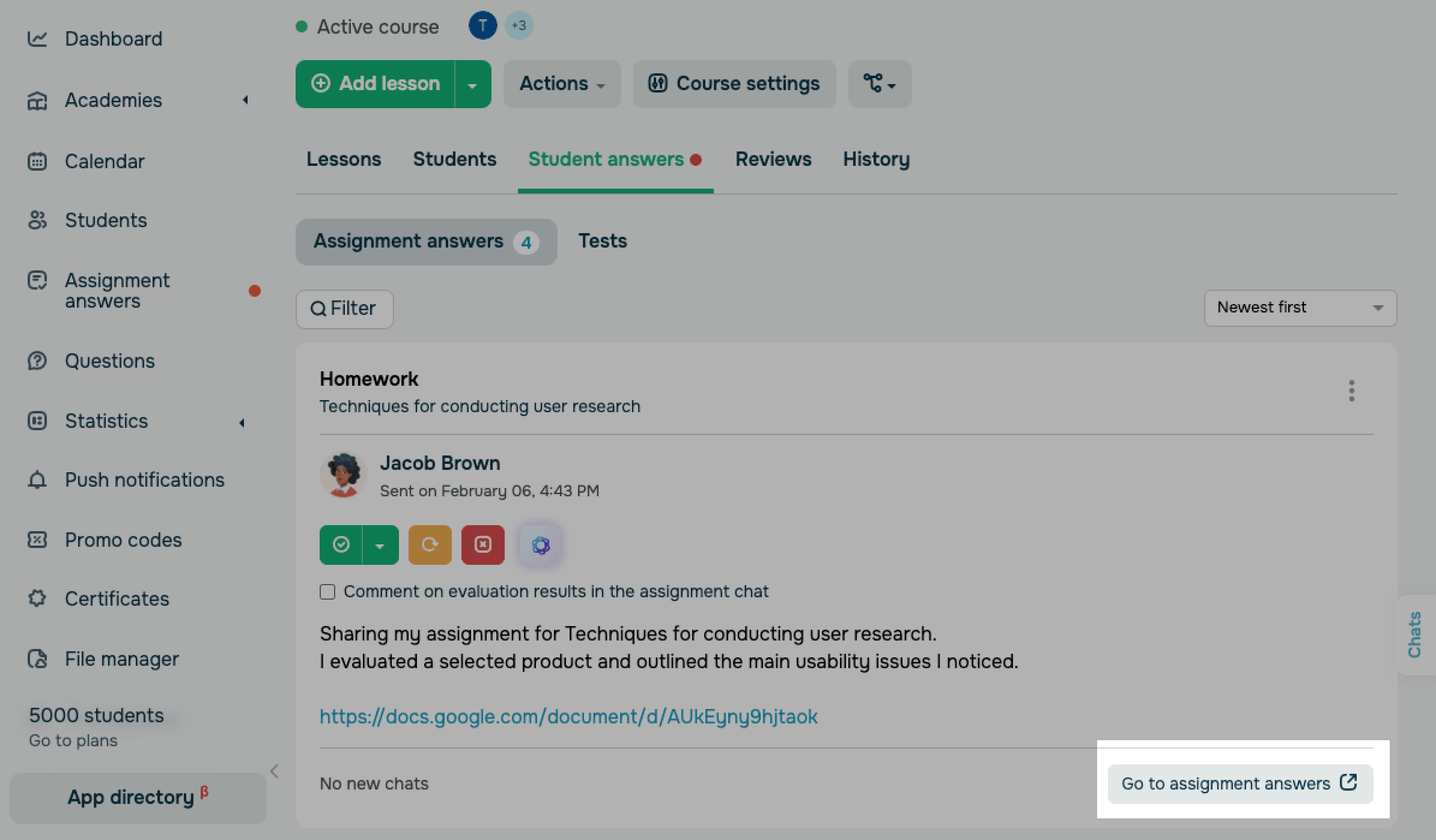
Go to student answers. You can start a chat in the Assignment answers tab or by clicking Go to assignment answers in Student answers.
Send a chat message
Use assignment chats to send messages to your students.
You can add files, emojis, or voice messages and deliver messages on behalf of other instructors.
Choose from the following options:
| Text message | Type in and send a message. |
| Select a file | Attach a file from the file manager to your message. |
| Emoji | Add an emoji to your message. |
| Voice message | Record and send a voice message.
Voice messages in assignment chats are available with paid plans. You can enable or disable voice messages in your plan settings. |
| Choose an instructor | Send a message on behalf of another instructor. |
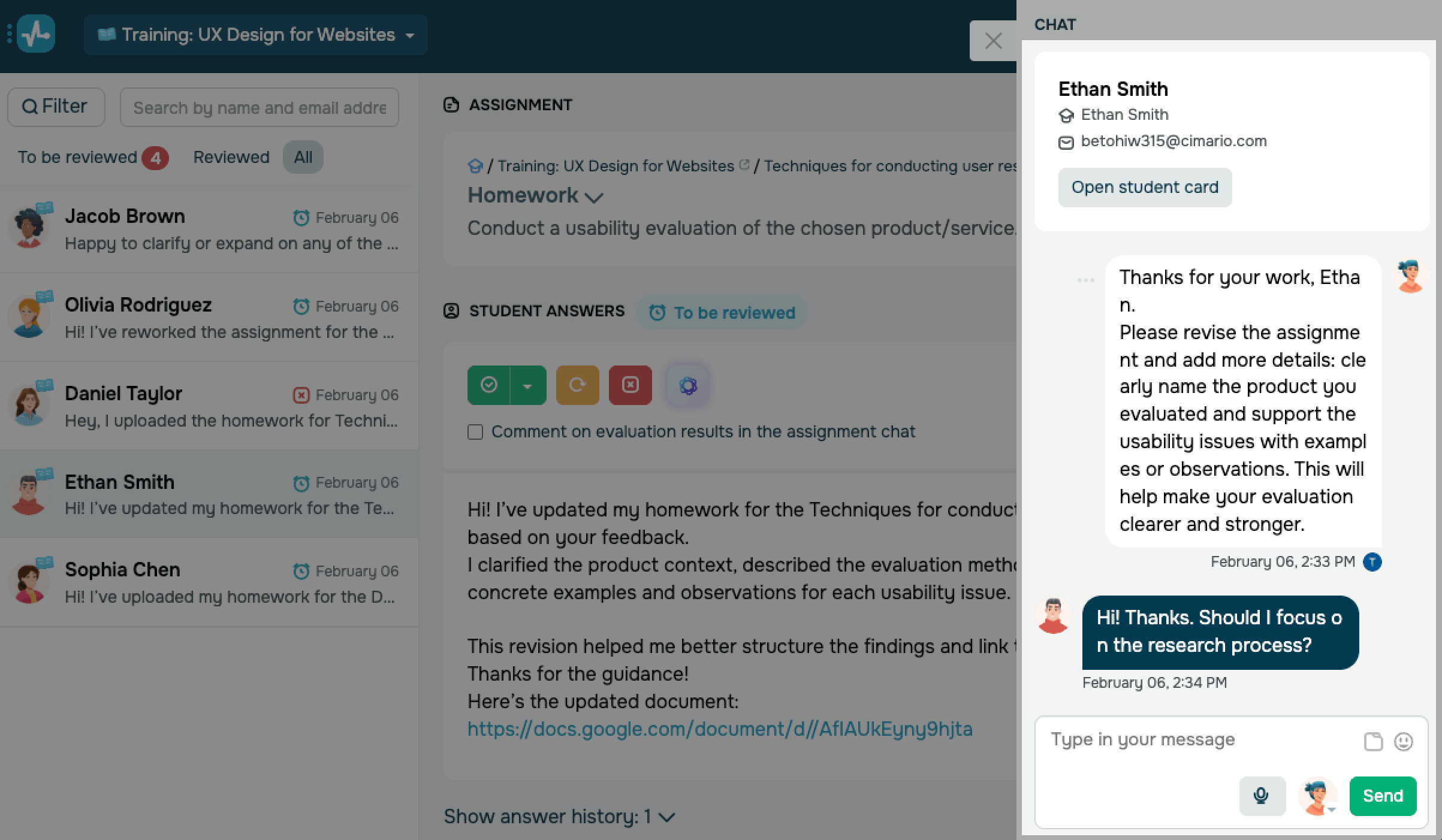
To send your message, click Send.
In Chat, you can see messages with instructor comments on the evaluation of a specific student's answer. They will be marked with the Result badge and a quote of the answer. These messages are created after the evaluation.
If assignment chats are not included in a student's plan, they will not be able to message you back.
 Last Updated: 16.02.2026





or