Downgrade your pricing plan
In Email and Chatbots, you can switch your pricing plan to one with fewer contacts. Your current paid plan stays active until the billing period ends, including all purchased features and limits.
This is useful when your contact base decreases, for example, after list cleanup, seasonal campaigns, or temporary project pauses.
Let's talk about how to choose a lower-tier plan, what happens after confirmation, and how to cancel a scheduled plan switch.
Basics
A downgrade is any switch to a pricing plan with fewer contacts than your current one. The billing period and total cost don't change that.
We recommend waiting until your current paid period ends before downgrading your plan.
For example, a switch from a monthly 2,000-contact plan to a yearly 1,000-contact plan is still a downgrade. A switch to the free plan also counts as a downgrade.
Downgrade process
You can start a downgrade in the Pricing plans tab of the relevant SendPulse tool. To downgrade across multiple tools, use the pricing plan builder.
For one SendPulse tool
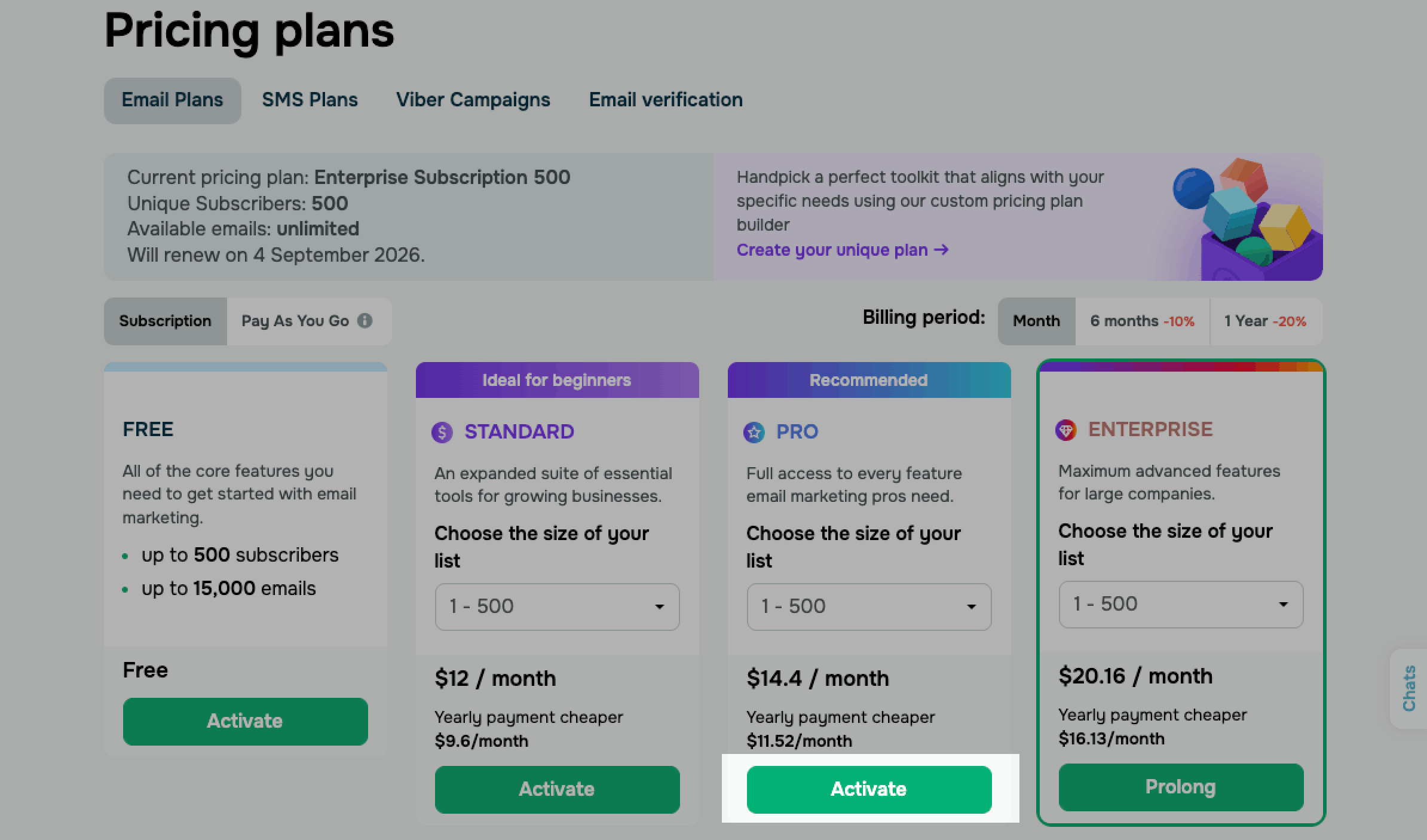
Go to the Email or Chatbots section. Select the Pricing plans tab from the sidebar. Choose the plan you want to switch to, then click Activate for Email or Buy for Chatbots. Confirm the change to continue.
For multiple SendPulse tools
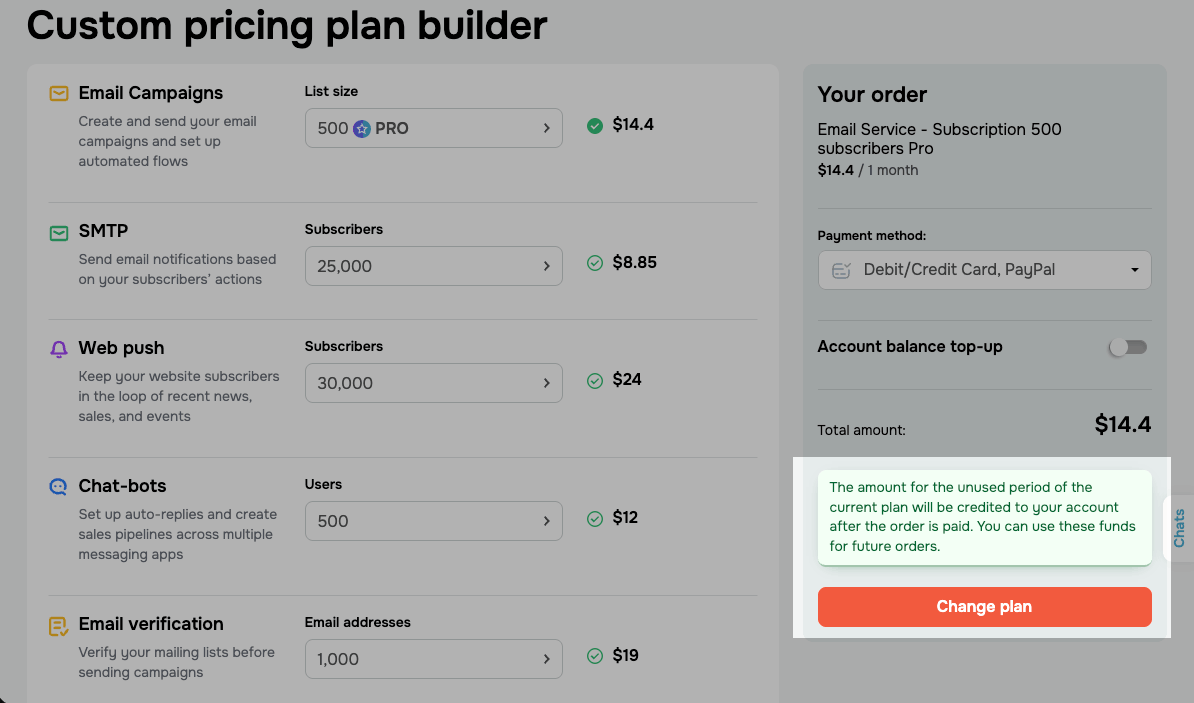
Go to the Email or Chatbots section. Select the Pricing plans tab. Click Create your unique plan. Reduce the number of email contacts or chatbot subscribers in your plan, then click Change plan. Confirm the change to continue.
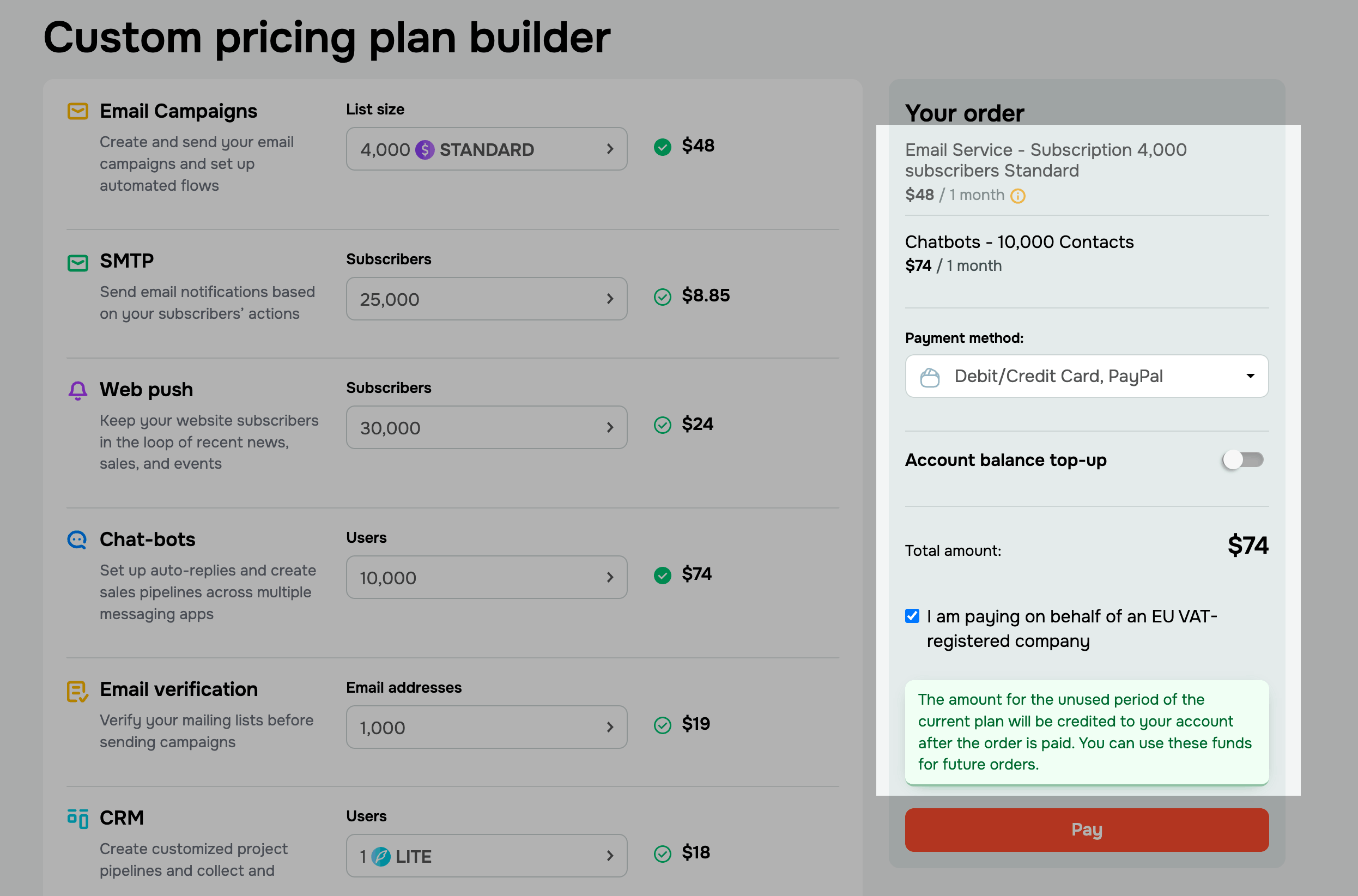
If SendPulse schedules the downgrade instead of charging you immediately, the lower-tier plan appears as inactive in the order sidebar. The activation date is shown next to it, and its price is excluded from the total.
If your order also includes items that need to be purchased right away, click Pay. SendPulse charges you only for these items, and the scheduled downgrade still activates on its scheduled date.
Downgrade billing
Once you confirm the downgrade, SendPulse either schedules the plan switch for the end of your current billing period or opens the checkout page for immediate payment. The applied option depends on the payment method from your latest successful order.
Switching to the free plan is always scheduled because no payment is required.
SendPulse does not apply the unused value of your current plan to the new plan price. If you pay for the new plan at checkout, the unused amount is returned to your bonus balance separately.
Scheduled downgrade
If SendPulse can charge you automatically, your downgrade is scheduled instead of taking you to checkout. Your current plan keeps running until its paid period ends. SendPulse charges you for the new plan on its activation date. Once the payment is successful, your current plan is replaced with the lower-tier plan.
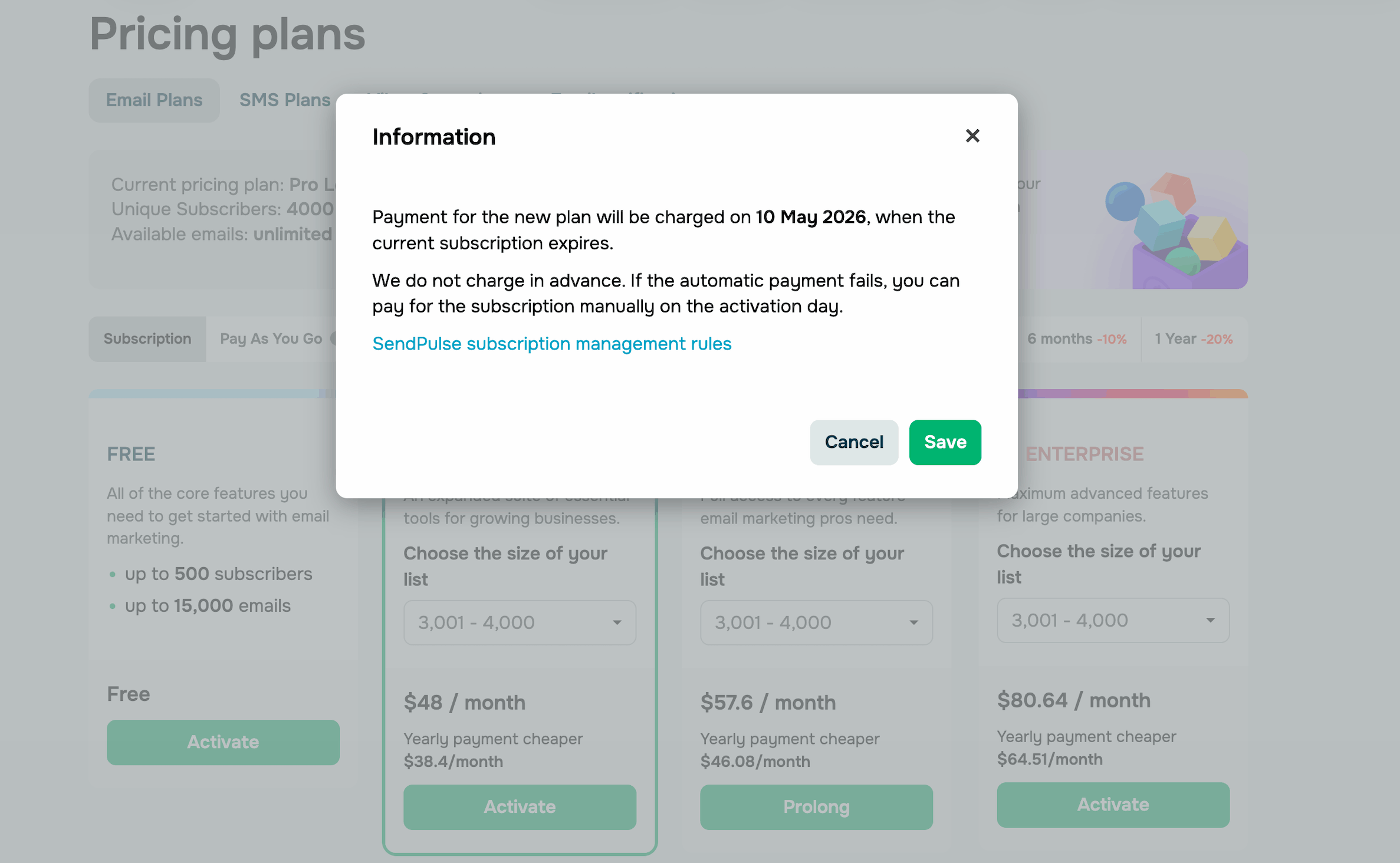
A confirmation dialog opens with the activation date for your scheduled downgrade. Click Save to schedule the new plan.
To track a scheduled plan change, go to My Subscriptions > Scheduled.
On the activation day, SendPulse charges your account balance first. If the balance doesn't cover the cost, SendPulse charges your saved credit card.
If the payment fails and no saved payment method works, your new plan isn't activated, and SendPulse doesn't charge any funds. Instead, you receive a notification email so that you can pay manually.
You can also cancel or change the scheduled switch before its activation date.
Immediate downgrade
If SendPulse can't charge you automatically, the downgrade isn't scheduled. Once you confirm the plan change, SendPulse takes you to the Products for the order page.
Once the order is paid, SendPulse credits the remaining value of your current plan to your account balance. You can use the credited funds for future payments.
Go over your downgrade order and choose a payment method. If your cart includes only the downgrade, click Change plan to complete the order.
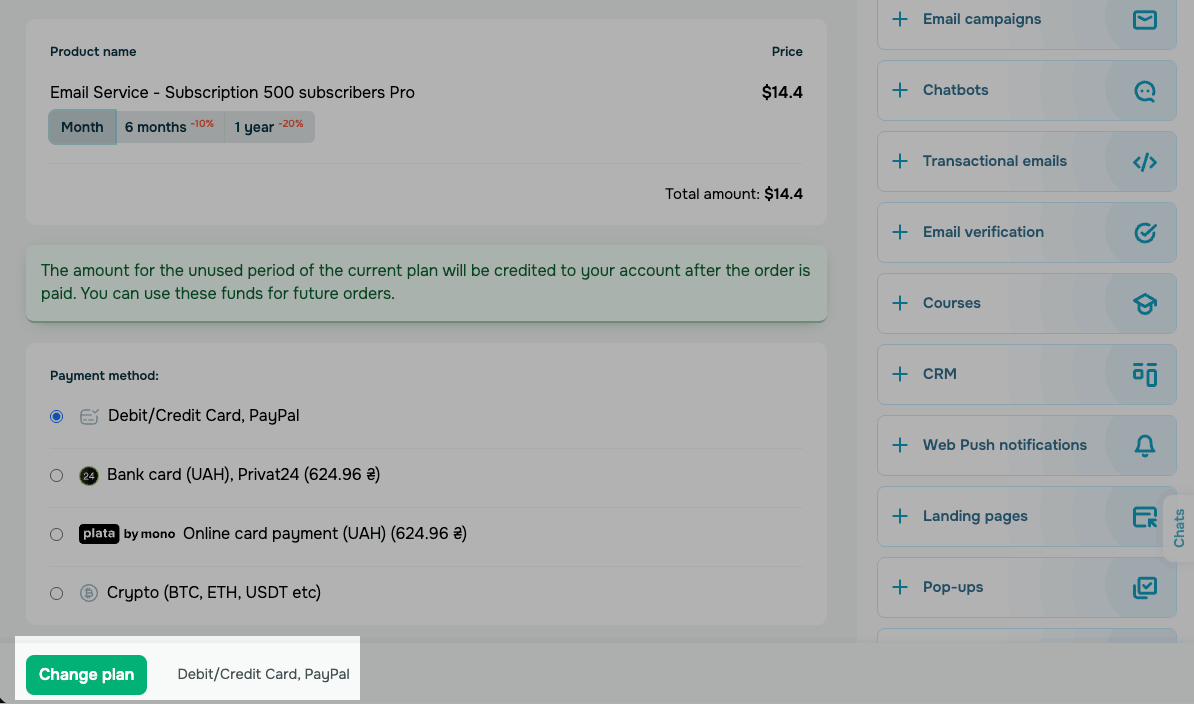
If your cart also includes other items, click Pay. SendPulse charges you for the downgrade and the other items together.
Disabled items in the cart aren't charged. They're scheduled from earlier and remain set for their planned activation dates.
Once SendPulse receives the payment, your new plan becomes active and replaces the current plan.
Read also: View your subscriptions, Cancel your subscription, Purchase a pricing plan.
 Last Updated: 24.02.2026





or