View your subscriptions
You can view all subscriptions linked to your SendPulse account, including active plans and scheduled plan changes.
This helps you confirm upcoming renewal charges, track scheduled downgrades, or check your current payments across SendPulse tools.
Let's talk about how to track your active subscriptions and scheduled plan changes.
View active subscriptions
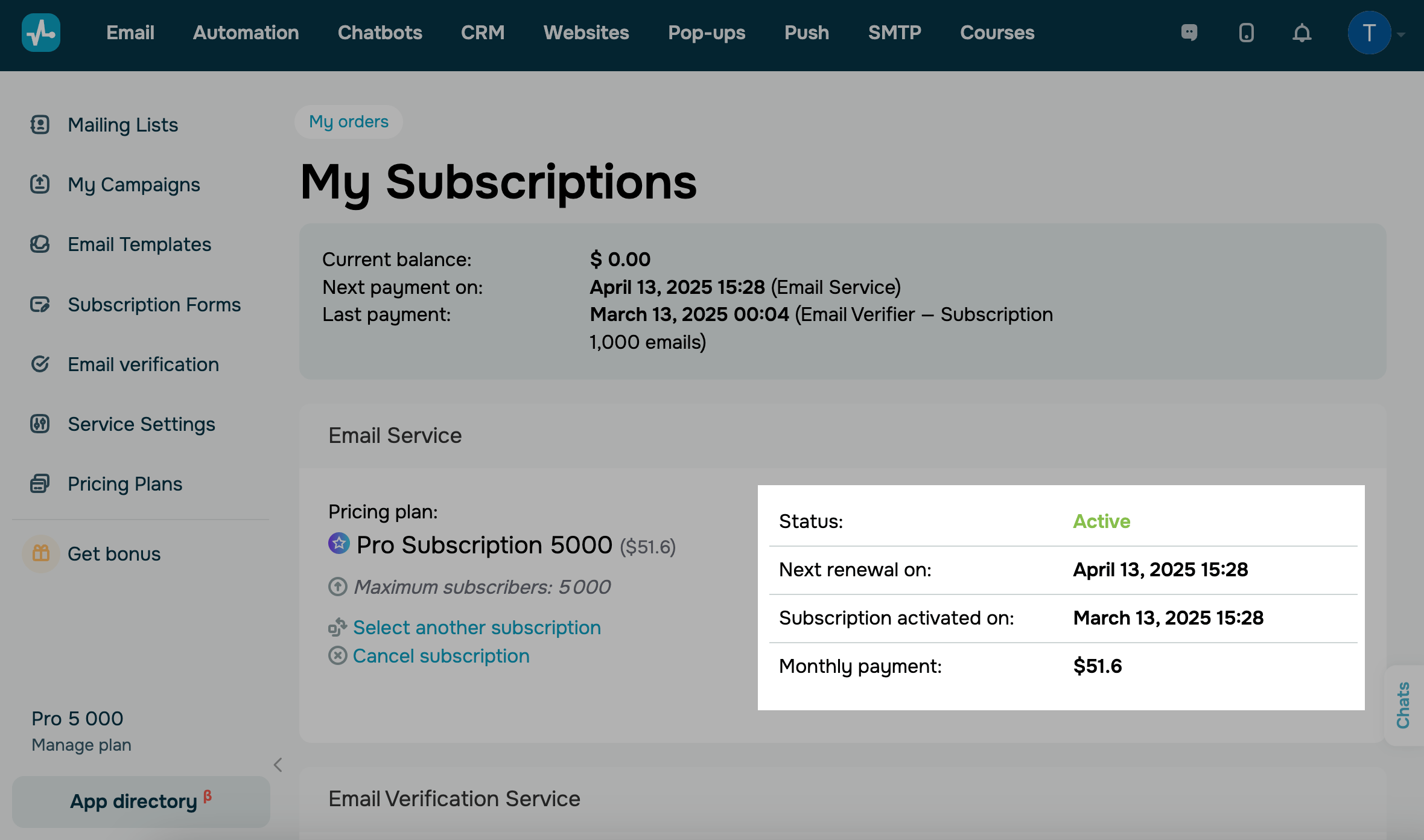
You can view every subscription that's currently running on your account. Each SendPulse tool with a paid plan appears as a dedicated Pricing plan card.
To view your active subscriptions, click your profile icon in the upper right corner. Go to My Orders > My Subscriptions > Active.
Each card includes the following:
| Status | Shows the current pricing plan status. |
| Next renewal on | Shows the next billing date for your subscription. |
| Subscription activated on | Shows when the subscription was originally activated. |
| Payment | Shows the subscription fee charged per billing cycle. |
View scheduled subscriptions
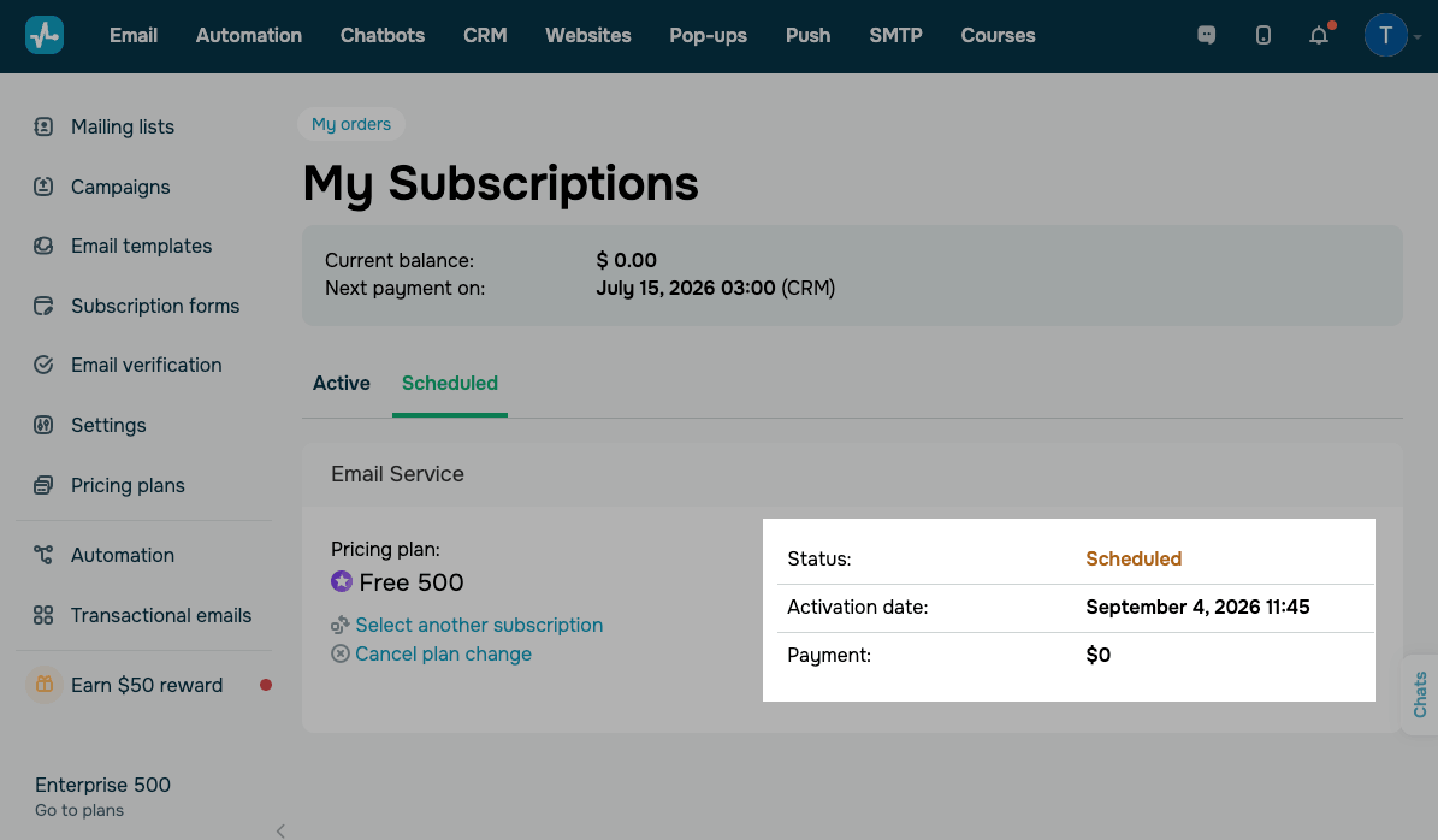
You can see pricing plan changes that haven't taken effect yet. Each tool with a scheduled change appears as a dedicated Pricing plan card.
For instance, SendPulse schedules a plan change when you downgrade your pricing plan and charges you automatically.
To view your scheduled subscriptions, go to the Scheduled tab.
Each scheduled plan card includes the following:
| Status | Shows the current status of the scheduled pricing plan. |
| Activation date | Shows when the new plan will replace the current one. |
| Payment | Shows the amount charged on the activation date. |
Your current plan remains active until its paid period ends, and the new plan is activated on the scheduled date.
Each SendPulse tool can have only one scheduled plan change at a time. If you select another lower-tier plan before your current plan expires, the new scheduled plan replaces the previous one.
To cancel the plan change and continue using your current plan, click Cancel plan change on the card and confirm. Your current plan will remain active without changes.
To switch to a different scheduled plan, click Select another subscription and choose a new plan.
Read also: Cancel your subscription, Downgrade your pricing plan.
 Last Updated: 16.09.2024





or