Use ready-made API Request presets
SendPulse offers ready-made presets for more than 30 tools. Each preset already contains the correct method, URL, and headers for a specific action. You only need to add your own data.
Presets help you connect your chatbot to the rest of your stack and automate conversation workflows. For example, your chatbot can create a deal in your CRM system, trigger an automation in n8n, and send Slack notifications from a single flow.
You can also create your presets. Read more: Create your own API Request preset.
How to use presets
Every preset works the same way. You choose a tool and a method, SendPulse fills in the request, and you add your own values.
To apply a preset, add the API Request element and click Select API Preset. Choose a tool and a method.
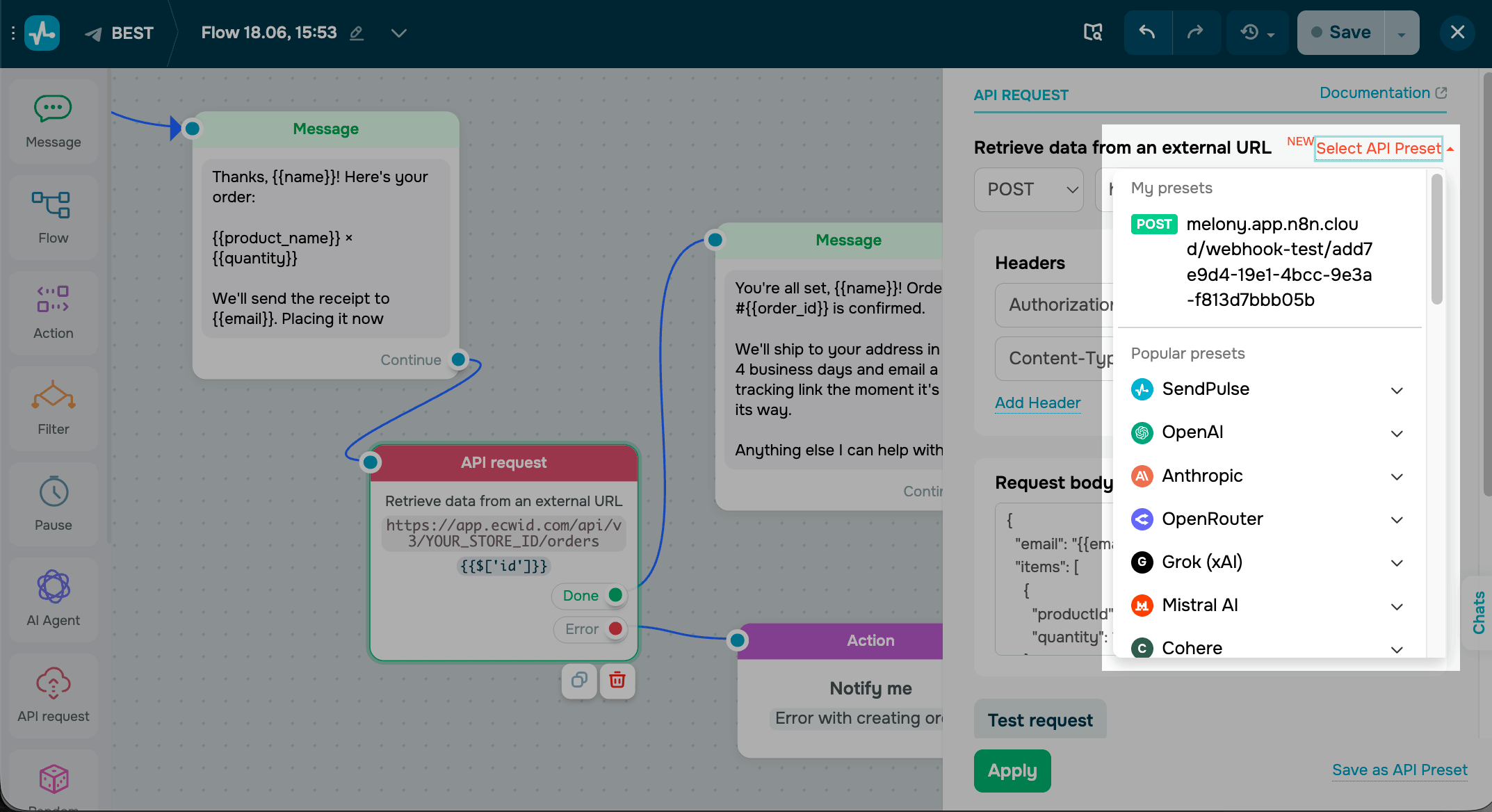
SendPulse fills in the method, URL, headers, and a sample body. Placeholders such as YOUR_API_KEY or YOUR_STORE_ID mark the values to replace.
Replace the placeholders with your contact variables. You can also modify them.
Please note that some presets need account-specific values in the URL, such as a store ID or a project URL. Replace these before you run the request.
We recommend storing API keys in global variables instead of typing them into shared presets.
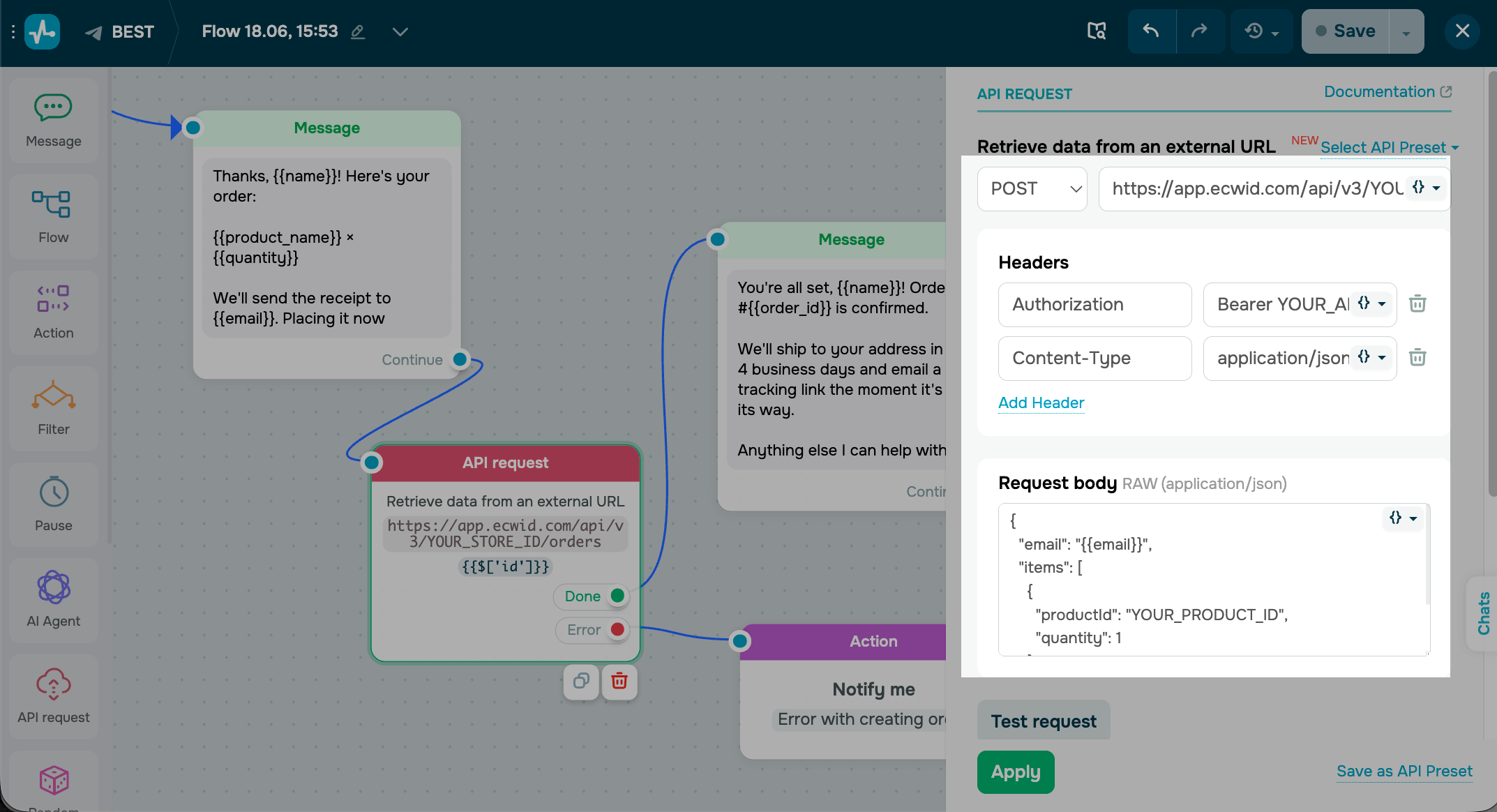
To check the request, click Test request. After a successful request, save the response to the variables or use received information a JSONPath expression.
To learn more, see How to use the received data.
List of presets
Find the tool you want to connect to, then add your own credentials. Each tool lists the actions its presets can perform.
The list of presets is constantly updating. Refer to your account to see the current list.
SendPulse
SendPulse presets connect your chatbot to your own SendPulse account through its REST API. To give you an idea, you can create a CRM deal when a contact sends a message, add a subscriber to a mailing list, enroll a user in a course, or send an SMS confirmation from a single flow.
To get your API key, go to Settings > API > API keys and click Generate. Read more: SendPulse API reference.
You can use the following methods:
| Chatbots | |
| Send message | Sends a message to a subscriber by contact ID, even outside the current flow. |
| Run flow | Starts another flow for a subscriber, for example to begin onboarding. |
| Get chat messages | Returns a subscriber's recent messages to use as context. |
| Get contact | Returns a subscriber's profile, tags, and variables. |
| Delete contact | Removes a subscriber and all their data from the audience. |
| CRM | |
| List pipelines | Returns your pipelines and stages. |
| Create deal | Creates a deal in a chosen pipeline with the details from the chat. |
| Get deals | Returns deals that match a filter, such as a contact or stage. |
| Create contact | Adds a contact with the name, email, and phone you collected. |
| Find contacts | Searches contacts to fetch an existing record or avoid duplicates. |
| Add note to deal | Attaches a note to a deal, such as what the customer asked for. |
| Courses | |
| List courses | Returns your courses so the bot can offer the right one. |
| Get course tariffs | Returns a course's pricing options. |
| Enroll student | Enrolls a student in a course. |
| Get students by course | Returns who is enrolled in a course. |
| Get student progress | Returns how far a student has gotten, to nudge or reward them. |
| Mark students as paid | Marks enrollment as paid after a successful payment. |
| List address books | Returns your mailing lists so you can pick the right one. |
| Create address book | Creates a mailing list, for example one per campaign. |
| Add contact to address book | Adds the subscriber's email to a list for future campaigns. |
| Send email campaign | Creates and sends an email campaign to a chosen list. |
| SMTP | |
| Send email | Sends a transactional email, such as a receipt or confirmation. |
| List sender emails | Returns your verified sender addresses. |
| Get sent email info | Returns the delivery status of an email you sent. |
| List unsubscribed emails | Returns who opted out, to keep your sends compliant. |
| Send email | Sends a transactional email, such as a receipt or confirmation. |
| SMS | |
| Send SMS | Sends an SMS to your recipients, such as a code or reminder. |
| Add phones to address book | Adds collected phone numbers to a list for campaigns. |
| Automation 360 | |
| Trigger Automation360 event | Sends an event that starts an Automation 360 flow. |
| Web push | |
| Send web push | Sends a web push notification to your subscribers. |
| Account | |
| Get balance | Returns your account balance, for example to alert you when it runs low. |
OpenAI
OpenAI provides the GPT models that generate and understand text. For example, you can have your bot answer an open question, summarize a long complaint, or translate a reply into the customer's language — handling messages you cannot script in advance.
To get your API key, go to API keys in your OpenAI dashboard and click Create new secret key. Enter a name, click Create secret key, and copy the key from the dialog. Read more: Where to find your OpenAI API key.
You can use the following methods:
| Get models | Returns the models your account can use. |
| Create completion | Generates a plain-text reply with OpenAI's standard Chat Completions API. |
| Create response | Generates a reply with the newer Responses API, which adds built-in tools like web search and remembers earlier turns. |
| List vector stores | Returns your vector stores to get your stored information.. |
| Create vector store | Creates a vector store to save information from your chat. |
Anthropic
Anthropic builds the Claude models, which handle long, natural conversations and documents well. For example, you can have your bot answer detailed questions from your knowledge base, summarize a file a customer sends, or rewrite a reply in a friendlier tone.
To get your API key, go to Settings > API keys in the Claude Console and click Create Key. Copy the key from the dialog. Read more: Claude API overview.
You can use the following methods:
| Create message | Generates a Claude reply from your prompt and context. |
| List models | Returns the Claude models you can call. |
OpenRouter
OpenRouter routes one request to models from OpenAI, Anthropic, Google, Mistral, and others. For example, you can test which model answers your customers best, then switch providers later without rebuilding the flow.
To get your API key, go to Settings > Keys in your OpenRouter account and click Create Key. Name the key and copy it from the dialog. Read more: OpenRouter authentication.
You can use the following methods:
| List models | Returns every model available through OpenRouter. |
| Chat completion | Generates a reply from the model you choose. |
Grok (xAI)
Grok is xAI's family of models for generating and understanding text. For example, you can use it to write a reply, identify what a customer is asking about, or summarize a long conversation into a short answer.
To get your API key, go to API Keys in the xAI Console and click Create API key. Copy the key from the dialog. Read more: xAI quickstart.
You can use the following methods:
| Chat completion | Generates a reply from a Grok model. |
| List models | Returns the Grok models. |
Mistral AI
Mistral AI offers fast, lower-cost language and embedding models. For example, you can generate replies at high volume, or turn your help articles into embeddings so the bot answers from your own content.
To get your API key, go to API Keys in Mistral Studio and click Create new key. Copy the key from the dialog. Read more: Mistral API keys.
You can use the following methods:
| Chat completion | Generates a reply from a Mistral model. |
| Create embeddings | Turns text into vectors for search or matching. |
Cohere
Cohere provides models for text plus search-focused embedding and reranking. For example, you can have your bot find the single most relevant help article for a question and reply with it first.
To get your API key, go to API keys in the Cohere Dashboard, then copy your Trial key or click New Production key for a paid key. Read more: The Cohere platform.
You can use the following methods:
| Chat | Generates a reply from a Command model. |
| Create embeddings | Turns text into a numeric representation of its meaning, for comparing or searching text. |
| Rerank documents | Sorts a set of documents by how well they match a query. |
n8n
n8n is a workflow tool that links hundreds of apps. Trigger an n8n workflow from your bot to run steps you would otherwise do by hand. For example, you can create an invoice, update a spreadsheet, and alert your team the moment a customer orders.
To get your credentials, open the Webhook node and copy its Production URL. For the other presets, go to Settings > n8n API and click Create an API key. Read more: n8n API authentication.
You can use the following methods:
| Trigger webhook | Sends your flow's data to an n8n workflow to run it. |
| List workflows | Returns the workflows in your n8n. |
| List executions | Returns recent runs, for example to confirm one succeeded. |
Airtable
Airtable stores your data in shareable tables, like a friendly database. For example, you can log every new lead as a record, look up an order's status mid-chat, or update a booking — and your team sees it in the grid right away.
To get your API key, go to Personal access tokens in your Airtable builder hub and click Create token. Add the Scopes and a base under Access, then click Create token and copy it. Read more: Create personal access tokens.
You can use the following methods:
| List records | Returns records from a table, with optional filters. |
| Create record | Adds a record built from the data in your flow. |
| Get record | Returns a single record. |
| Update record | Updates information in fields in an existing record. |
| Delete record | Removes a record from a table. |
Supabase
Supabase gives you a PostgreSQL database with an instant API. For example, you can save an order as a row, fetch a returning customer's profile, or call a function to calculate a price during the conversation.
To get your API key, go to Project Settings > API Keys and copy your Publishable or Secret key. Find your project URL under Project Settings > Data API. Read more: Supabase API keys.
You can use the following methods:
| Get rows | Returns rows from a table, with optional filters. |
| Insert row | Adds a row built from your flow's data. |
| Update rows | Changes rows that match a filter. |
| Upsert row | Adds a row, or updates it if it already exists. |
| Delete rows | Removes rows that match a filter. |
| Call function (RPC) | Runs a Postgres function, for example to calculate a total. |
Notion
Notion holds your team's notes, docs, and databases. For example, you can add each request as a new page, log feedback into a database, or pull an answer from your knowledge base into the bot's reply.
To get your API key, go to My integrations, click New integration, and copy the Internal Integration Secret. Open your page, click the menu, go to Connections, and add the integration. Read more: Create an internal integration.
You can use the following methods:
| Query data source | Returns pages from a database that match your filter. |
| Create page | Adds a page to a database or workspace from your flow's data. |
Meta Conversions API
The Meta Conversions API sends events straight to Meta from your server, with no browser pixel. For example, you can report a purchase or a booked call from the bot so Meta measures your ad results and optimizes who sees them.
To get your access token, go to Events Manager, select your dataset, and open the Settings tab. Under Conversions API, click Generate access token. Read more: Conversions API.
You can use the following methods:
| Send conversion event | Reports a server-side conversion to your Meta dataset. |
| Send pixel event (click ID) | Reports an event with a click ID for better attribution. |
Google Analytics 4
Google Analytics 4 (GA4) measures how people use your sites and apps. For example, you can send a completed order or a finished quiz from the bot into GA4, so your marketers see how the chatbot drives conversions and can build audiences from it.
To get your API secret, go to Admin > Data streams and select your stream. Under Measurement Protocol API secrets, click Create, name the secret, and copy the Secret value. Find your Measurement ID at the top of the stream. Read more: Measurement Protocol for GA4.
You can use the following methods:
| Send event (Measurement Protocol) | Reports an event to your GA4 property. |
| Validate event (debug) | Checks an event payload before you send it for real. |
TikTok Events API
The TikTok Events API sends conversion events to TikTok from your server. For example, you can report a lead or a sale from the bot, so TikTok can measure your ad results and improve your targeting.
To get your access token, go to Tools > Events in TikTok Ads Manager, open your Web event data source, and on the Settings tab click Generate access token. Copy your Pixel ID from the same data source. Read more: Getting started with the Events API.
You can use the following methods:
| Track event | Sends a conversion event, such as a lead or sale, to TikTok. |
| Track pixel event (click ID) | Sends an event that includes the ad's click ID, so TikTok can match it to the ad that drove it. |
HubSpot
HubSpot is a CRM that helps you manage your contacts, deals, and marketing in one place. For example, you can create a contact the moment someone writes in, find a returning customer by email, or open a deal.
To get your access token, go to Settings > Integrations > Private apps and click Create a private app. Open the Auth tab and copy the Access token. Read more: Private apps.
You can use the following methods:
| Create contact | Adds a contact to your CRM with the name, email, and phone from the chat. |
| Search contacts | Finds an existing contact by email or another property, for example to recognize a returning customer. |
| Create deal | Creates a deal in a pipeline for a qualified lead. |
Pipedrive
Pipedrive is a sales CRM that helps you manage deals through a visual pipeline. For example, you can create a deal when a lead qualifies, add the person it belongs to, or list open deals to follow up.
To get your API token, go to Settings > Personal preferences > API and copy the value under Your personal API token. Read more: Find your personal API key.
You can use the following methods:
| Create deal | Adds a new deal to a pipeline, using the data from the chat. |
| Create person | Adds a contact with the name and email from the chat. |
| List deals | Returns deals from your account. |
Monday
monday.com organizes work into boards and items. For example, you can add each new lead or request onto a board as an item, so your team can assign it and move it through their workflow.
To get your API token, click your avatar and go to Developers > My Access Tokens, then click Show to copy your token. Account admins can also use Administration > Connections. Read more: monday.com authentication
You can use the following methods:
| Create item | Adds a new item (a row on a board) using the data from your flow. |
| List items | Returns the items on a board, for example to find one. |
Attio
Attio is a flexible CRM that helps you manage your contacts and the relationships around them. For example, you can create a person the moment a new contact writes in, or look up an existing one by name or email.
To get your access token, go to Workspace settings > Developers and click Create an access token. Set the Scopes and copy the token. Read more: Attio authentication
You can use the following methods:
| Create person | Adds a contact with the name and email from the chat. |
| List people | Returns list of your contact records. |
Freshsales
Freshsales is a sales CRM from Freshworks that helps you manage your contacts and deals. For example, you can create a contact when someone writes in, open a deal, or find a contact by email to greet a returning customer.
To get your API key, click your profile icon, go to Settings > API Settings, and copy the value under Your API key. Read more: Find your API key
You can use the following methods:
| Create contact | Adds a contact with the name and email from the chat. |
| Find contact by email | Looks up a contact by email, for example to recognize a returning customer. |
| Create deal | Creates a deal for the contact, using the details from the chat. |
Odoo
Odoo is an open-source business suite, and its CRM helps you manage contacts and sales leads. For example, you can create a contact or a lead from the chat, update an existing contact, or look one up by email or phone.
To get your API key, click your avatar, go to Preferences > Account Security, and click New API Key. Enter a name, click Generate Key, and copy it. Read more: Odoo external API.
You can use the following methods:
| Contacts | |
| Create contact | Adds a contact from the chat. |
| Find contact by email | Looks up a contact by email. |
| Find contact by phone | Looks up a contact by phone number. |
| Update contact | Changes details on an existing contact. |
| List contacts | Returns contacts that match your criteria. |
| Leads / Deals | |
| Create lead / opportunity | Creates a sales lead or opportunity (a potential deal) in your pipeline. |
| Find lead by email | Looks up a contact by email. |
| Find lead by phone | Looks up a contact by phone number. |
Telegram Bot API
The Telegram Bot API gives your flow direct access to Telegram's own features, beyond the built-in elements. For example, you can send a payment invoice the customer pays inside Telegram, check whether a user is in your channel before you reply, or work with Telegram Stars.
To get your bot token, open a chat with @BotFather and send /mybots. Select your bot, and click API Token. Read more: Telegram Bot tutorial.
You can use the following methods:
| Send message | Sends a text message to a chat or channel. |
| Send photo | Sends a photo, such as a receipt or product image. |
| Get bot info | Returns your bot's profile details. |
| Get chat | Returns details about a chat. |
| Get chat member | Returns a member's status, for example to check membership. |
| Send invoice | Sends a payment invoice from your bot to a chat, so the customer can pay inside Telegram. |
| Get Star balance | Returns your bot's Telegram Stars balance. |
| Get Star transactions | Returns your bot's Telegram Stars transaction history. |
Slack
Slack is a team messaging app organized into channels. For example, you can post a new-lead alert to your sales channel, update it as the deal status changes, or list your channels to pick where to post.
To get your token, open your app on the Your Apps page, go to OAuth & Permissions, and copy the Bot User OAuth Token. For a webhook, open Incoming Webhooks and copy the URL. Read more: Slack tokens.
You can use the following methods:
| Post message | Sends a message to a channel. |
| Update message | Edits a message you posted earlier, for example to update the order status it shows. |
| List channels | Returns the workspace's channels. |
Discord
Discord hosts your community or team in channels. For example, you can post new sign-ups, or alerts to a channel through a webhook, keeping everyone informed without manual updates.
To get your webhook URL, open the channel settings, go to Integrations > Webhooks, and click New Webhook. Click Copy Webhook URL. Read more: Discord webhooks
You can use the following methods:
| Send webhook message | Sends a message to a channel through a webhook. |
| Send embed message | Sends a rich, formatted card through a webhook. |
| Get webhook info | Returns webhook details, such as its name and channel. |
Trello
Trello is a Kanban tool that organizes work into boards, lists, and cards. For example, you can create a card for each new request or lead, or list your boards and their lists to pick where the card goes.
To get your key and token, open the Power-Ups admin page, open your Power-Up, and on the API Key tab click Generate a new API Key. Click the Token link, click Allow, and copy the token. Read more: Trello authorization.
You can use the following methods:
| Create card | Adds a card to a list, using the data from your flow. |
| List boards | Returns the boards you can access. |
| List lists on a board | Returns the lists (columns) on a board. |
ClickUp
ClickUp manages tasks and projects in one place. For example, you can create a task from a conversation — a support follow-up or an order to fulfill — so nothing a customer asks for slips through.
To get your API token, click your avatar, go to Settings > Apps, and under API Token click Generate. Click Copy. Read more: ClickUp authentication
You can use the following methods:
| Create task | Adds a task to a list with details. |
Asana
Asana tracks your team's tasks and projects. For example, you can create a task whenever a customer needs follow-up, so the request reaches the right project and owner automatically.
To get your access token, go to My apps in your Asana developer console and click Create new token. Name the token and copy it. Read more: Personal access token
You can use the following methods:
| Create task | Adds a task to a project with details. |
Linear
Linear is an issue tracker for product and engineering teams. For example, you can turn a bug a customer reports into an issue, list related issues, or add a comment — so feedback becomes tracked work.
To get your API key, go to Settings > Account > Security & access, and under Personal API keys click New API key. Set the scope and copy the key. Read more: Linear API.
You can use the following methods:
| Create issue | Opens an issue from a bug or request. |
| List issues | Returns issues that match your criteria. |
| Create comment | Adds a comment to an issue. |
Shopify
Shopify is an e-commerce platform that helps you run an online store — its products, customers, and orders. For example, you can show products from your catalog, look up a customer's order status, or create a customer from the chat.
To get your access token, open the Dev Dashboard, create an app, and configure the Admin API scopes. Install the app on your store and copy the Admin API access token. Read more: Generate access tokens
You can use the following methods:
| List products | Returns products to show in the chat. |
| Create product | Adds a product to your store. |
| Find product by title | Searches products by title. |
| Get product by id | Returns one product by its ID. |
| List customers | Returns your store's customers. |
| Search customers | Finds customers by your criteria. |
| Create customer | Adds a customer from the chat. |
| List orders | Returns recent orders. |
| Get order | Returns one order's details and status. |
WooCommerce
WooCommerce is an e-commerce plugin that turns a WordPress site into an online store. For example, you can create an order from the chat, register a customer, check an order's status, or show products from your catalog.
To get your keys, go to WooCommerce > Settings > Advanced > REST API in your WordPress admin and click Add key. Set permissions, click Generate API key, and copy the Consumer key and Consumer secret. Read more: WooCommerce REST API
You can use the following methods:
| Create order | Places an order with details from the chat. |
| Create customer | Adds a customer to your store. |
| Get order | Returns one order's details and status. |
| List products | Returns products to show in the chat. |
| Search product by name | Finds products by name. |
| Get product by id | Returns one product by its ID. |
Square
Square is a payments and commerce platform for taking payments and managing customers. For example, you can create a customer, look one up by email, or list recent payments to confirm a purchase.
To get your access token, open your application in the Developer Console, select the Credentials tab, switch to Production, and copy the Access token. Read more: Square access tokens.
You can use the following methods:
| Create customer | Adds a customer with your contact details. |
| Search customer by email | Looks up a customer by email. |
| List payments | Returns recent payments, for example to confirm one. |
Ecwid
Ecwid ais an e-commerce platform that adds an online store to any website. For example, you can create an order from the chat, find a customer's past orders by email, or show products from your catalog.
To get your access token, open the Manage your apps page in your Ecwid admin and copy your Secret access token. Find your Store ID in the lower-left corner of the admin. Read more: Ecwid API
You can use the following methods:
| Create order | Places an order with details from the chat. |
| Find orders by email | Looks up a customer's orders by email. |
| List products | Returns products to show in the chat. |
Calendly
Calendly lets your customers book time on your calendar. For example, you can show a customer your available slots and let them pick a meeting time right inside the conversation.
To get your access token, go to Integrations > API & Webhooks, and under Personal access tokens click Generate new token. Name it, click Create token, and copy it. Read more: Authenticate with personal access tokens.
You can use the following methods:
| List event types | Returns your meeting types so the bot can offer them. |
| List scheduled events | Returns booked meetings. |
 Last Updated: 18.06.2026





or