The Shape element in websites
A shape is a basic graphic element you can use to add accents, background elements, or decorative details in an open block. You can adjust its form, color, size, and position to create your own design.
To give you an idea, you can add a circle as a background under a button or use a rectangle to highlight a text element.
Let’s talk about how to create and customize this element.
Add an open block
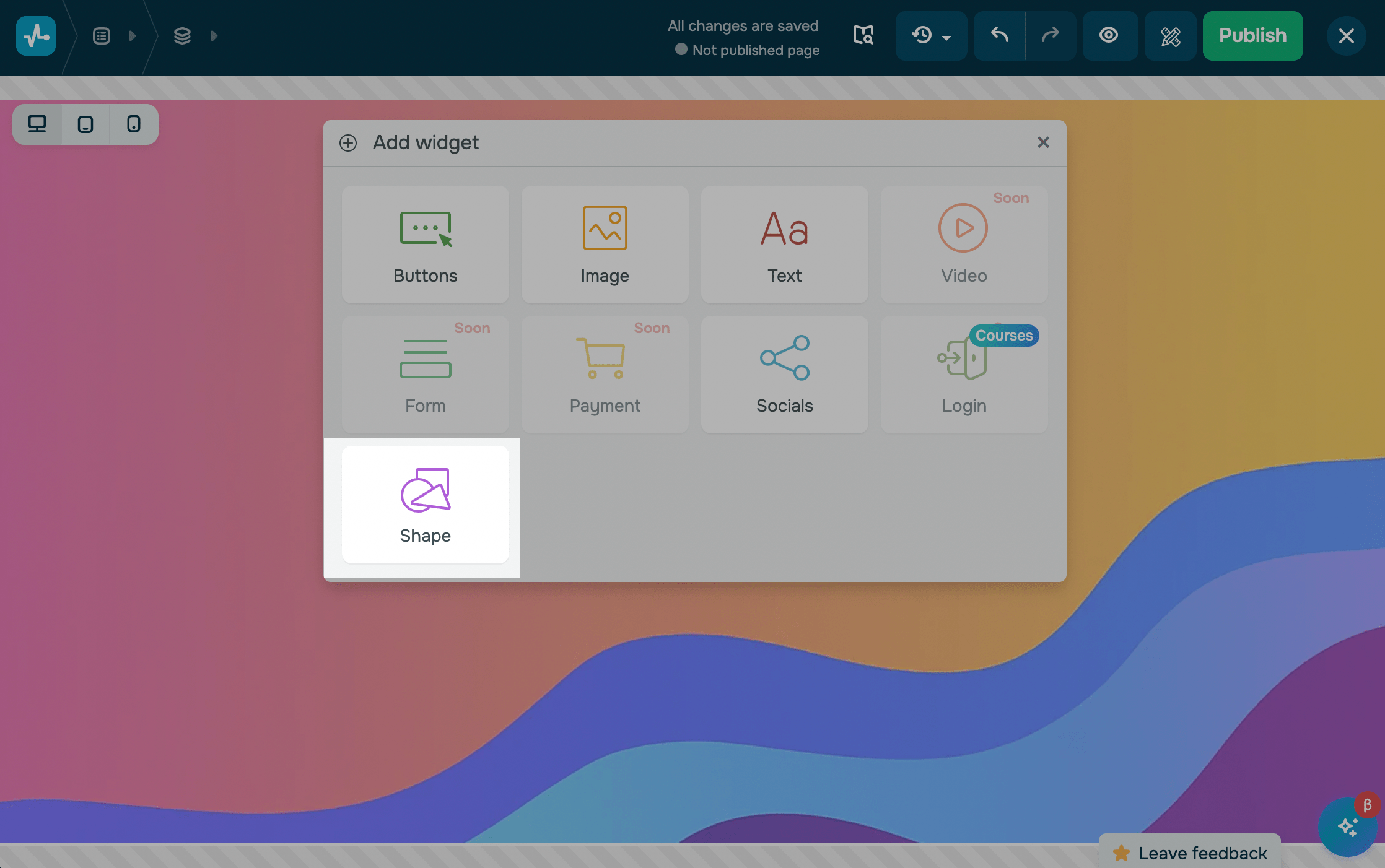
In the website builder, add an open block. Click + and select the Shape widget.
To go to the shape settings, click the shape.
Set a shape
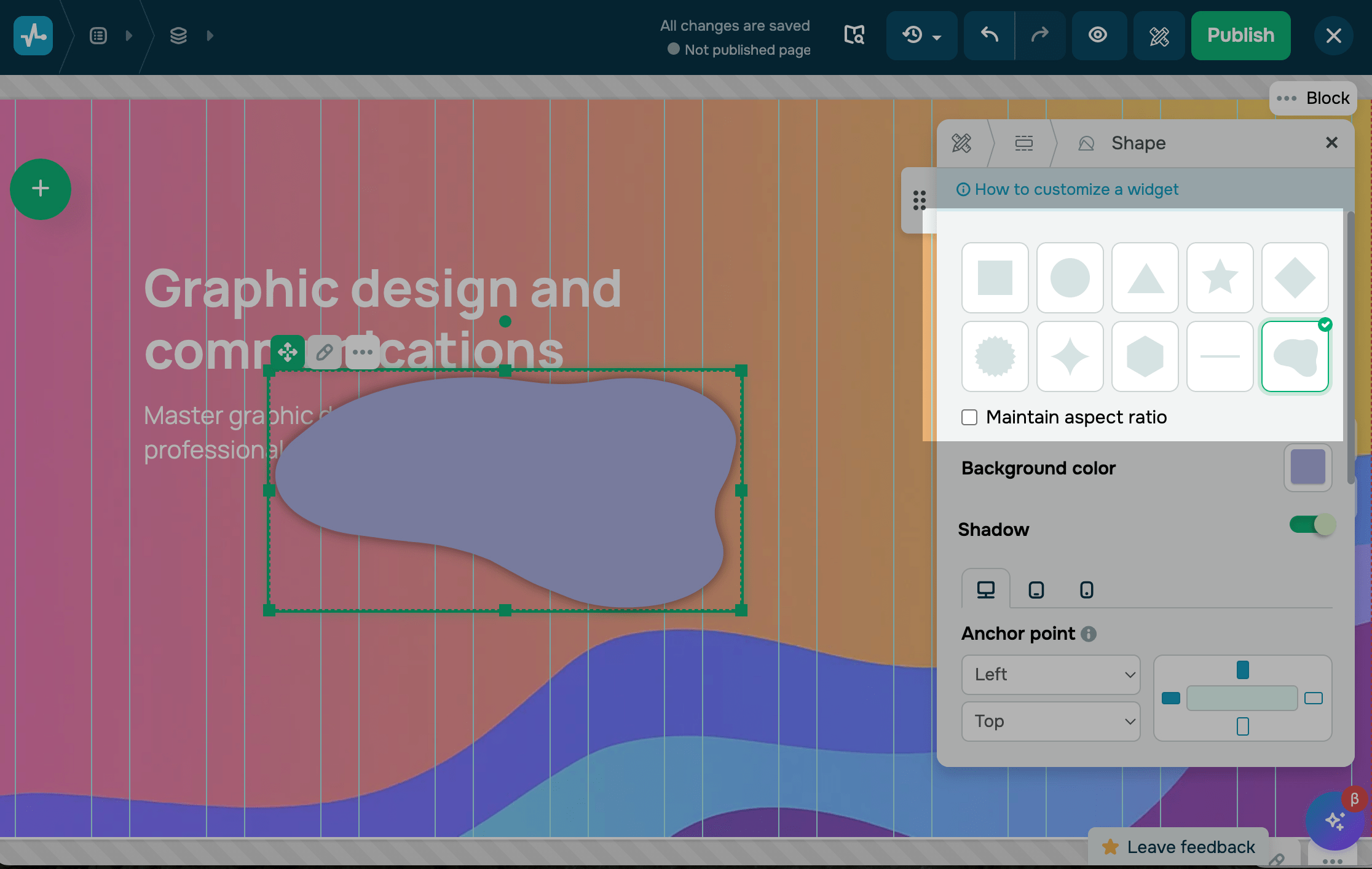
In the first section, choose a shape.
To resize the shape, drag the handle on its edge in the workspace. You can also set exact size values in the Width and Height fields. To scale it evenly, select the Keep proportions checkbox.
Customize the shape
You can style the shape using the following settings:
| Background color | Changes the shape’s color. Click the icon and select a color. |
| Contour | Adds a line around the shape. Turn on the toggle and set the line’s thickness, style, and color. |
| Shadow | Adds depth by creating a shadow around the shape. |
Adjust shape display
The Shape element uses the same settings as other open block widgets. You can configure its anchor point, position, arrangement, rotation, width, visibility, and entrance animation.
Read more: Use open blocks.
 Last Updated: 08.11.2025





or