Manage website elements
You can use multiple element management tools to build your site.
Duplicating website elements
Once you have set your block or column style, you can duplicate this element and use it as a template in the future.
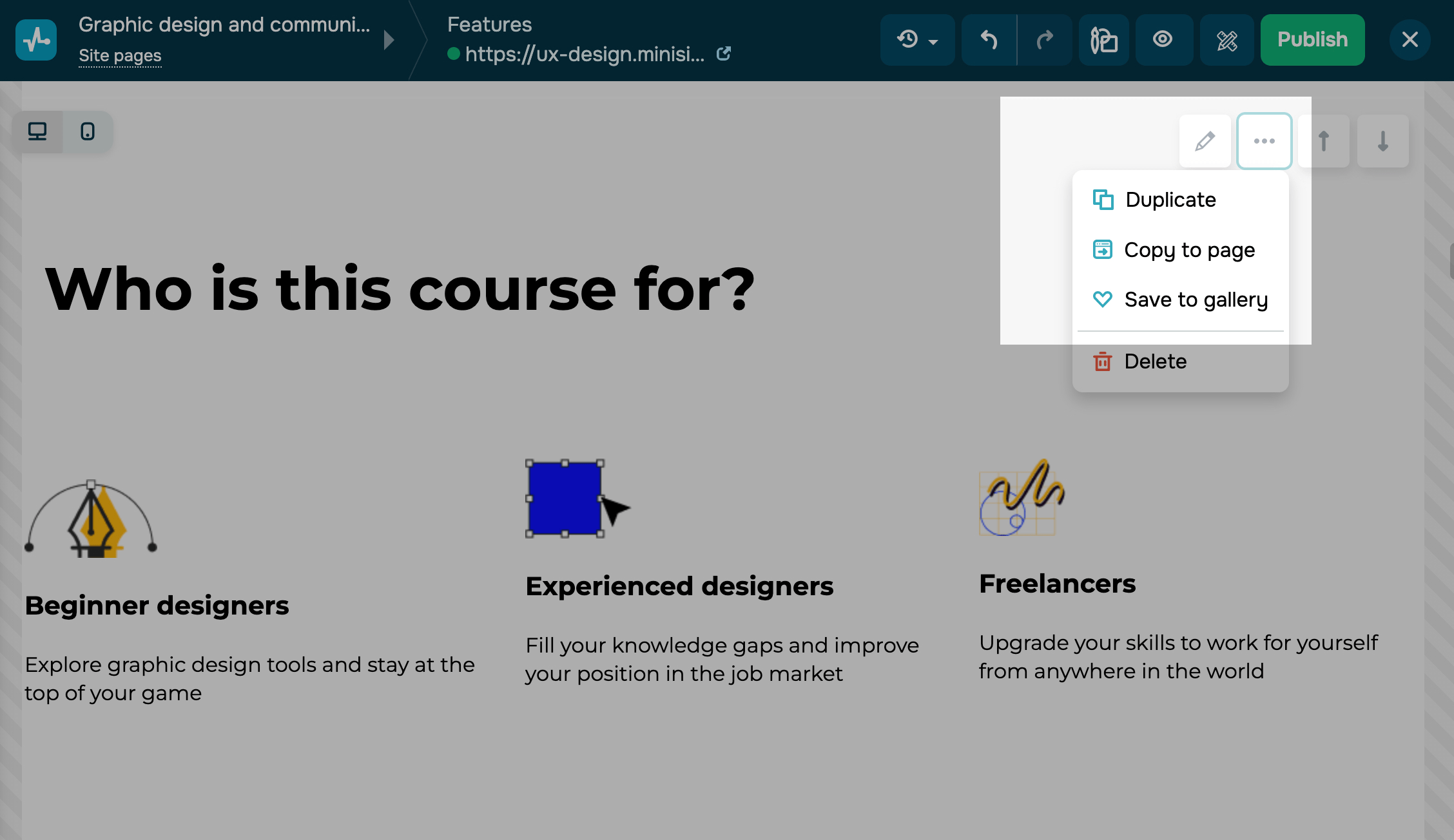
Hover over the upper right corner of the element you want to copy, then select Duplicate. A new element with the same content and settings will appear next to the original one. You can then edit or move it on the page.
You can also apply more advanced copying options to blocks:
| Duplicate | Creates an element copy on the current page. |
| Copy to page | Creates an element copy on another page. After selecting this option, choose a page name in the pop-up window. |
| Save to gallery | Saves a block to your library so that you can add it to the current or another website page.
Once you see the confirmation message that your block was saved successfully, you can find it in the sidebar of the Saved section. |
Deleting Site Elements
You can delete site elements. To delete a block, or column, hover over the element in the upper right corner, and select Delete.
To remove a widget, hover over it in the upper left corner, and select Delete.
Block and widget ID
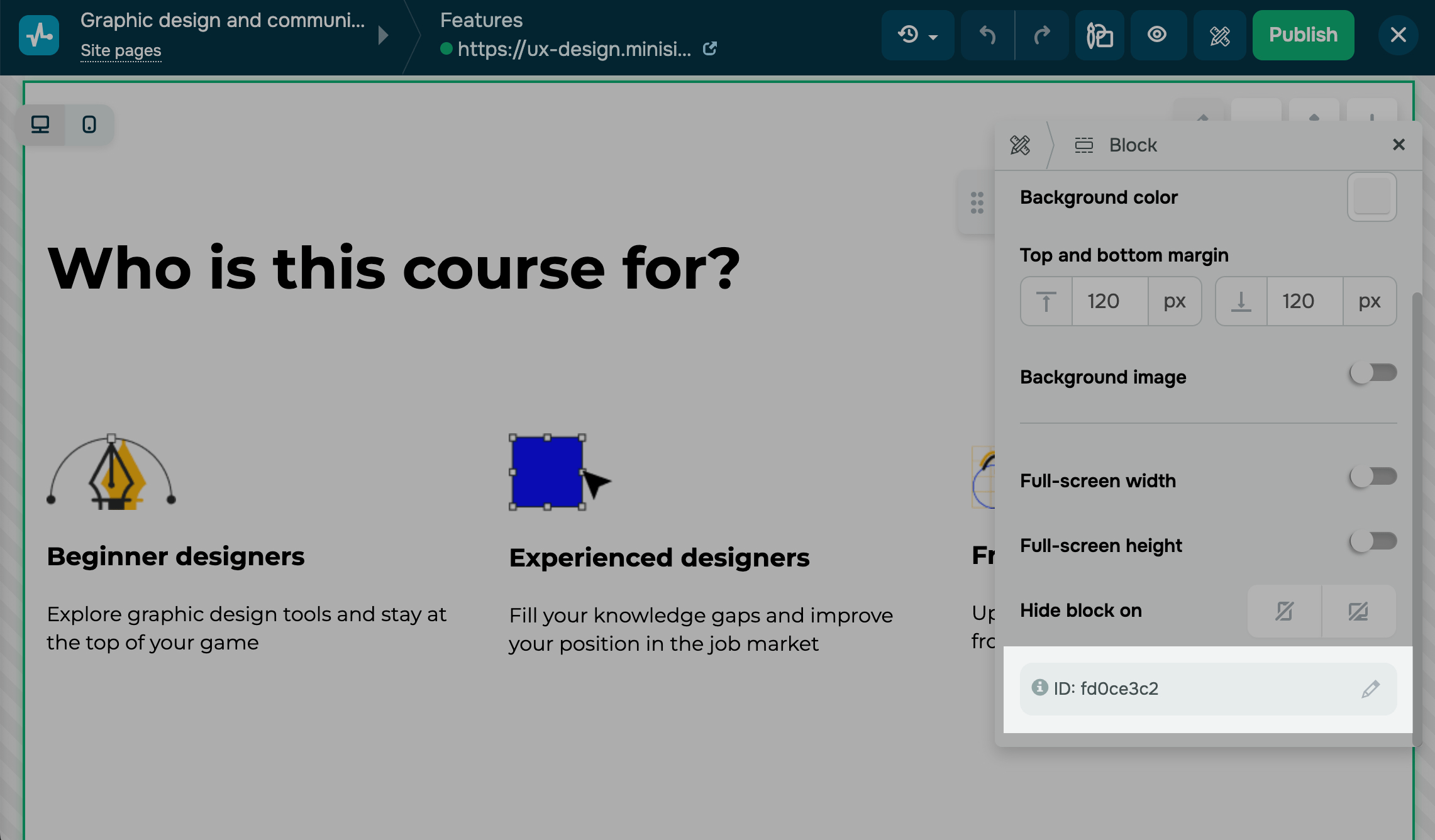
Every block and widget has an ID that distinguishes it on the page. With this ID, you can do the following:
- Add anchor links to your page elements (applicable only to blocks)*;
- Add styles and scripts to specific elements;
- Track events by elements to set up analytics goals;
- Show a pop-up after a user clicks your element.
*To send a link to a website block, copy its ID, and add it to your main website link with the # sign. For example, if your block’s ID is pricing_plans, its link will look like this: https://sitepulse.com#pricing_plans.
To lead users to a certain website block, you can also add its ID to the Menu widget and select the Anchor type.
To copy an element’s ID, find it in the navigation pane. The ID will appear under its name. You can also copy a block or widget ID from element settings. Select your element and click its ID. The value will be copied to your clipboard automatically.
To edit an ID, click the pencil icon. We recommend using Latin letters and numbers without spaces, with a maximum of 256 characters. Your ID must be unique for the entire website page.
 Last Updated: 18.07.2025





or