Manage your team’s CRM system access
You can invite a team to work together on a project. Delegate the tasks to your team members so that they work with your tasks, clients, and deals.
This way, you can use a single contact database and a list of deals that your whole team can access. Access to the rest of SendPulse’s services will be limited according to user access level.
User roles available
A user role is a set of permissions and restrictions that define how an individual can manage and alter what you create. An account owner has rights to all features, like providing access to other team members.
SendPulse user roles determine CRM access rights your team members get.
Read more: User roles: CRM.
You can also create a custom role and select access rights for it.
How to invite team members
To add a new user as your assignee, you need to invite them and give access to your account first.
You can invite as many users as your pricing plan allows and pay to add more users without switching to another plan.
The account owner counts as one user. This means that if, for example, your pricing plan allows 5 users, you can invite 4 more users to your team. To add more users, go to CRM > Pricing plans, and place an order in the Additional users section.
Go to Account settings > Team and click Invite a user.
Enter their name, contact details, password, and select a role from your list of standard (they were mentioned in the previous section) and custom roles.
In the CRM section, select the areas to grant access to.
In the Deals, Contacts, Tasks, Telephony, and Mailboxes sections, decide whether to grant access to all records or only to records assigned to the user.
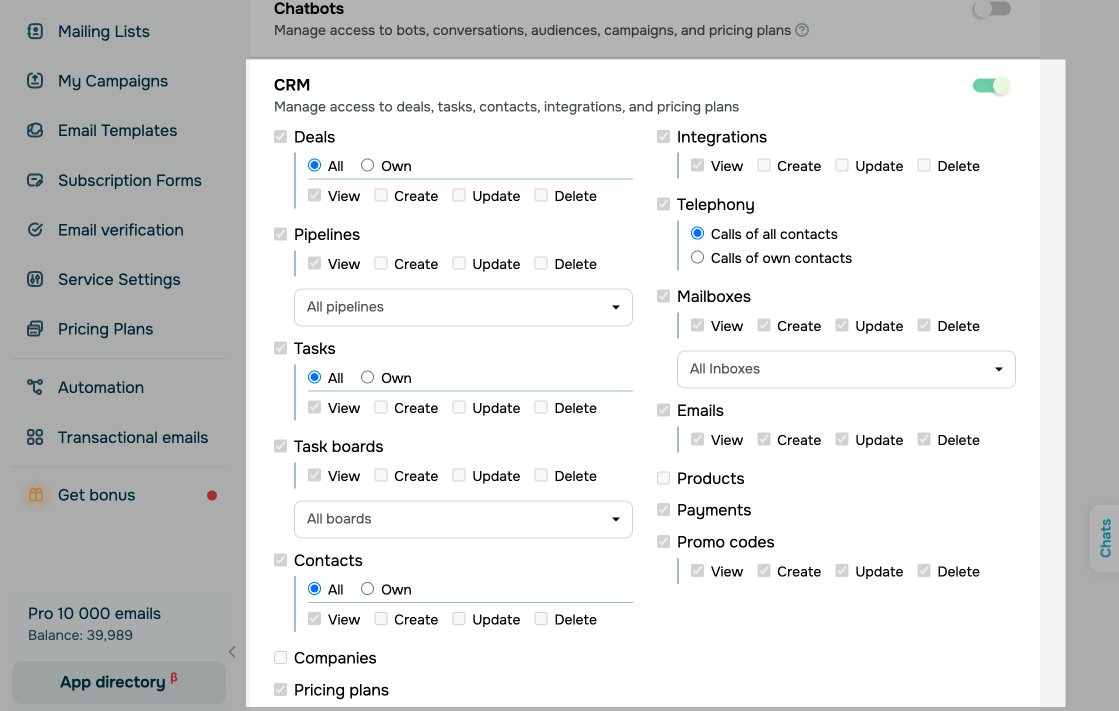
Once you set up your access options, click Send an invitation.
Read more How to invite a user.
You will be able to choose this user as your assignee after they accept your invitation.
How to change an assignee
To change an assignee in one card, do the following:
| Deal | Go to your pipeline, click a deal, and in the deal card, select a team member under the deal name. |
| Contact | Go to the Contacts tab, click a contact, and in the contact card, select a team member under the company name. |
| Task | Go to the Tasks tab, and click a task to open its card. You can add team members for one of these roles:
|
| Company | Go to Contacts > Companies, click a company, and in the company card, select a team member under the company name. |
To change an assignee in multiple cards, do the following:
| Deals | Go to your pipeline, and select the List view mode. Select deals, and click Change assignee in the upper panel. |
| Contacts | Go to the Contacts tab, select contacts, and click Change assignee in the upper panel. |
To change an assignee in automatically created cards, do the following:
| Deals | Go to Settings > General in your pipeline, and select a team member. |
| Contact | Go to Contacts > Settings > General, and select a team member. |
| Task | Go to Settings > General on your task board, and select a team member. |
 Last Updated: 13.03.2025





or