Calculate your net profit
You can enable profit calculation to account for expenses and see the actual financial performance of your deals in the sales pipeline. This helps you track your revenue and evaluate the overall profit.
For example, you can match your sales figures against costs such as advertising or logistics to see the net outcome for each deal and throughout the pipeline.
Let’s talk about how to enable profit calculation and where to view these data points.
Enable profit calculation
Go to your pipeline settings, open the General tab, and turn on the Net profit calculation toggle.
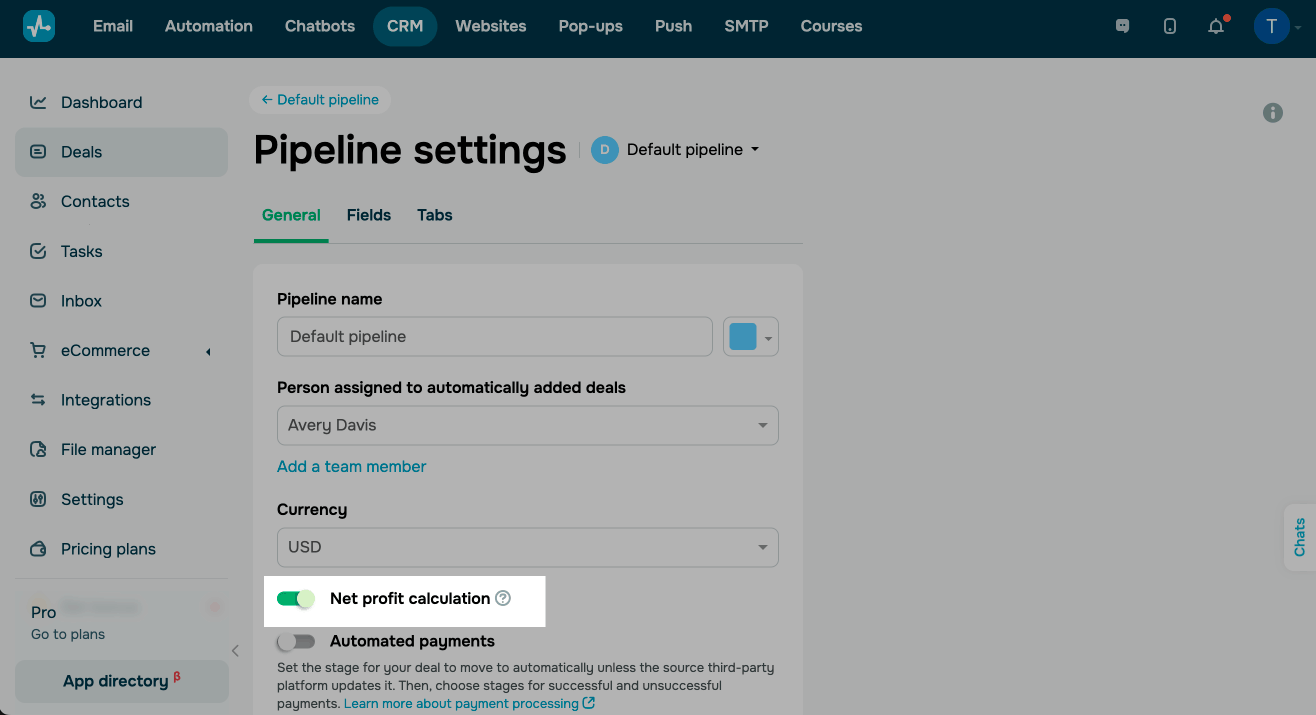
Once you enable this option, the Expenses tab, where you can add your expenses, will appear in each deal.
View your net profit
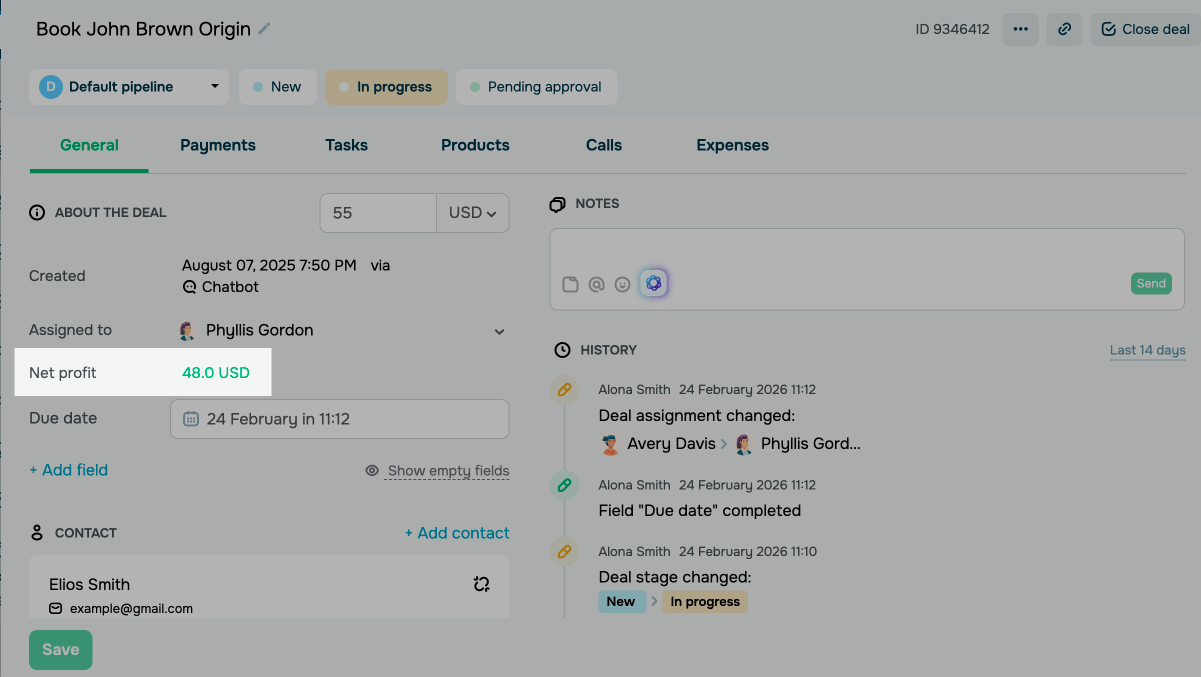
To see your deal profit, open a deal card and see the Net profit section.
Net profit is calculated by subtracting total expenses from the deal amount. If there are no expenses, the profit equals the full deal amount.
Positive values (above zero) are shown in green, and negative values (below zero) appear in red.
To view the profit for all deals, go to your pipeline and see the upper-right corner.
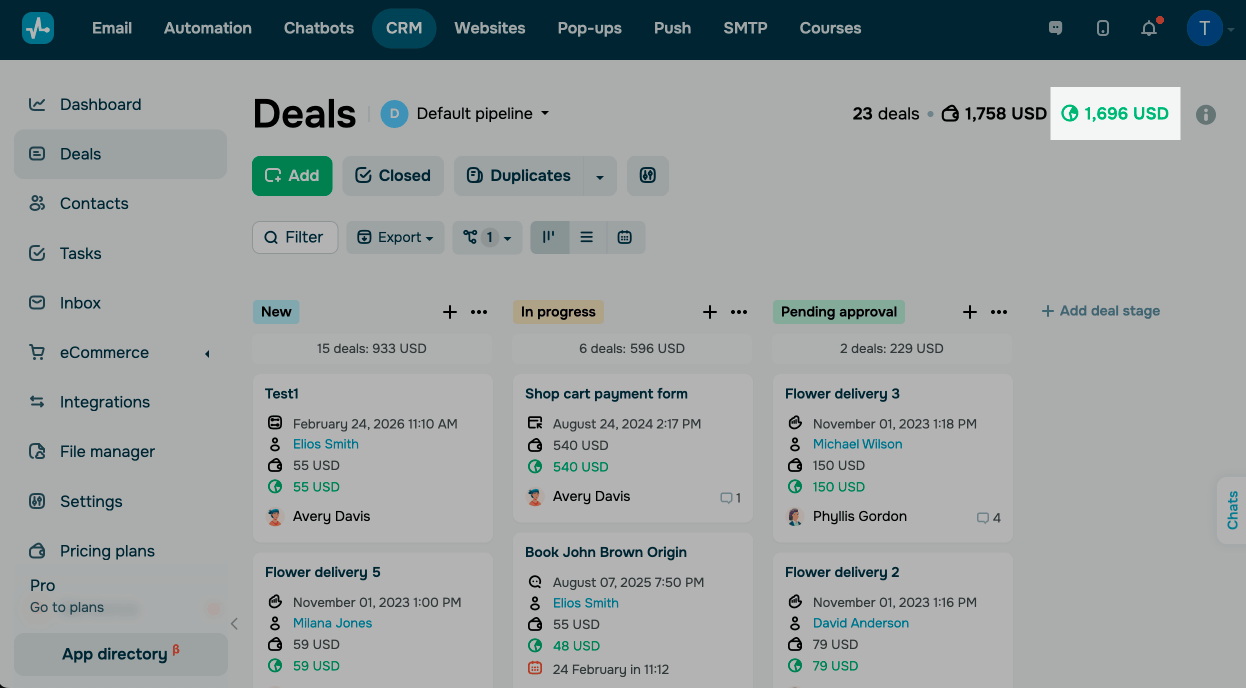
You can also sort deals by profit in the List view.
Disable net profit calculation
To disable profit calculation, go to your pipeline settings, open the General tab, and turn off the Net profit calculation toggle.
Once you disable this option, all expenses will be removed from your deals, and the Expenses tab and the Net profit section will be removed.
 Last Updated: 26.02.2026





or