Make and receive WhatsApp calls
WhatsApp calls are currently in beta. For now, only the account owner can make and receive calls. Invited team members cannot.
Customers can call the phone number connected to your WhatsApp chatbot. Answer their calls in Chats and track conversation history, team-only notes, and CRM deals on the same screen. You can also call a customer back once they have given permission for you to do so.
Suppose a customer cannot decide between two delivery options and calls you instead of messaging. You can then sort it out during the call, note the delivery time you agreed on, and send them an order recap after the call
Let’s talk about how to enable calls in your WhatsApp chatbot, answer incoming calls, get permission to call subscribers, and make outgoing calls.
Benefits and use cases
By default, a phone number connected to the WhatsApp Business API receives text messages only. Once you enable calls, you can:
- answer customer calls in the same interface where you reply to their messages;
- call customers back once they give permission, resolve complex questions over the phone, then continue the conversation in the chat;
- see every call in the chat history, including its duration and any calls you missed;
- message subscribers without templates for 24 hours after an incoming call, answered or not, within the support window.
Here’s how businesses can use it:
- A clinic takes appointment calls in Chats, checks the previous visits in the conversation history, and adds notes about new appointments.
- An online store gets a question about a custom order that takes too long to explain in a chat. The owner requests permission to call, talks it through, and sends the order confirmation within the 24-hour support window.
- A travel agency advises a client over the phone and then creates a deal from the subscriber card. The deal moves through your sales pipeline alongside the rest of your sales.
Getting started
Before you enable calls, make sure your chatbot and account meet the following requirements:
| A WhatsApp chatbot connected through the WhatsApp Business API | Phone numbers connected through the WhatsApp Business App don’t support calls in SendPulse. These phone numbers receive calls in the WhatsApp Business app on your phone instead. |
| A verified business | Meta enables calls only for verified businesses. |
| A messaging limit of at least 2,000 recipients per 24 hours | The limit grows with your sending activity and quality rating. Check it in WhatsApp Manager. |
| An account balance of about $10 for outgoing calls | Incoming calls are free, and outgoing calls are charged per minute. If your balance is lower, the Start call button is inactive until you top up your balance. |
| Microphone access in your browser | SendPulse needs your microphone to connect a call. If your browser blocks microphone access, SendPulse shows a warning, and the call does not connect. |
Meta does not support outgoing calls from business phone numbers registered in the United States, Canada, Egypt, Vietnam, and Nigeria.
Enable calls in your chatbot settings
Voice calls are off by default.
To enable them, go to Chatbots, select your WhatsApp chatbot, and click Bot settings. Select the Calls tab and turn on the Allow voice calls toggle. The tab also lists the conditions your phone number must meet.
Advanced call options, such as business hours for calls, are available in your phone number settings in WhatsApp Manager. To access them, click WhatsApp Manager in the Calls tab.
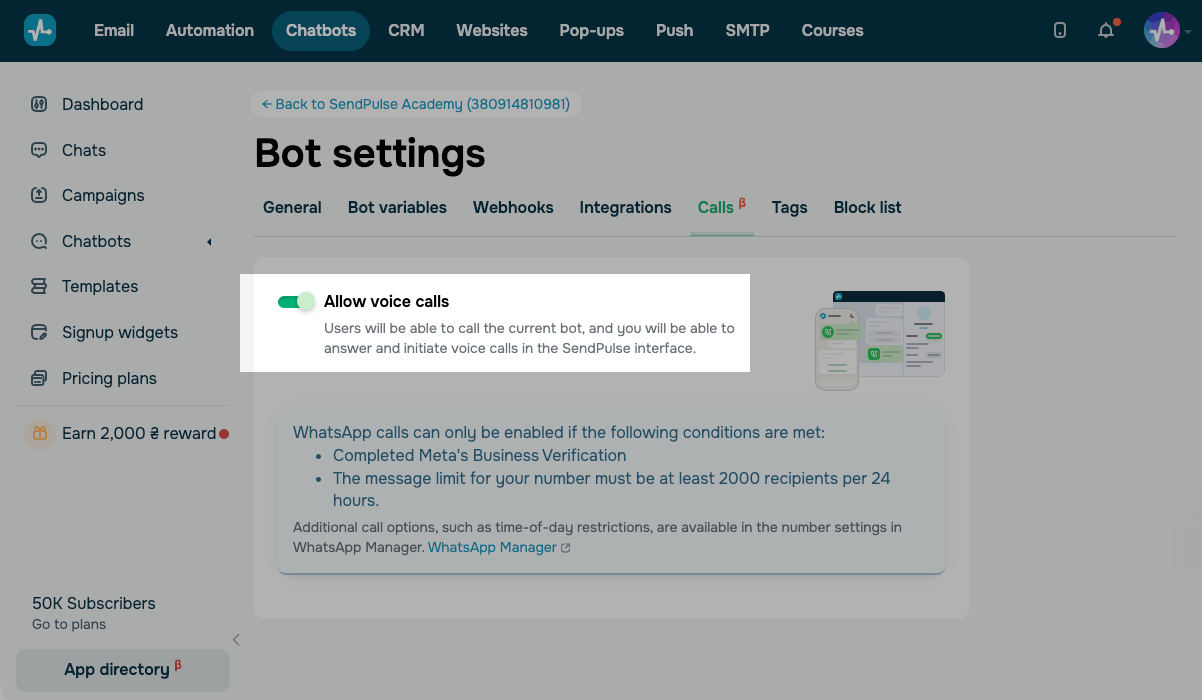
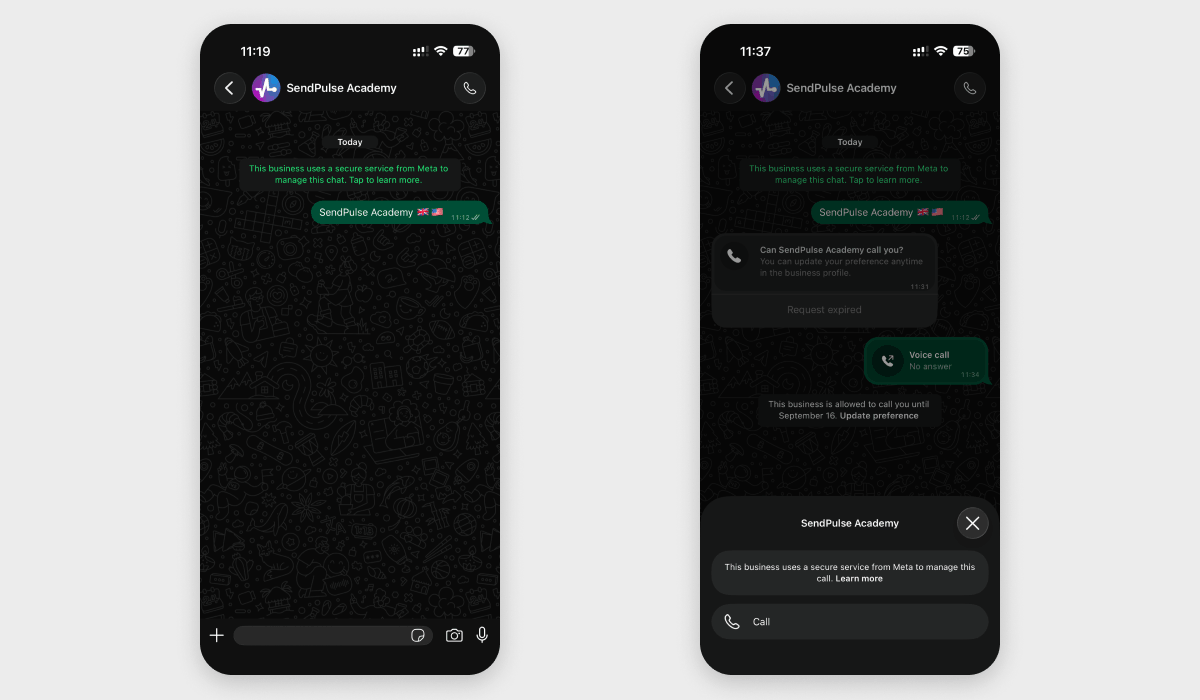
Once you enable calls, subscribers will see a call icon at the top of their chat with you in WhatsApp. To call you, they can tap this button and then tap Call.
Answer incoming calls
An incoming call appears as a notification in your SendPulse account, where you can answer or decline it. The notification's location depends on the section you have open.
Subscribers can call you as soon as you enable calls. Permission is only needed when you call them.
Take a call in Chats
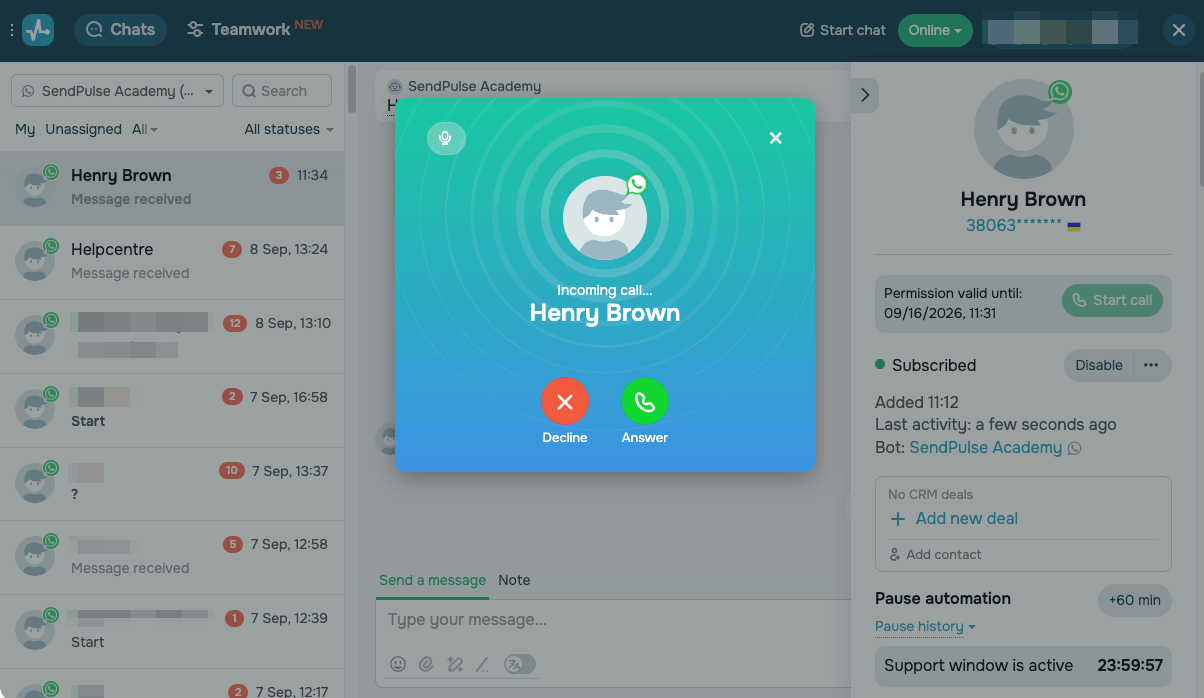
If you have Chats open, an incoming call appears with the subscriber’s name. Click Answer to take the call or Decline to reject it.
You can also answer from the chat list. The chat moves to the top of the list, labeled Incoming call, with a green call button.
Take a call outside Chats
If you have another account section open, a notification with the customer's name appears at the top of the page. Click it to open the chat sidebar and Answer or Decline the call.
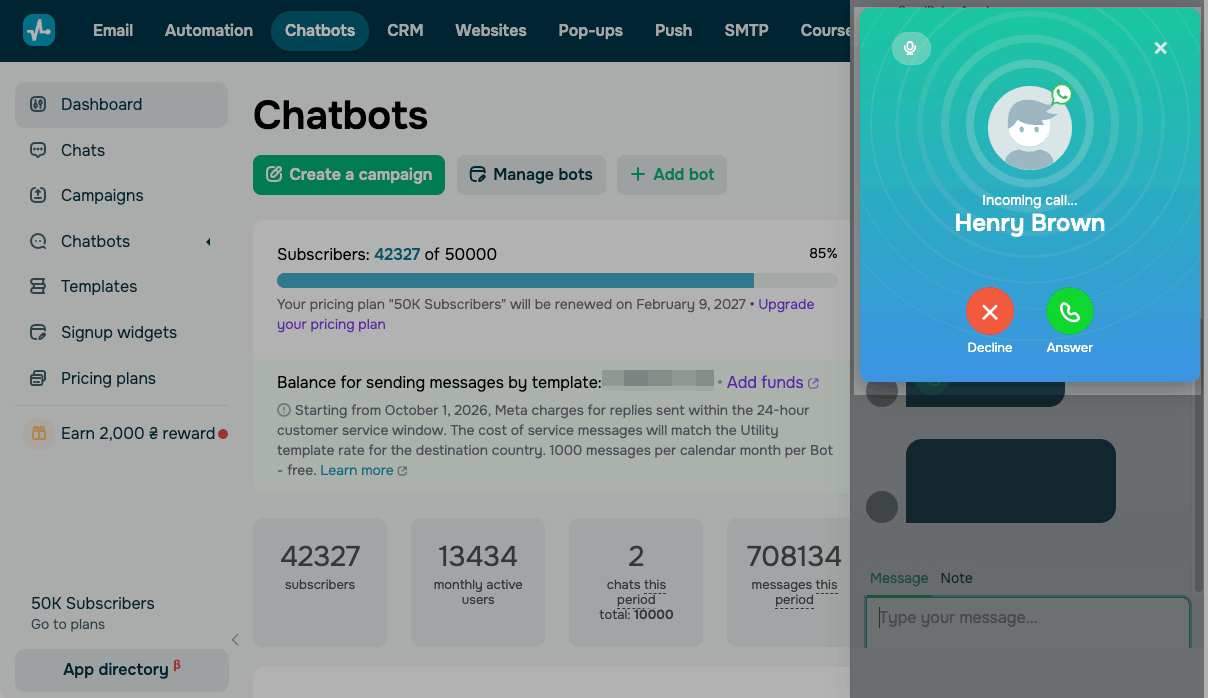
After you answer, the call bar with the same controls appears at the top of the chat.
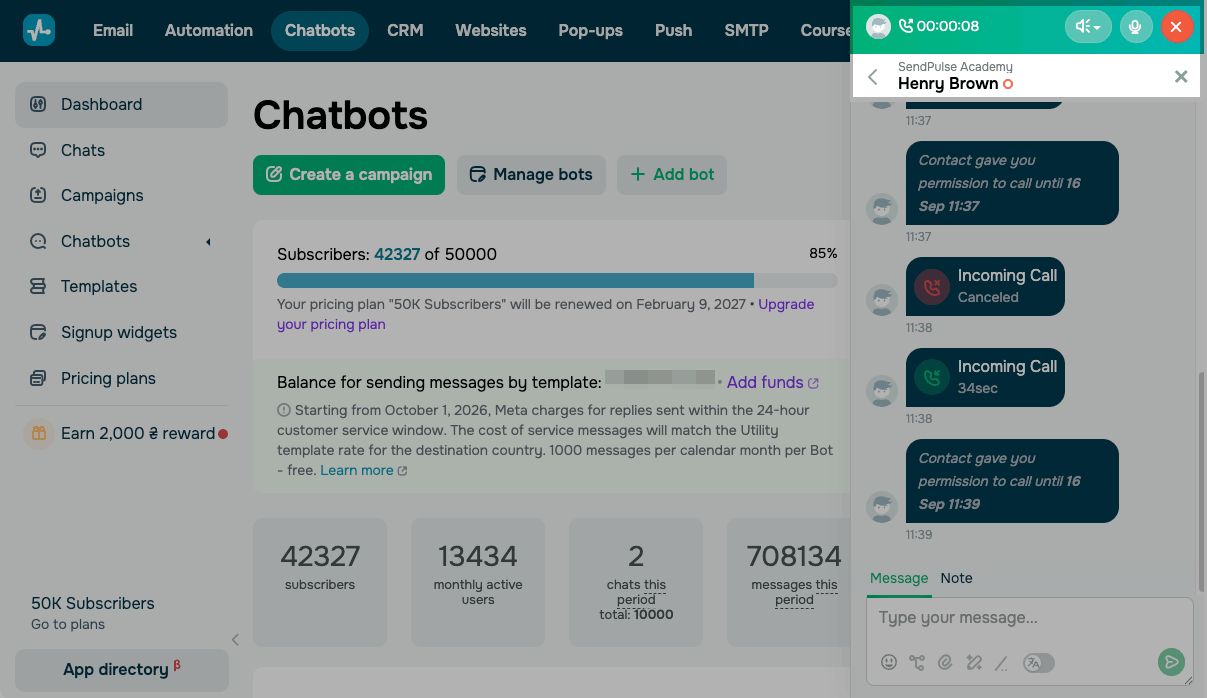
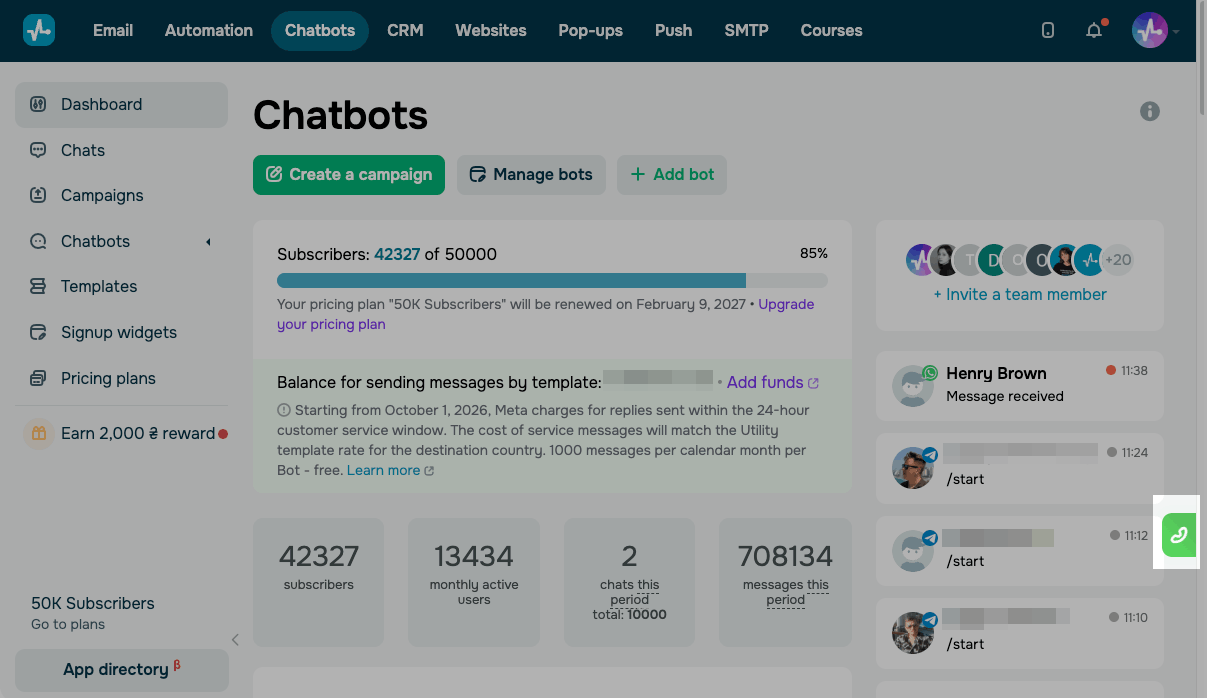
If you close the chat sidebar during a call, the call continues, and the Chats button turns into a green call button. Click it to return to the call. To hang up, click End Call in the call bar.
Manage an ongoing call
Once you answer, the call window collapses into a bar at the top of the page with the customer's name and a call timer. You can still move around your account while you talk.
To start a chat with your subscriber, browse conversation history, or add a note during the call, click the subscriber's name in the bar.
Use the following controls during the call:
| Audio device icon | Choose a microphone and speakers. SendPulse remembers the microphone you chose for future calls. |
| Mute | Turn off your microphone. The customer hears on-hold music until you click Unmute. |
| End Call | Hang up. |
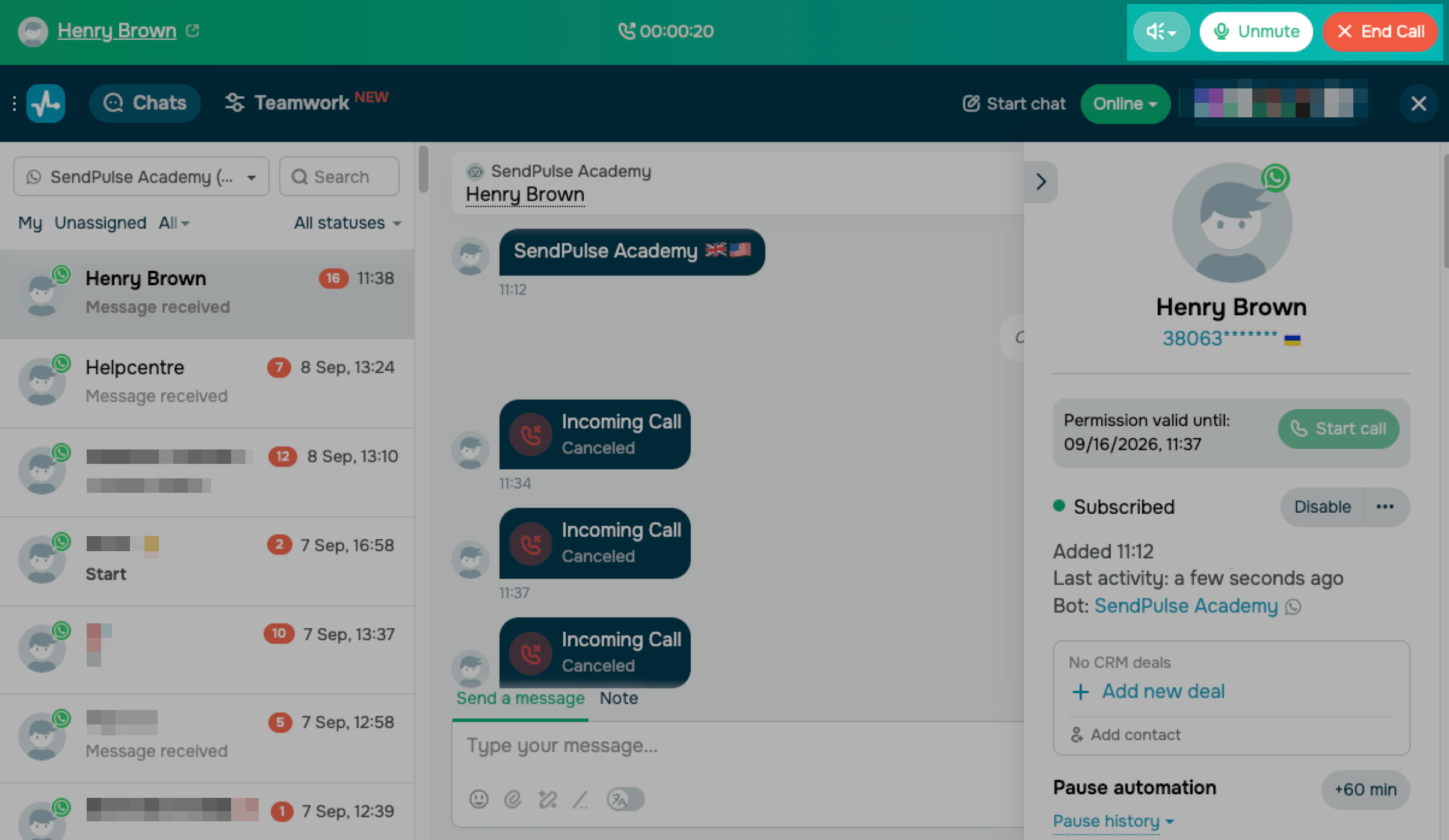
Each call ends up in the chat history, along with its duration. Missed calls are logged as Incoming Call and labeled Canceled.
If someone calls while you are on a call, their chat moves to the top of the list as Incoming call. You can answer them once you end the current call.
An incoming call starts a 24-hour support window, whether you pick up or not. During this time, you can send free-form messages to your subscriber. The subscriber card counts down the time you have left under Support window is active.
Call a subscriber
You can call a subscriber only after they allow you to do so. WhatsApp asks users for this permission to protect them from unwanted calls.
Get permission to call
You can get a user’s permission in two ways:
| Automatically | By default, when a subscriber calls your chatbot, WhatsApp permits you to call them back for the next 7 days, even if you missed the call.
However, the subscriber can overrule that 7-day default. They can set a different duration, switch to permanent permission, or revoke it. |
| Manually | If the subscriber has not called you or their permission has expired, request it in the chat.
Open the chat with your subscriber. In their card, go to No calling permissions and click Request Permissions. |
You can send a permission request only within a 24-hour support window, which means the subscriber has messaged or called you recently. WhatsApp allows one request per 24 hours and two per 7 days for each subscriber.
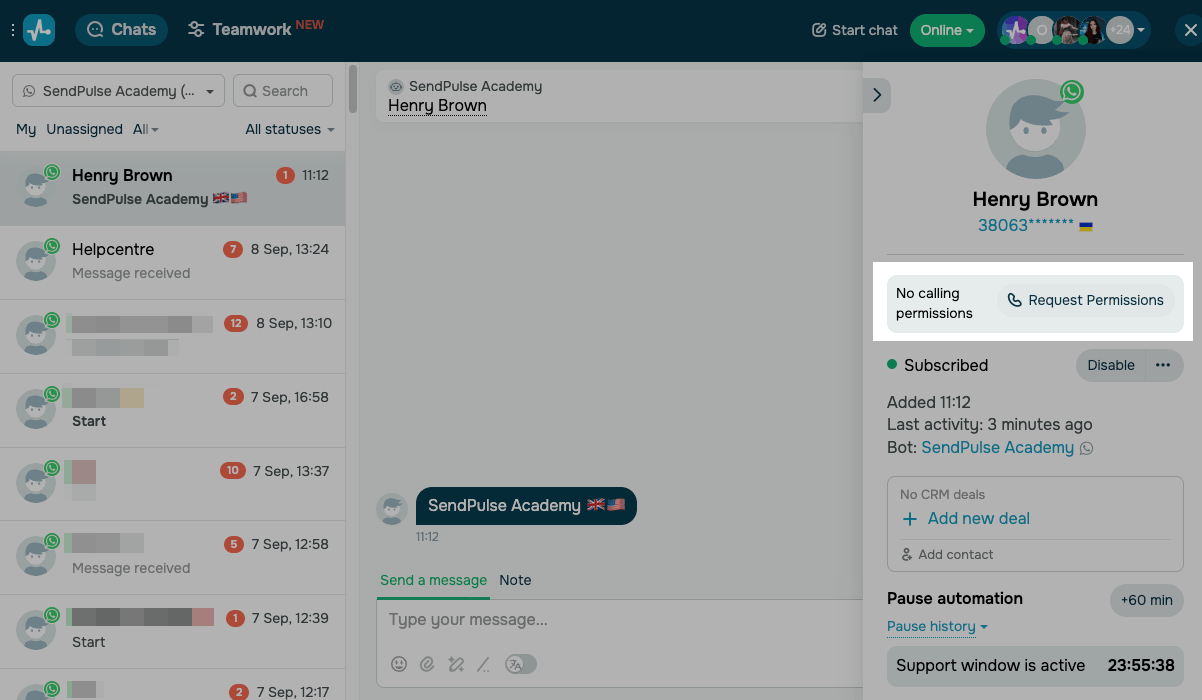
If the subscriber card is hidden, click your subscriber’s name in the chat header to open it. Once you send the request, the Call permission request was sent to contact message appears in the chat.
Your subscriber receives the Can [your business name] call you? message in WhatsApp and selects Allow calls, Temporarily allow calls, or Not now.
A temporary permission is valid for 7 days.
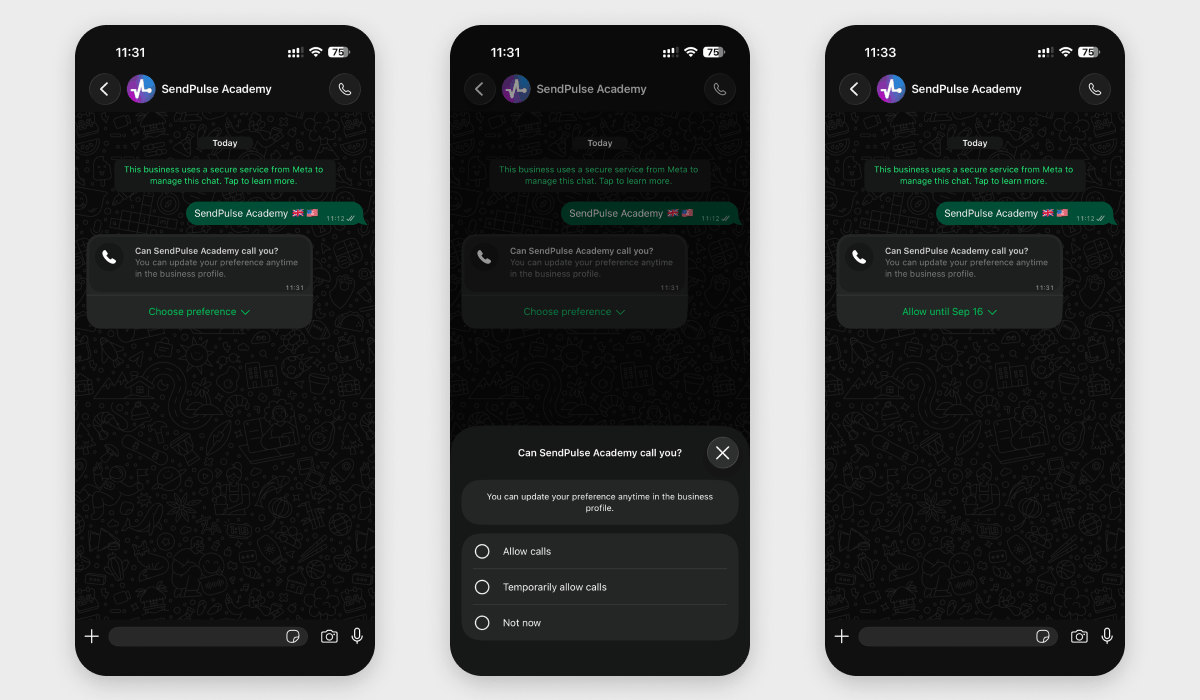
When the subscriber allows calls, a confirmation appears in the chat: Contact gave you permission to call until [date]. The subscriber card shows the Permission valid until [date] notification and the Start call button.
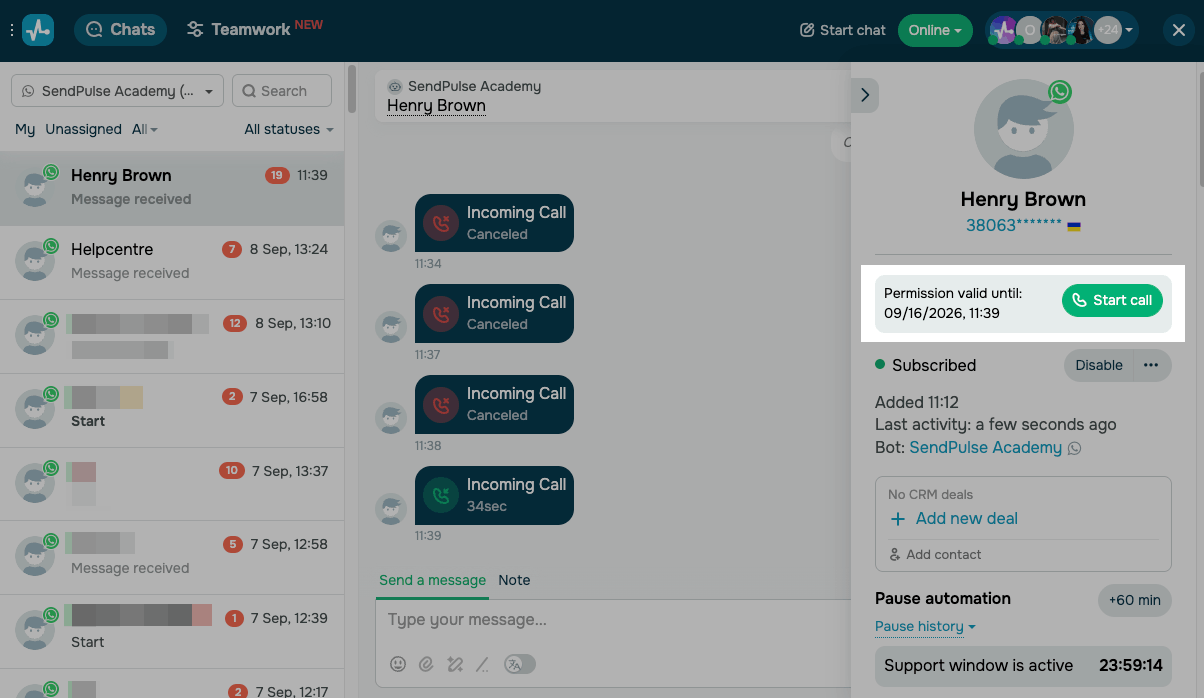
Start a call
To call a subscriber, open their chat and click Start call in the subscriber card. The window that appears shows their name and phone number, and it reads Calling until they pick up. To stop calling, click Cancel.
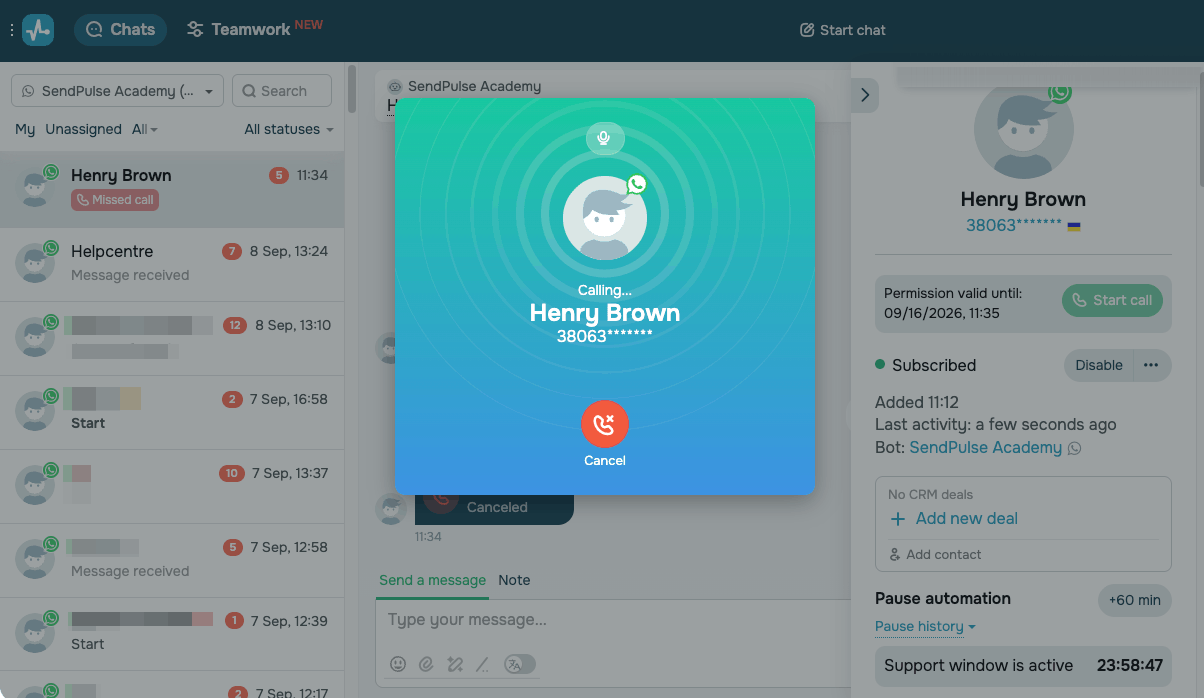
When the subscriber picks up, the call window collapses into an incoming-call bar with a call timer, Mute, and End Call.
Once the call ends, an Outgoing Call record with its duration appears in the chat history.
If the subscriber does not answer four of your calls in a row, WhatsApp revokes their permission. To call them, you’ll need to request it again.
Answered outgoing calls start a 24-hour support window. Unanswered ones don't.
View your call charges
Incoming calls are free. You pay for outgoing calls per minute, and the rate depends on the subscriber’s country.
To see the rate for a specific country, go to Chatbots > Pricing plans. In the WhatsApp section of the pricing page, choose the destination country. The Calls column shows the rate per minute.
Calls are charged to your account balance when they end. You can view these payments in your transaction history.
Any messages you send within the support window follow the WhatsApp pricing policy.
Troubleshoot call issues
If calls don’t work as expected, one of these is the likely cause:
| Subscribers can’t call you | Calls may be off in your chatbot settings. To fix this, turn on the Allow voice calls toggle.
If your phone number runs through the WhatsApp Business app, calls come in through that app instead, meaning that you'll need to answer them there. |
| No call notifications | You may be logged in as an invited team member. During the beta, only the account owner receives calls. |
| Start call is inactive | Your balance may be below roughly $10, or another call is in progress. Hold the pointer over the button to see which applies.
If the subscriber has not allowed calls yet, their card shows Request Permissions instead of Start call. |
| No permission request available | You've either fallen outside the support window or used up your requests. Both clear once the subscriber contacts you again, and a connected call resets the limit too. |
| The call won't connect | Your browser may be blocking microphone access. If that's the case, SendPulse will show a warning.
Allow SendPulse to use the microphone in your browser settings and try again. |
Now you can take calls and reply to messages on WhatsApp in one place.
To make the most of WhatsApp calls, learn how to send messages within the support window, add notes during calls, and keep your messaging limit high. To understand what you're charged for, see the WhatsApp pricing policy.
 Last Updated: 11.09.2026





or