Run chatbot flows in WhatsApp
In WhatsApp chatbots, you can automatically run a flow when a new user starts a conversation. Use these flows to welcome customers, collect data, and direct users to key chatbot actions.
Let's talk about how to run a WhatsApp chatbot flow and add Ice Breakers and Commands in your Meta account.
All chatbots include the following default flow triggers: Welcome message, Standard reply, and Unsubscription from the bot. You can also create custom triggers based on a keyword or an event in Automation.
Read more: Create a chatbot flow trigger.
Add a flow launch link
To run a flow for a user who has not messaged you yet, create a link with pre-filled text.
You can also generate the link in the WhatsApp link generator.
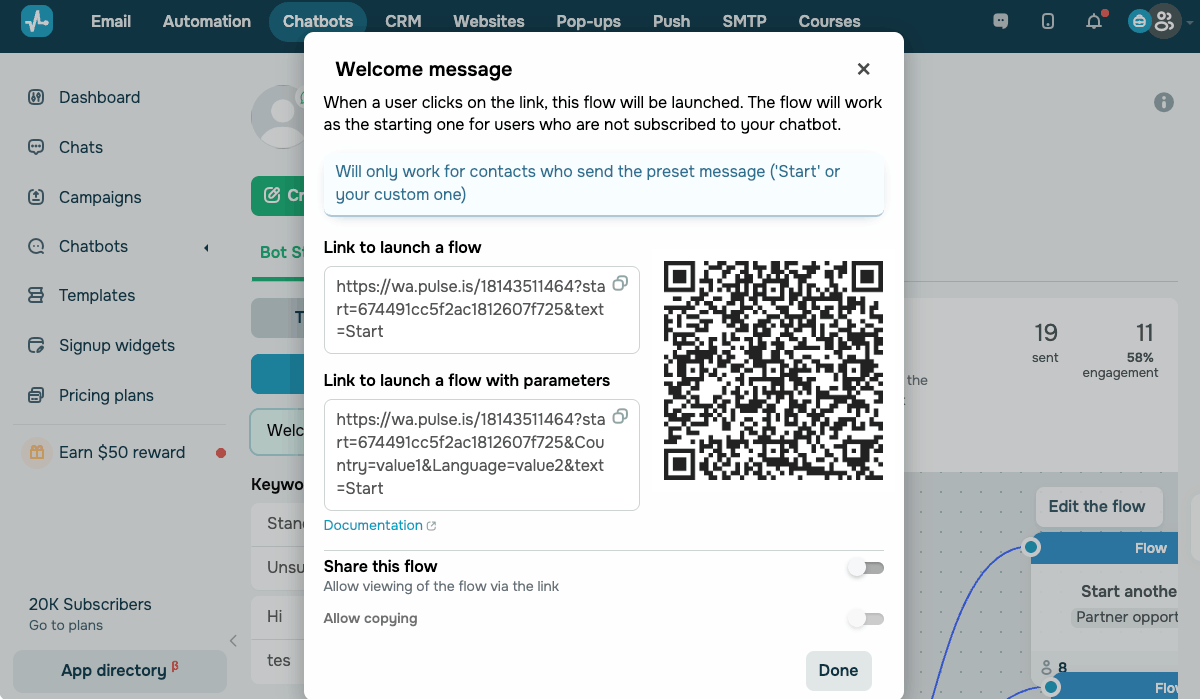
This link, hosted on the wa.pulse.is domain, starts a chat with your WhatsApp chatbot. Users follow the link and see a pre-filled message.
For your flow to run, users must send the pre-filled message. The default text is Start, but you can set your own.
You can also include variables in the link. They are automatically assigned to the contact who follows the link. This way, you can track subscription sources and pass data into the right flow.
Incoming messages are free. Each time a user sends a message, a 24-hour customer service window starts, and you can reply without a template. Each phone number gets 1,000 free service messages per month. After that, service messages are charged at the Utility rate for the recipient’s country.
Read more: WhatsApp pricing policy.
Set up Conversational Components
Conversational Components include in-chat Ice Breakers and Commands that help users start a conversation with you. You can set them up in your WhatsApp Manager account.
To open the settings, in WhatsApp Manager, select Account tools > Phone numbers. Select a phone number and go to Automations.
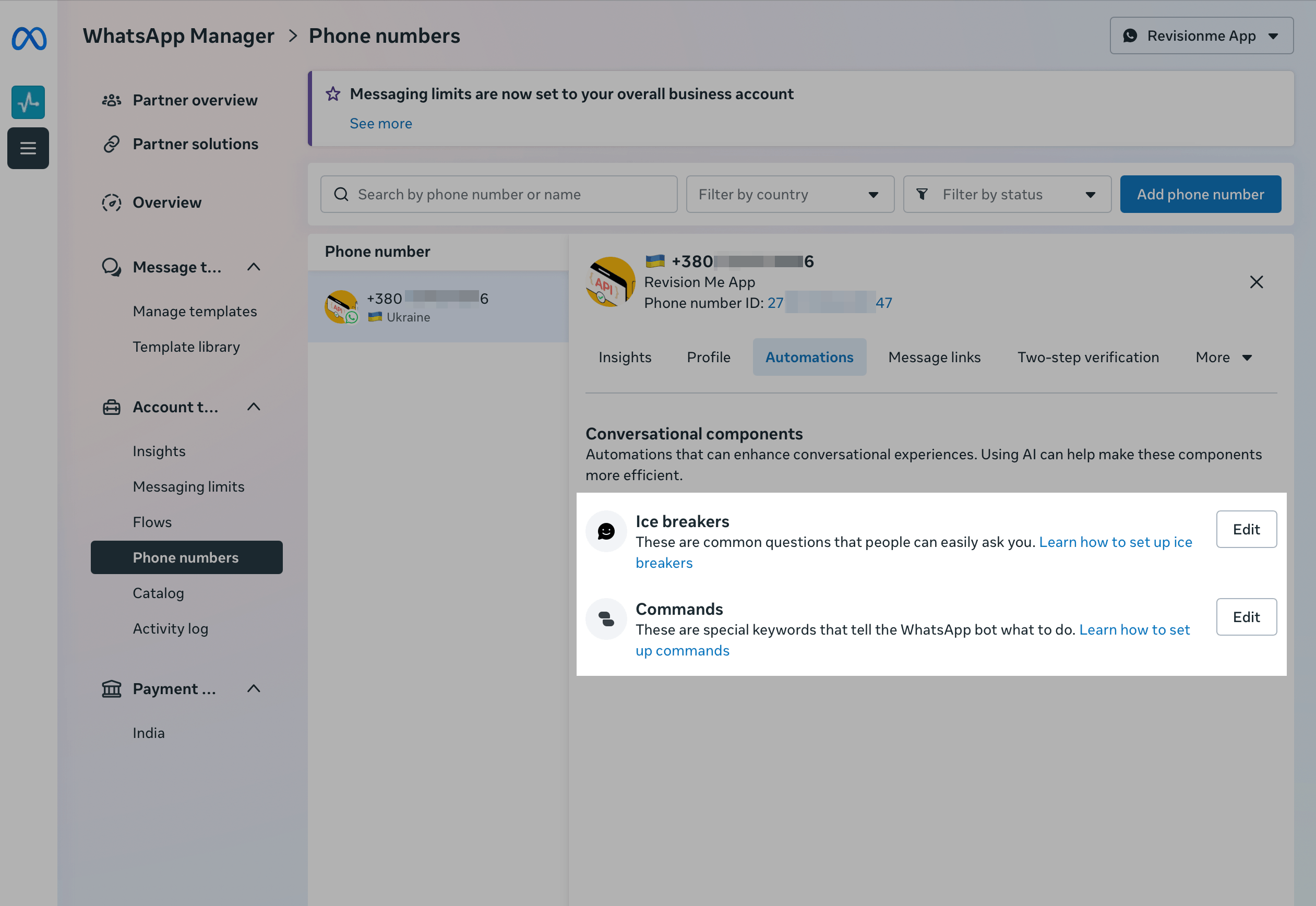
Ice Breakers
Ice Breakers are tappable prompts that appear in the chat when a user starts a conversation with you for the first time. These prompts can guide users to common actions, such as "Track my order".
To set up Ice Breakers, in Conversational components, next to Ice breakers, click Edit. Type in your text. To add more Ice Breakers, click Add ice breaker. Click Save.
You can add up to 4 Ice Breakers per phone number. Each Ice Breaker can contain up to 80 characters. Emojis are not supported.
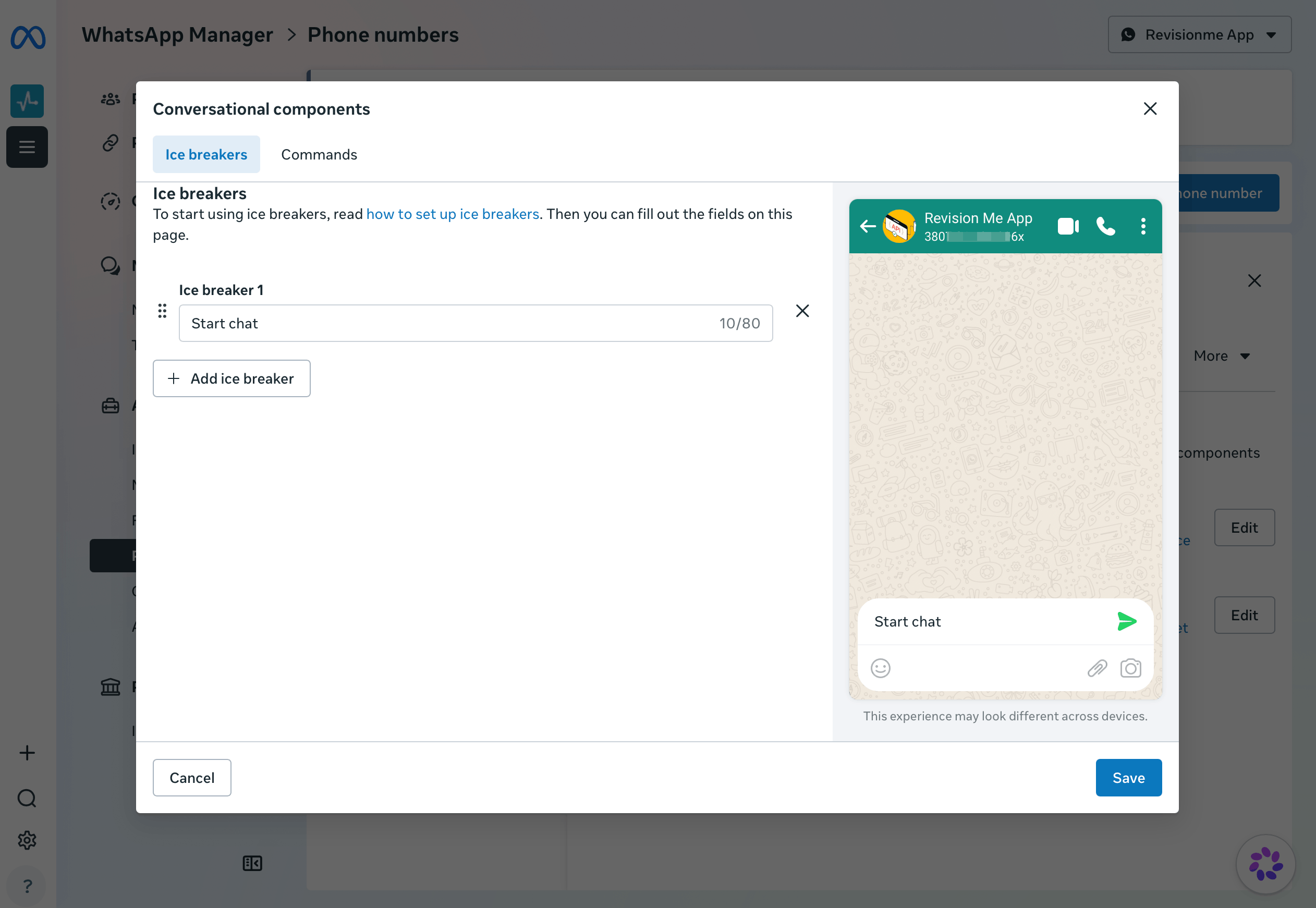
When a user taps an Ice Breaker, its text is sent as a regular message. To run a flow in response, create a keyword trigger that matches the Ice Breaker text.
If a user starts a chat through a wa.me link with pre-filled text, Ice Breakers will not be displayed.
Commands
Commands are predefined actions that users see when they type / in the chat. A Command includes its text and a description, such as /status — Check order status.
To set up Commands, in Conversational components, next to Commands, click Edit. In the Command text field, enter a Command that starts with /, such as /unsubscribe. Type in a description in the Command description field. To add more Commands, click Add command. Click Save.
You can add up to 30 Commands per WhatsApp Business account. Command text can contain up to 32 characters, and descriptions can contain up to 256 characters. Emojis are not supported.
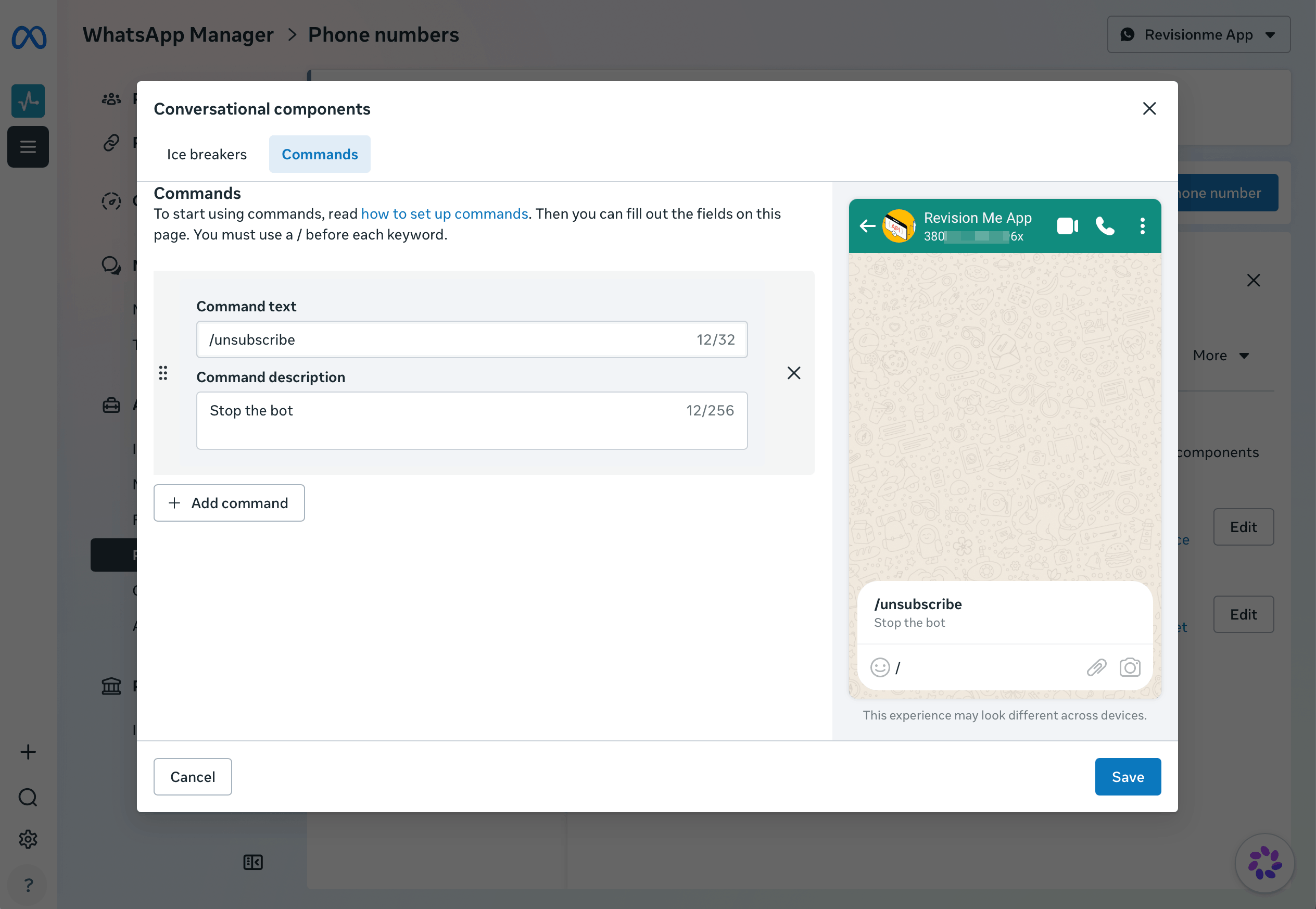
When a user enters a Command, its text is sent as a regular message. To run a flow in response, create a keyword trigger that matches the Command text.
 Last Updated: 26.11.2025





or