Send marketing messages using MM Lite API
Marketing Messages Lite API helps you filter WhatsApp advertising campaigns by opens and clickthroughs and send them only to recipients who are more likely to take action.
In this article, we will cover how to enable and use the Marketing Messages Lite API to send campaigns.
Enable optimization
Before you begin, ensure that your business meets the requirements for the Marketing Messages Lite API:
- You have an active WhatsApp Business Account.
- Your account is linked to a Meta ad account.
- There are no Meta policy violations on your account.
- Your phone number is verified and linked to WhatsApp Business.
- Your business operates in a supported country.
Learn more: Eligibility requirements.
To access marketing message optimization, select your WhatsApp chatbot, create a new campaign, and click Enable optimizations. SendPulse will send a request to access the business profile of your selected chatbot.
Next, go to your WhatsApp account in Meta Business Manager > Requests > Other requests, and allow SendPulse to send optimized marketing messages.
Once your chatbot account is approved and permissions are granted, your bot can start sending optimized marketing messages.
Create a message
Go back to campaign settings, click Enable optimizations, and select the I have completed the previous steps checkbox.
Select a template from the Marketing category. The Send marketing messages with automatic delivery and ad optimization option will be enabled.
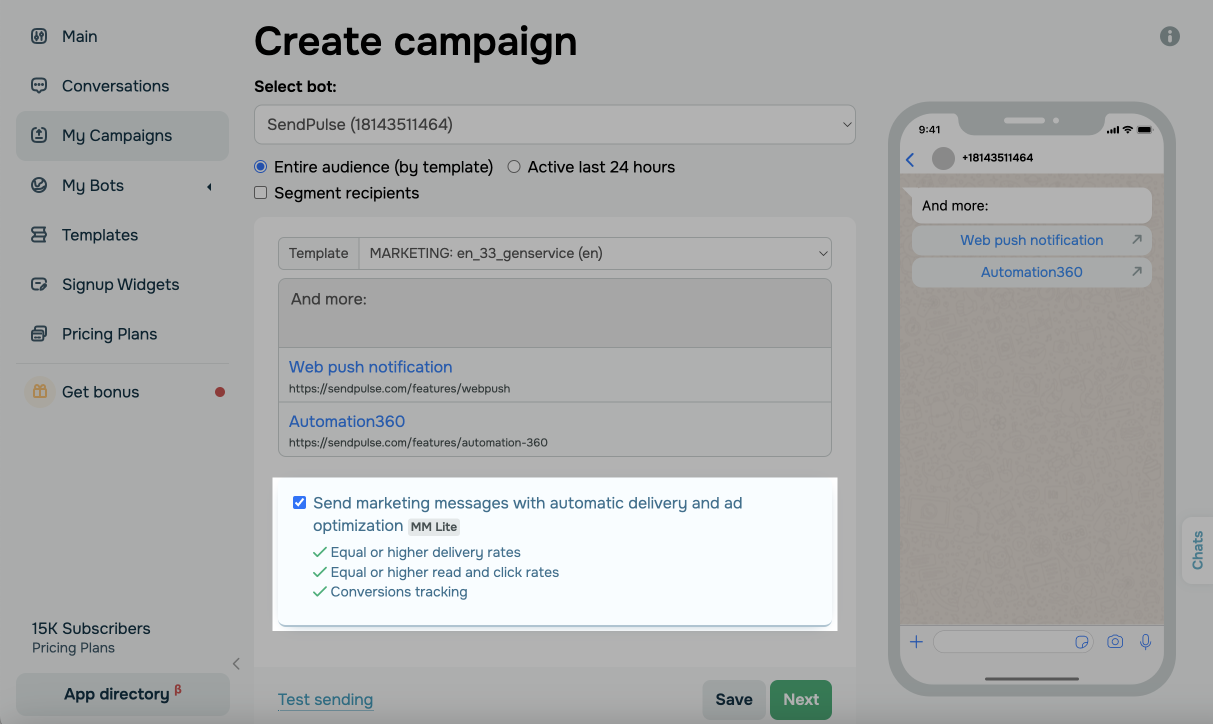
If necessary, segment your campaign recipients. Click Next and go over your campaign settings and cost.
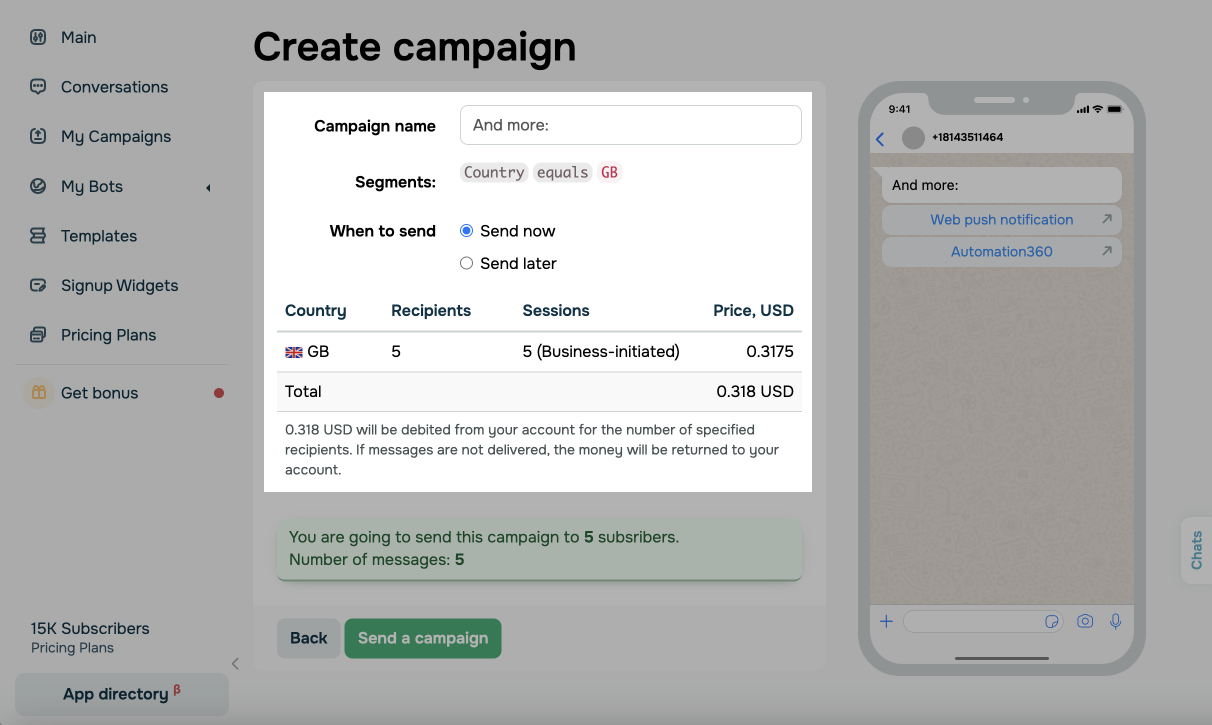
Then, click Send a campaign.
View statistics
In your SendPulse account
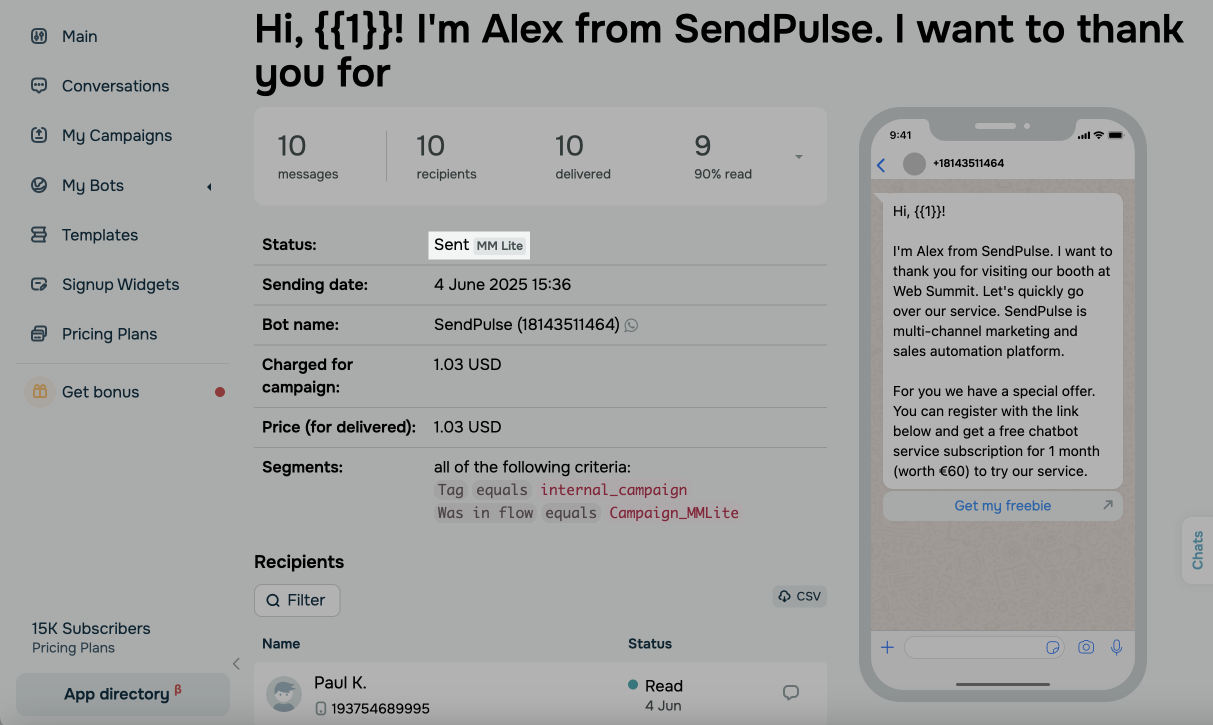
Go to My campaigns and select a sent campaign. Campaigns sent through the MM Lite API are labeled as such next to campaign statuses on their pages.
Under campaign details, you can view recipients and the delivery status of each message.
To see overall statistics across all campaigns, open the Statistics tab of your WhatsApp chatbot and go to WhatsApp messaging insights.
Learn more: Campaign statistics.
In Meta Business Manager
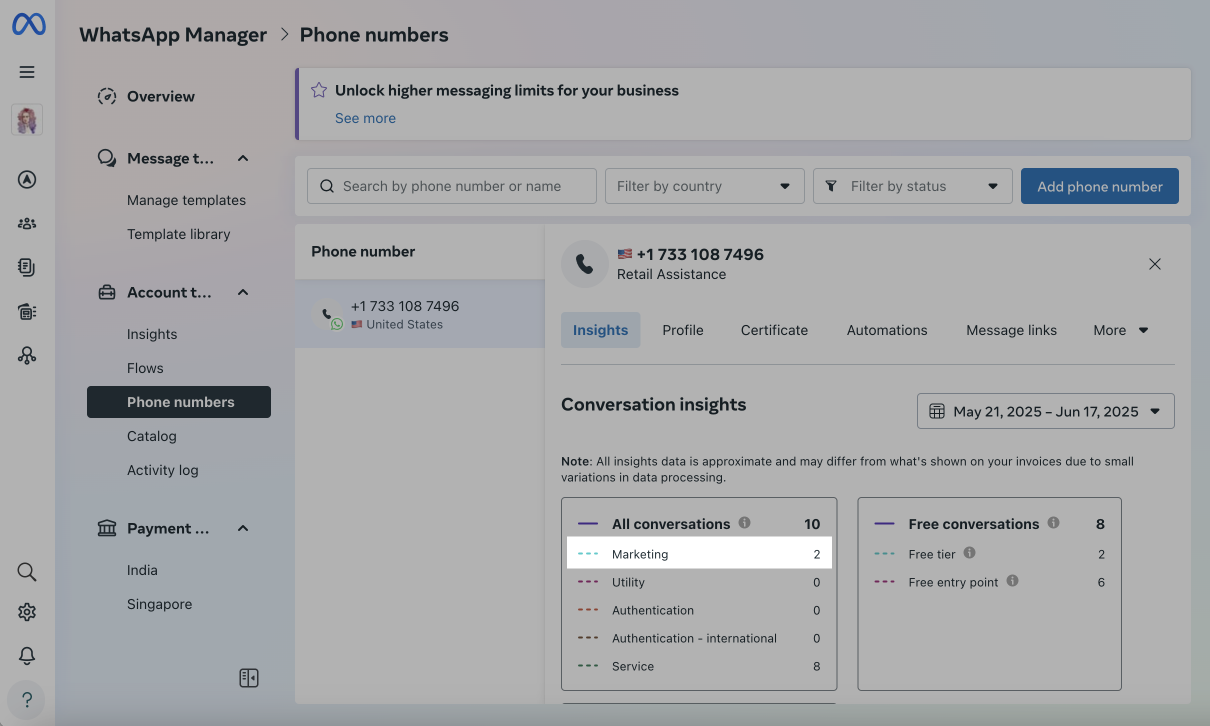
Go to WhatsApp Manager, open Account tools > Phone numbers, and select a phone number. In Insights, you will find your marketing message statistics.
 Last Updated: 23.06.2025





or