Troubleshoot WhatsApp payment issues
To send paid messages through the WhatsApp Business API in SendPulse, your WhatsApp Business account must have an active SendPulse credit line. This payment method is automatically created when you add a chatbot to your business account and allows SendPulse to pay Meta for your WhatsApp usage.
In some cases, however, payment method activation may not be successful. Let’s talk about how to troubleshoot WhatsApp payment issues.
What is a credit line?
A credit line is a payment setting in your WhatsApp Business account and other Meta features, including ads. It allows SendPulse to cover your message costs with Meta and then bill you accordingly.
To give you an idea, with an activated payment method, you can send marketing message templates. Without it, they cannot be paid and sent.
Learn more: About Credit Lines for WhatsApp Business Accounts.
Troubleshooting WhatsApp chatbot connection
If your WhatsApp Business account has previously used another API provider or had another payment method added manually, you might see this error when creating a WhatsApp chatbot:
WABA inputted (id 1111111111111111) is already using a payment method. Please try to create a new WhatsApp Business account during the connection flow.
In this case, to check your payment method, go to Settings > WhatsApp accounts, select your WhatsApp Business account, and see if the Credit line payment method from SendPulse is connected.
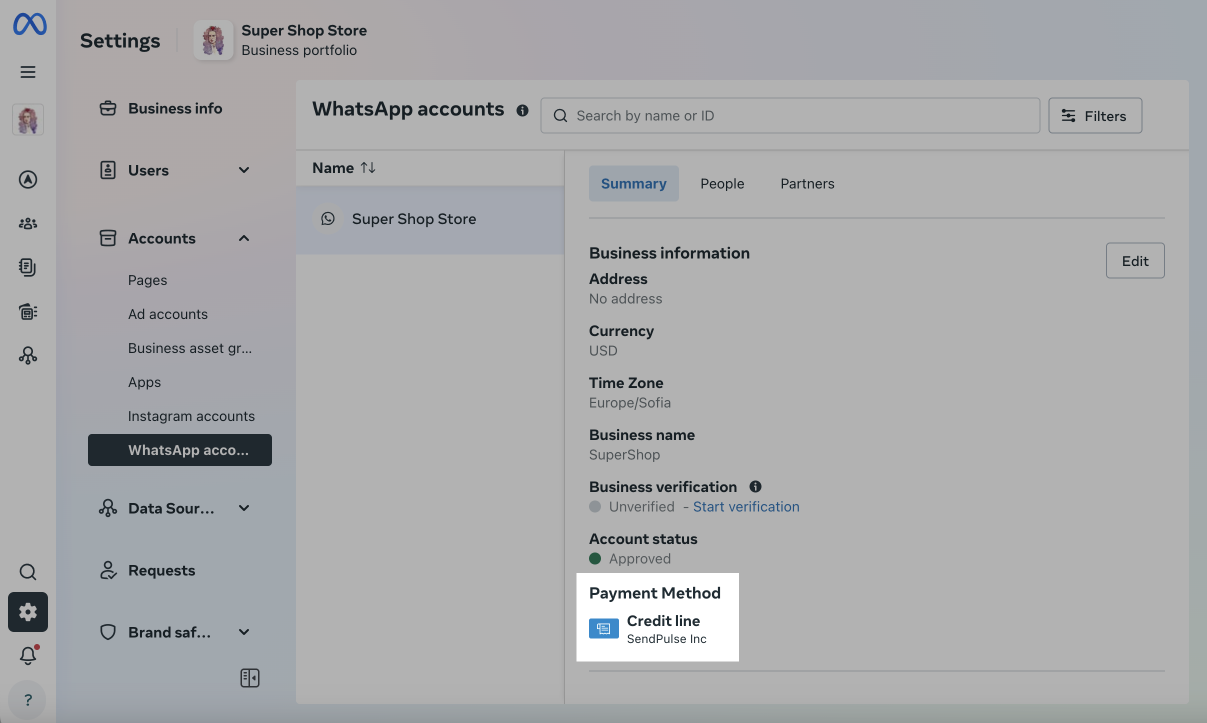
If another provider’s credit line or payment method is linked, refresh it. To do this, remove the phone number from your current business account.
Go to Business Settings > WhatsApp Accounts > WhatsApp Manager > Phone Numbers and click the trash can icon next to your current phone number.
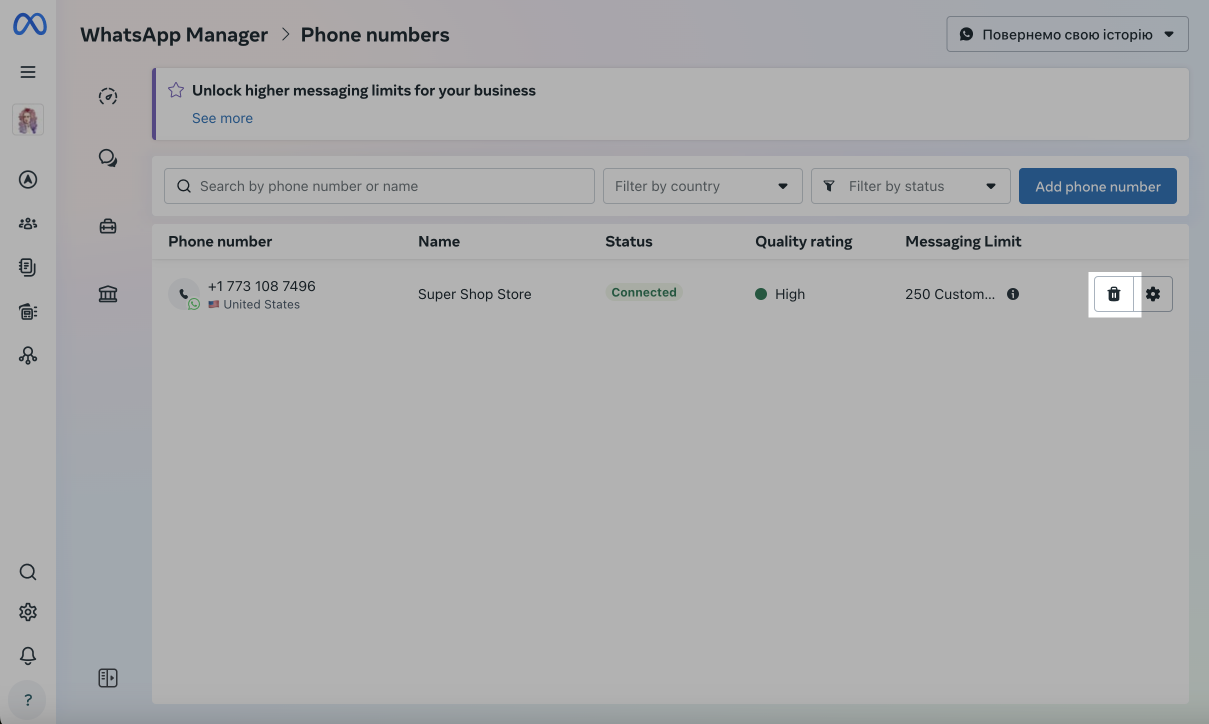
After a few hours, you will be able to reconnect your phone number to your WhatsApp Business account.
Payment method connection may also fail when your WhatsApp Business account currency is not supported by the credit line. SendPulse's credit line currency is USD.
Troubleshooting marketing template delivery
If you’ve successfully created a WhatsApp chatbot, you might see the Rejected message status and the following error after sending a message template:
Business eligibility payment issue (Message failed to send because there were one or more errors related to your payment method.)
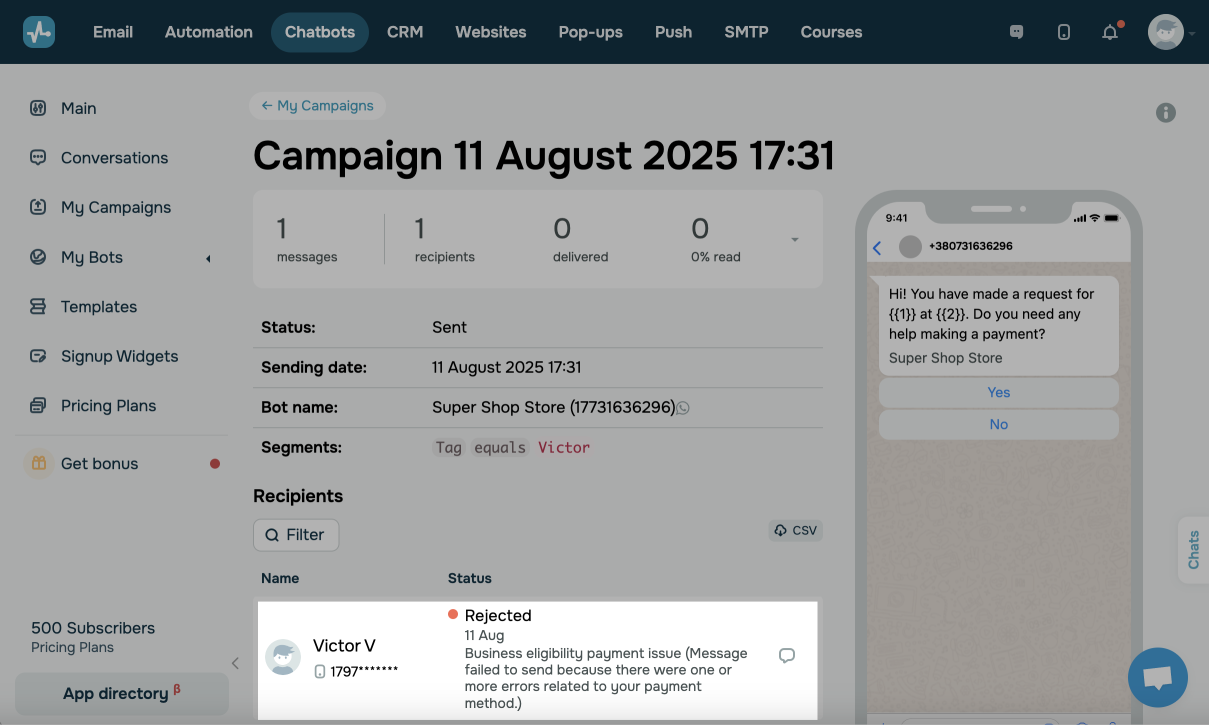
In this case, try refreshing your chatbot permissions in Manage bots.
In your SendPulse account, go to Chatbots > Manage bots, find your WhatsApp chatbot, and in the menu next to it, click Refresh permissions.
While updating data, you may need to verify your WhatsApp phone number. In this case, confirm your phone number using a code sent through SMS or a voice message.
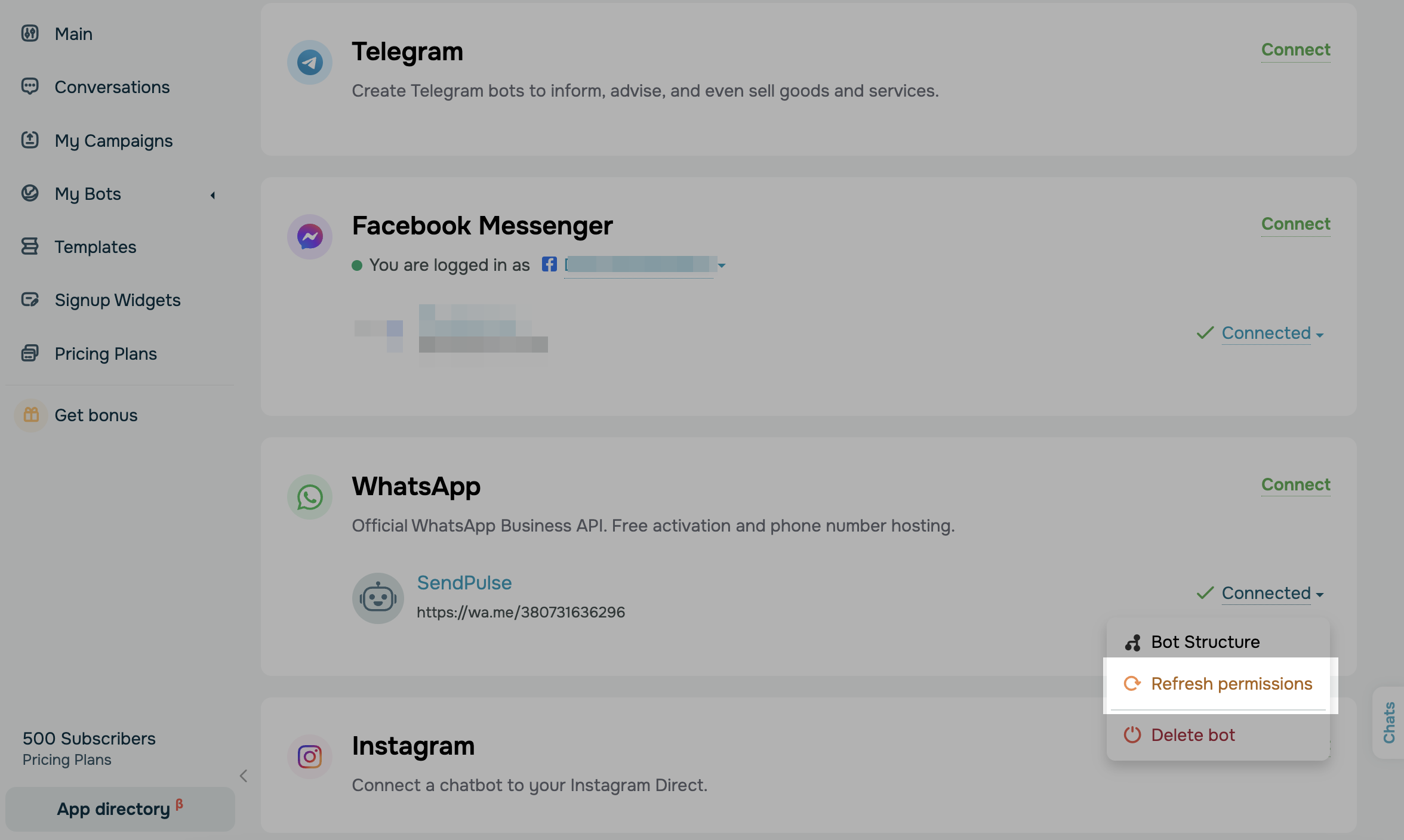
If the issue persists, remove the phone number from your WhatsApp Business account and add it again.
 Last Updated: 14.08.2025





or