Recurring payment triggers
A recurring payment trigger starts a chatbot flow automatically every time a subscription payment is processed. Your chatbot can react to each payment on its own: grant access when a payment succeeds, recover a failed payment, or win a subscriber back when they cancel.
For example, when a monthly payment goes through, your chatbot can unlock premium content or services. If the payment fails, it can ask the user to update their payment method. If the user cancels their subscription, it can offer an incentive to stay.
Let's walk through how to set up a recurring payment trigger and build a flow that runs after it.
Subscriptions are supported only by WayForPay.
Add a trigger
To create a trigger, go to your chatbot, open the Bot structure tab, and click Create a new trigger. Select Recurring payment trigger.
Select a payment event to track:
| Successful payment |
Fires each billing period when a scheduled subscription payment is processed successfully. This trigger does not fire after the first payment. To automate actions after the first payment, continue the flow from the payment step in the CRM product element. |
| Unsuccessful payment | Fires when a scheduled subscription payment fails. |
| Canceled payment |
Fires when a subscription is canceled in Chatbots, CRM, or the selected payment provider. Read also: Manage digital product subscriptions, Cancel recurring payment with shortcode, and Cancel recurring payment in the Action element. |
Select a CRM product and a payment event to track.
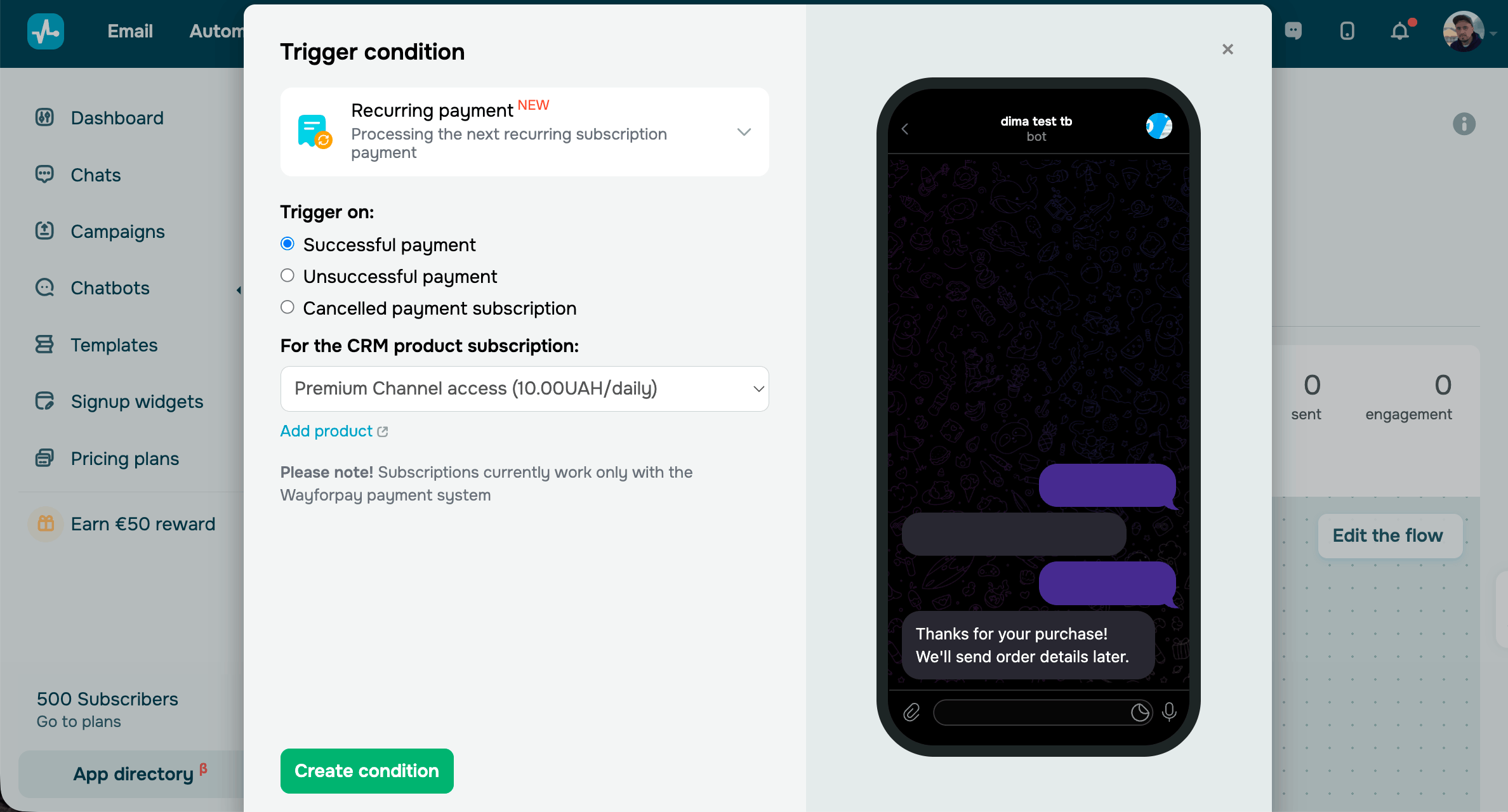
Once you set up the trigger, click Create condition.
Create a flow
After you create the trigger, create a new flow or link the trigger to an existing one. Build a dedicated flow for each payment event using relevant flow elements.
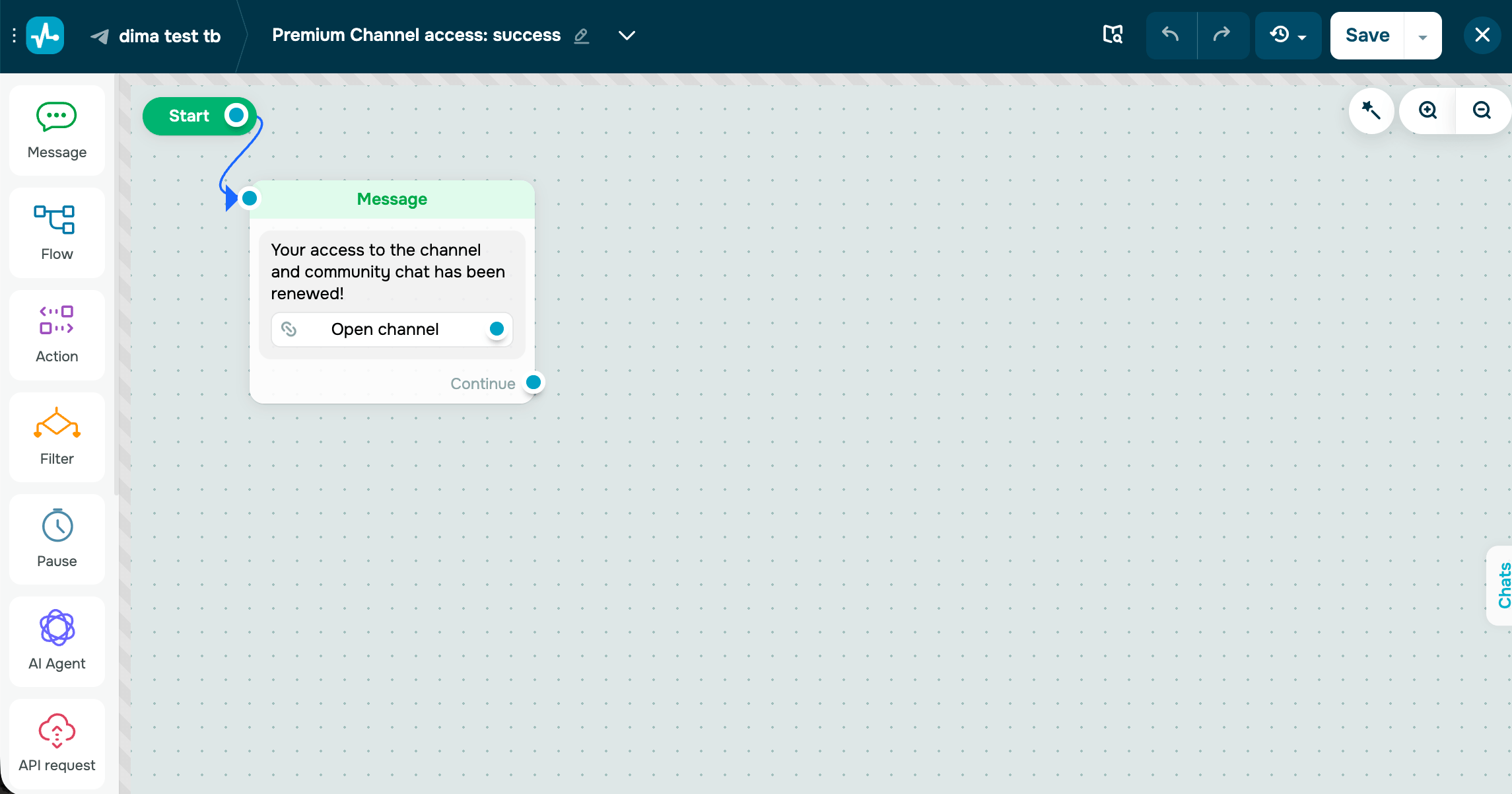
Successful payment
Use this flow to confirm the payment and deliver the purchased product or service. This flow runs each billing period. Keep these messages, such as renewal confirmations, short so that they stay useful and relevant over time.
To give you an idea, add a Message element with Text content to deliver the purchased content and send a link or a file. You can also add an Action to keep a Telegram subscriber's access to your paid channel, tag the contact as an active subscriber, update their subscription status in your CRM, or grant access to a linked course.
You can also send email or SMS notifications. Add the Start an automation by event in the Action element action and build dedicated flows in Automation.
Read more about chatbot builder elements: Use chatbot builder elements.
We recommend keeping this flow to a few well-timed messages. A short confirmation that delivers the purchased product or service beats a long sequence that the subscriber sees every billing period.
You can also use the {{$['order']}} shortcode in this flow to reuse the order data — for example, save the next payment date to a variable and add a Pause until that date to send a payment reminder.
Unsuccessful payment
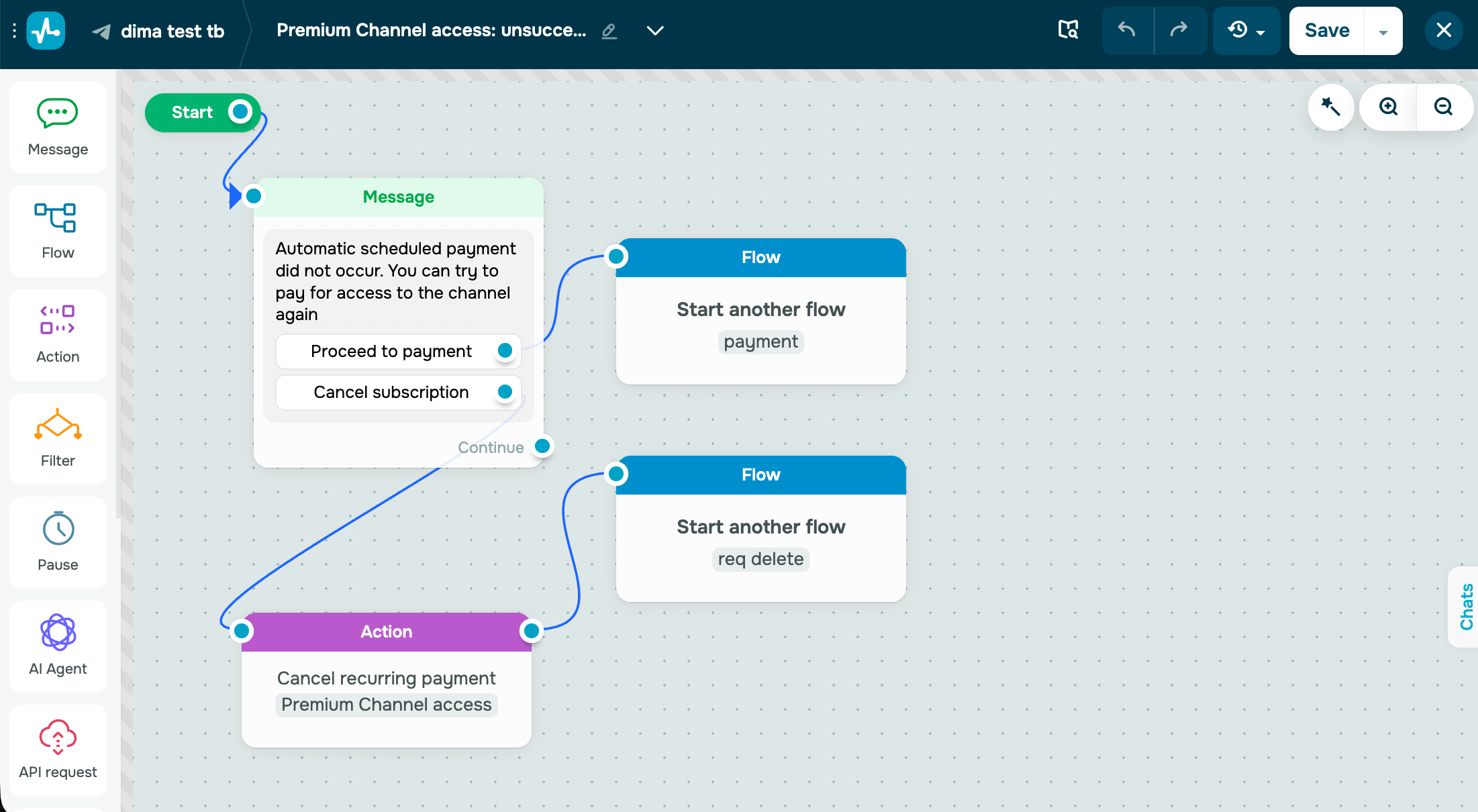
Use this flow to recover the payment before the subscriber loses access to your product or service. The payment provider retries a failed charge the next day, so your flow works alongside it. A timely reminder often recovers the payment without losing the client.
For example, you can add a Message element with Text content and a Button to inform the subscriber that their payment failed and add a link to a page where they can update their payment method or try again. Then, an Action to restrict access if the payment is still unsuccessful.
You can also send email or SMS notifications. Add the Start an automation by event in the Action element action and build dedicated flows in Automation.
Read more about chatbot builder elements: Use chatbot builder elements.
We recommend using a short message sequence: an initial notification, one reminder, and a final message before access expires. Encourage subscribers to complete the payment or update their payment method.
Canceled payment
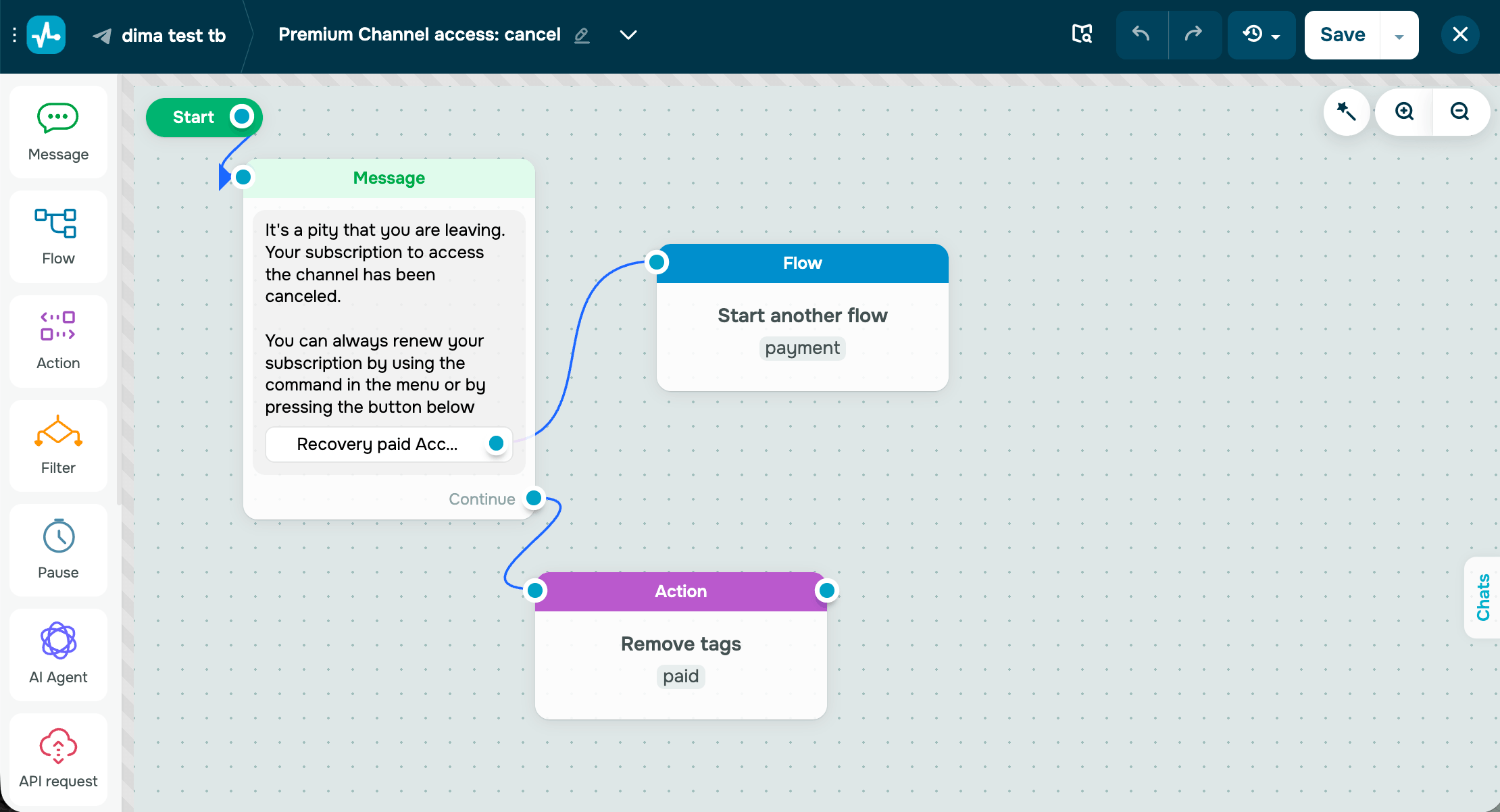
Use this flow to confirm the cancellation, revoke access, and give the subscriber an incentive to return.
For example, you can add a Message with Text content to confirm the cancellation. Next, include Quick replies or the Waiting for the subscriber's response option to ask one short question about why the subscriber canceled. Then, you can add an Action element to revoke access to the paid content.
Additionally, you can notify clients via email or SMS. Add an Start an automation by event in the Action element action and build additional scenarios in Automations.
Read more about chatbot builder elements: Use chatbot builder elements.
We recommend offering an alternative to a full cancellation, such as a pause, and sending no more than one win-back message. A positive final experience can encourage subscribers to return later.
Once you finish building your flows, click Save and run the flow. To test the setup, make a test subscription payment and confirm that each payment event triggers your flow as expected.
 Last Updated: 02.07.2026





or