Cancel recurring payments using a shortcode
SendPulse provides a cancellation link as a shortcode that you can add to a chatbot message. For example, add it to a WhatsApp message that confirms a subscription so subscribers can cancel it whenever they choose.
Let's talk about how to add a cancellation link to your flow.
Optionally, you can also add a subscription cancellation action. Read more: Cancel recurring payment in the Action element.
Save the shortcode to a variable
After a subscriber pays for a subscription through the CRM Product element, the order data will include a cancellation link.
To save the cancellation shortcode to a variable, add the Action element, select the Set variable action, and enter the following: {{$['order']['subscription']['cancelLink']}}.
We recommend saving the cancellation link to a variable. JSON Path values are temporary and become unavailable after the message is processed, while contact variables remain available for future messages. Read more: Add variable in the Action element.
Add the cancellation link
In the next Text element, add the link as an inline link using the shortcode or variable.
When the subscriber clicks the link, the payment provider cancels their subscription, and its status changes to Canceled in eCommerce > Payments > Subscribers.
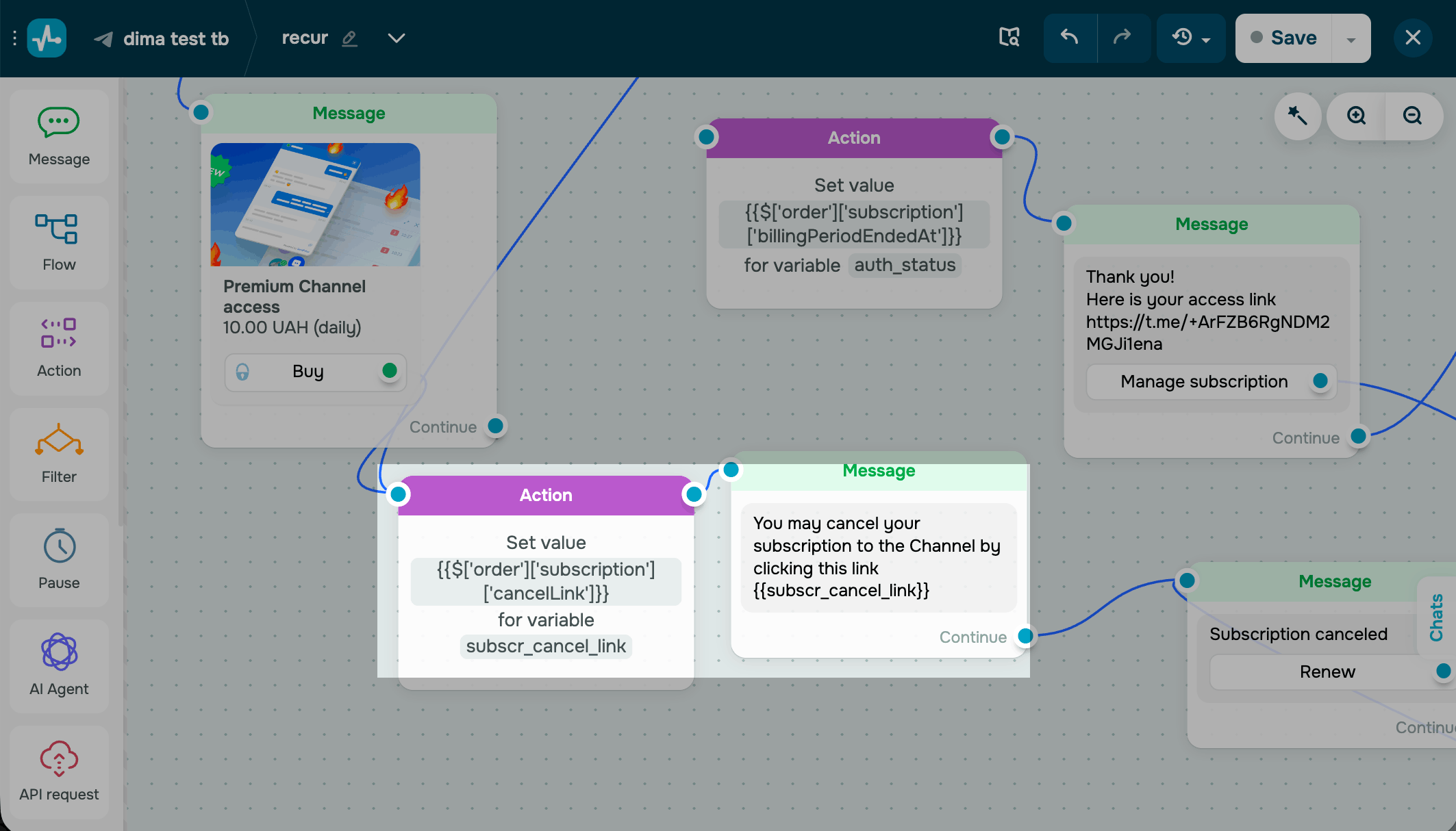
Once the user follows the link, SendPulse will cancel the subscriber's active subscription and label it as Canceled in the CRM system.
To see all subscriptions, go to eCommerce > Payments > Subscribers.
 Last Updated: 02.07.2026





or