Add variable in the Action element
The Add variable action sets or updates a variable in a subscriber's profile. Use it to capture data (names, preferred dates, or chosen plans), track progress with counters, or calculate personalized values, such as the final price after a discount.
You can type in a fixed value, pull it from another variable, add an offset, or run a formula.
Let's walk you through how to set up the Add variable action.
Add the Action element
Drag the Action element to the workspace. In the settings that appear, select Add variable.
Configure the action
Choose a variable from the drop-down or type in a new name to create one. The way you fill in the value depends on your requirements.
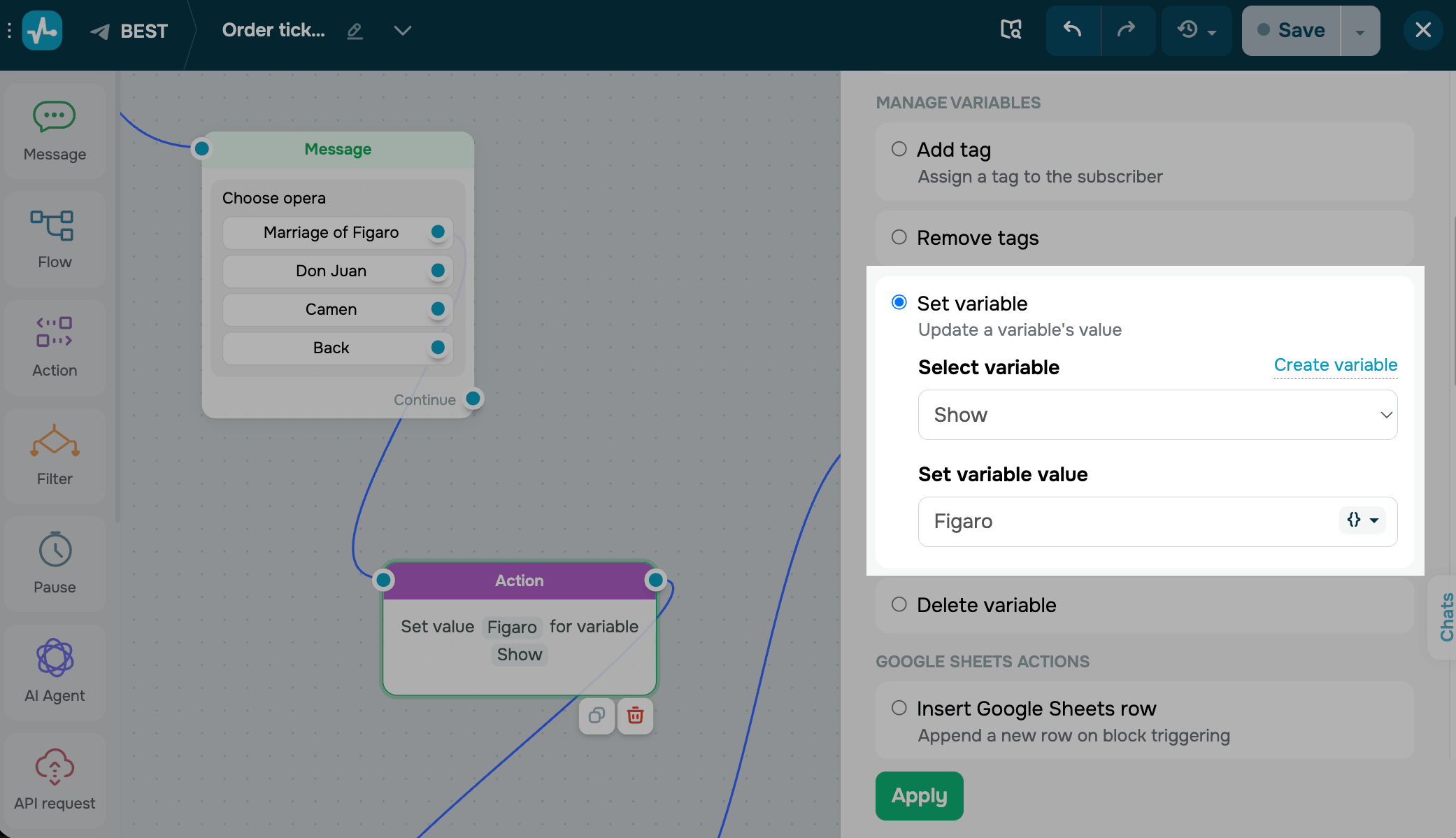
Set your own value
Enter the value you want to save. You can also format it using modifiers to capitalize a name or format a date.
Pull the value from another variable
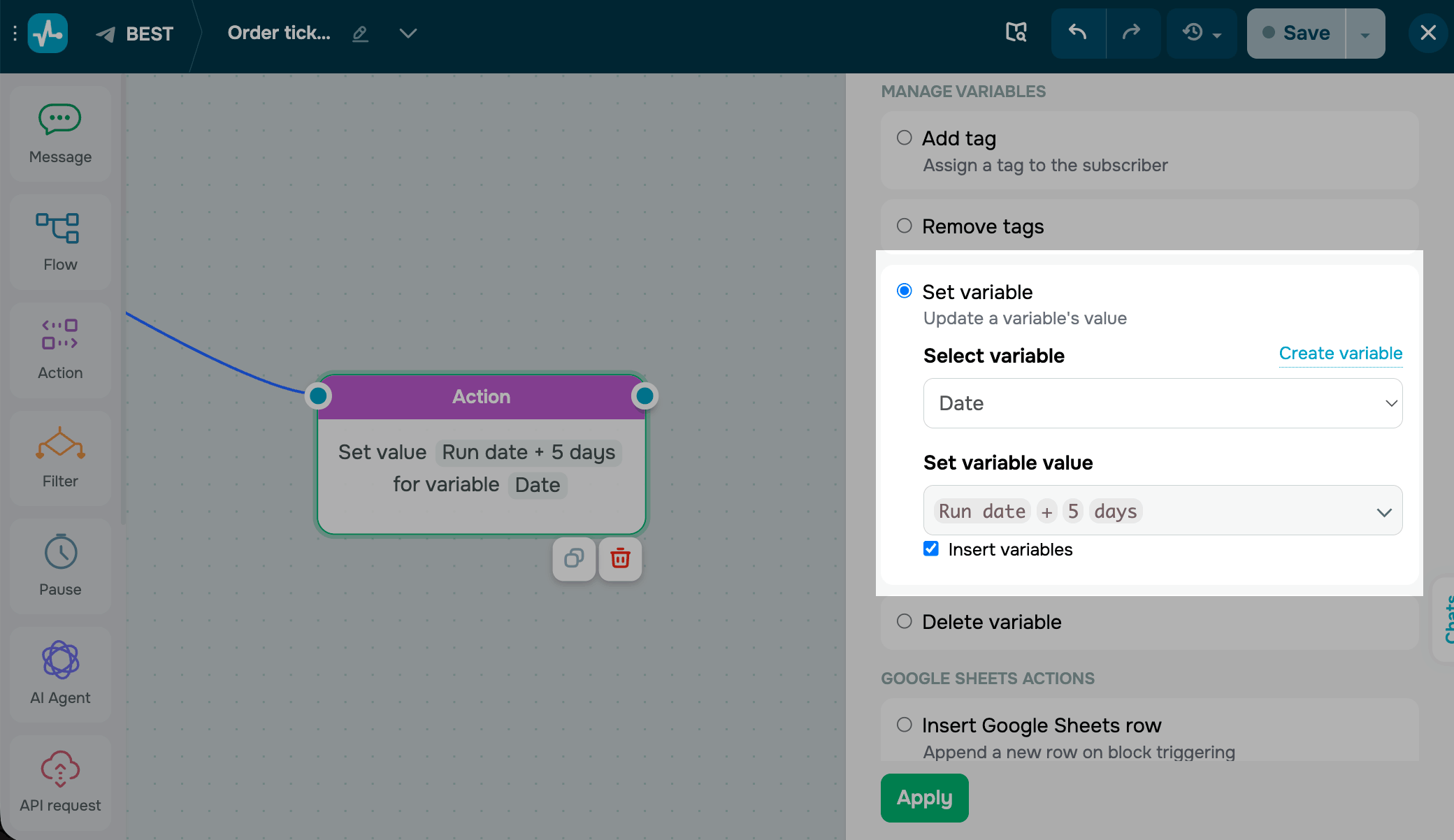
With String, Date, Date and time, and Number variables, you can pull in a value from another variable instead of typing it.
Select the Insert variables checkbox and choose what to use:
- Strings — the current value, another
Stringvariable from your audience, or a system variable likeAnswer,Contact ID,Email, orPhone. You can also mix multiple variables with plain text and apply modifiers. - Dates — the current value, another
Datevariable, or theSubscription dateorRun datesystem variables. - Numbers — the current value or another
Numbervariable.
Add a dynamic value
For numbers and dates, you can adjust the stored value. Type +1 to add one or -1 to subtract one. If the variable is empty, the count starts from zero (for numbers) or today's date (for dates).
To pull the offset from another variable instead of a fixed number, select the Add value offset checkbox and choose a variable. For dates, the offset is in minutes, hours, or days. For numbers, it's plain numbers.
Run a formula
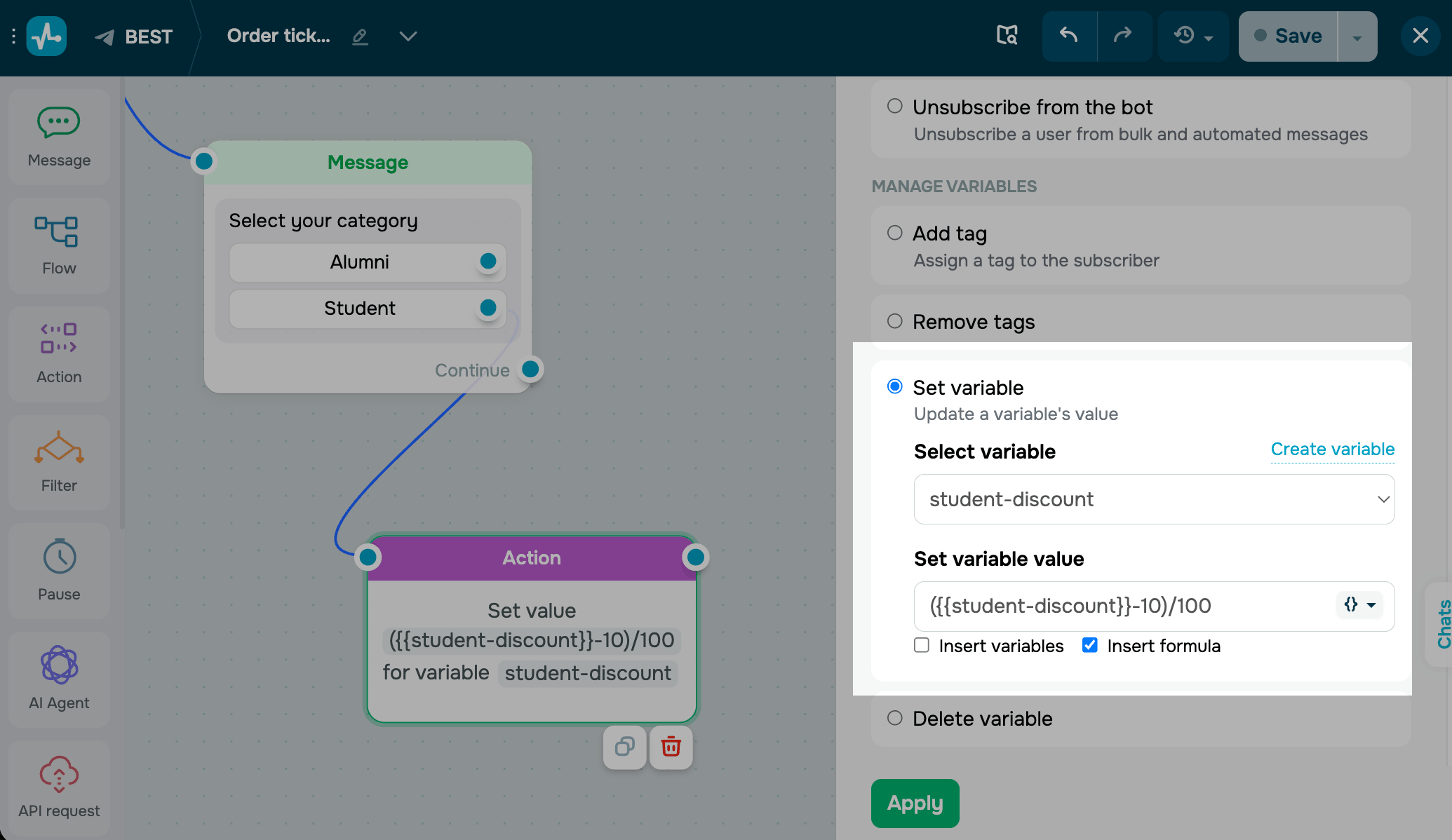
For more complex math, select the Inser formula checkbox and write a formula right in the value field. A formula can combine variables, numbers, and operators, which is useful for price calculators, discounts, or quiz scores.
Here are a few examples of what you can do using a formula:
({{num1}} + {{$global_num}})/2 |
Takes the average of two numbers stored in num1 and the global $global_num. |
{{price}} - ( {{price}}*0.1 ) |
Applies a 10% discount to the price variable. |
pi*{{radius}}^2 |
Calculates the area of a circle based on the radius variable. |
The Set variable value field supports all basic operators, including addition, subtraction, multiplication, division, percentages, exponentiation, square root, and sine, along with a full set of math functions.
Save the element
Click Apply. From now on, every subscriber who reaches this step gets their variable set or updated based on your setup.
To test the setup, run the flow and open the subscriber's profile — the variable should show the new value.
 Last Updated: 29.04.2026





or