Cancel recurring payment in the Action element
The Cancel recurring payment action cancels a subscriber's active subscription and labels it as Canceled in the CRM system. For example, you can add it after sending a message with the Cancel subscription button to let subscribers cancel on their own.
Let's walk you through how to set up the Cancel recurring payment action.
Optionally, you can also add a subscription cancellation link. Read more: Cancel recurring payments using a shortcode.
Add the Action element
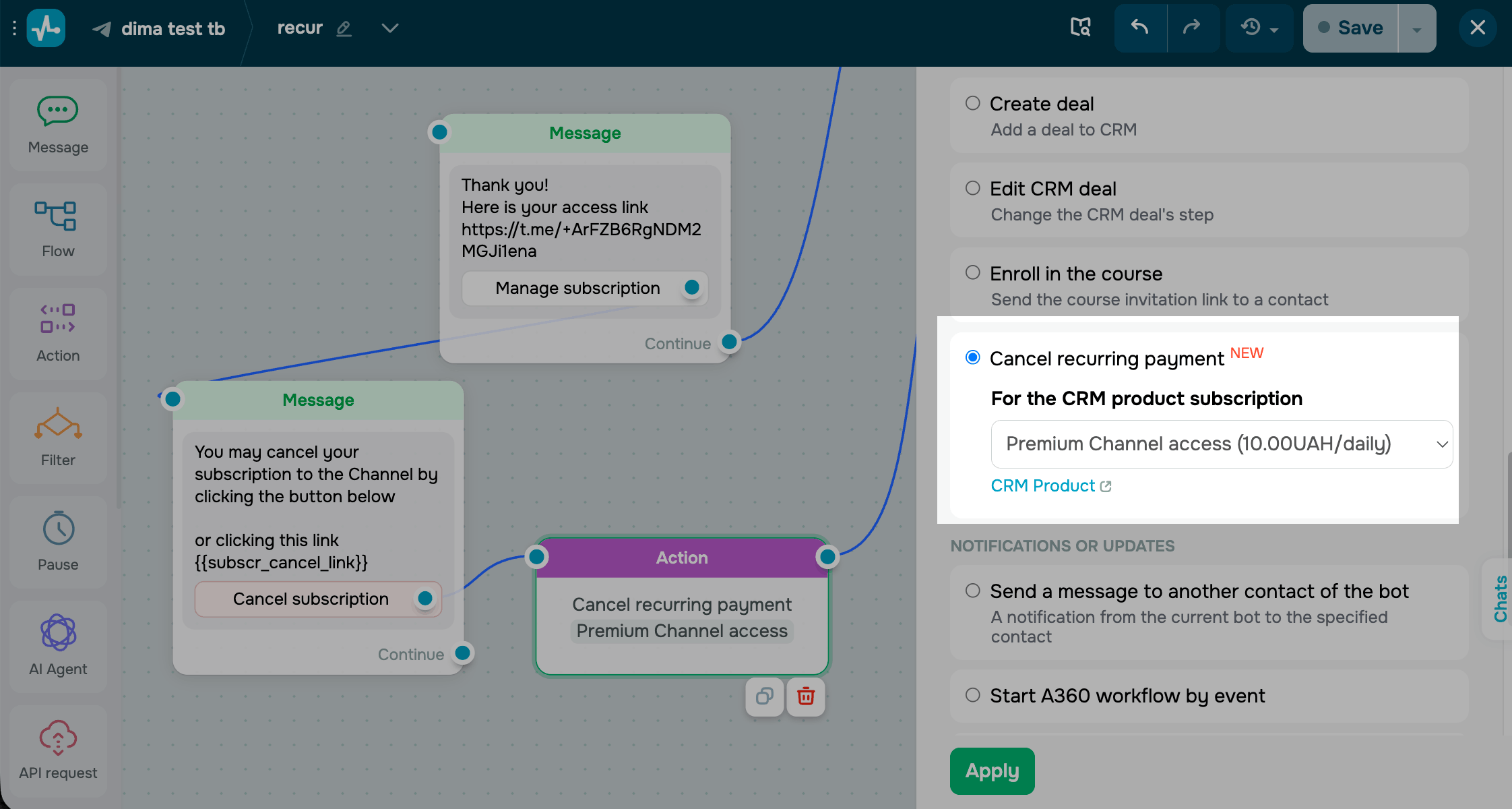
Drag the Action element to the workspace. In the settings that appear, select Cancel recurring payment.
Select a CRM product whose subscription you want to cancel.
Save the element
Click Apply. The element will cancel the user's active subscription every time they reach this step and label it as Canceled in the CRM system.
To see all subscriptions, go to eCommerce > Payments > Subscribers.
 Last Updated: 02.07.2026





or