Accept recurring payments
Use recurring payments to automatically charge subscribers for digital products and services created in your CRM, directly from a chatbot. Add a subscription product card to your chatbot flow once, and the payment provider automatically charges customers each billing period.
For example, you can sell access to a paid community. A subscriber pays through your chatbot, gets added to the group, and is charged automatically until they cancel.
Let's talk about how to set up recurring payments in a chatbot flow.
Add the CRM Product element
Before getting started, create a subscription-based digital product. Read more: Subscription basics and Create a subscription.
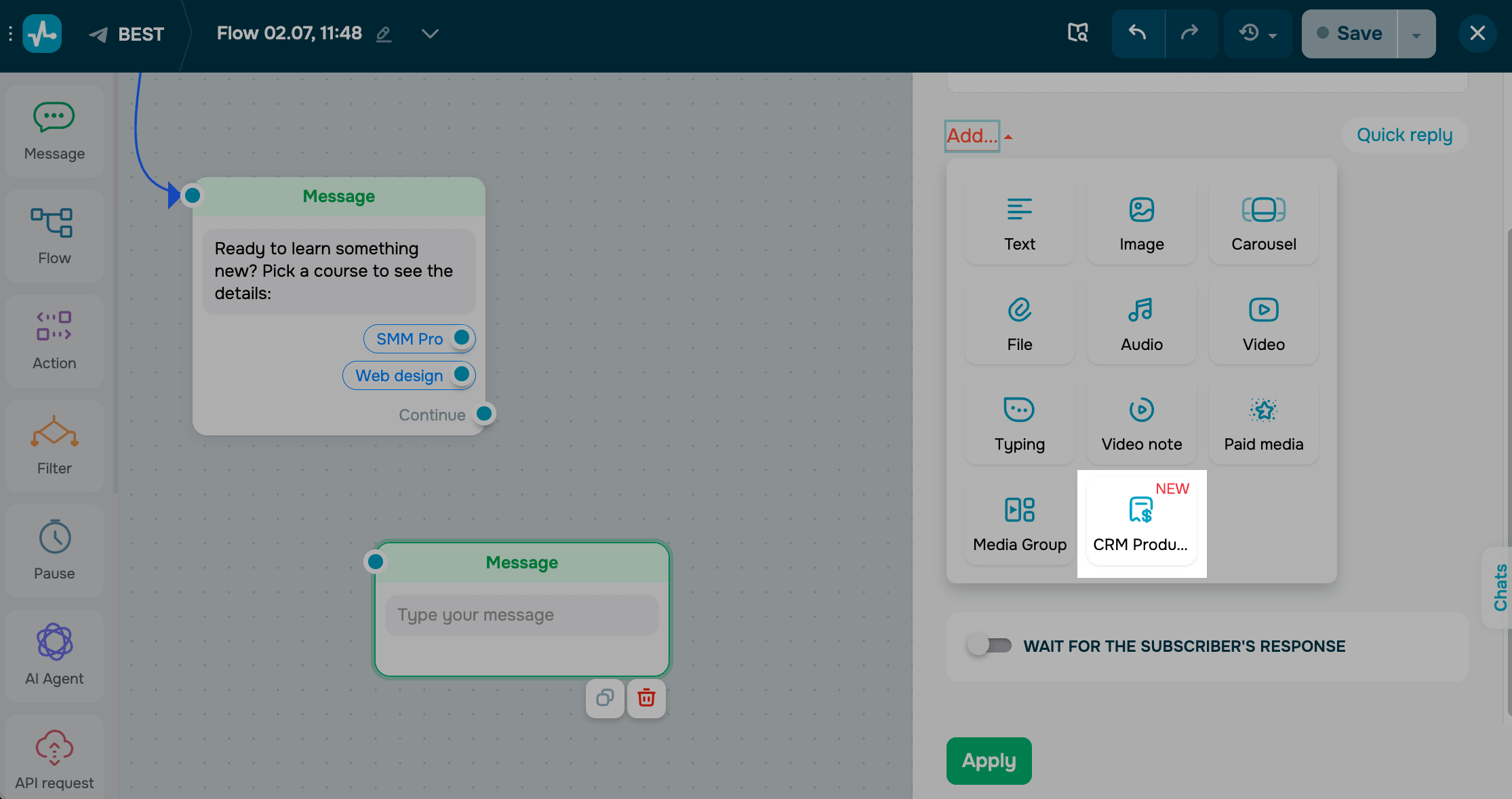
In the Message element, click Add and select CRM Product.
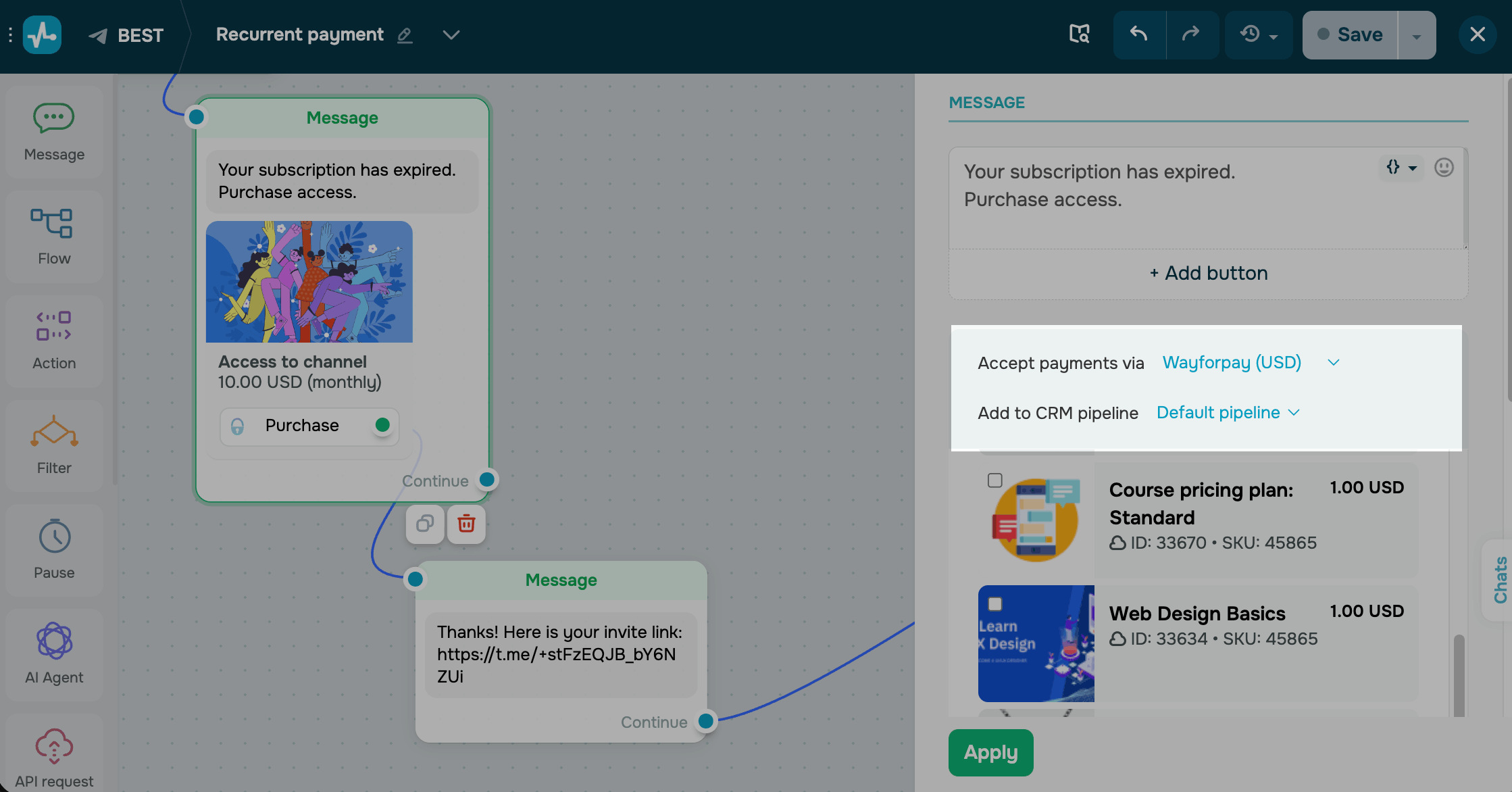
Choose a payment provider
Choose a payment provider and the CRM pipeline where new deals and contacts will be created.
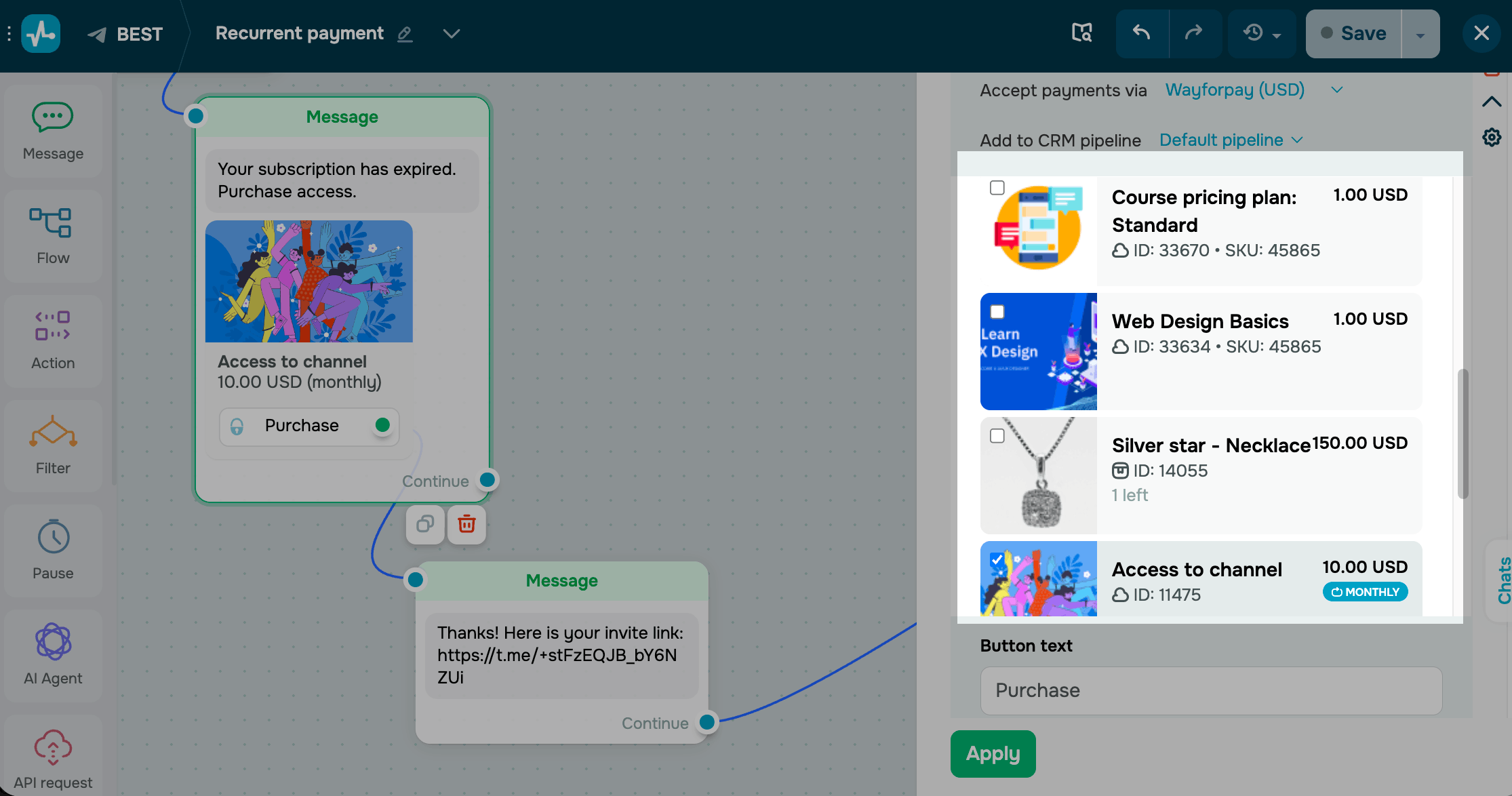
Choose a CRM product
Choose subscription-based digital products that you want to show.
Subscription products are available only when they are visible and use WayForPay as the payment provider.
In the Button text field, enter a button label.
Once you finish customizing the element, click Apply to save the changes.
Set up your flow
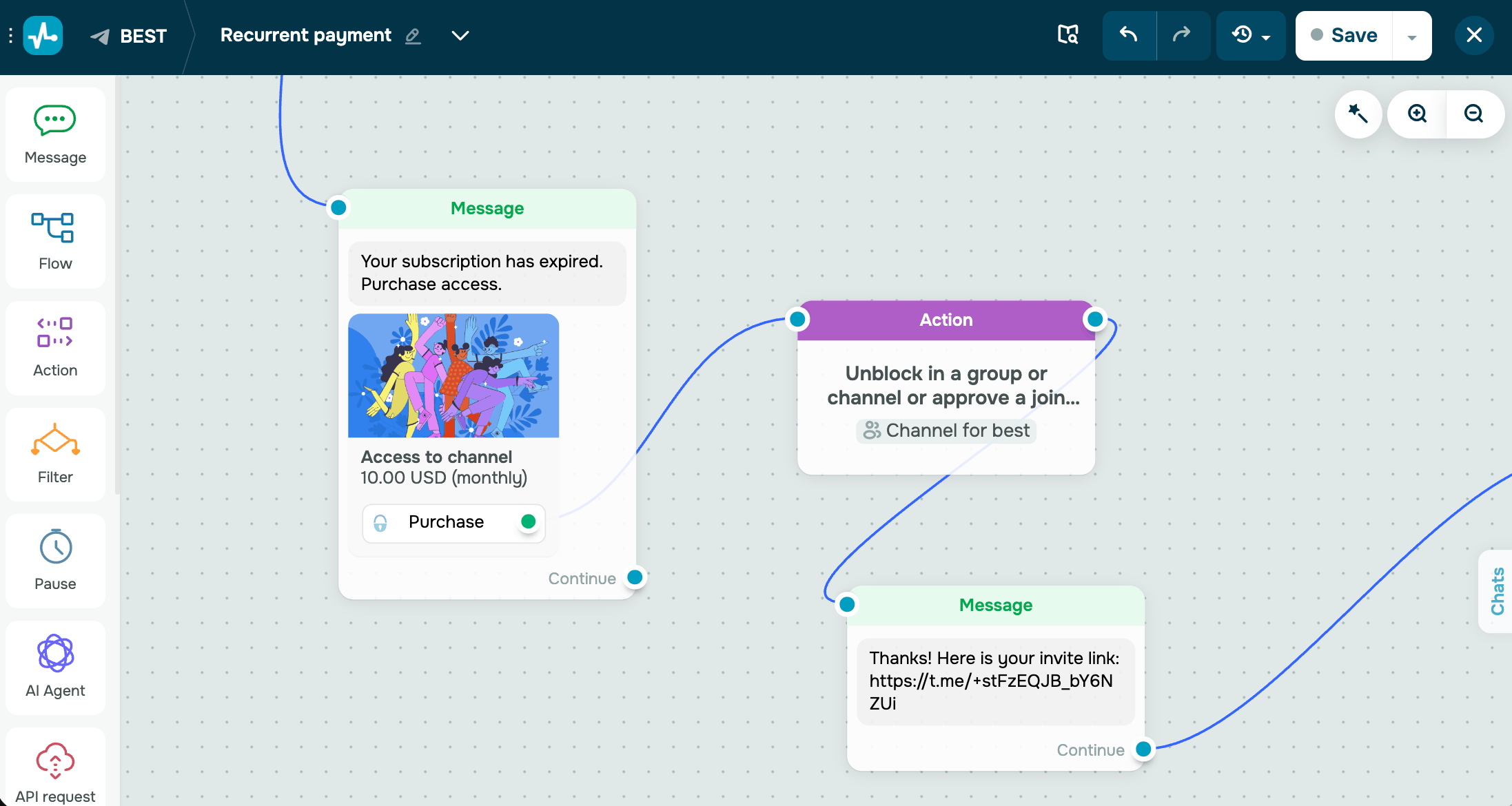
After a subscriber completes the initial payment, the flow continues from the green dot on the payment button. Use this branch to confirm the purchase and give the subscriber immediate access to what they bought.
To set this up, link the next element to the green dot on the payment button.
To give you an idea, you can add a Message with Text content to confirm the payment and share a link or file. Or you can add an Action to keep a Telegram subscriber's access to your paid channel, to grant access to premium content or a linked course, update the contact's subscription status, or add a tag for audience segmentation.
You can also send email or SMS notifications. Add the Start an automation by event in the Action element action and build dedicated flows in Automation.
Read more about chatbot builder elements: Use chatbot builder elements.
To automate actions for renewals, failed payments, or cancellations, set up a payment trigger.
Read more: Recurring payment triggers.
Use payment variables
Message elements support dynamic data through JSONPath expressions. The order data available in subsequent flow elements includes a subscription object with the subscription details.
You can use the following SendPulse variables as a JSON Path:
| SendPulse variable as a JSON Path | Description |
{{$['order']['subscription']['name']}} |
Subscription name configured in your CRM product. |
{{$['order']['subscription']['description']}} |
Subscription description. |
{{$['order']['subscription']['plan']['recurringMode']}} |
Billing cadence, such as monthly or yearly. |
{{$['order']['subscription']['plan']['externalObjectId']}} |
ID of the associated CRM product. |
{{$['order']['subscription']['billingPeriodStartedAt']}} |
UNIX timestamp marking the start of the current billing period. |
{{$['order']['subscription']['billingPeriodEndedAt']}} |
UNIX timestamp marking the date of the next charge. |
{{$['order']['subscription']['cancelLink']}} |
Self-service cancellation link. When clicked, the link cancels the subscription through the payment provider. Read more: Cancel recurring payment with shortcode. |
We recommend saving the data to a variable. JSONPath values are temporary and become unavailable after the message is processed, while contact variables remain available for future messages.
Once you finish setting up your flow, click Save and run the flow. Then, test it by sending it to yourself.
View subscriptions
To view and manage subscriptions, go to CRM > eCommerce > Payments > Subscribers.
Read more: View digital product subscribers and Manage digital product subscriptions.
 Last Updated: 02.07.2026





or