Unsubscription flow trigger
Once you create and set up your chatbot, you can manage its flows, including system flows. Every chatbot includes the Unsubscribe from bot flow that runs when a user sends an unsubscribe command, such as /unsubscribe or /stop.
In this article, we'll talk about how to view and edit your unsubscribe flow.
Flow configuration
Go to your chatbot and open Bot Structure > Triggers.
Once you create a chatbot, you will see its standard flows in the Triggers and Flows tabs within the System flows folder. You cannot delete or move these flows, and you cannot move custom flows into this folder.
Click Unsubscribe from bot > Edit flow.
By default, this flow includes the Message element, informs users they have unsubscribed, and explains how they can resubscribe.
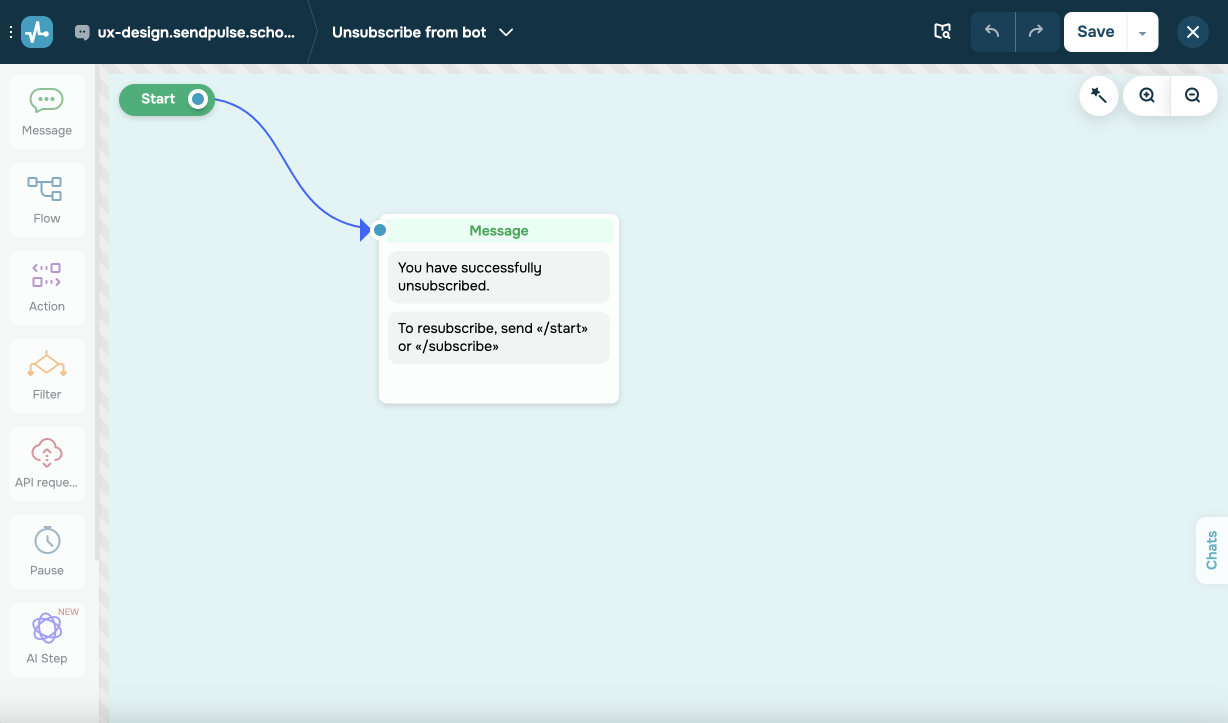
Customize the message to your business needs and goals.
You cannot add other elements to this flow.
Personalization tips
Maintain polite conversation
Even if users unsubscribe, it’s important to end your interaction on a positive note. Let them know you’re sorry to see them go, thank them for their time, and invite them to share feedback.
In SendPulse’s chatbot builder, add the Message element with a thank-you note. Then, turn on the Wait for the subscriber's response toggle to collect feedback. Save their answers to a variable for later use.
Suggest alternative communication channels
Offer users a way to stay connected through other communication channels even after they unsubscribe. This helps them continue receiving important updates or support.
In the Message element, list alternative contacts, such as an email address, phone number, or social media page. You can also add URL buttons to direct users to these communication channels.
Use quick replies to collect feedback
Collecting feedback helps you understand why users unsubscribe and improves your chatbot’s performance. A simple, one-question survey can offer valuable insights.
In the Message element, ask: “Why did you decide to unsubscribe?” Turn on the Wait for the subscriber's response toggle and add quick replies:
I get too many messages from this chatbotThis content is no longer relevant to meThis chatbot is no longer useful to me
You can save user responses to a variable for analysis. To do this, select a variable from the dropdown list.
 Last Updated: 25.11.2025





or