Change your availability status in Chats
If you belong to an agent group, you can pause automatic chat assignments by changing your status to Away, for example, during lunch, a meeting, or after your shift. New chats will go to other available group members or wait in the queue.
Your status affects only new chats assigned automatically. Existing chats remain assigned to you, and team members can still assign chats to you manually.
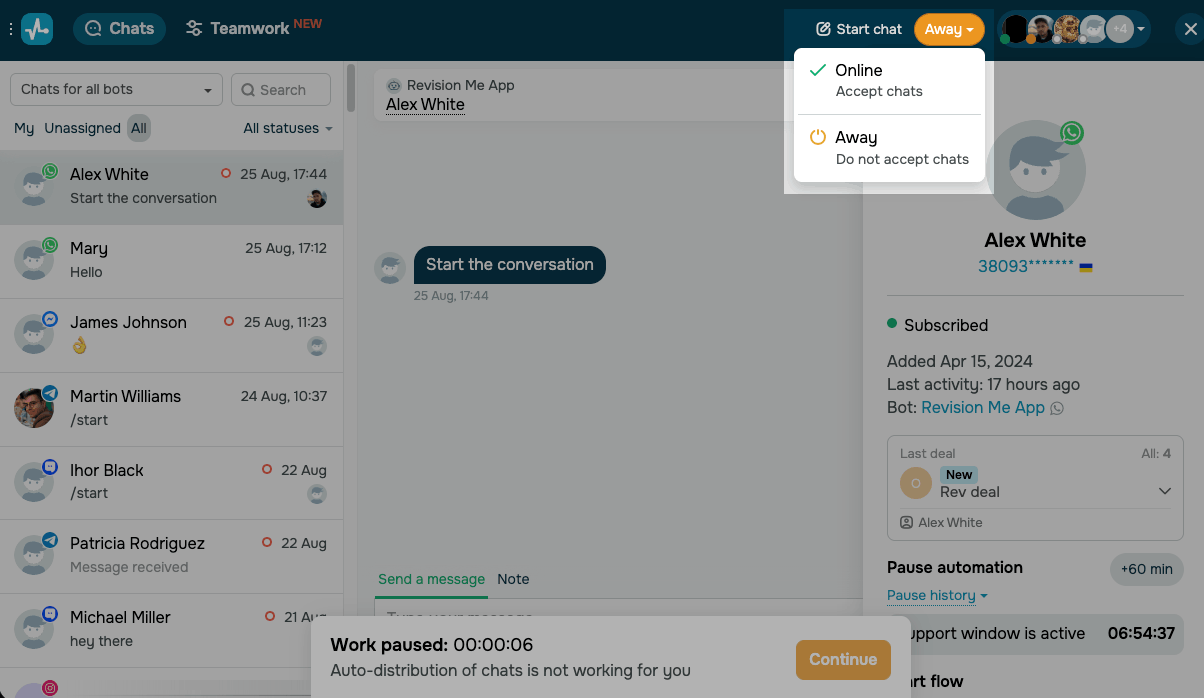
To switch your status, go to the Chats section, click the button next to Start chat, and choose a status:
| Online | You receive new chats within your limit. |
| Away | You don't receive new chats. Auto-assignment skips you until you switch back to Online, but your current chats stay with you. |
When you're Away, the chat window dims, and a Work paused banner with a timer reminds you to come back. To start receiving chats again, click Continue in the banner or switch your status to Online.
 Last Updated: 28.08.2026





or