Track agent performance
The agent profile shows a team member's full record, including their current chats, performance stats, group memberships, chat limits, and access to chatbot conversations. Use it to review an agent's performance, check their workload before changing limits, and see which groups they belong to.
Let’s talk about how to view an agent's chats, statistics, and limits.
Open an agent profile
To view an agent's performance, go to Chats > Teamwork and click the three dots icon next to the agent, and select Settings.
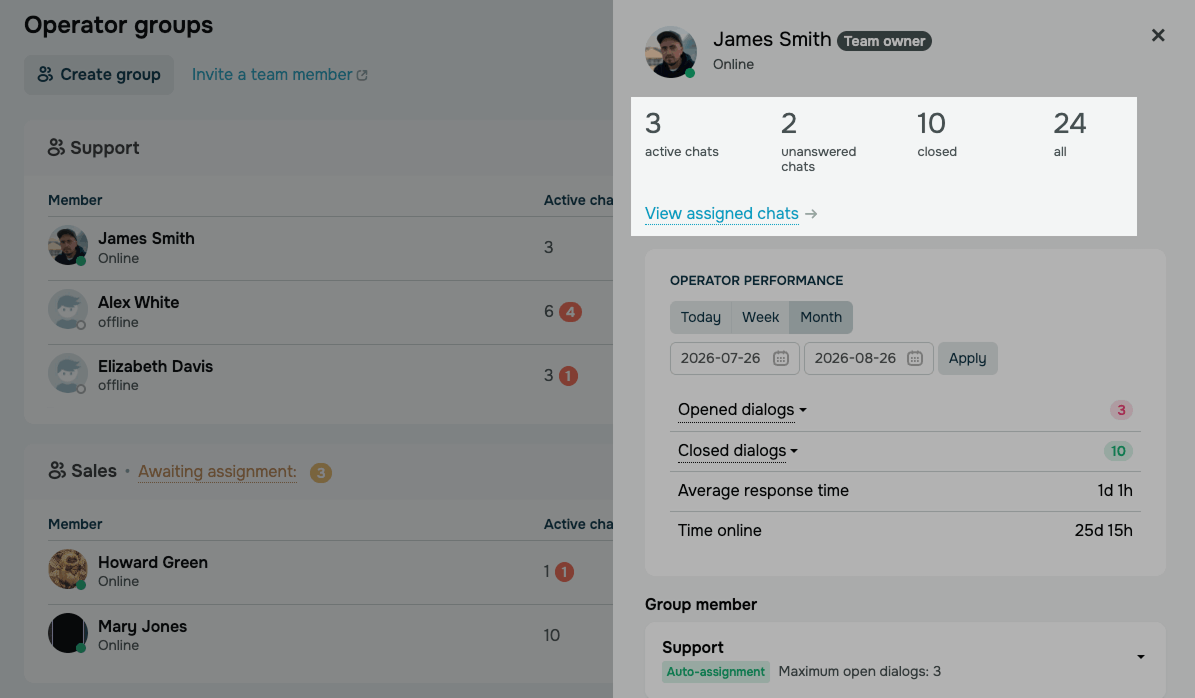
The counters at the top of the profile show the agent's current chats, including Active chats, Unanswered chats, Closed, and All. To see the list of these chats, click View assigned chats.
Read more: View assigned chats.
Monitor performance metrics
Performance metrics show the agent's workload and response speed over time. Use them to compare workload patterns, choose appropriate chat limits, and see when an agent may need a higher limit or support.
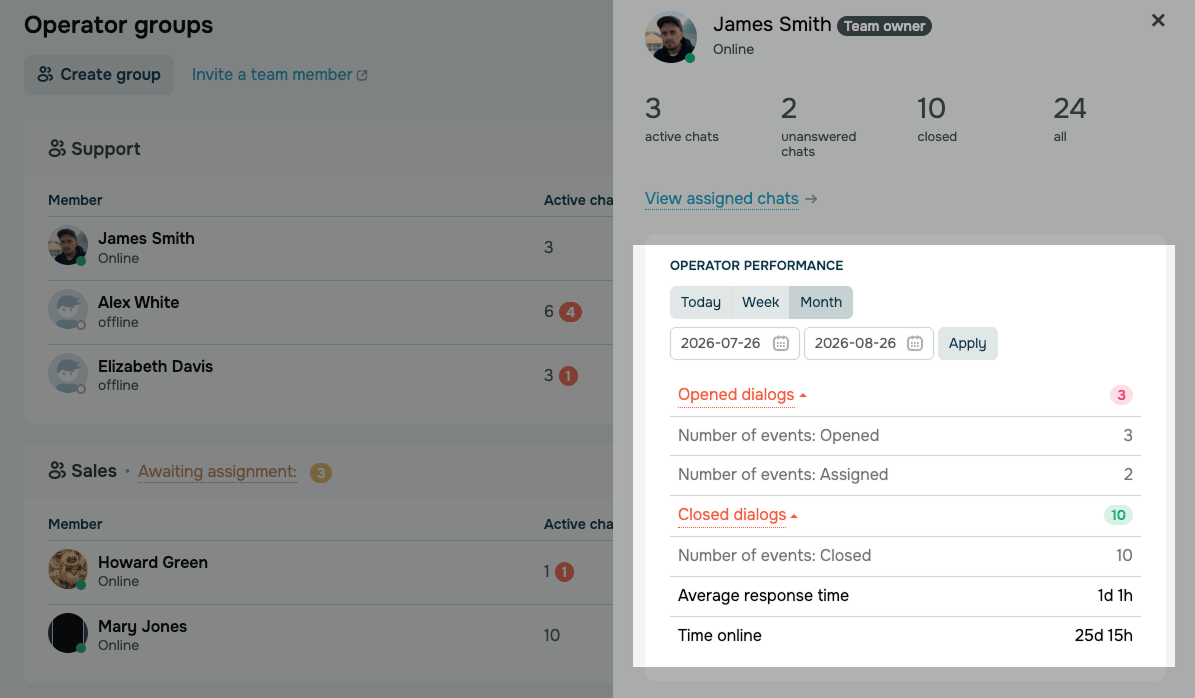
In the Operator performance section, choose a timeframe: Today, Week, Month, or a custom date range. You'll see the following metrics:
| Opened dialogs | The number of chats an agent picked up. Expand the metric to see the number of Opened and Assigned chats. |
| Closed dialogs | The number of chats an agent completed. |
| Average response time | The average time between a subscriber's message and the agent's reply, across all replies over the selected timeframe. |
| Time online | The time an agent spent online. |
SendPulse starts collecting statistics once you create a group and add agents to it. Agents see only their own statistics, and the account owner sees statistics for the entire team.
Check group membership
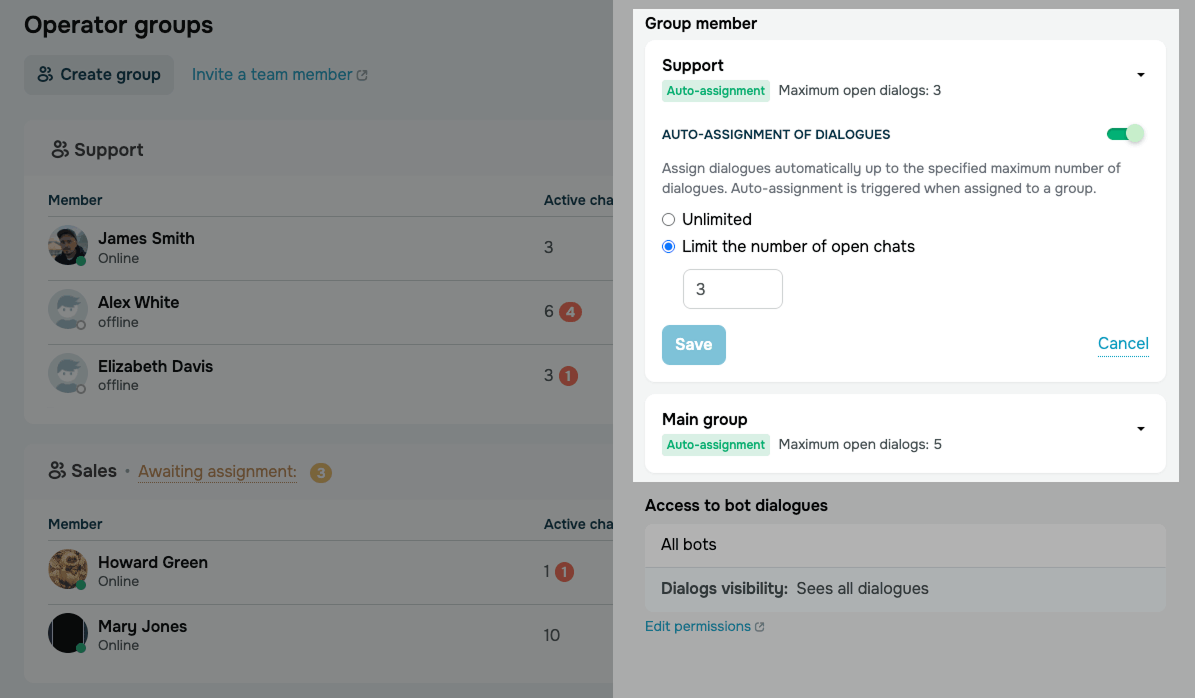
The Group member section shows the groups an agent belongs to and their auto-assignment settings in each group. To change an agent's chat limit, click their group to expand its settings.
Read more: Set an agent's chat limit.
Check chat access
The profile also shows your agent's role and the chatbots available to them. Use this information to check if the agent has access to the conversations they are expected to handle.
To check an agent's chat access, go to Chats > Teamwork and click the agent in the group list.
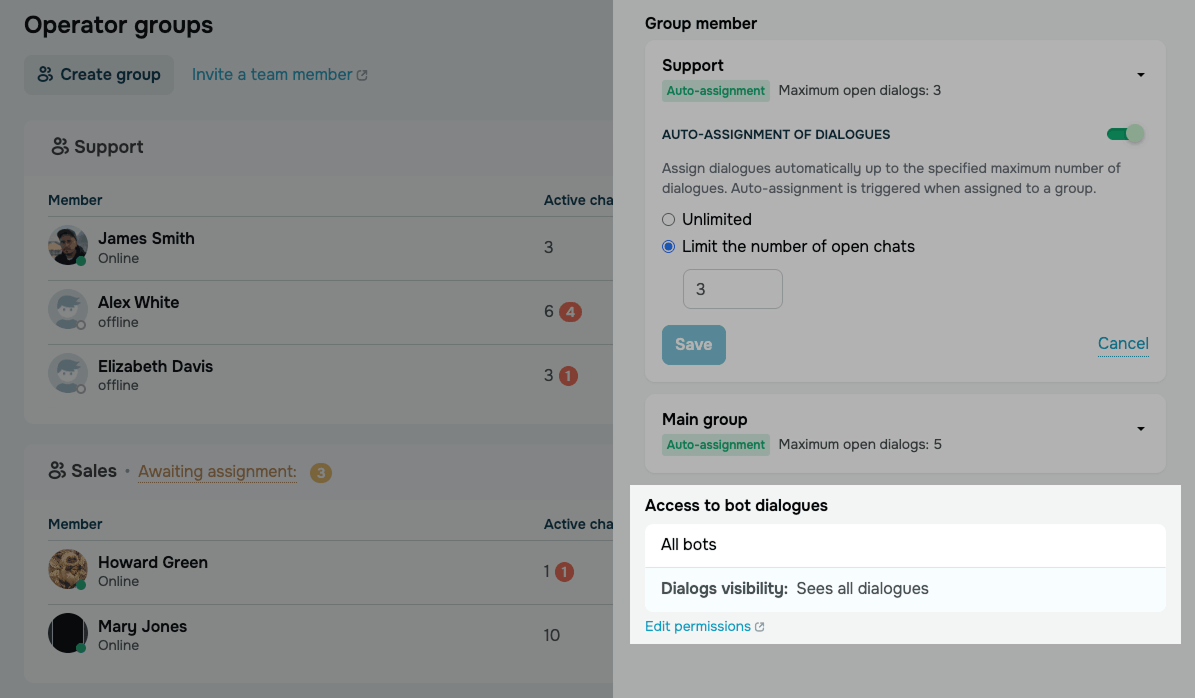
In the Access to bot dialogues section, you can see:
- Bots — the chatbots whose conversations your agent can access.
- Dialogs visibility — the chatbot conversations the agent can see, for example, all chats or only the ones assigned to them.
To change access settings, click Edit permissions. You can select another role or change the list of chatbots available to the agent.
Read more: Manage an agent's chat access.
 Last Updated: 28.08.2026





or