Link a chatbot contact to a CRM contact
You can manually link a chatbot contact to a contact card in your CRM system. This helps you view your conversation history, and reply from contact cards through messaging apps.
Let’s talk about how to link a chatbot contact to a CRM contact.
Copy the chatbot link
Go to your chats and find the conversation history with the contact you need. Copy the chat link from your browser’s address bar.
Each chat link is unique. SendPulse recognizes chats using chatbot IDs and contact IDs.
Add the link to your contact card
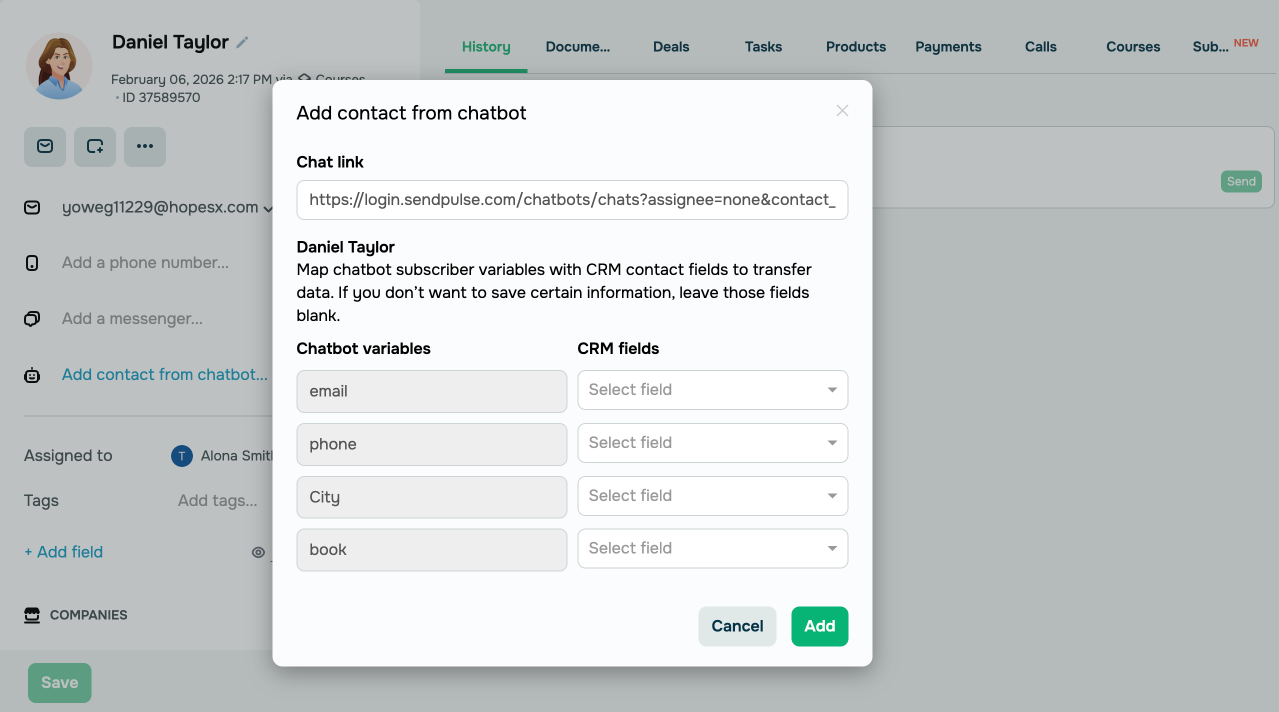
Go to the CRM system and open the contact card you need. In the Chatbots section, click Add contact from chatbot.
This field shows a linked contact if they already exist in the CRM system. Contacts can be added to the CRM system automatically using the Action element and payments, or manually within chatbot conversations.
In the Chat link field, paste the chatbot link. The contact’s name and variables will load automatically.
To map chatbot variables to CRM fields, select the corresponding contact field for each variable.
If the required contact field is not available in the CRM system, create it using the relevant data type in your contact settings.
 Last Updated: 26.02.2026





or