Run a flow when a user comments on your live stream
While you’re live, your Instagram chatbot can reply to viewer comments in real time. This helps you engage your audience, react to keywords, and share relevant information automatically.
In this article, we will talk about how the Comment on your live video trigger works and how to set it up.
You can use the Welcome message, Standard reply, and Unsubscribe from bot standard triggers in any chatbot. To create your own triggers, use keywords and Automation 360 events.
Read more: Create a new chatbot flow trigger.
You can use this flow to reply to common customer inquiries about the product you promote, pricing, availability, and more. To ensure that your message is relevant, we recommend tailoring it to specific content that users interact with.
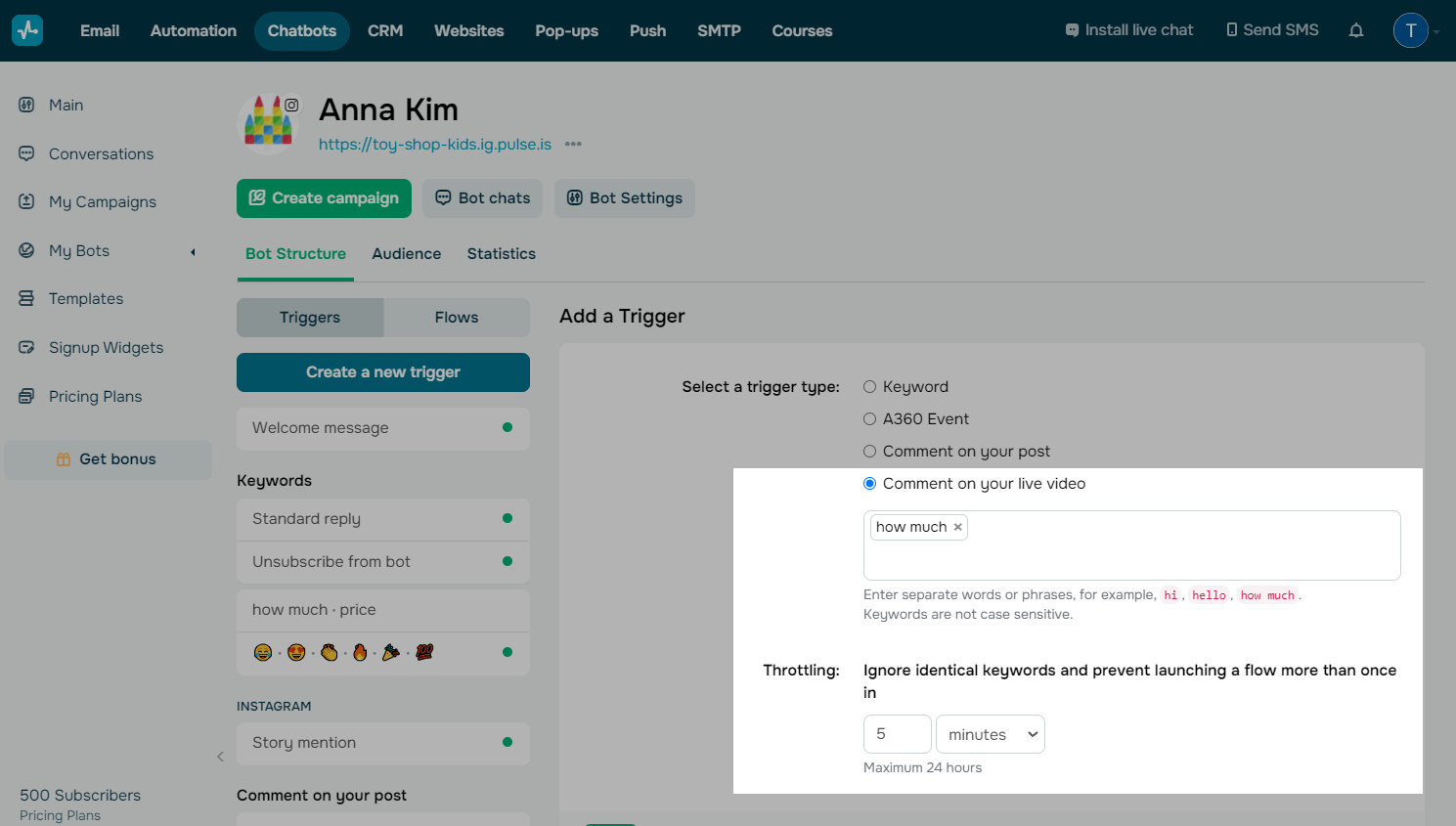
Go to your chatbot and click Create a new trigger on the left.
Select Comment on your live video in the settings on the left. Enter a keyword.
The system recognizes individual words and phrases as commands, for example, hi, price, working hours, how much does it cost. The maximum keyword size is 32 characters.
 Last Updated: 26.11.2025





or