Create a resubscription email
A resubscription email is a message sent to users who have unsubscribed from your mailing list. It invites them to opt back in if they changed their mind or unsubscribed by mistake.
Use resubscription emails to win back subscribers, reduce involuntary churn, and keep your audience engaged.
Let's talk about how to create a resubscription email template and send it automatically.
Why use resubscription emails?
Not every unsubscribe is intentional. Users may click the unsubscribe link by accident, change their mind shortly after opting out, or miss your content once they stop receiving it. A resubscription email gives these contacts a quick way to return to your mailing list.
Sending a resubscription email helps you:
- re-engage users who unsubscribed by mistake or on impulse;
- reduce subscriber churn by offering a one-click way to opt back in;
- maintain a healthy mailing list by giving former subscribers a clear path to return;
- show your audience that you value them and respect their choice.
Create a resubscription email template
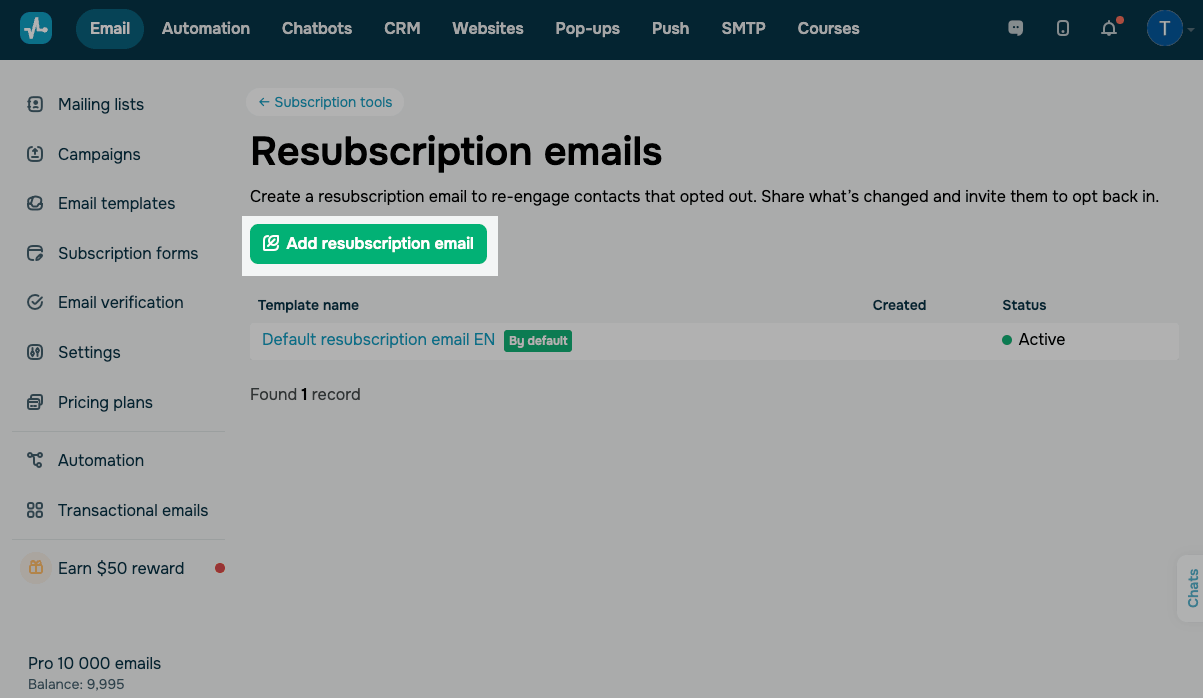
To create a resubscription email template, go to Settings > Subscription tools > Resubscription emails and click Add resubscription email.
Fill in the template details
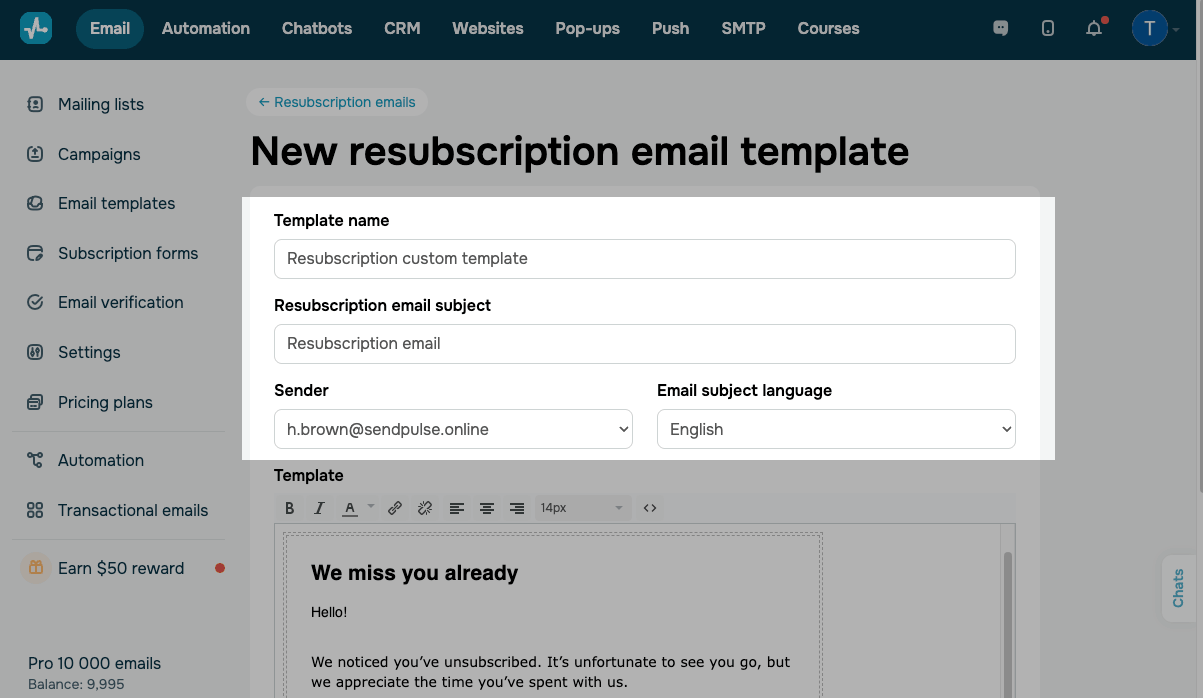
In the form, fill in the following fields:
| Template name | The internal template name.
This name is not visible to subscribers. Use it to find the template on your list. |
| Resubscription email subject | The subject line your contacts will see in their inbox.
Write a clear, engaging subject to encourage email opens. |
| Sender | The sender email address that will appear in the "From" field.
Select an email address from the drop-down list of your verified sender addresses. |
| Email subject language | The language SendPulse moderators will use to review your template. Select the language that matches your email content. |
Add email content
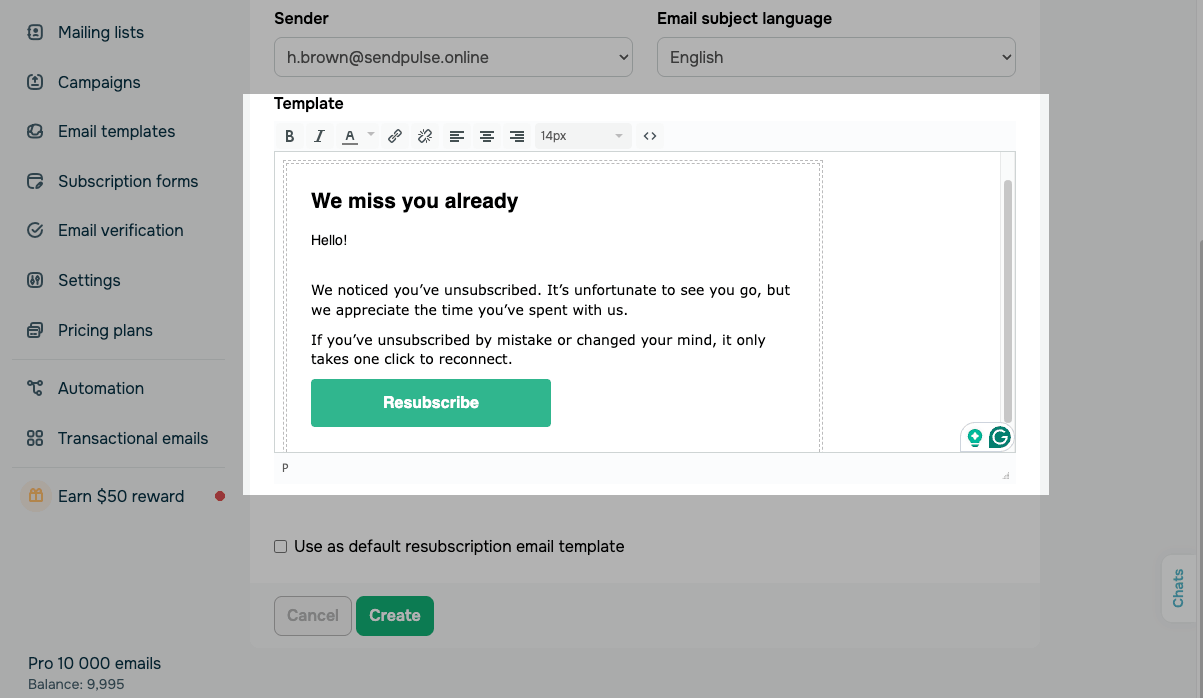
You can use SendPulse's template or create a resubscription email from scratch.
In the Template section, compose the body of your resubscription email using the visual editor. The editor provides text formatting tools, including font styles, colors, alignment, and font size.
To switch to the HTML code editor for advanced formatting, click the <> icon.
Your resubscription email should clearly state why the user has received it and a prominent call-to-action button or link to resubscribe.
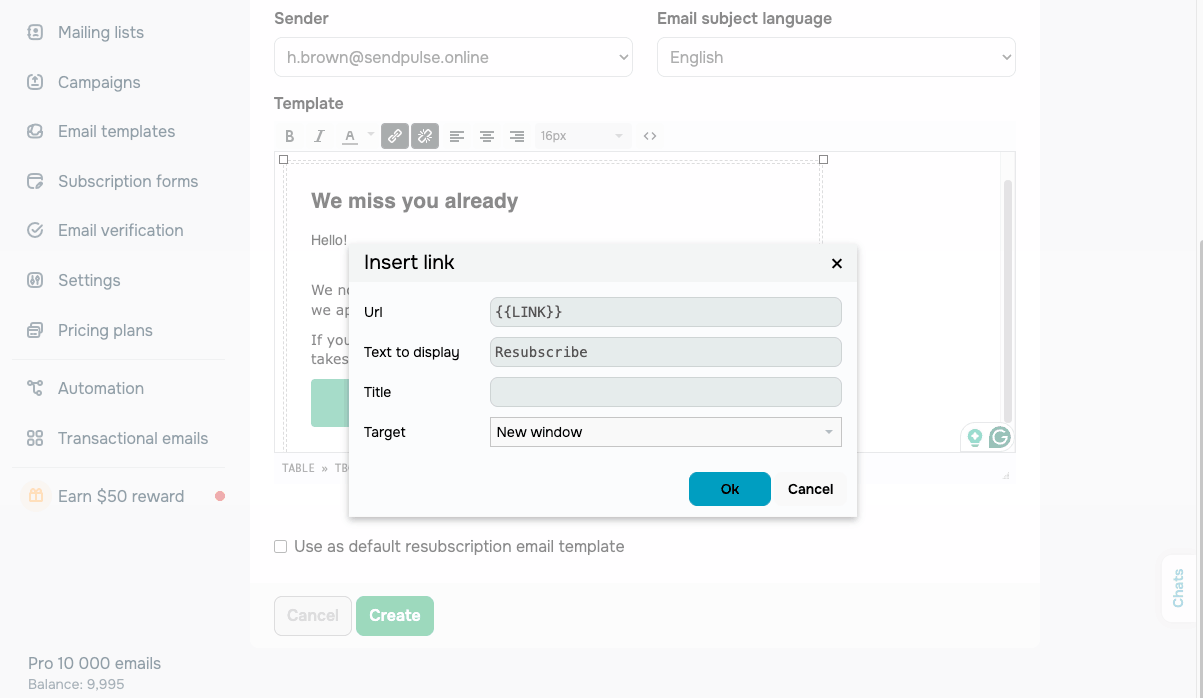
To add a resubscribe link, select the text or button you want to use as the call to action and click the link icon in the toolbar.
In the Insert link dialog box, the Url field will already contain the resubscription link. Enter the link label in the Text to display field and click Ok.
Please don't remove or change the resubscription URL automatically inserted in the link field. The system uses this link to process resubscription requests.
Finish the setup
To set this template as the default, select the Use as default resubscription email template checkbox.
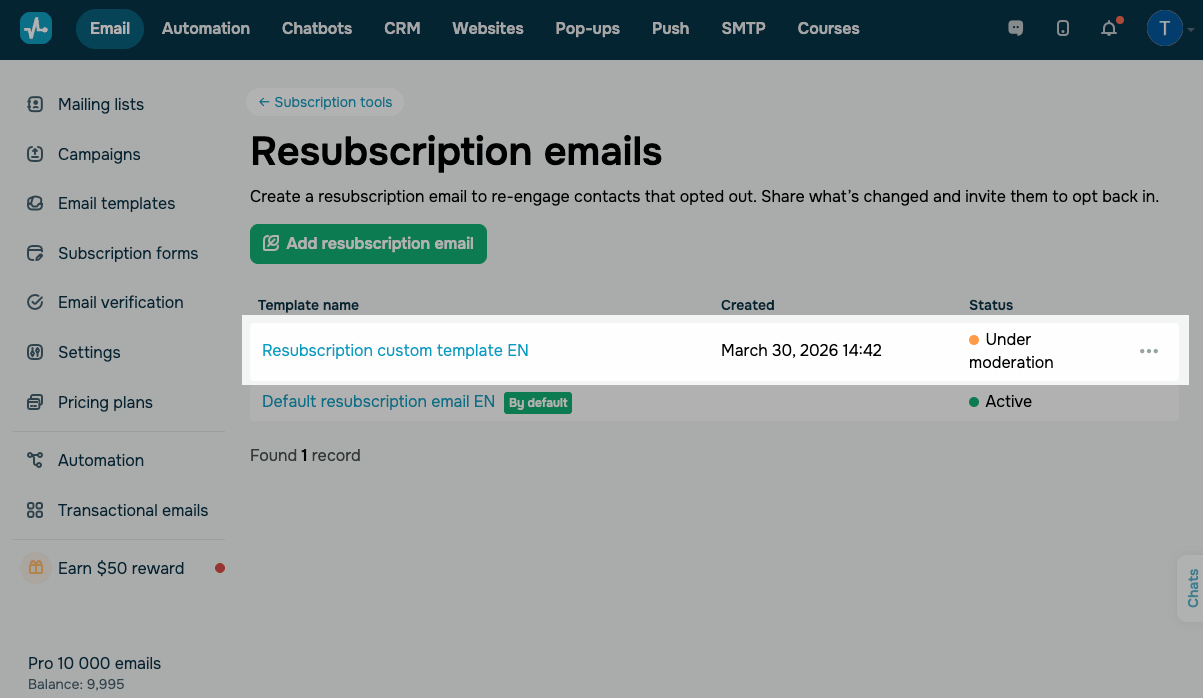
Click Create to save your template. Then, SendPulse moderators will review it. Your template's status will change to Under moderation and then to Active once approved.
Finalize all changes before saving your template. SendPulse reviews resubscription emails every time you edit them, so getting your content ready in advance can speed up this process.
Manage resubscription email templates
After creating a template, you can manage it on the Resubscription emails page. The page shows all your templates, along with their names, creation dates, and statuses.
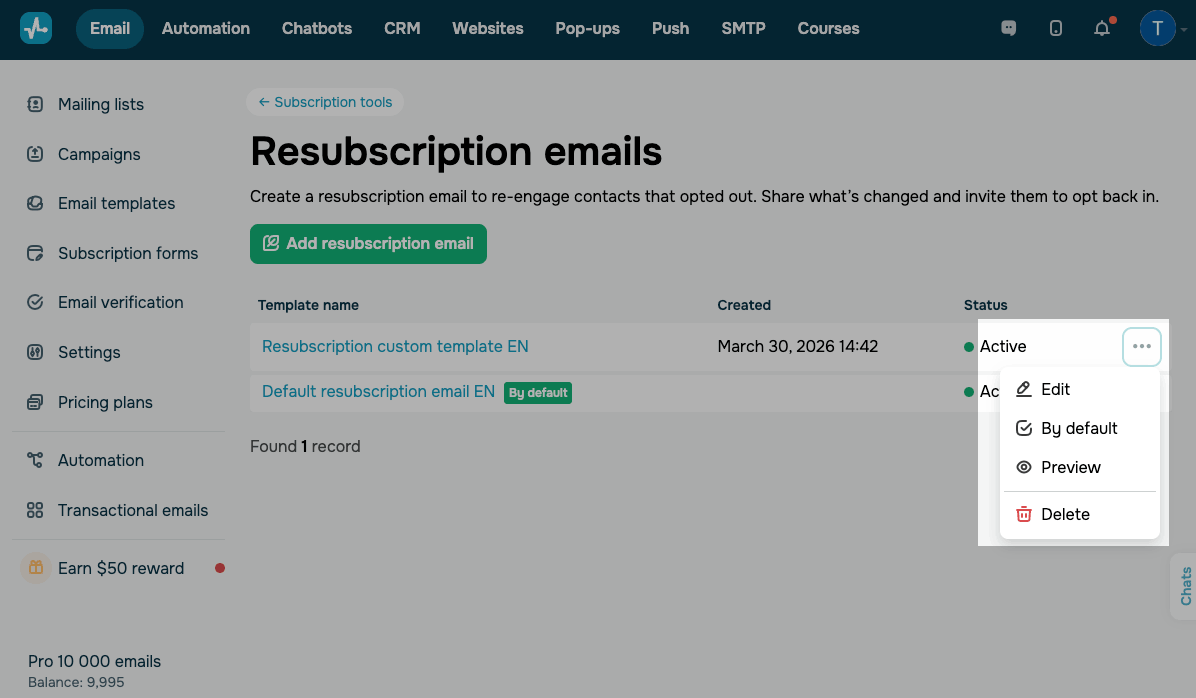
To manage a template, click the three dots next to it. You can choose the following options:
| Edit | Open the template in the editor.
Available once the template is approved. |
| By default | Set this template as the default resubscription email.
The default template is labeled as By default. Available once the template is approved. |
| Preview | See how the template will appear to users. |
| Delete | Remove the template. |
Send a resubscription email template
A resubscription email is sent automatically when a contact opts out of your mailing list using the unsubscribe link in your campaign. You choose which template to send in Campaign parameters when creating a campaign.
Once a user unsubscribes and receives the resubscription email, they can click the resubscribe link to opt back in. If they do, they will be automatically added back to your mailing list and will continue receiving your campaigns.
 Last Updated: 06.04.2026





or