Organize flows using folders
You can create folders to group your automated flows by specific categories.
For example, you can keep abandoned cart flows in a dedicated folder or group flows for promotions and re-engagement campaigns.
Let's talk about how to create and manage folders.
Flow folders are available with any paid plan in Email, CRM, or Chatbots. If your account switches to a free plan, you'll still be able to view your existing folders. However, you won't be able to create new folders or move flows between folders.
Create a folder
Go to the Dashboard. Click Add folder. Enter a folder name and click Save.
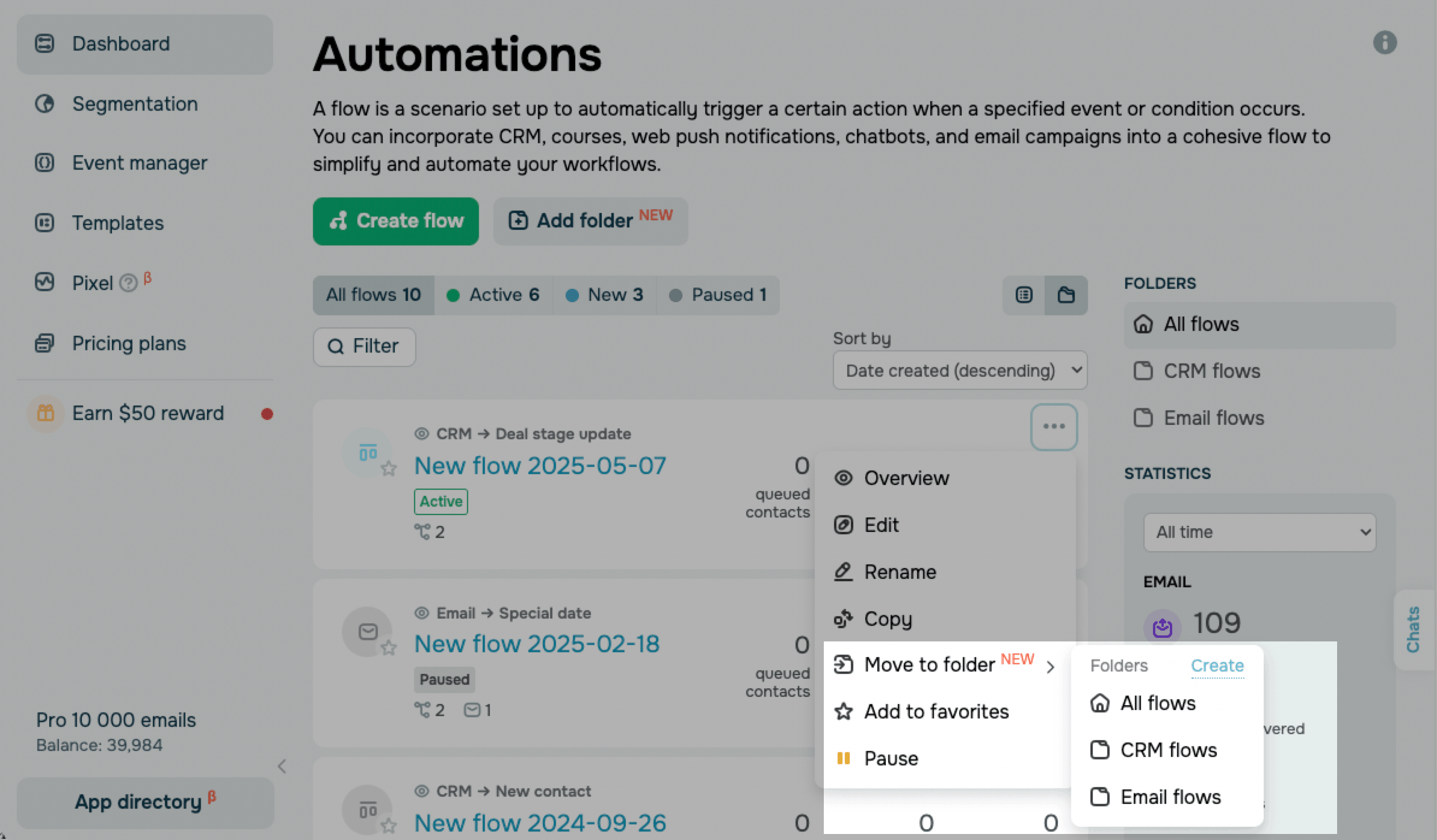
Alternatively, you can create a folder from the flow card in the list. Click the three dots on a flow card and select Move to folder. Then, click Create. Enter a folder name and click Save.
You can create up to 150 folders per account.
Nested folders aren't supported. Each folder name must be unique within your account and can include up to 256 characters.
View folders
Once you create a custom folder, it will appear in the Folders sidebar, next to the All flows folder.
Each flow can belong to one folder at a time.
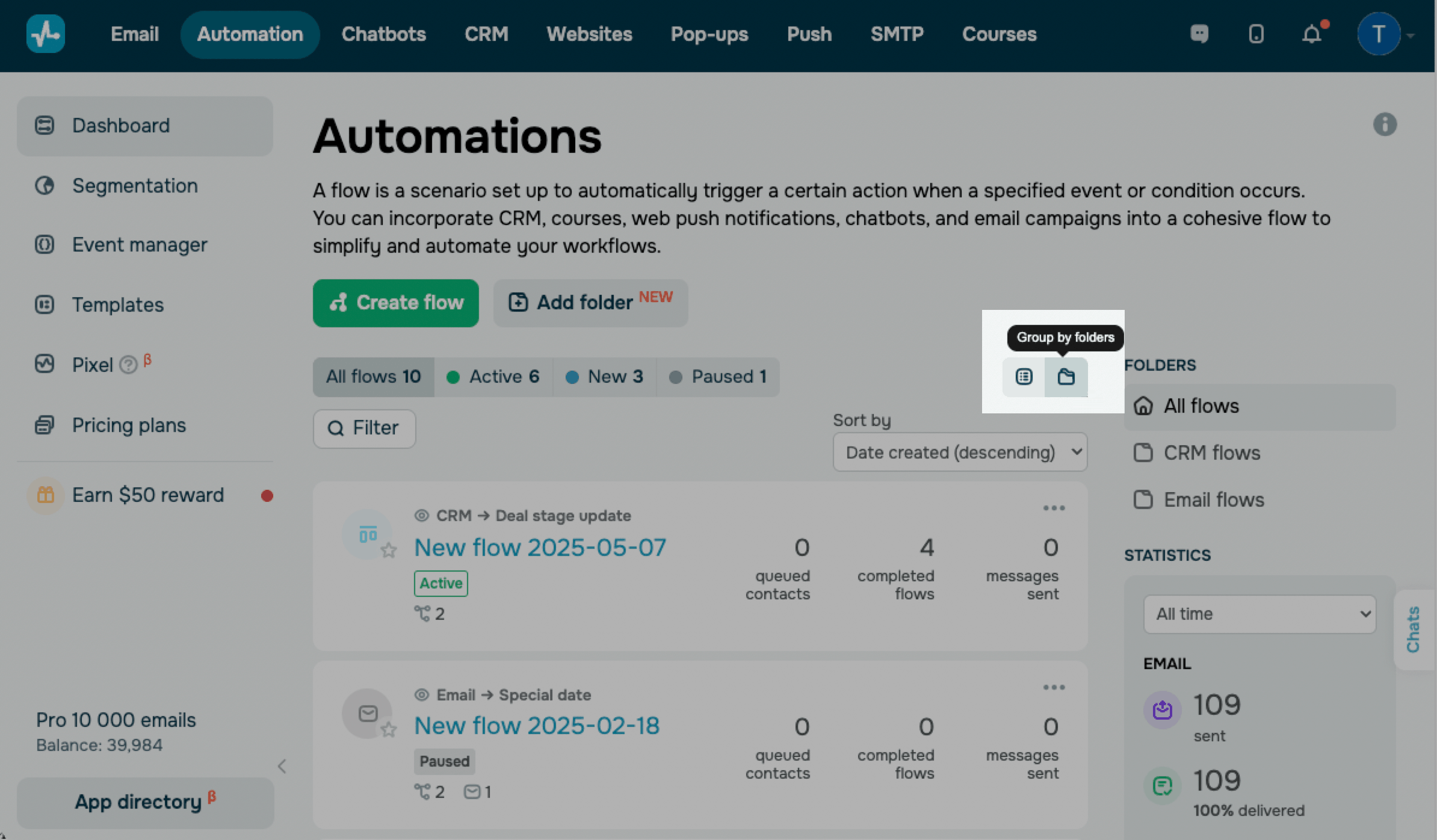
To view folder-grouped flows, click Group by folder. This opens the folder sidebar and filters your flows based on the selected folder.
To see the full list of flows, click Show all chains. Each flow card shows a label with the name of the folder it belongs to.
Add a flow to a folder
To add a flow to a folder, open the flow list.
Click the three dots on a flow card and select Move to folder. Then, choose a destination folder.
Flows added to custom folders no longer appear in the All flows folder. To see all flows regardless of folder placement, switch to the general list view. Each flow card shows a label with the name of its folder.
Manage folders
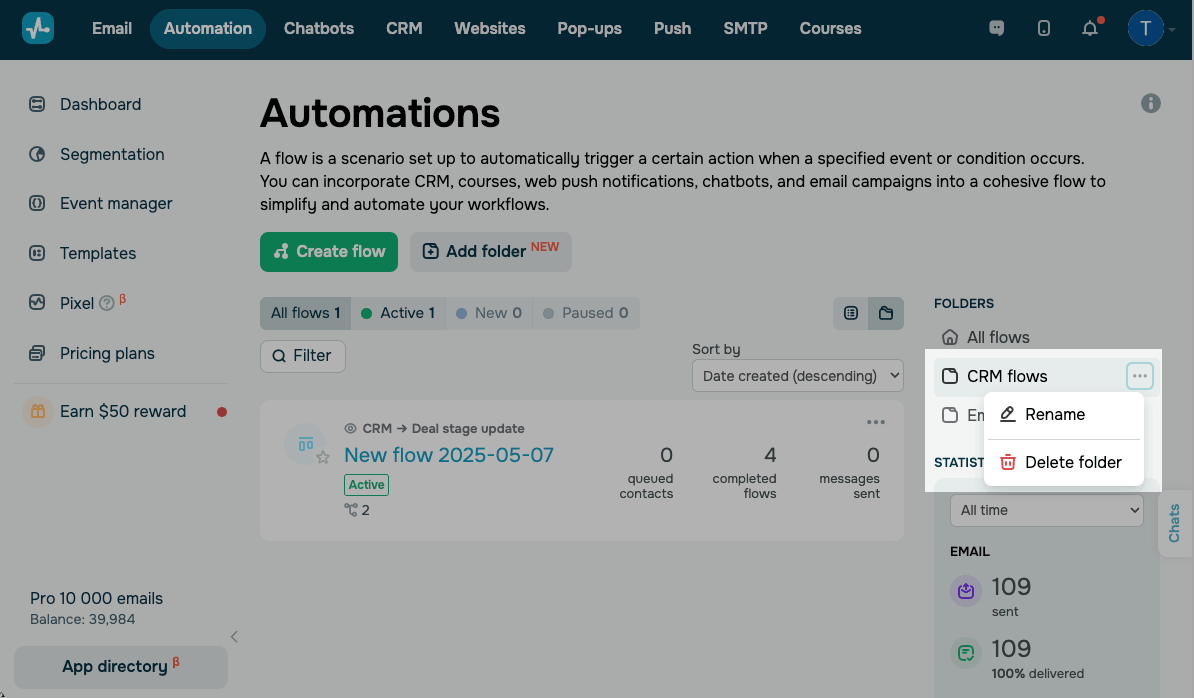
To manage a custom folder, in the Folders sidebar, click the three dots in the right corner of the folder. A context menu will appear.
To rename a folder, click Rename. Enter the new name and click Save.
To delete a folder, click Delete folder. To confirm deletion, click Delete. Once you delete a custom folder, the flows in that folder move back to All flows.
All flows is a system folder that includes every flow not assigned to a custom folder. You can't rename or delete this folder.
 Last Updated: 21.05.2026





or