Connect NovaPay as a payment system
NovaPay is a Ukrainian payment provider that you can integrate with SendPulse to accept payments in UAH using credit cards, Google Pay, Apple Pay, or the NovaPay app.
You can add payment buttons to emails, chatbots, websites, and course pages, or generate payment links in the CRM system to capture payments through NovaPay.
Let’s talk about how to create a merchant in NovaPay, generate keys, and integrate NovaPay with SendPulse.
To accept payments through NovaPay, you need an active NovaPay merchant account with generated API keys.
Create a merchant in NovaPay
To accept payments, create a merchant in NovaPay. Submit a request on the NovaPay website and wait for a representative to contact you. They will register your merchant and grant access to your NovaPay Business account.
NovaPay supports only legal entities and sole proprietors.
Once your merchant account is activated, NovaPay assigns a unique Merchant ID. The system uses this identifier to integrate with your NovaPay account and initiate payment sessions. Enter the Merchant ID provided by NovaPay in SendPulse.
The production environment becomes available only after you sign a contract with NovaPay.
Generate merchant keys
Secure data exchange between SendPulse and NovaPay requires two RSA keys in PEM format: your merchant private key and the NovaPay public key.
You can copy the NovaPay public key from their documentation.
To generate your merchant private key, click Generate keys in the top menu of the Acquiring3 admin panel.
Read more: Generating merchant keys in the Acquiring3 admin panel.
In the window, select one or more merchants and click Continue.
NovaPay generates the private key and downloads a .pem file to your device. Open the file in a text editor and copy the private key.
Only users with the relevant permissions in NovaPay can generate private keys. Payments will not work until a private key has been generated.
Connect NovaPay to SendPulse
Log in to your SendPulse account and go to Account settings > Accept payments. In the list of payment systems, click Connect next to NovaPay.
In the window that appears, fill in the fields:
| Integration name | Edit the name if needed. This name is visible only to you and can help you distinguish between multiple merchant accounts. |
| Merchant ID | Enter the Merchant ID provided by NovaPay. |
| Private key | Enter your merchant private key from the generated .pem file.
The key starts with |
| Public key | Enter the NovaPay public key from the NovaPay documentation.
The key starts with |
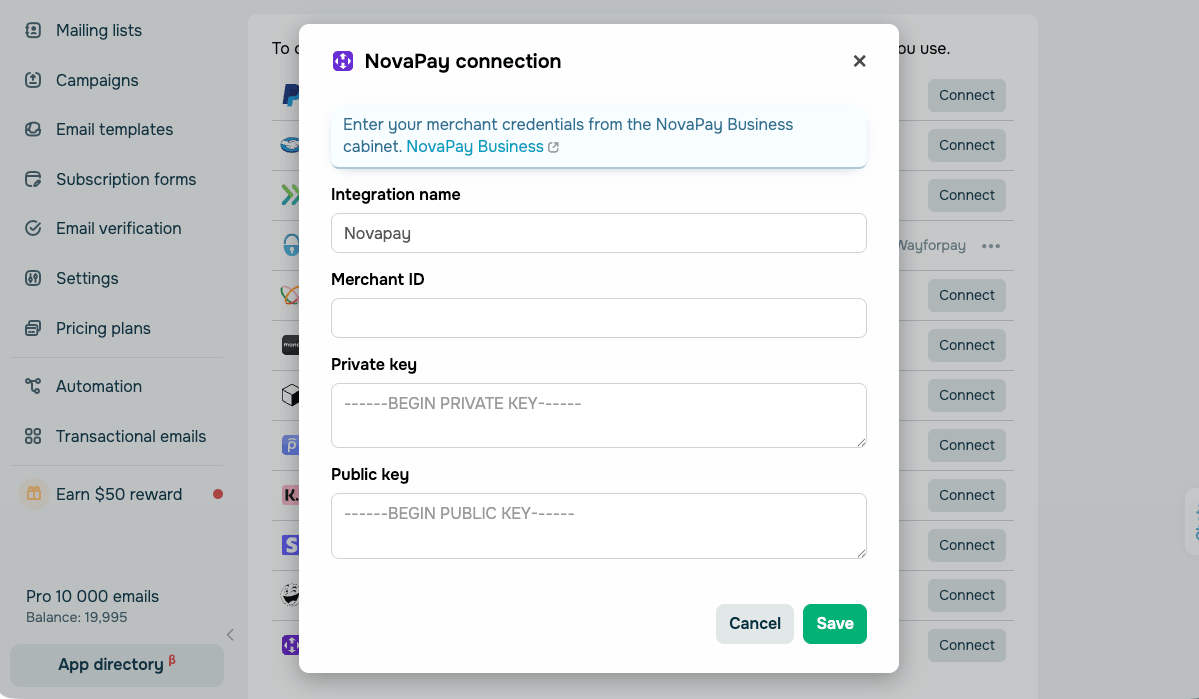
Click Save. If connection settings are valid, you'll receive a notification, and the status will change to Connected.
Both keys must be valid RSA keys in PEM format. If NovaPay updates its public key, replace the existing key and save the settings.
You can now select this payment option when adding buttons in SendPulse tools.
You can view the payment history in the same tab. Mark the list of successful transactions or payment errors in order to quickly respond to them.
 Last Updated: 18.06.2026





or