Reply to Viber messages using a chatbot
Connect a chatbot to your Viber sender name to receive replies to your campaigns and chat with subscribers in one place.
When a subscriber replies to your Viber campaign, their message appears in Chats, where your team can reply on behalf of your business and continue the conversation.
Let's talk about how to add a Viber chatbot and handle campaign responses.
This article covers Viber chatbots connected to your sender in SendPulse. If you created a chatbot using a token from the Viber Administration Panel, the Bot Commercial Model applies with a monthly deposit instead.
Connect a chatbot
A Viber sender name can send outbound campaigns, but it does not show incoming replies on its own. To receive and manage replies, connect a chatbot.
A chatbot sends each reply to Chats, where your team can respond to subscribers from your business name.
You can connect a chatbot when you register a new Viber sender or add it later to an existing one.
Connecting a Viber chatbot counts toward your chatbot builder plan's limit. The Free plan includes up to three chatbots. If you've reached this limit, you won't be able to turn on the chatbot toggle in the registration form. To continue, upgrade your plan or delete an inactive chatbot first.
New Viber sender
Go to Email > Settings > From Addresses > Senders and Viber templates, and click Register.
Fill in the application form. Under the sender preview, turn on the Receive campaign responses in your chatbot toggle.
Read more: Add a new Viber sender name.
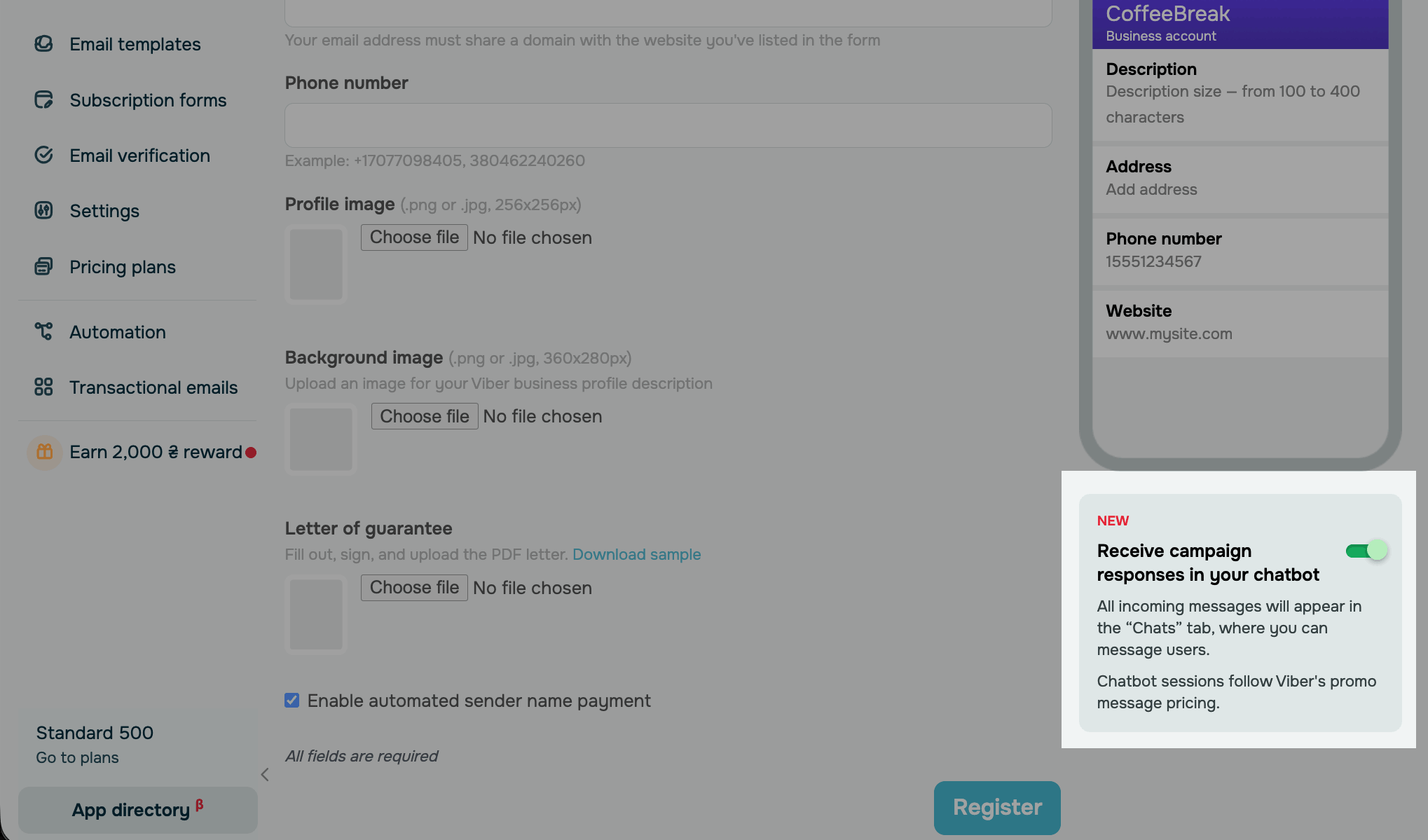
Once Viber approves your sender name, your chatbot will appear in Chatbots.
Existing Viber sender
Go to Email > Settings > From Addresses > Senders and Viber templates. Next to your sender name, in the Chatbot column, click Connect. In the pop-up window, confirm the action.
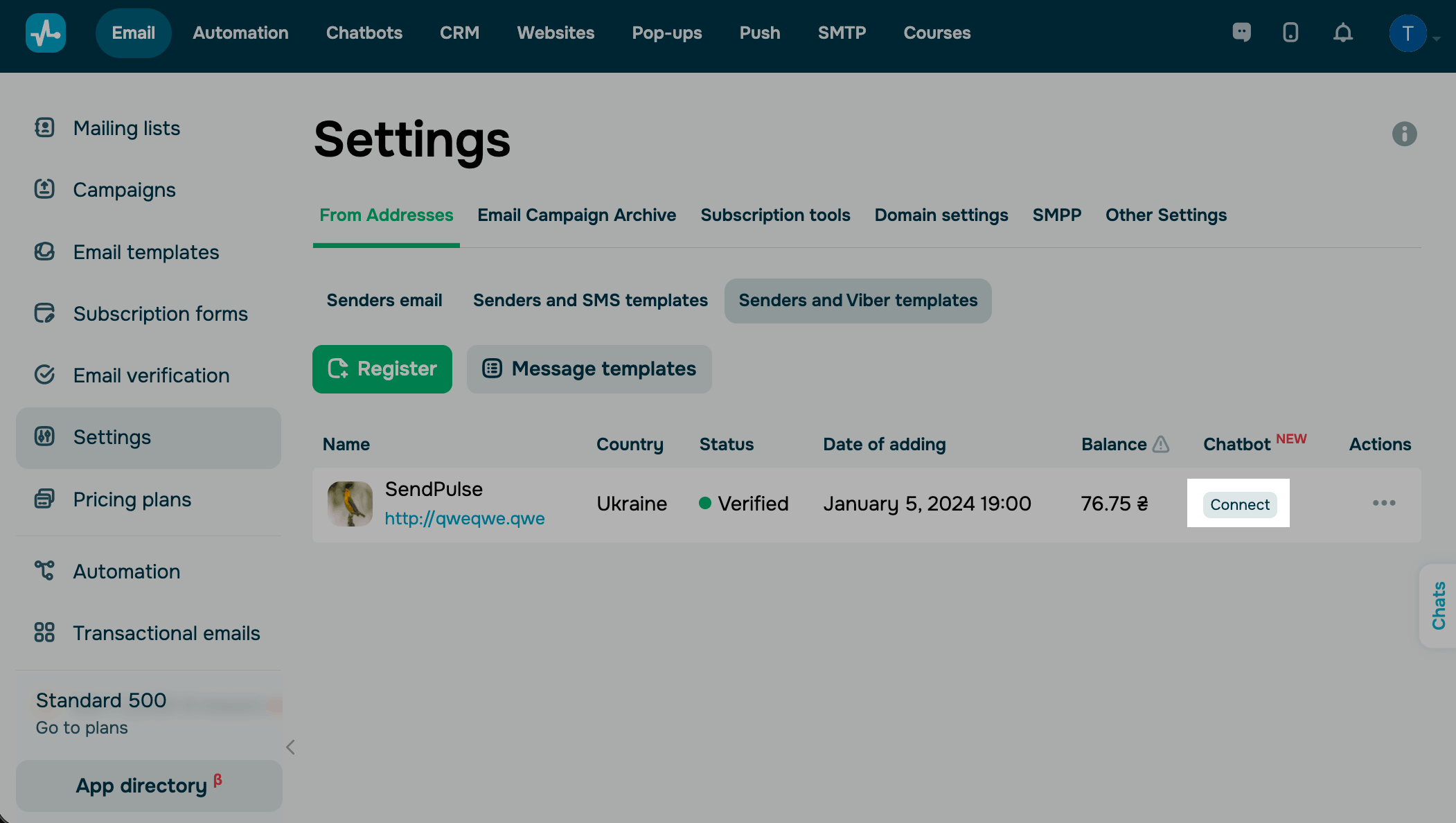
The status in the Chatbot column will change to Connected, and your chatbot will appear in Chatbots.
Reply to messages
Once you connect the chatbot, replies to your Viber campaigns will appear in its chat list. Your team can open these chats and respond from your sender name directly in SendPulse.
Send a Viber campaign using your sender name and prompt subscribers to reply. For example, ask them a question, encourage feedback, or offer help. Every reply creates a new chat under your Viber chatbot.
To reply, go to Chats and choose your Viber chatbot from the dropdown list to filter your chats. Choose a chat with a subscriber and send your reply.
Each chat includes a preview of the last campaign you sent to the subscriber, so you can quickly see the original context.
Sessions and pricing
Creating a Viber chatbot is free. Viber charges you only for active conversation sessions, and fees apply when a session begins.
Session start
To send messages to a subscriber, they have to message you first and start a session. Send a Promo or Service Viber message from your sender name and encourage subscribers to reply.
Suppose you send a campaign inviting subscribers to ask questions about your latest offer. When a subscriber replies, a session starts, and you can message them in Chats.
Session cost
A session starts when a subscriber replies to your message and remains active for 24 hours. Each session uses one Promo message from your Viber balance.
One session supports up to 60 messages between you and the subscriber. If you exchange more messages within 24 hours, the current session ends, and your next message starts a new session.
Session limits
Within one session, you can send up to 10 consecutive messages without receiving a reply from the subscriber. After that, Viber stops delivering further messages until the subscriber writes again.
Suppose a subscriber asks a question, and you start replying. If a subscriber sends 10 consecutive messages while waiting for the next reply, your 11th message will not be delivered.
To resume the conversation, the subscriber must send another message. Once they reply, you can continue sending messages in the current session.
Automate replies with keywords
If you receive many similar messages, set up automated flows so that your chatbot can reply on its own.
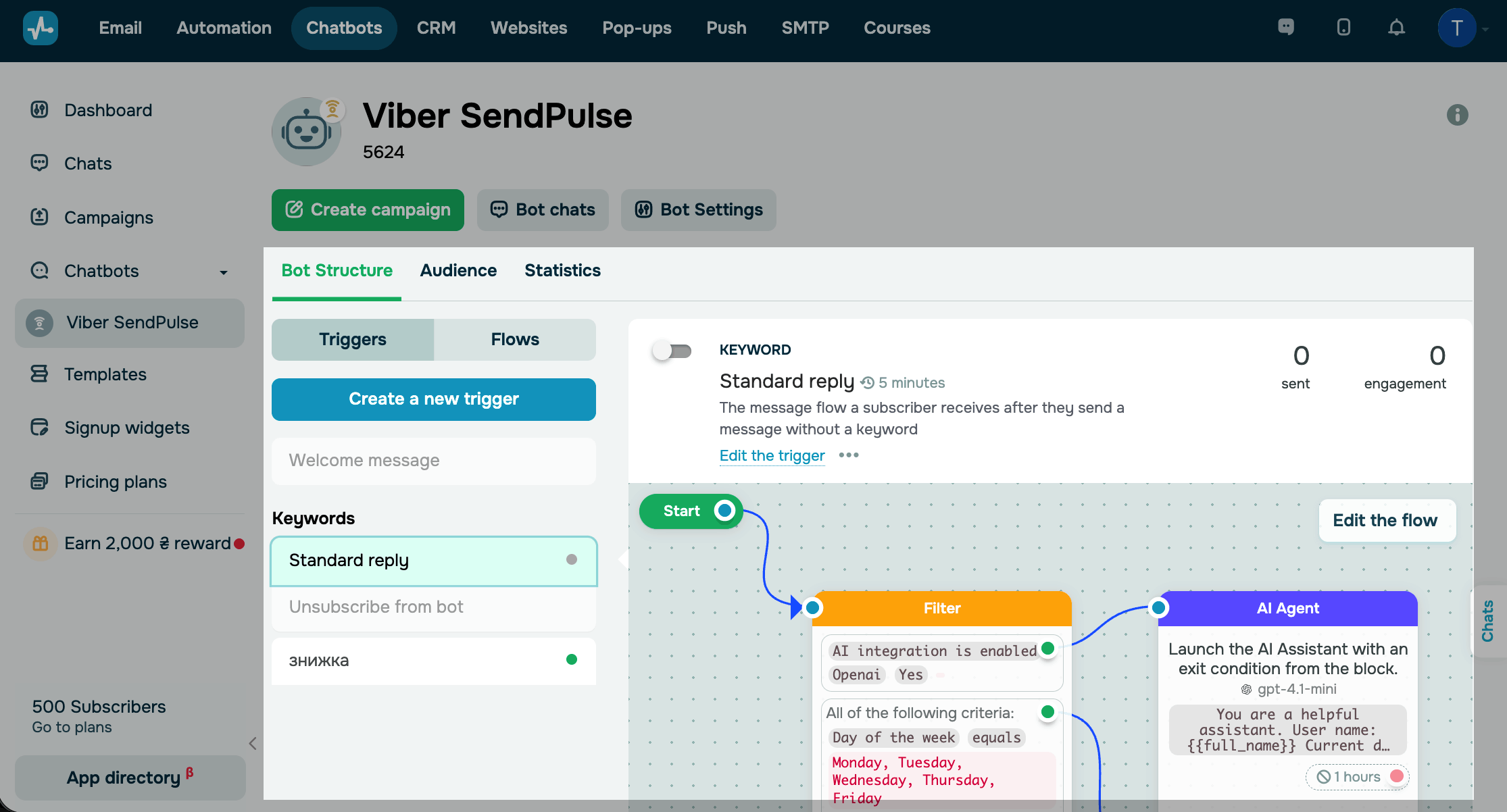
Your chatbot includes the Standard reply flow by default — it runs whenever a subscriber sends a message that doesn't match any keyword. To handle specific messages, add custom flows and link them to Keyword triggers.
For example, a flow triggered by the keyword discount can automatically send a promo code, while your team focuses on more complex questions.
The flow builder supports all core elements. The Message element supports only Text and Image content. Viber chatbots don't support buttons. To branch your flow by subscriber data or intent, use the Filter and AI agent elements.
 Last Updated: 12.05.2026





or