Manage template folders
You can create template folders to organize your email templates by specific categories.
For example, you can keep all email templates related to product orders in a separate folder or group templates for events and promotions.
Let's talk about how to create and manage template folders.
Create a folder
Go to the Email Templates > Personal tab, and click New Folder.
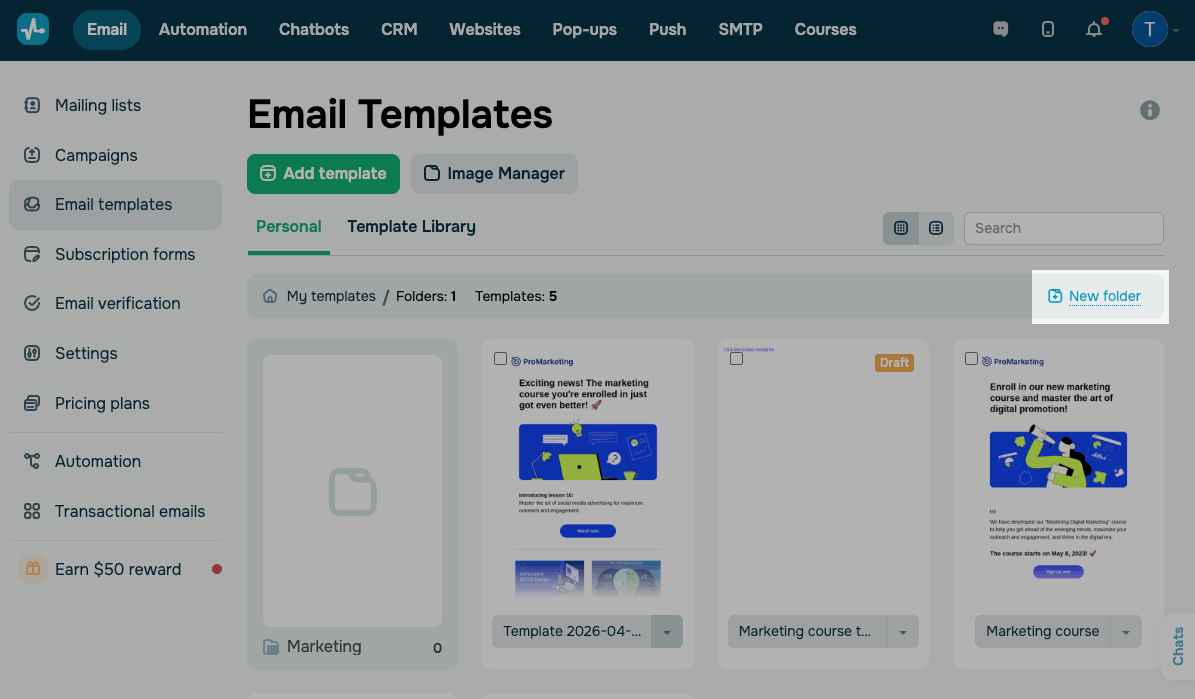
Enter a folder name, and click Save.
You can also create folders within other folders and build up the hierarchy with up to three levels. To do this, select a folder, open it, and click New Folder.
Find a folder
You can search for a folder by its full or partial name using the search box. Start typing, and it will automatically start searching for folders with the name you entered.
View folders
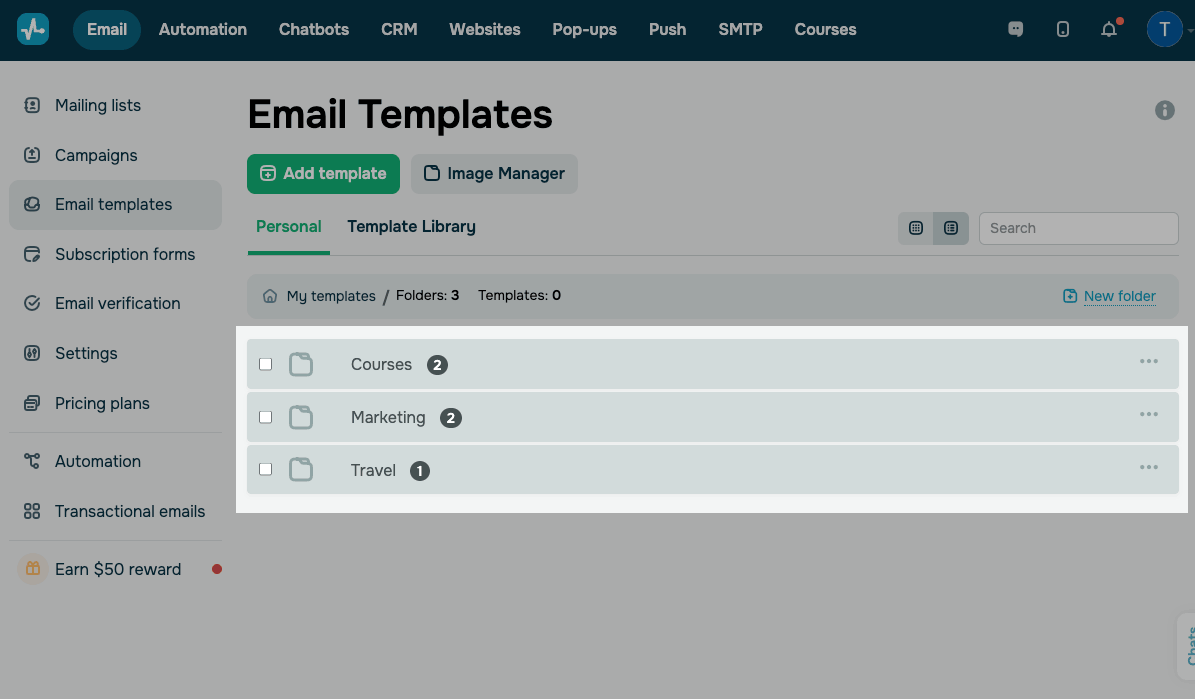
You can choose to display your folders as a list or as a gallery.
The list view shows the full folder name, and allows to see more folders fit on the screen.
Manage folders
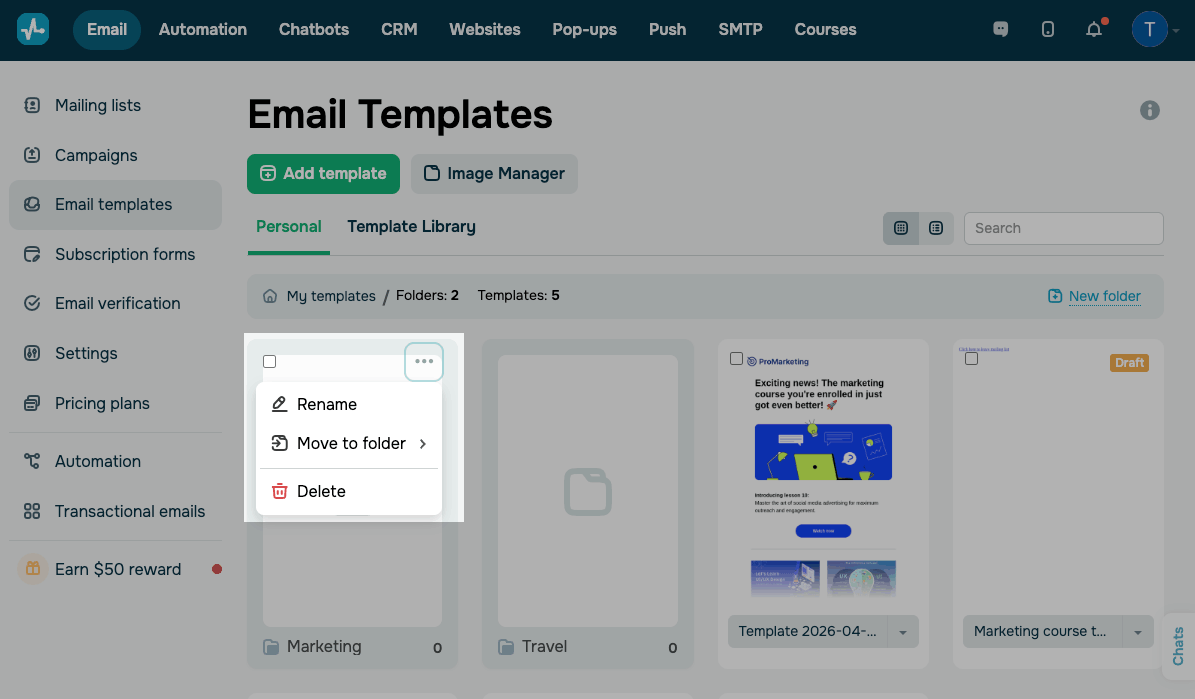
To manage a folder, click the three dots icon in the right corner of the folder to open the context menu.
The following options are available:
| Rename | Renames the folder. You can also rename a folder from within it by selecting Rename in the context menu next to the folder name. |
| Move to folder | Moves the folder to another folder. You can also move folders by dragging and dropping them. |
| Delete | Permanently deletes the folder along with all templates inside it.
To delete multiple folders at once, select them and click Delete. |
 Last Updated: 10.04.2026





or