Add custom variables to an email template
Variables let you insert individual contact data directly into your email template.
Use them to personalize campaigns and make your emails more relevant to each subscriber.
Let's talk about how to add variables to an email template.
Variable syntax
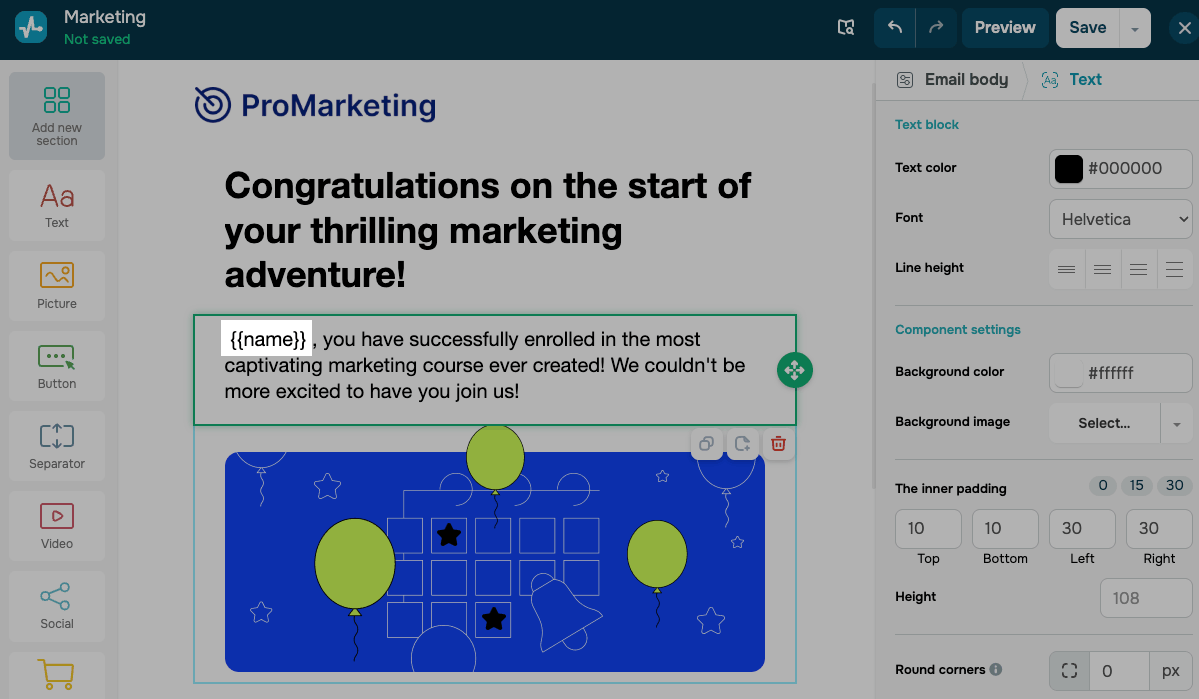
You can create your email template in the layout template editor or an HTML editor, or import a ready-made template. To add a variable to any of these templates, enter it in double curly braces, for example {{name}}, in the right place in the template.
For data from variables to be added to emails, variable names must completely match in mailing lists and templates. If you specify a variable name with a capital letter in a mailing list, for example {{Name}}, then enter this variable with a capital letter in templates.
Add a variable in the template editor
To add variables to a template while creating a campaign, select an email template and proceed to edit it. Place the cursor in the place where you want to add a variable and click the Variables.
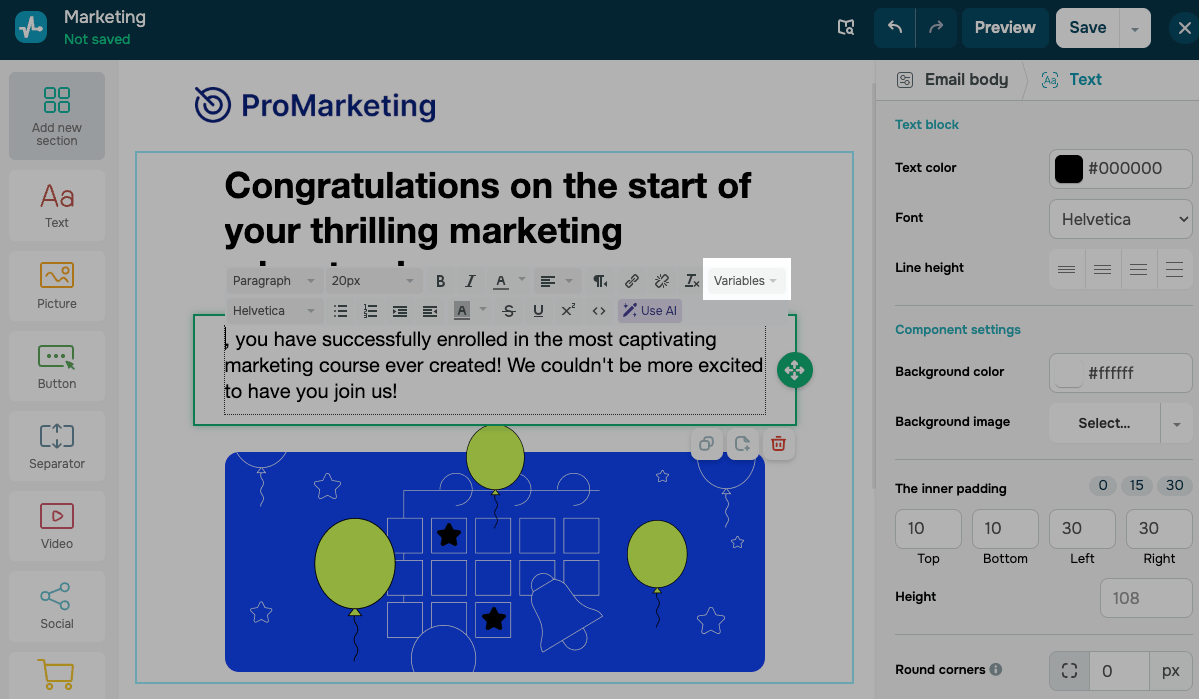
Select a variable from a drop-down list. The standard variables and all the variables from the mailing lists that you choose for this campaign are available in the drop-down list.
You can also use smart personalization in emails to increase the efficiency of email campaigns.
 Last Updated: 17.04.2026





or