Add Google Sheets data in the Action element
The Add Google Sheets data action transfers data to Google Sheets when contacts move through your flow. This action creates a new row with user data in your selected spreadsheet, which helps organize real-time data and client requests.
For example, you can record buyer names, email addresses, order totals, and purchase dates each time an event triggers your flow.
Let's talk about how to configure the Add Google Sheets data action.
This action only sends data from your flow to a spreadsheet. It doesn't read data from the spreadsheet and doesn't start your flow when you edit cells.
To run automations using Google Sheets data, use the Google Sheets app from SendPulse’s app directory. Each new row in the spreadsheet triggers an event that adds the contact to your flow. Changes to existing rows don't start your flow.
Add the Action element
Drag the Action element to the workspace. In the settings that appear on the right, under Other, select Add Google Sheets data.
Optionally, rename this element to distinguish it from other actions in your flow. The maximum name length is 253 characters.
Add your Google account
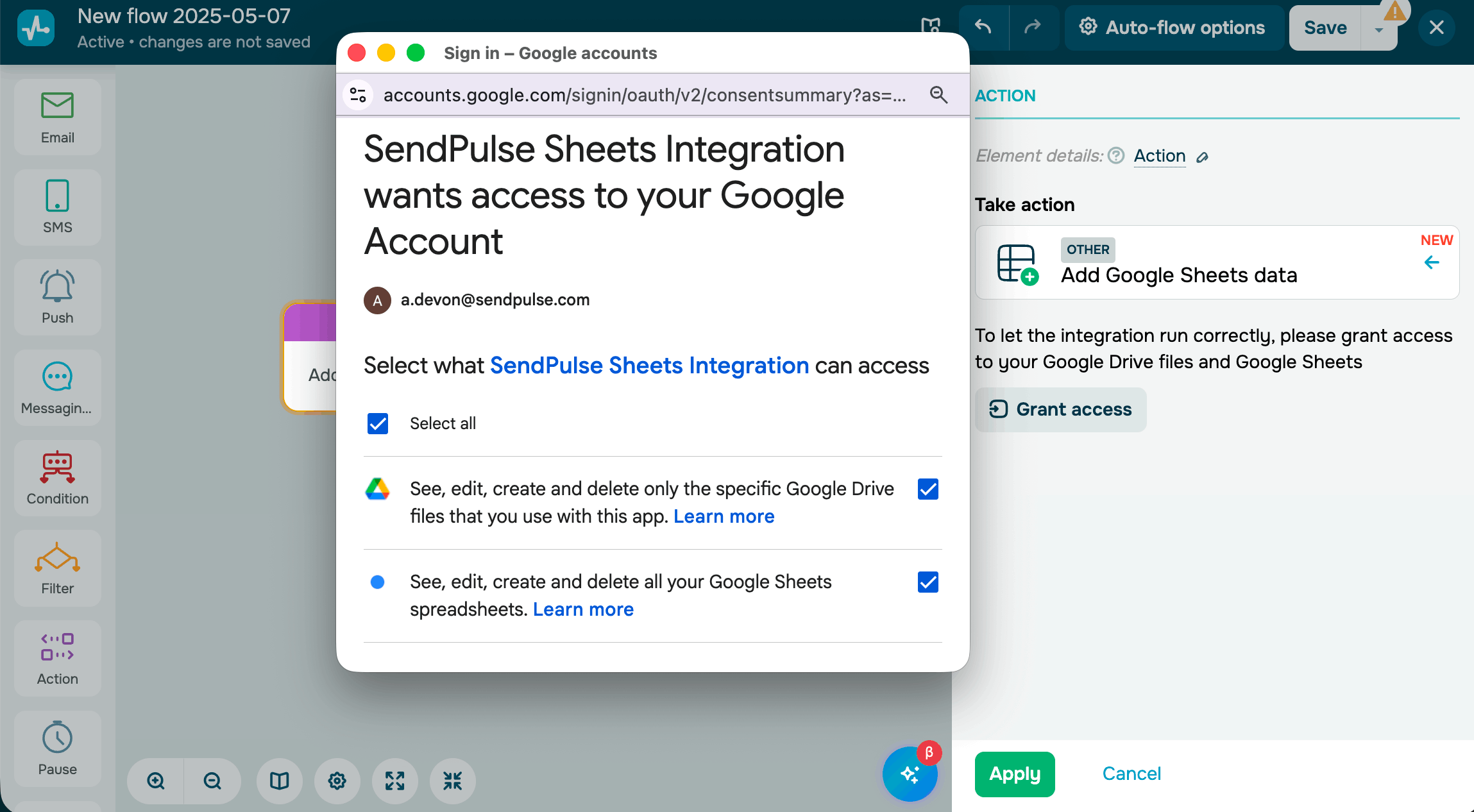
To let the integration run with your Google Drive and Google Sheets, click Grant access.
In the dialog box that appears, read the integration terms and click Sign in with Google.
Select relevant checkboxes to grant permission to view and edit your Google Sheet and Google Drive files, then click Continue.
Once you grant access, you won't be able to change the permission set. To update permissions, you'll need to disconnect and reconnect the integration.
If you have already integrated a Google account with another flow, you can select the account without reconnecting.
Configure data transfer
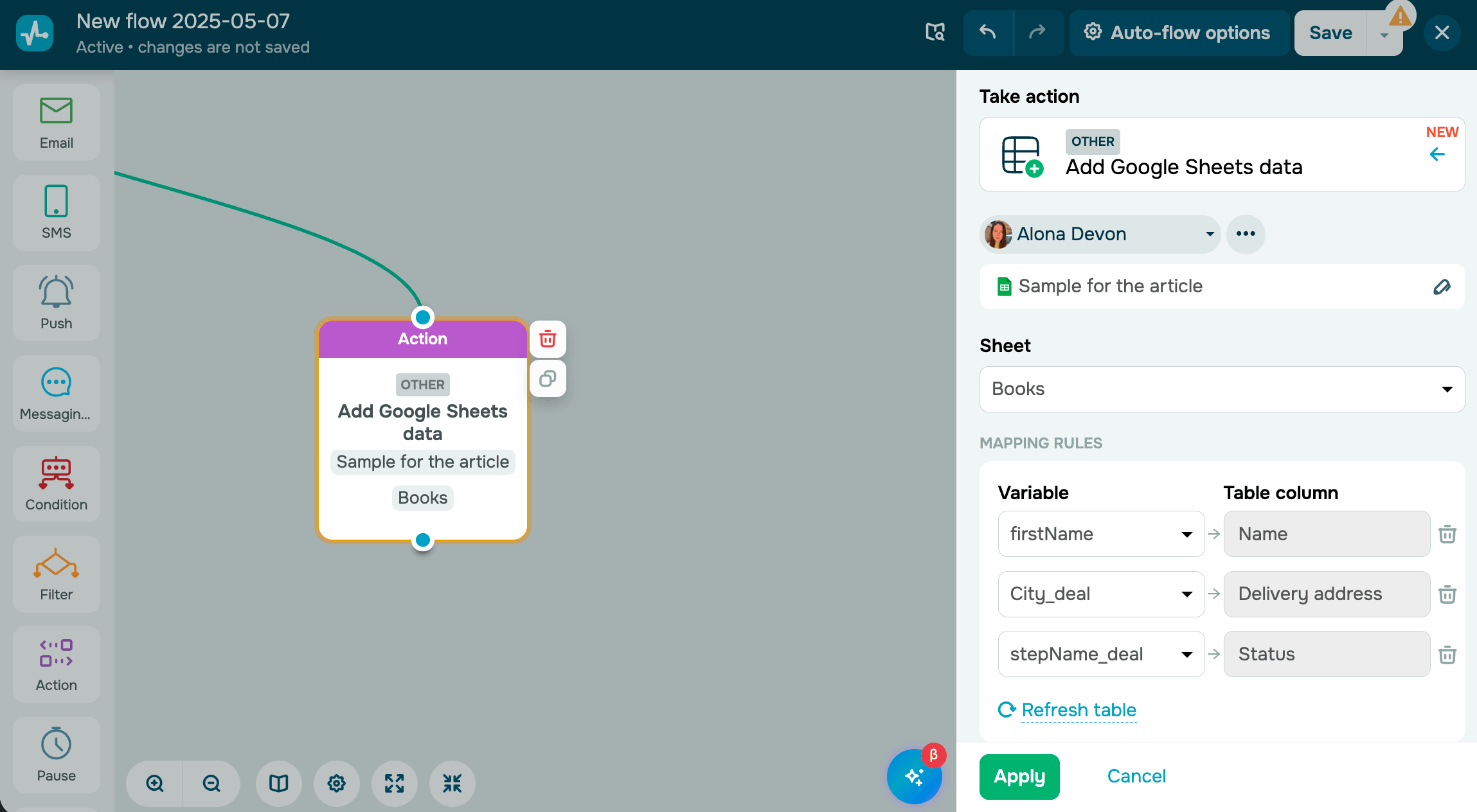
Once you integrate your account, select a spreadsheet and target sheet to add rows to.
Your spreadsheet must have column headers in the first row. SendPulse reads column names from the first row and uses them for field mapping.
In Mapping rules, map flow variables to spreadsheet columns. Each mapping rule assigns a contact value to a specific column in a new row.
In the Variable field, choose the variable whose value you want to pass. In the Table column field, select the spreadsheet column where the value will be recorded.
Following applies when passing variables:
- The variable data type must match the column format in the spreadsheet. For example, if a variable contains a date, the Google Sheets column must also use a date format.
- Available variables depend on the flow trigger. Mailing list triggers provide mailing list variables. CRM triggers provide contact and deal variables.
- Variables with the
_dealsuffix contain deal data. Variables without this suffix contain contact data. - If a contact variable is empty, an empty value will be written to the corresponding column.
- Each variable maps to one column. You cannot write multiple variables to a single column.
Save the element
Click Apply, then save your flow. When a contact reaches this element, a new row with the specified data will be added to the selected spreadsheet automatically.
To test the setup, run your flow for a contact and see if the data appears in your spreadsheet.
 Last Updated: 15.04.2026





or