View student form answers
Use form responses to analyze students’ feedback and track their course progress.
This helps you capture extra information, monitor engagement, and assess learning outcomes.
Let’s talk about how to find and view form answers.
View form answers in course analytics
Go to Courses > Statistics > Analytics. Select your course and open the Forms tab. Click a form to open its answers.
Use the following tabs to switch between form statuses:
| Opened | Shows students who opened your form, along with how many questions each student answered. |
| Submitted | Shows students who submitted your form, along with how many questions each student answered. |
To view a student’s answers, click their name.
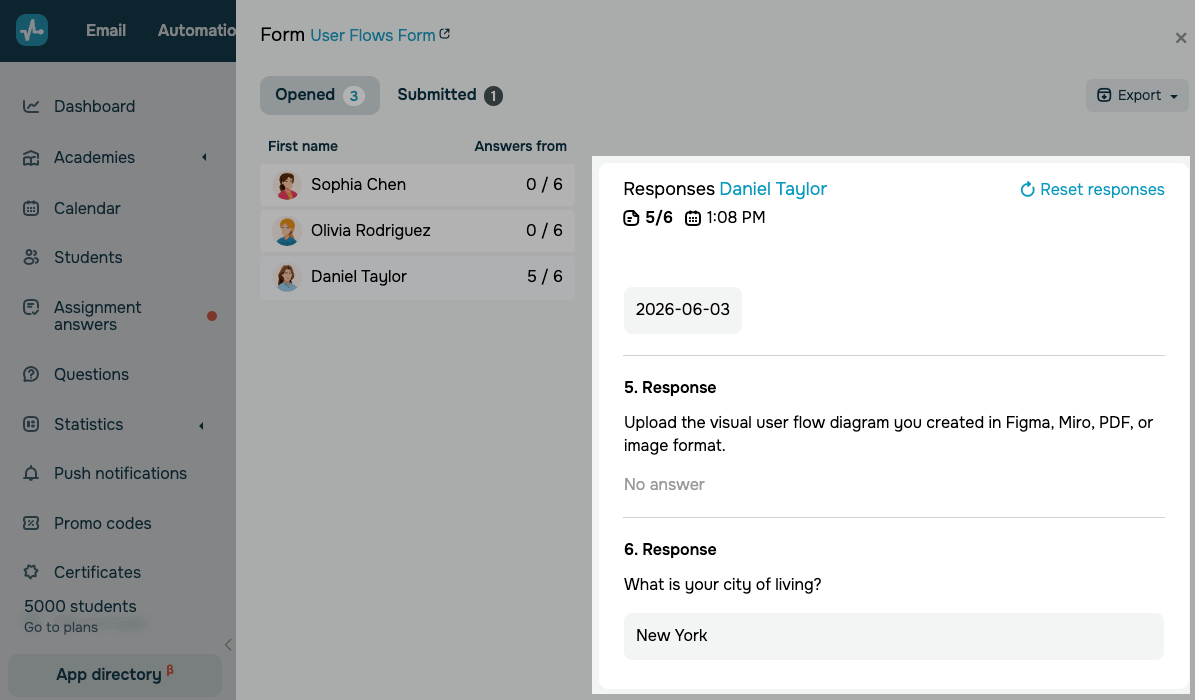
If you need to let a student submit your form again, click Reset responses.
View form answers on a student card
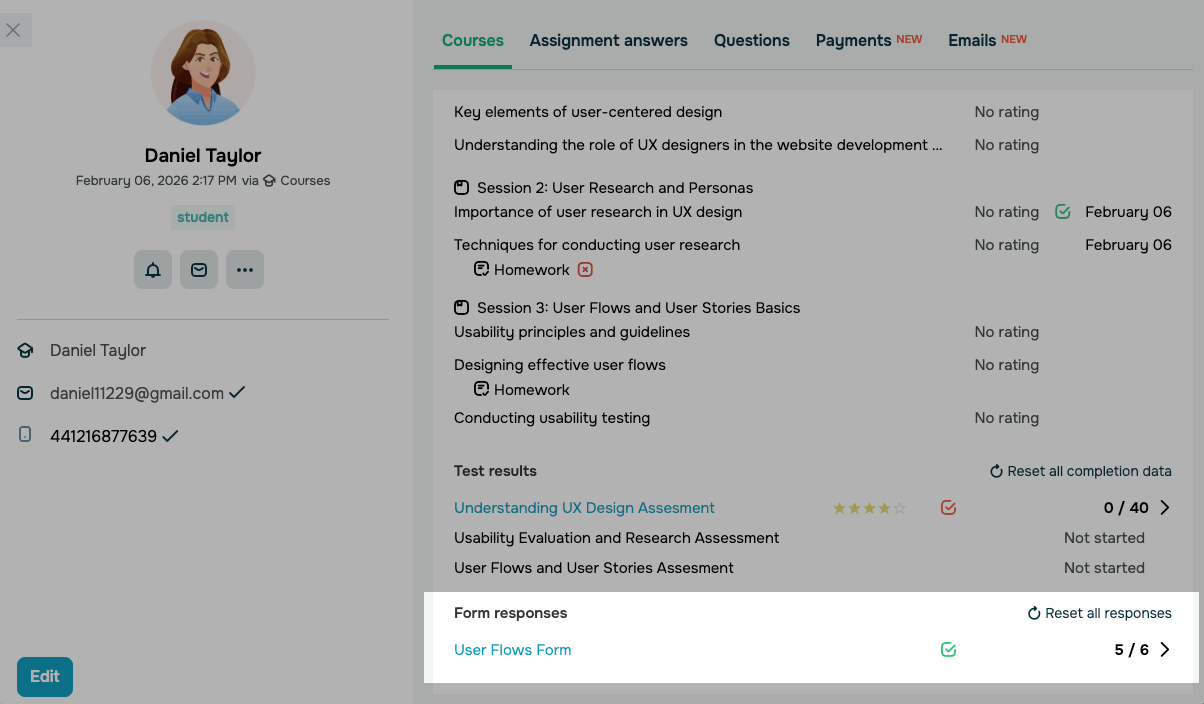
Go to Courses > Academies. Select your course and open the Students tab. Open a student card. Select the Courses tab. Scroll down to the specific course section.
To view form answers, choose a form.
View form data in a CRM contact
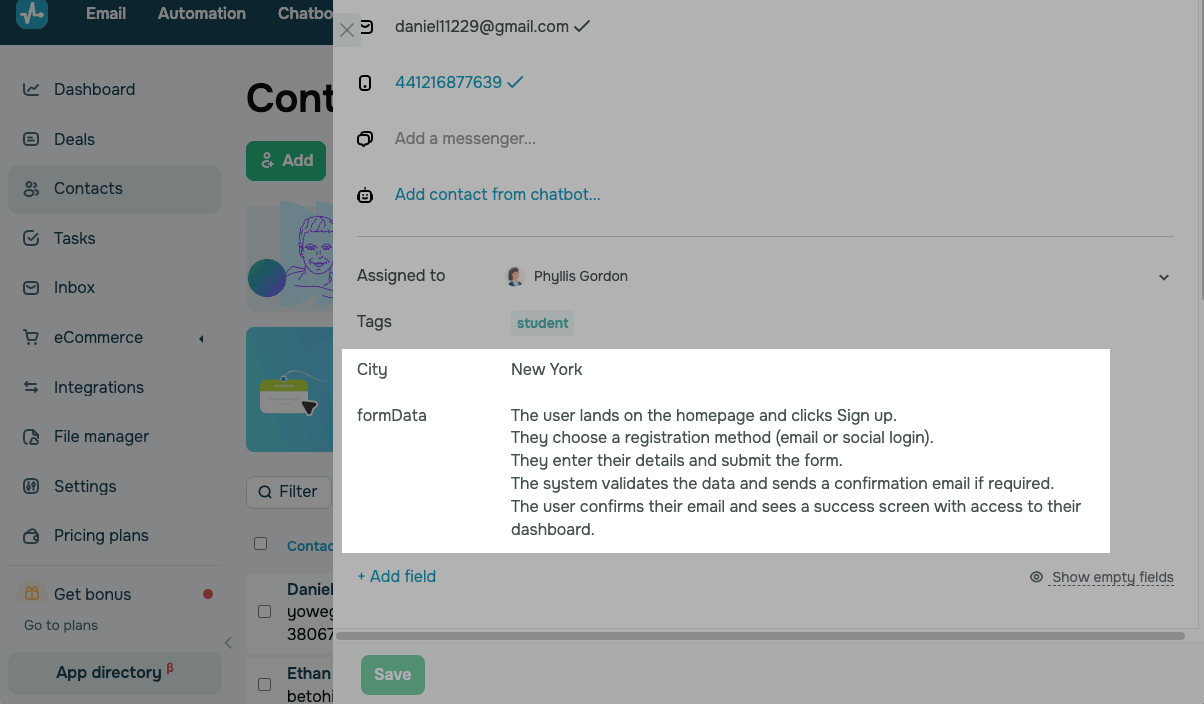
If your form includes text and date questions, you can view answers in CRM contact cards.
Go to CRM > Contacts. Click a contact name on the list. Find the contact fields you’ve selected to store the student's answers when creating your form.
View uploaded form files in the file manager
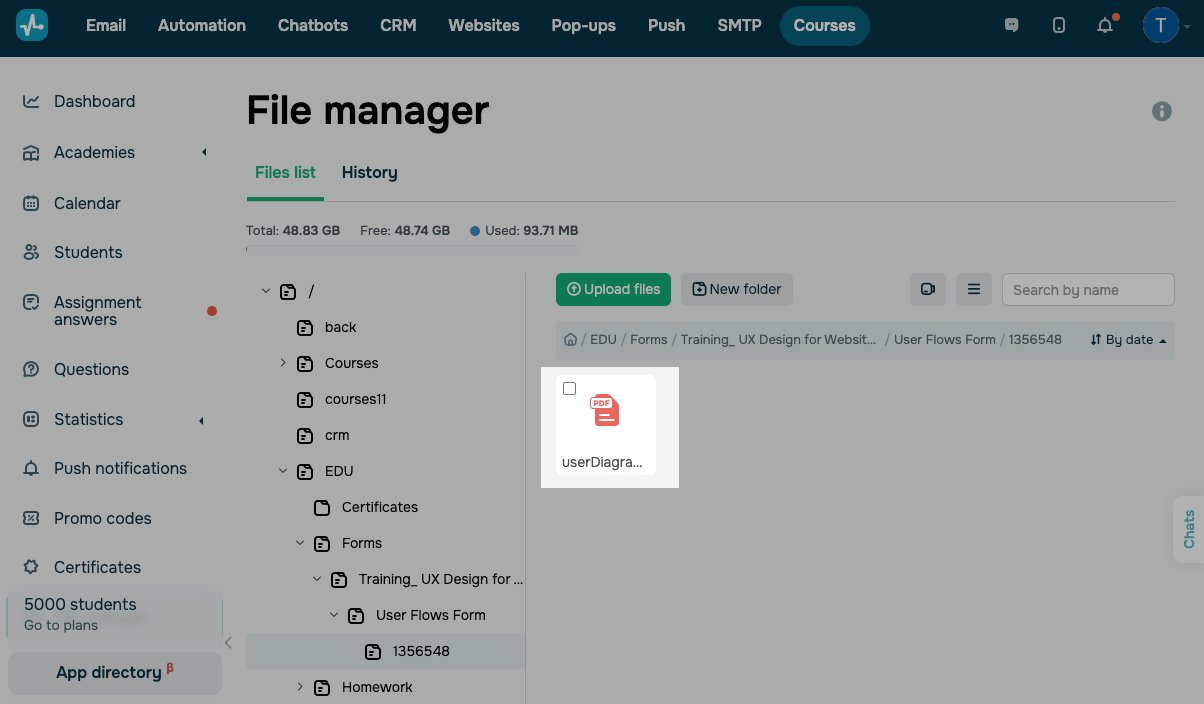
If your form includes a file upload question, you can view the file in the file manager.
Go to Courses > File manager. Open the File list tab.
Expand the EDU > Forms subfolders. Choose your course and find your form folder. Select a student subfolder, then click an uploaded file to view it.
 Last Updated: 24.02.2026





or