Use telephony in CRM
Use telephony in your CRM system to:
- call clients from your contact cards or deal cards;
- receive incoming calls;
- view your call history and missed calls.
Let’s talk about how to use telephony in your CRM system.
Connect telephony
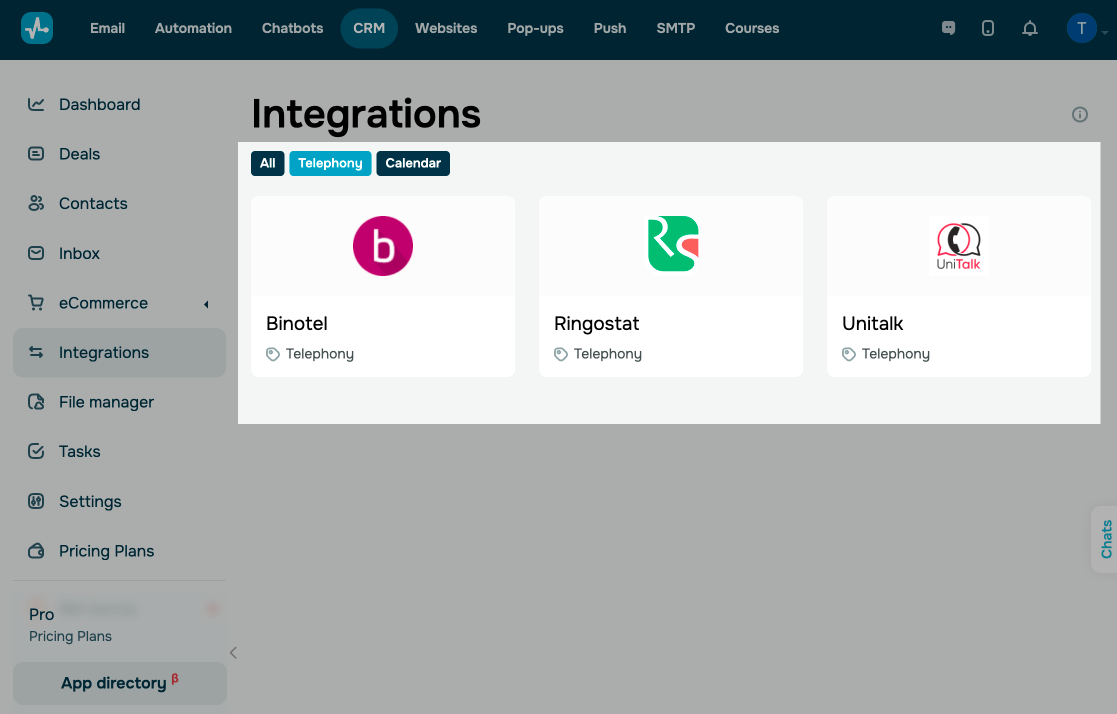
Go to Integrations > Telephony and choose a provider to connect. You can integrate with Binotel, Ringostat, or Unitalk. Find more integrations in the App catalog.
Read more: Integrate with Ringostat, Integrate with AirCall, and Connect Binotel to your CRM system.
Manage access to calls
By default, a team member can view the entire call history and make or receive calls with all contacts.
When you invite a new user or update their access, decide whether they can access all calls or only the calls they are assigned to.
Learn more: Manage your team’s CRM system access.
Call your clients
You can make calls from in the Contacts, Deals, and Call center sections.
From a contact card
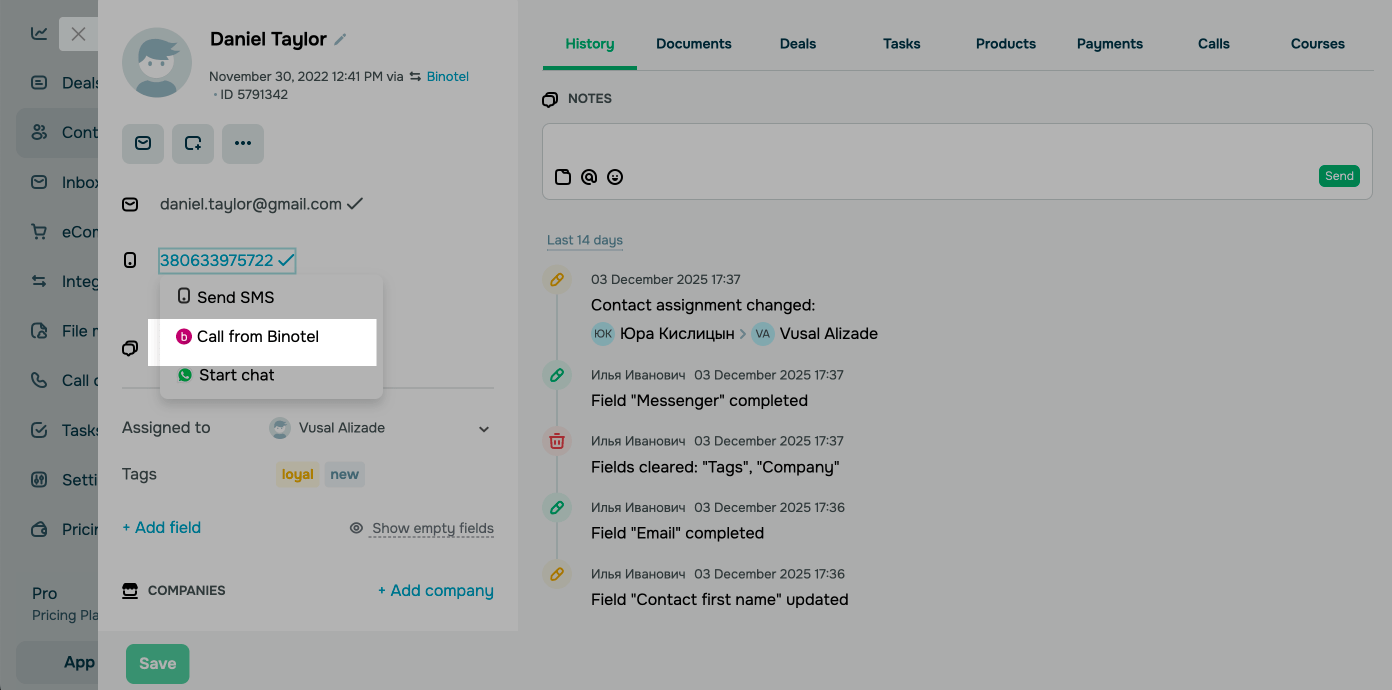
Go to Contacts, open your contact card, click the phone number, and select a call option from your connected telephony provider.
From a deal card
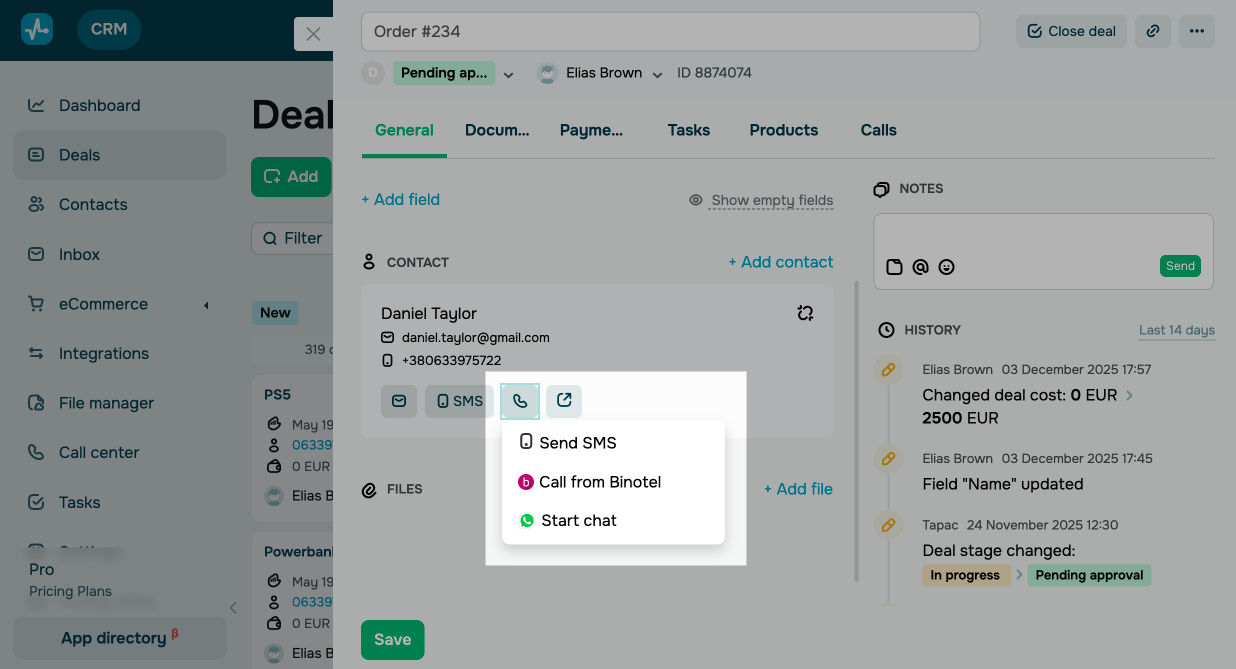
Go to Deals and open your deal card. In the Contact section, click the phone number and choose a call option from your connected telephony provider.
In the Call center section
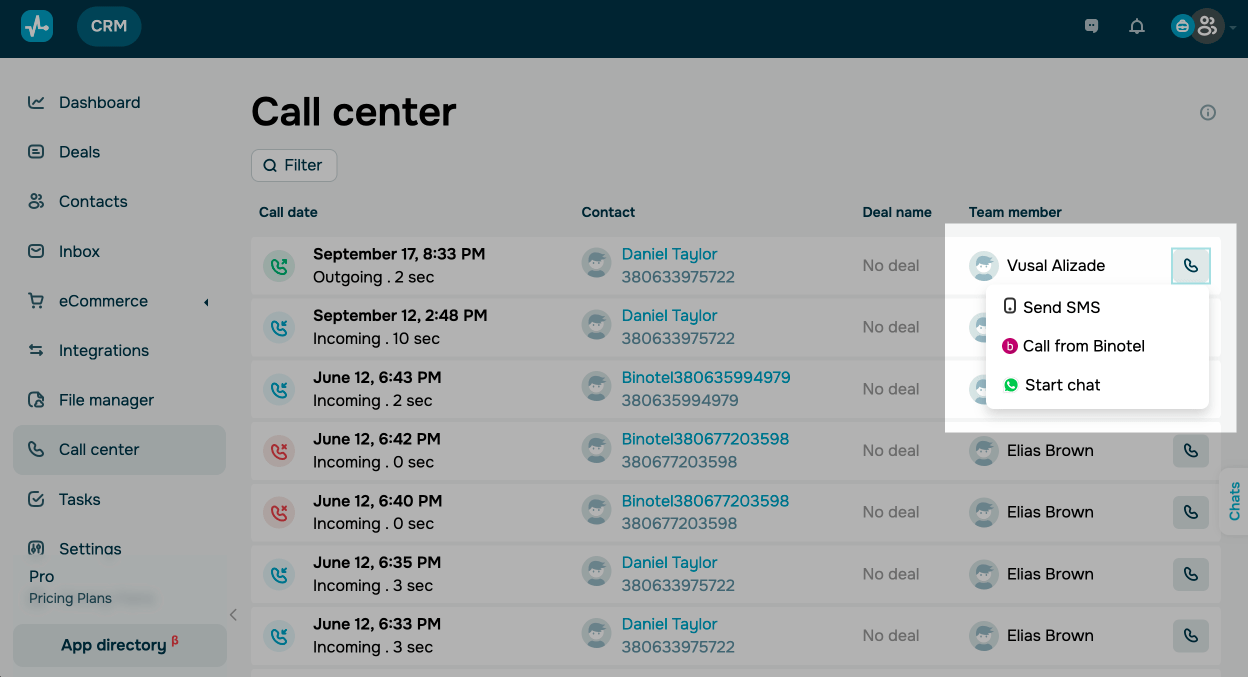
Go to the Call center and click the call icon next to a call.
View your call history
The Call Center tab contains all of your calls and the information about them:
- call date, time, duration, and status;
- contact name and phone number;
- transactions made during the conversation;
- assignee name.
Each call has a status.
|
Red icon |
Missed call. |
|
Green icon |
Outgoing call. |
|
Blue icon |
Incoming call. |
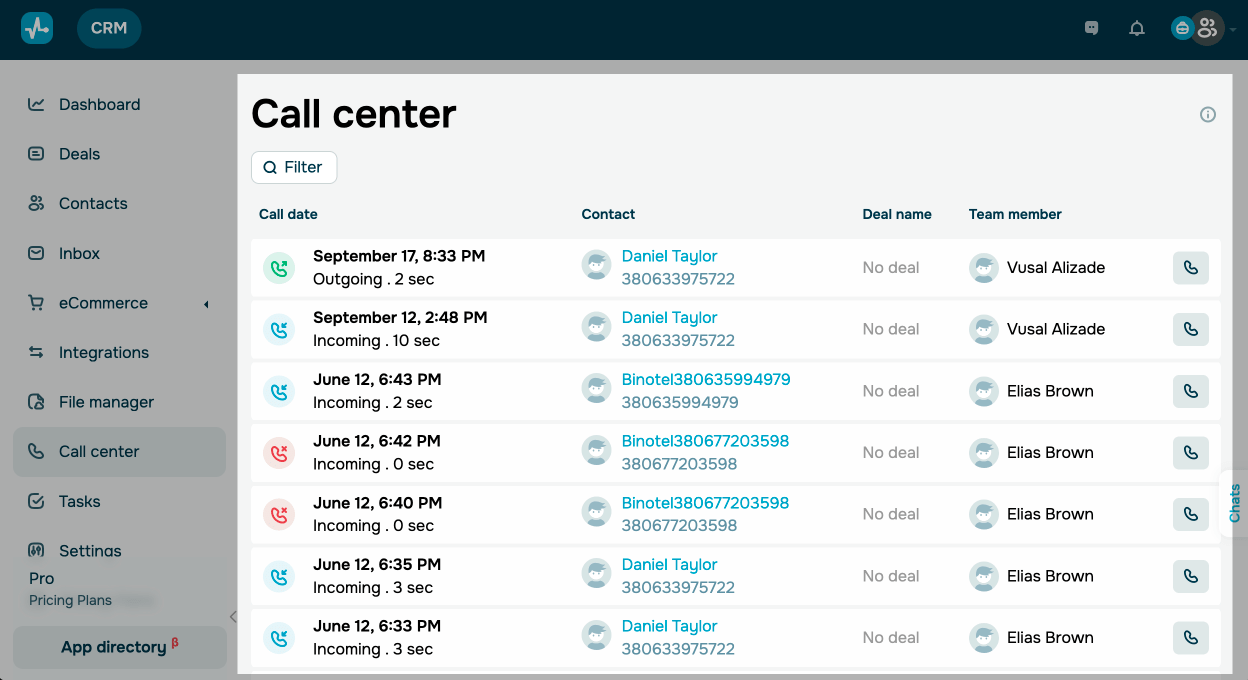
You can also use filters to select calls by date, contact details, call type (incoming or outgoing), and status (answered or missed) and by assigned team member.
To view contact details, click the contact. In the Calls tab, you can see the date, time, and duration of each call, as well as the team member who spoke with the client. If the call was recorded, you can listen to it.
If a deal was created during a call, you will see a link to it in the call. You can also view the call history in the deal itself in the Calls tab.
 Last Updated: 09.12.2025





or