Generate a comment in CRM using AI
Use AI in the CRM system to draft and edit comments on deals, contacts, and tasks. The AI can generate a new comment based on a prompt, improve selected text, or apply quick actions to change the tone, translate, summarize, or fix mistakes.
SendPulse offers up to 200 free AI requests across all tools. To run more requests, add your own AI account to the SendPulse account settings.
Learn more: Integrate ChatGPT with SendPulse tools, Integrate Claude with SendPulse tools, Integrate DeepSeek with SendPulse tools, and Integrate Google Gemini with SendPulse tools.
Create a comment draft
Open a deal, contact, or task. Next to the comment field, click the AI button.
In the dialog, describe the comment you want the AI to generate. Include details like the business type, communication goal, context, target audience, key points, and tone.
To create a clear and effective prompt, include the following:
- Business type. Mention the industry and the usual style of client communication.
- Message goal. Explain what the message should achieve.
- Context. Add a short overview of the current situation or task.
- Target audience. Specify who the message is for.
- Key points. Include the details that must appear in the message.
- Tone. Choose a tone appropriate for the client relationship.
To edit text without writing a prompt, click the AI button and choose Quick actions. Select one of the options:
| Custom prompt | Apply a saved prompt by selecting it from the list. |
| Tone | Change the tone to friendly, professional, motivational, neutral, or informal. |
| Text actions | Paraphrase, simplify, shorten, fix mistakes, summarize, or generate a reply. |
| Translate | Translate the selected text into another supported language. |
Once you add all the necessary information, click the icon.
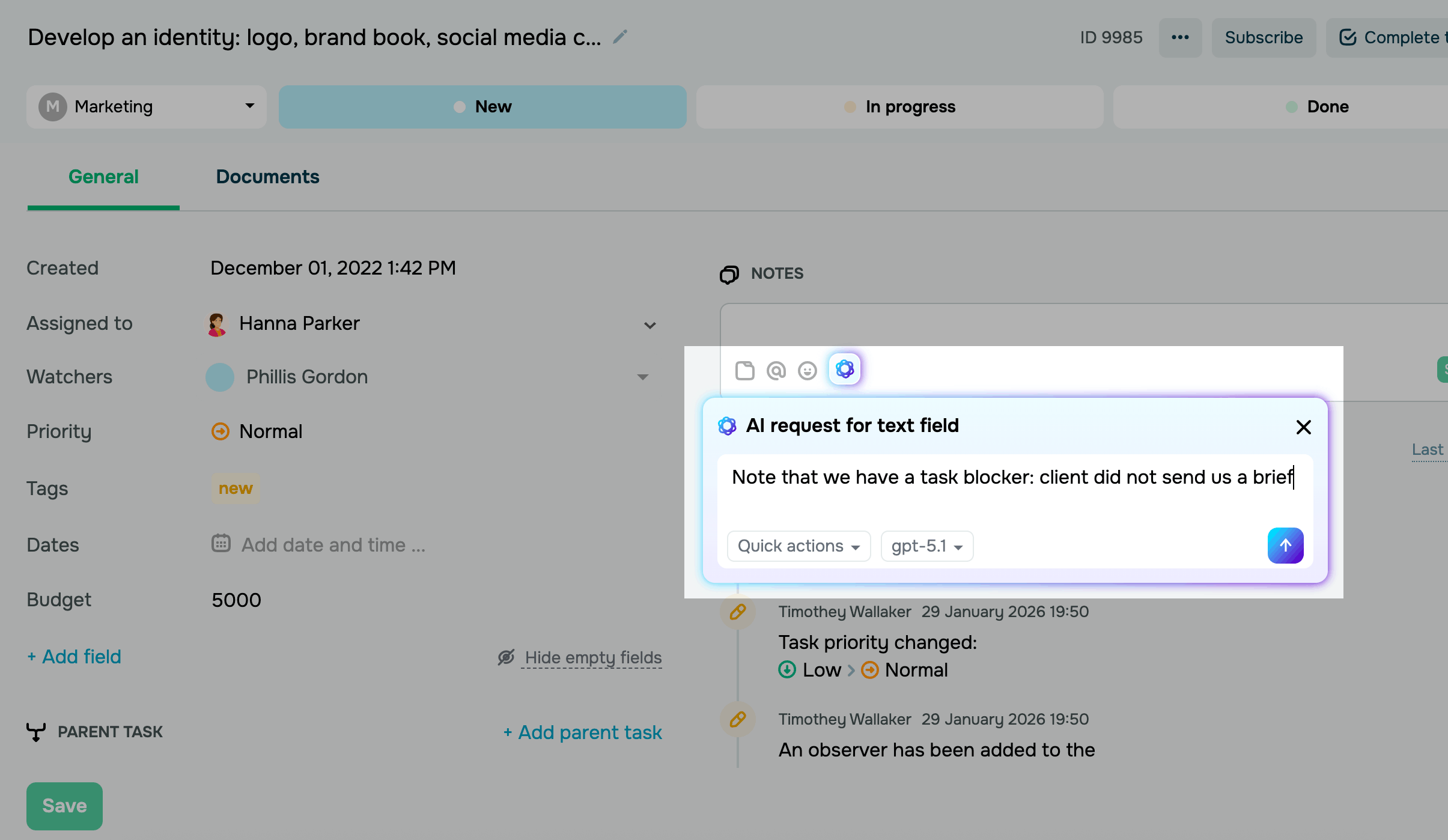
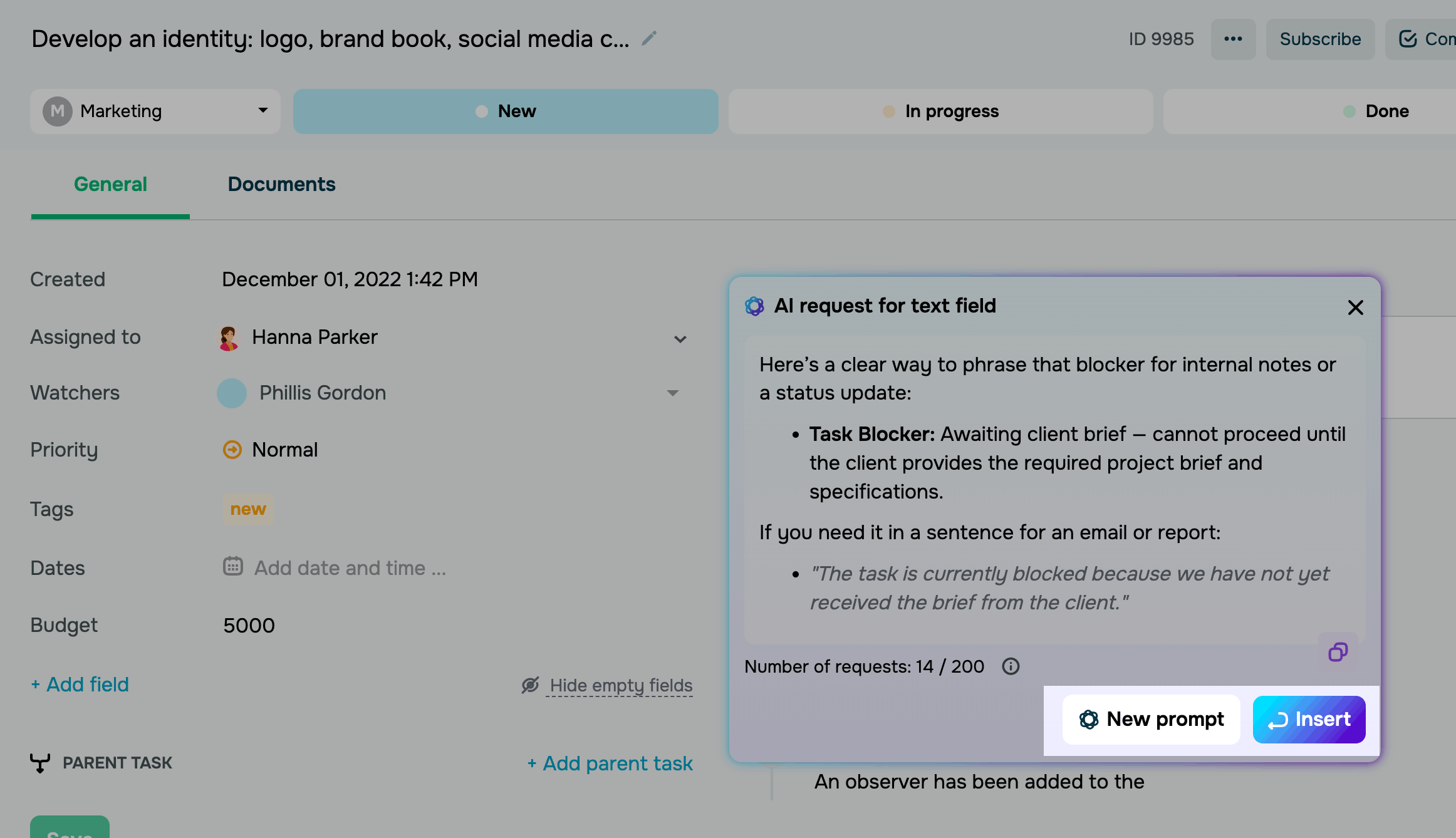
The AI will generate the comment in a few seconds. Click Insert to add it to the input field. To generate another version, click New prompt and update your prompt.
To copy the generated text, hover over it and click the copy icon. The text will be copied to your device's clipboard.
Edit existing text
You can also edit existing text that you entered in the field. To do this, select a text fragment, click the AI button, and enter a prompt or use quick actions.
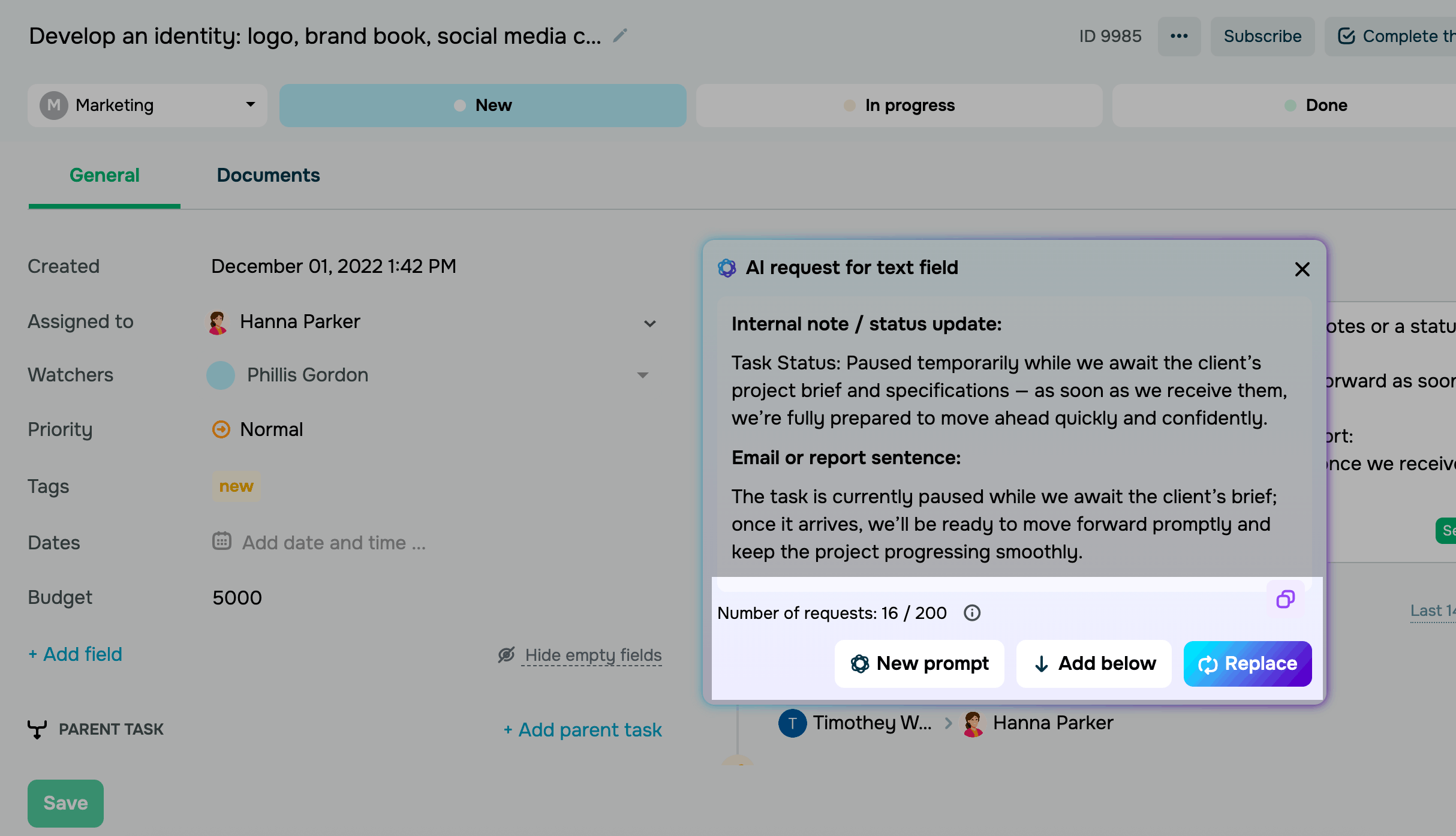
Wait a few seconds for the assistant to generate the text. You can apply the result in one of the following ways:
| New prompt | Generates a completely new text based on a prompt without using the previous context. |
| Add below | Inserts the generated text below the selected fragment. |
| Replace | Replaces the selected text entirely with the AI result. |
 Last Updated: 03.02.2026





or