Product delivery basics
A delivery method in a deal shows what the delivery costs and how an order reaches your customer: by your own courier, as a pickup, or through Nova Post or Ukrposhta. You add it to the deal card, so your online store team and support agents see all order details in one deal.
A deal's delivery method isn't related to digital product delivery settings, which define how customers receive a link or file after payment.
With SendPulse's CRM system, you can do the following:
-
Add a custom delivery method with a price, address, and comment to a deal.
-
Reuse a saved delivery method in other deals.
-
Track deliveries by their status.
-
Mark whether the customer has paid for delivery.
-
Add the delivery cost to a payment link.
-
Create Nova Post or Ukrposhta shipments from the deal card.
-
View all customer deliveries in their contact card.
Here's how businesses can use delivery methods:
-
A flower shop delivers orders with its own courier. A team member adds a custom delivery method with a price and address to the deal. The customer pays for the bouquet and delivery using one payment link.
-
An electronics store offers pickup from its warehouse. A team member adds a custom delivery method with a price of 0 and the warehouse address. When the order is ready, they change its status to Ready for pickup.
-
An online store ships orders across Ukraine with Nova Post. A team member creates a shipment from the deal card, and Nova Post automatically generates a waybill in the store's business account.
Let's talk about how to add products to a deal, choose a delivery method, get paid for products and delivery, and track delivery.
Add products to a deal
To arrange delivery, first add the products you need to ship.
Create a physical product in your CRM product catalog. Then, go to CRM > Deals, open a deal, go to the Products tab, and click Add product. The products you add appear in the table on the Products tab.
You can choose a delivery method for the products in the Delivery method section.
You add a delivery method to a deal manually. Deals created from orders on your website or in a chatbot don't have a delivery method.
Read more: Add a physical product, View products in deals.
Choose a delivery method
To set how an order reaches your customer, choose a delivery method in the deal.
On the deal's Products tab, click Add delivery method and select an option from the list: a delivery service, a saved custom method, or Create delivery method.
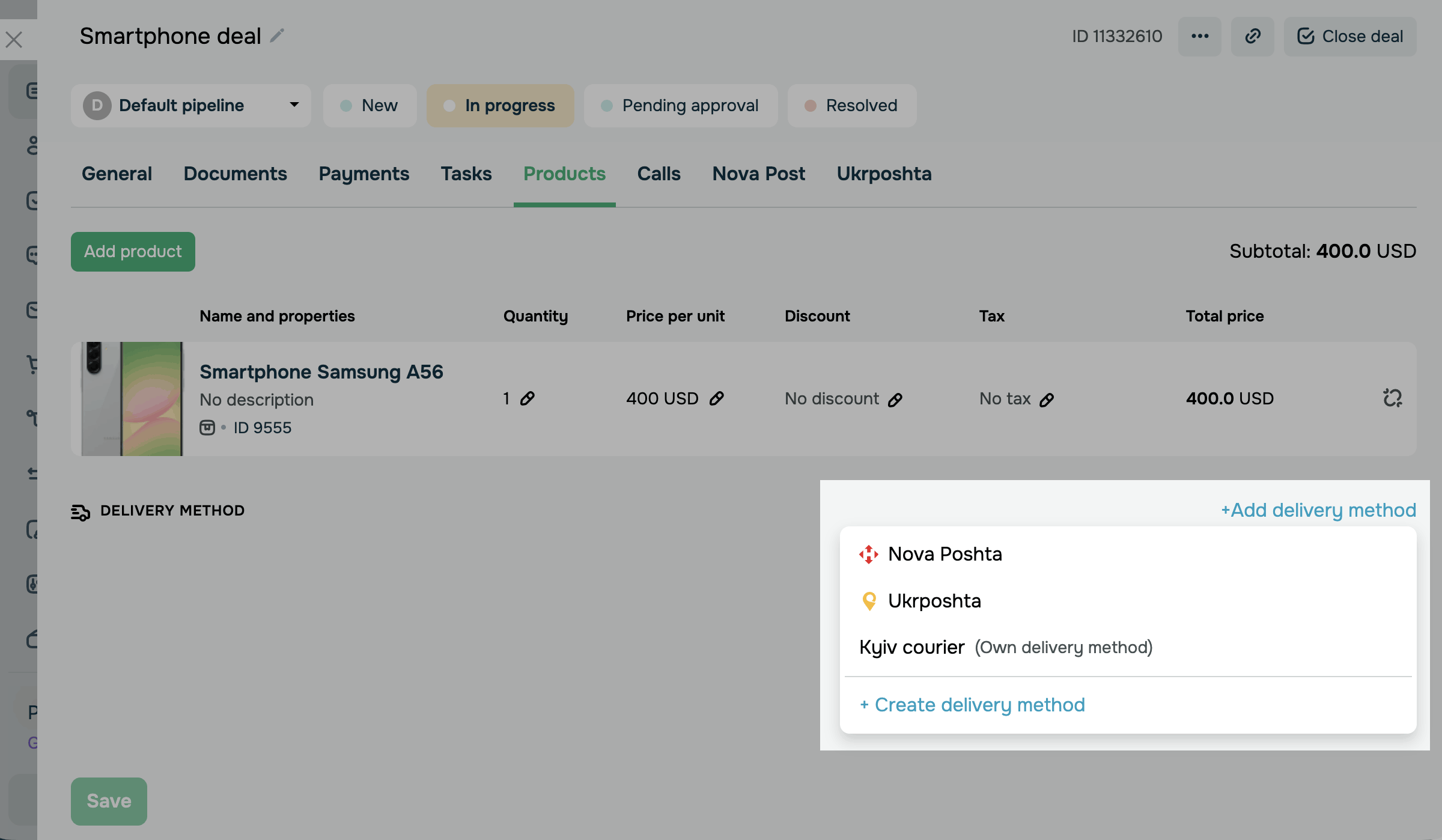
Delivery methods differ in where you manage the delivery and who updates its status.
Use a custom method for your own courier, pickup, or a delivery service that isn't integrated with SendPulse. You update its delivery status manually. You can manage the delivery in Products > Delivery method.
With Nova Post or Ukrposhta, each shipment has a waybill in that delivery service, and the delivery status updates automatically from the waybill status. You can manage the delivery on the deal's Nova Post or Ukrposhta tab.
Custom delivery method
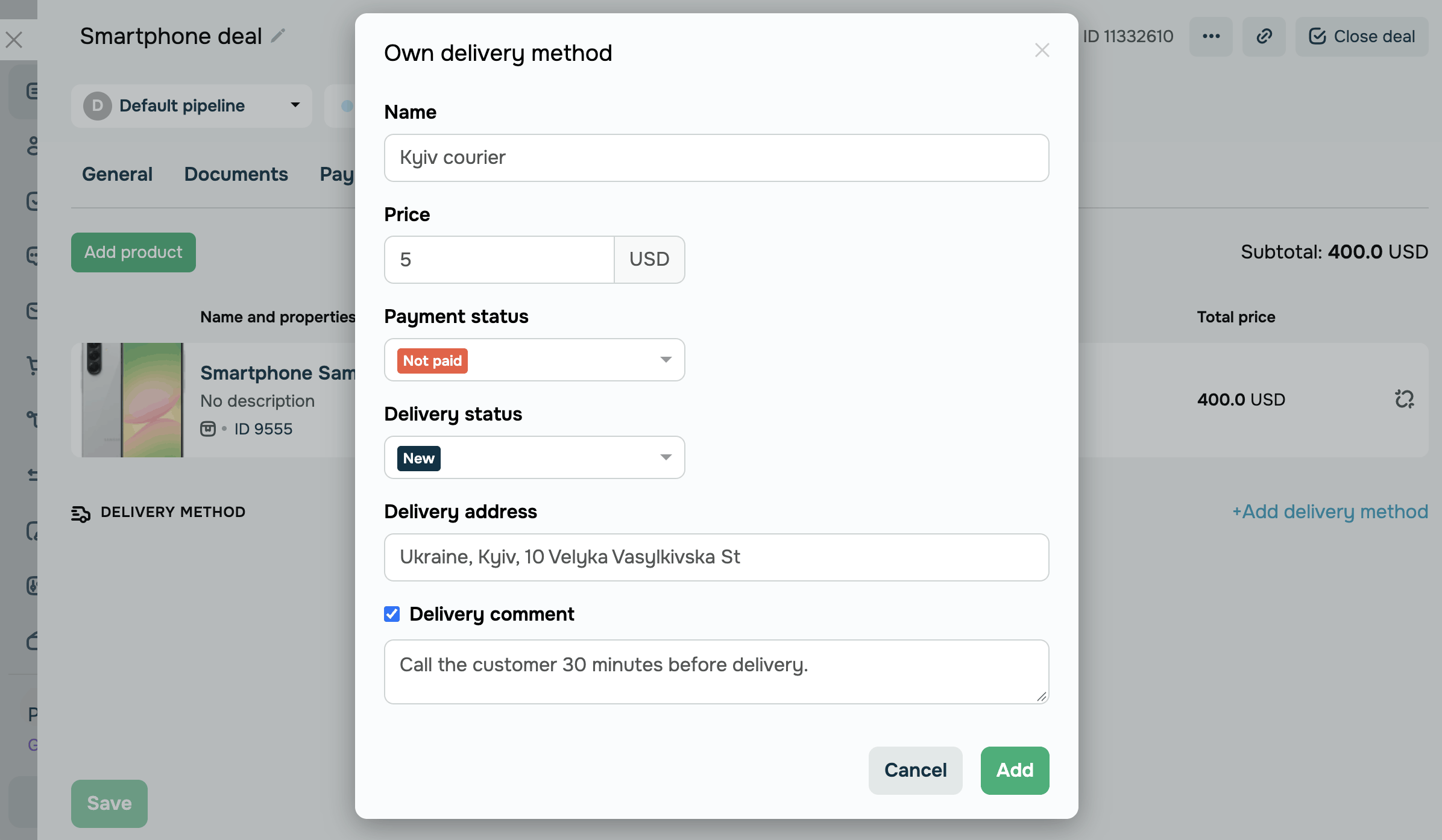
To arrange delivery by your own courier, pickup, or a delivery service that isn't integrated with SendPulse, create a custom delivery method. The deal must have a linked contact with a name and phone number.
In the Add delivery method list, click Create delivery method and enter the name, price, and delivery address. The method you create appears in this list, so you can select it again in other deals.
Read more: Add a custom delivery method to a deal and track its status.
Nova Post
To ship orders with Nova Post, integrate Nova Post with the CRM system.
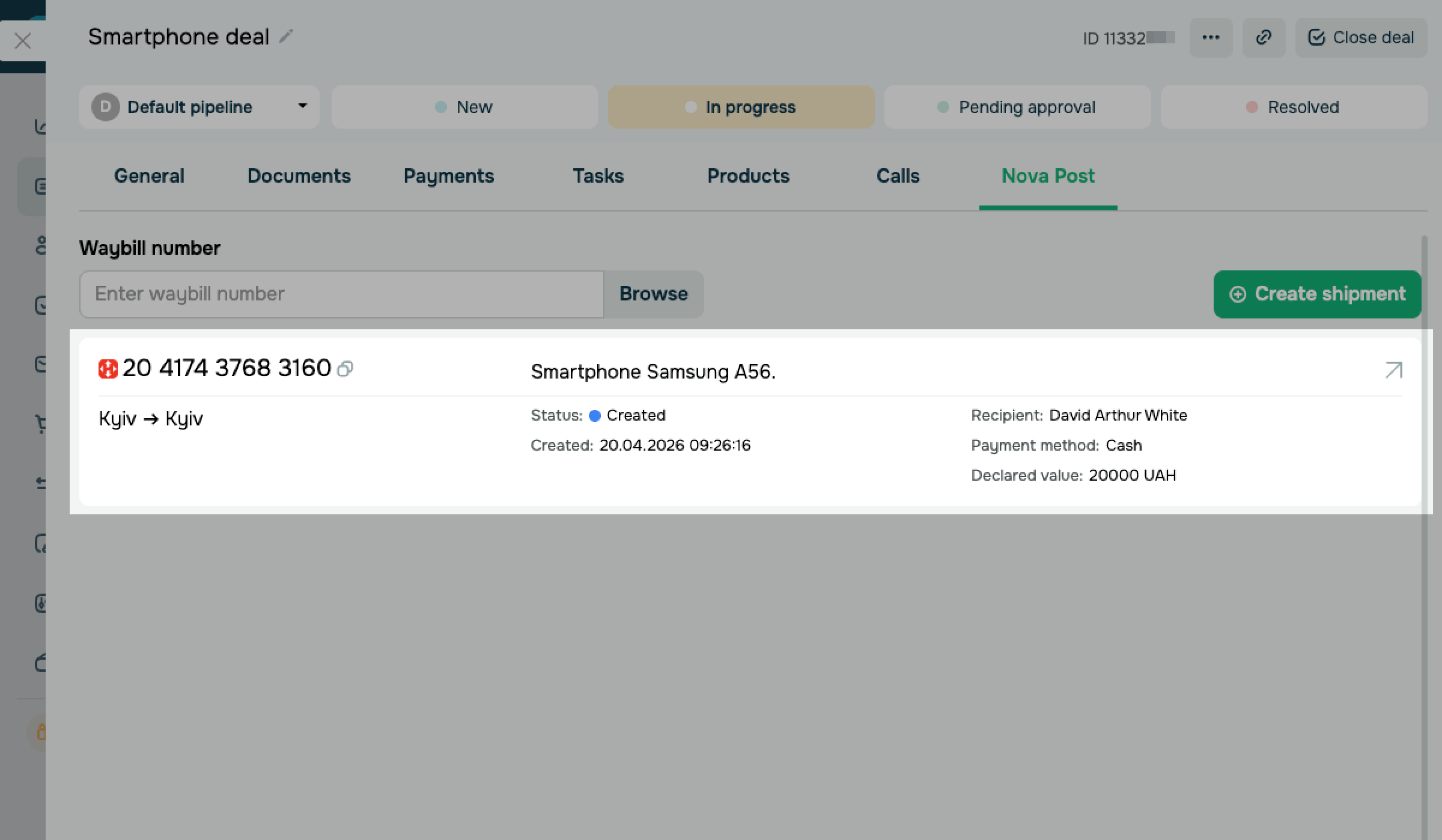
In the Add delivery method list, click Nova Poshta. The Nova Post tab appears, where you can create a shipment or attach an existing waybill by its number.
The Nova Post tab appears only in deals of the pipeline selected in your Nova Post integration settings. In deals of other pipelines, the Nova Poshta option opens the app directory.
Read more: Create and view Nova Post shipments in the CRM system.
Ukrposhta
To ship orders with Ukrposhta, integrate Ukrposhta with the CRM system.
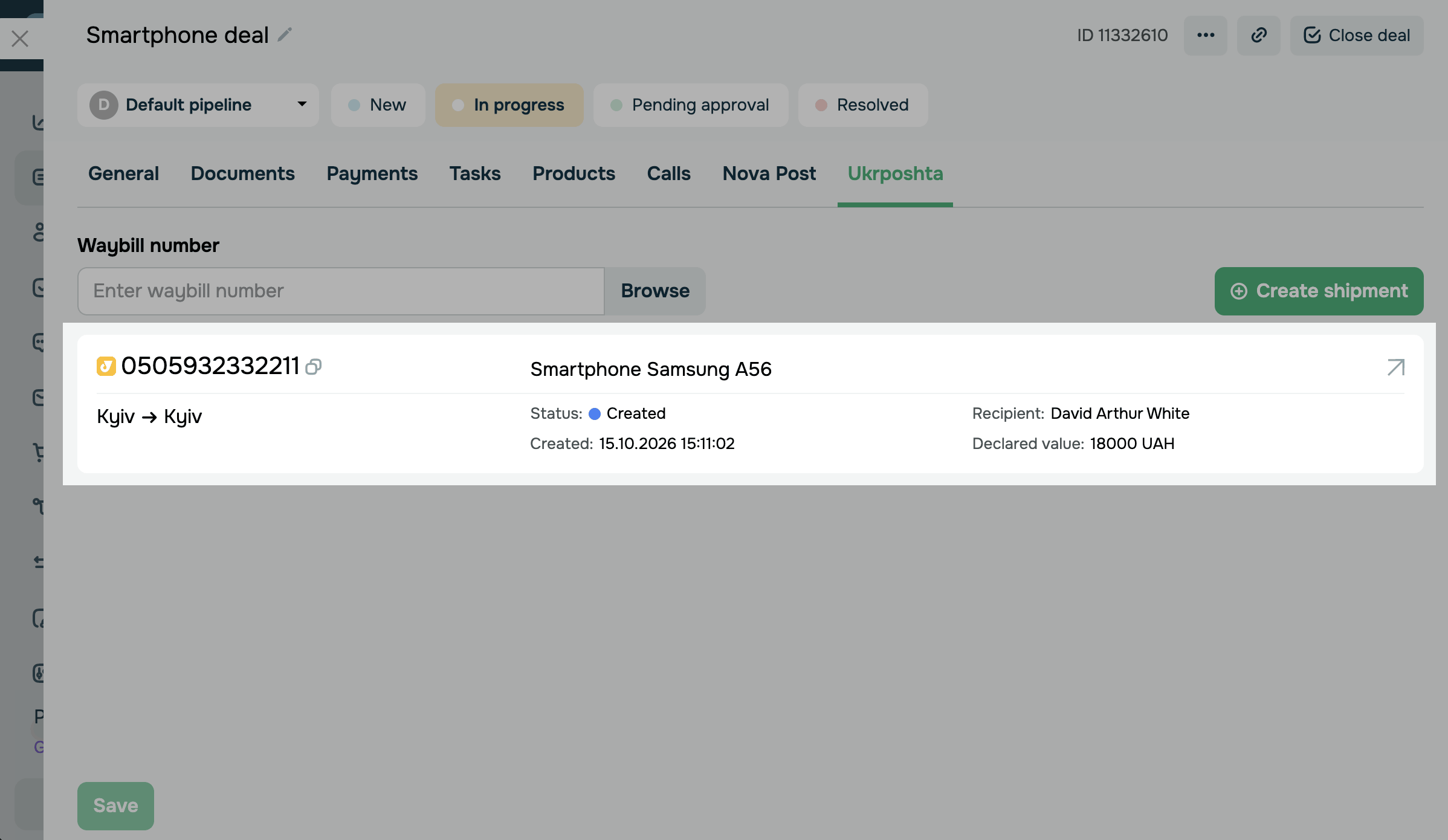
In the Add delivery method list, click Ukrposhta. The Ukrposhta tab appears, where you can create a shipment or attach an existing waybill by its number.
The Ukrposhta tab appears only in deals of the pipeline selected in your Ukrposhta integration settings. In deals of other pipelines, the Ukrposhta option opens the app directory.
Read more: Create and view Ukrposhta shipments in the CRM system.
Get paid for products and delivery
To let your customer pay for an order and its delivery together, create a payment link that includes the delivery cost.
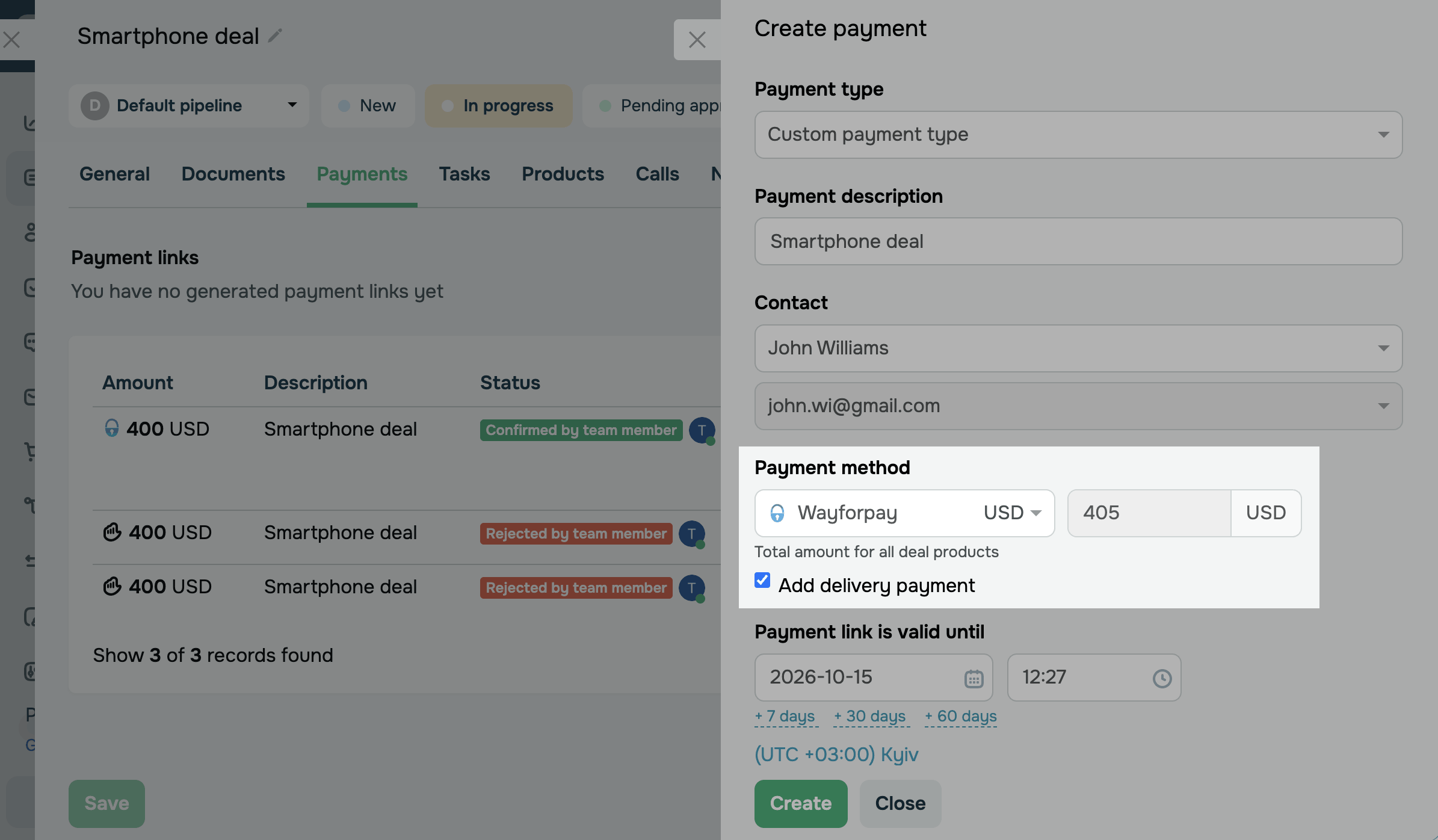
In the deal, go to the Payments tab, click Create payment, and select the Add delivery payment checkbox. This checkbox appears only if the deal already has a delivery method.
The payment amount increases by the delivery price, and your customer sees the delivery as a dedicated line on the payment page. Once the payment succeeds, the delivery payment status changes to Paid.
The delivery cost isn't added to the deal amount.
Read more: Generate payment links in CRM, Accept payments.
Track delivery
To know where an order is, change its delivery status as the order moves to your customer.
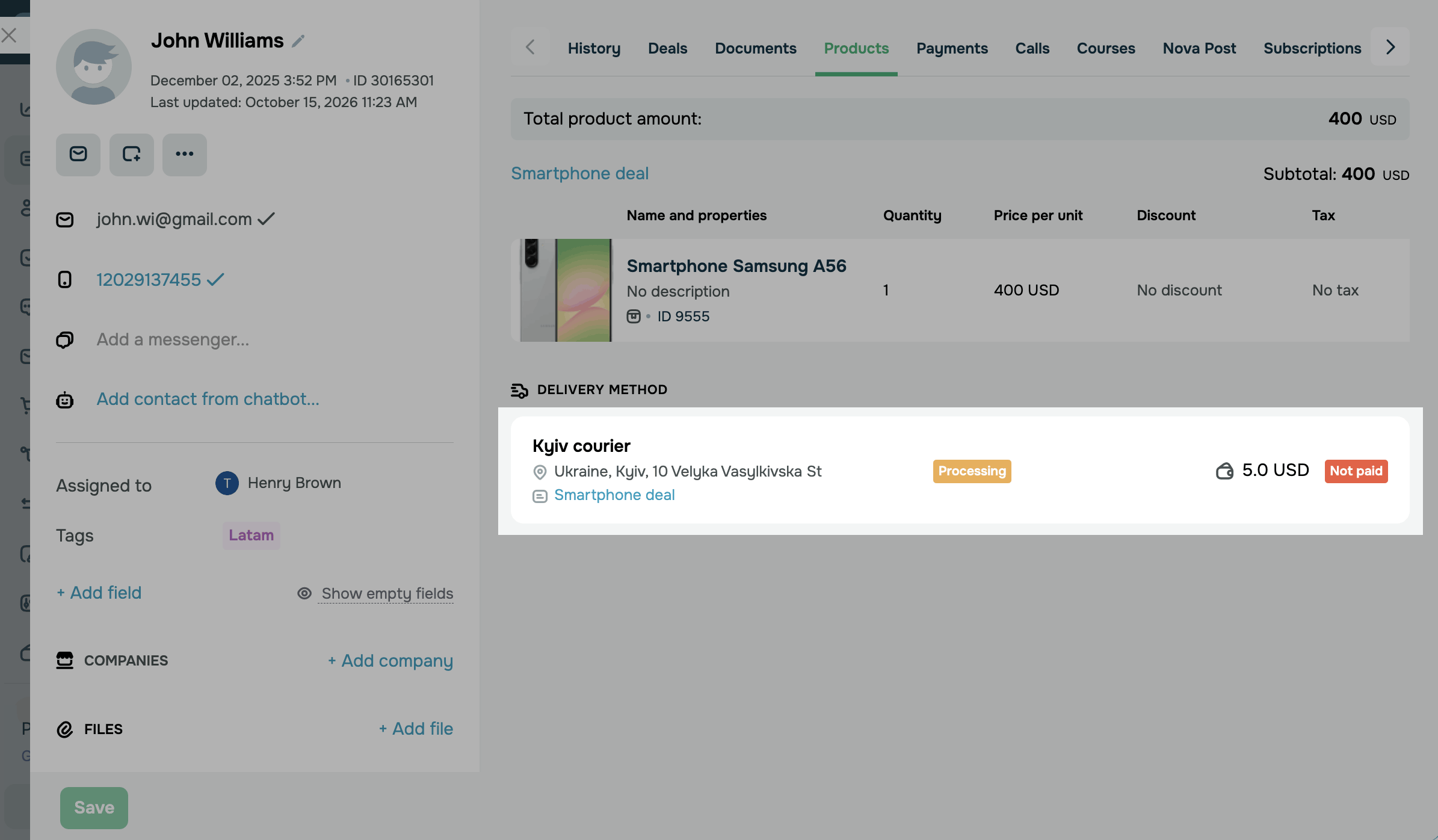
In the Delivery method section, select a new status from the list in the delivery row. The status changes right away, with no need to save the deal. Nova Post and Ukrposhta shipment statuses update automatically on their own deal tabs.
You can also see customer deliveries in their contact card. Custom delivery methods are listed in Products > Delivery method with their name, address, statuses, and deal link. Nova Post and Ukrposhta shipments are listed on their own tabs.
The status of a custom delivery method doesn't change the deal stage.
Once you complete these steps, your deal will have products, a delivery method, a payment link with the delivery cost, and a delivery status.
Next, you can add a custom delivery method, create a Nova Post shipment, create a Ukrposhta shipment, or view products in a deal.
 Last Updated: 21.10.2026




or