View deal cards
Each deal has its own card where you can store detailed information about the client, stages, files, tasks, payments, and other related data. This helps you track the entire interaction cycle and keep a complete activity record.
Let’s talk about how to view deal cards and their tabs.
General information
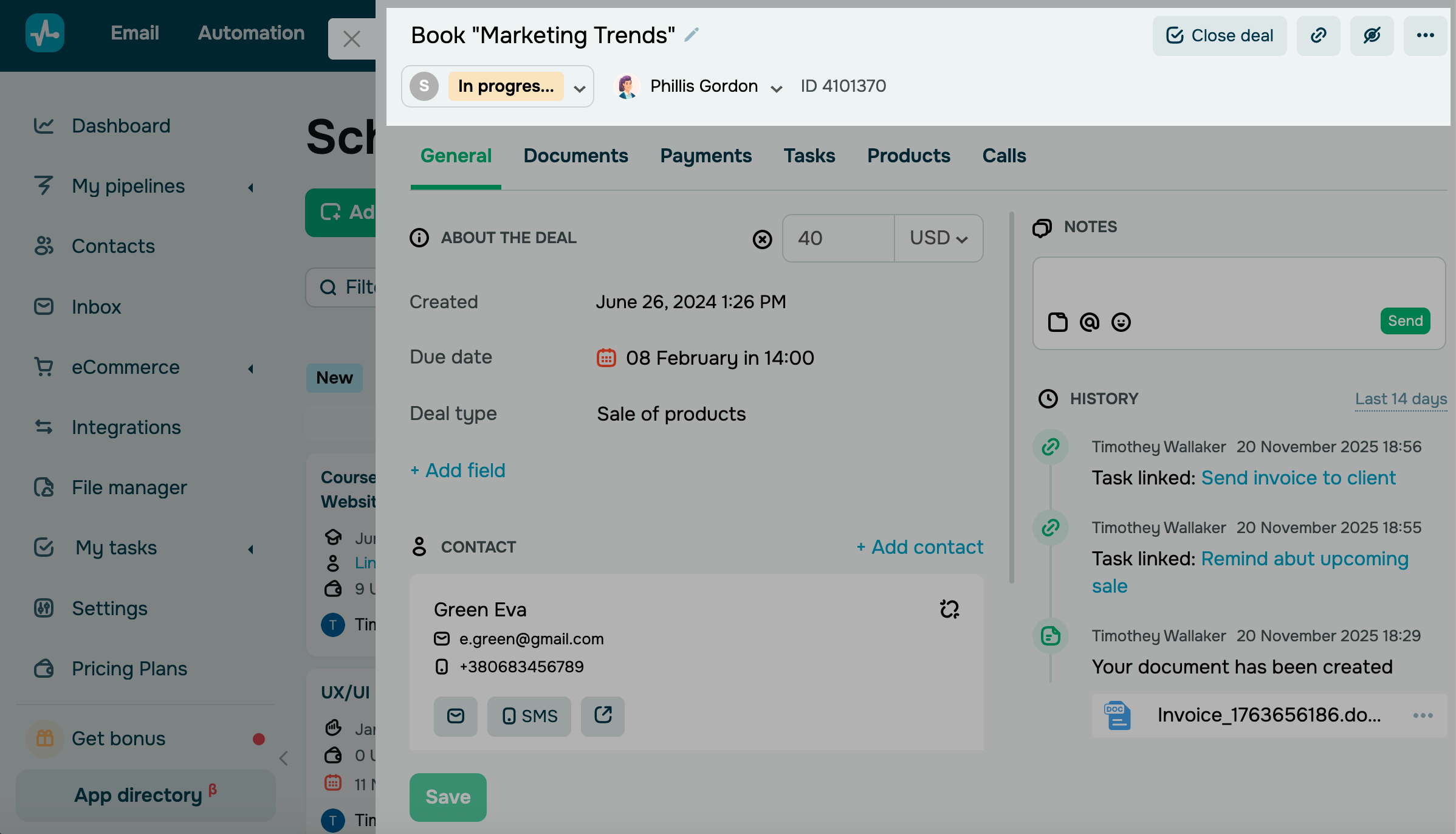
To open a deal card, click it. In the upper corner, you can view your deal name, ID, stage, and assignee.
If needed, you can update deal information and use quick actions in the upper right corner.
Tabs
You can view more deal data in the following tabs.
You can edit, delete, disable, rearrange, and add tabs.
General
This tab includes information about your deal amount and currency, deal type, and deal fields.
| Created | Deal creation date and deal source. |
| Contact | Contacts linked to the deal.
To view and edit contact details, click the name to open the contact card. You can also unlink the contact and add a new one. |
| Files | Files linked to the deal.
You can view existing files and add new ones. |
| History | Сomments from your team members and deal-related events. |
You can manage deal fields by adding new fields, updating existing ones, and making certain fields required.
Documents
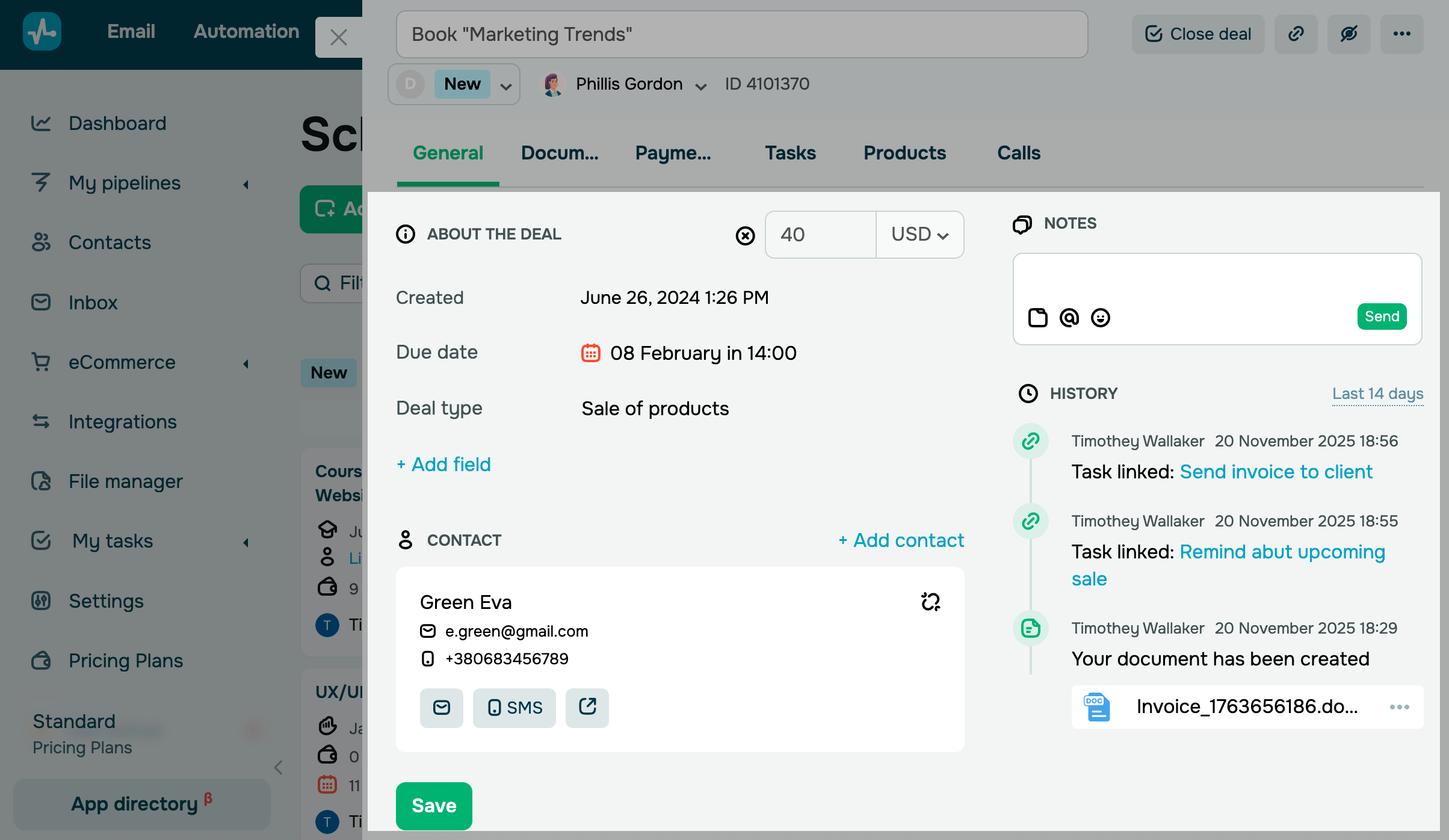
This tab includes created documents with their statuses and dates.
You can view, email, download, or unlink these documents from their cards. To do this, click the three dots next to your document.
To create a new document using card data, click Create document.
Read more: How to create a document.
Payments
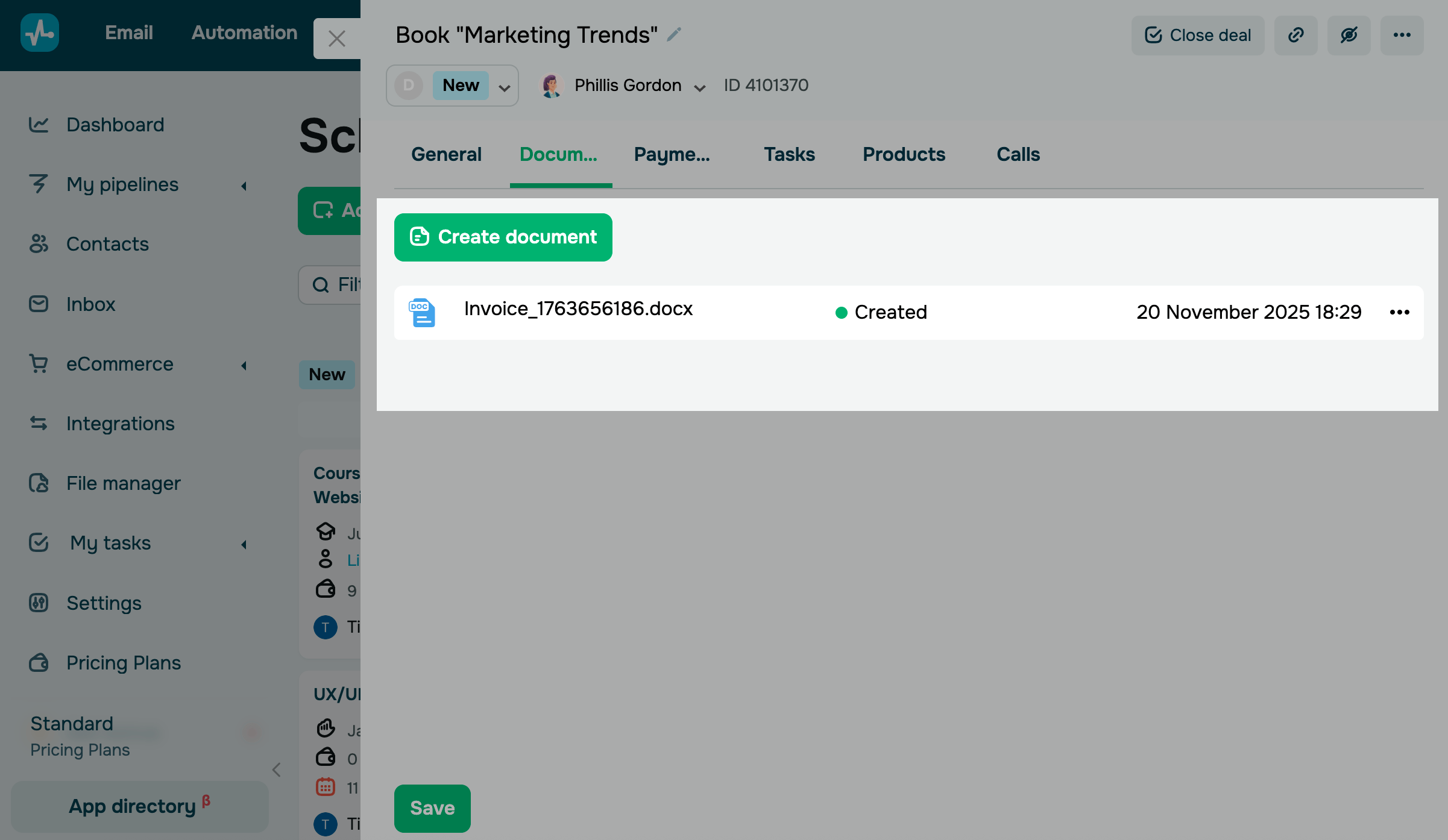
This tab includes information about deal payments: payment method, amount, applied course promo code or CRM promo code, description, status, and transaction date.
In this tab, you can also generate payment links and share them with your clients.
Tasks
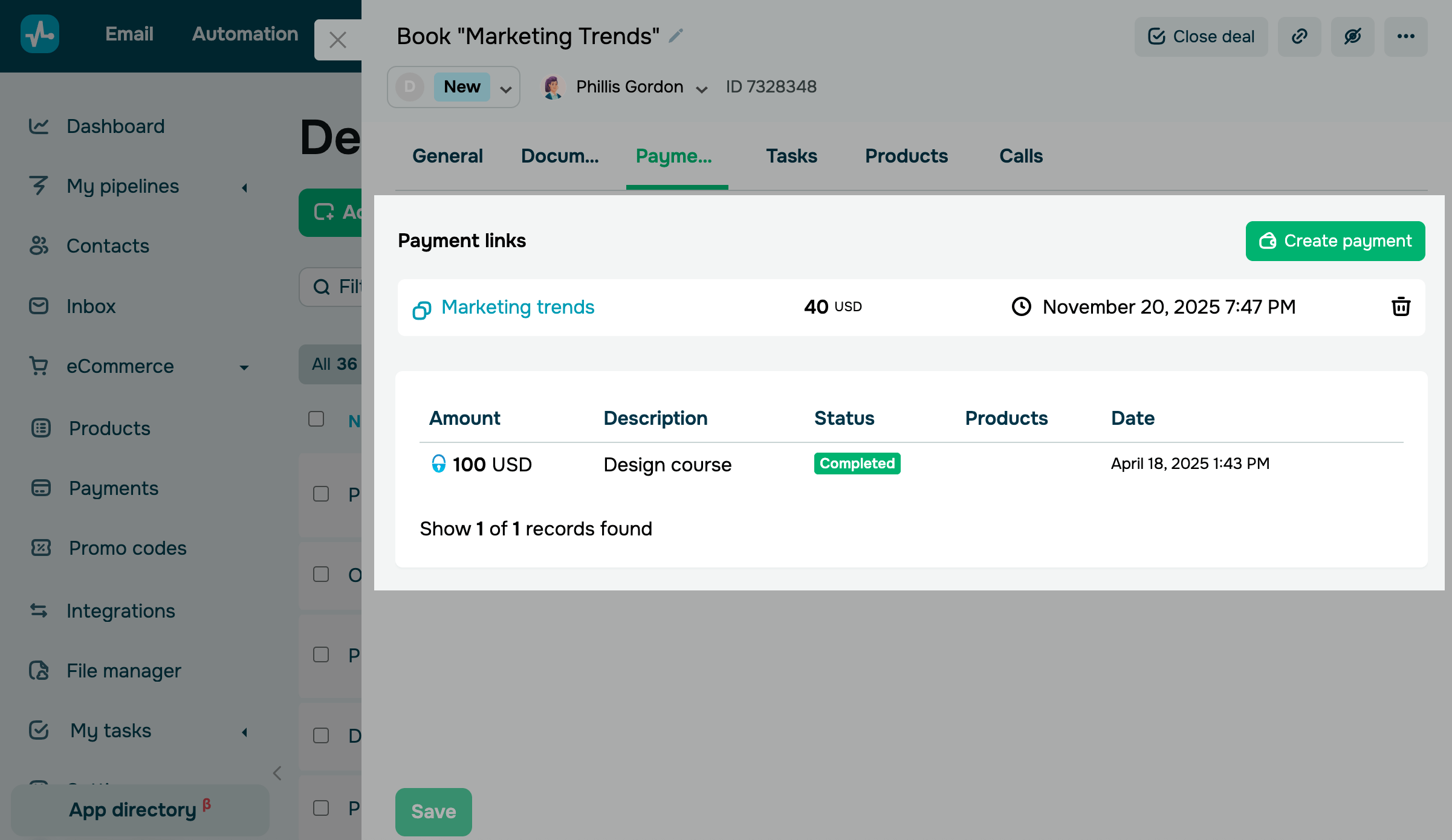
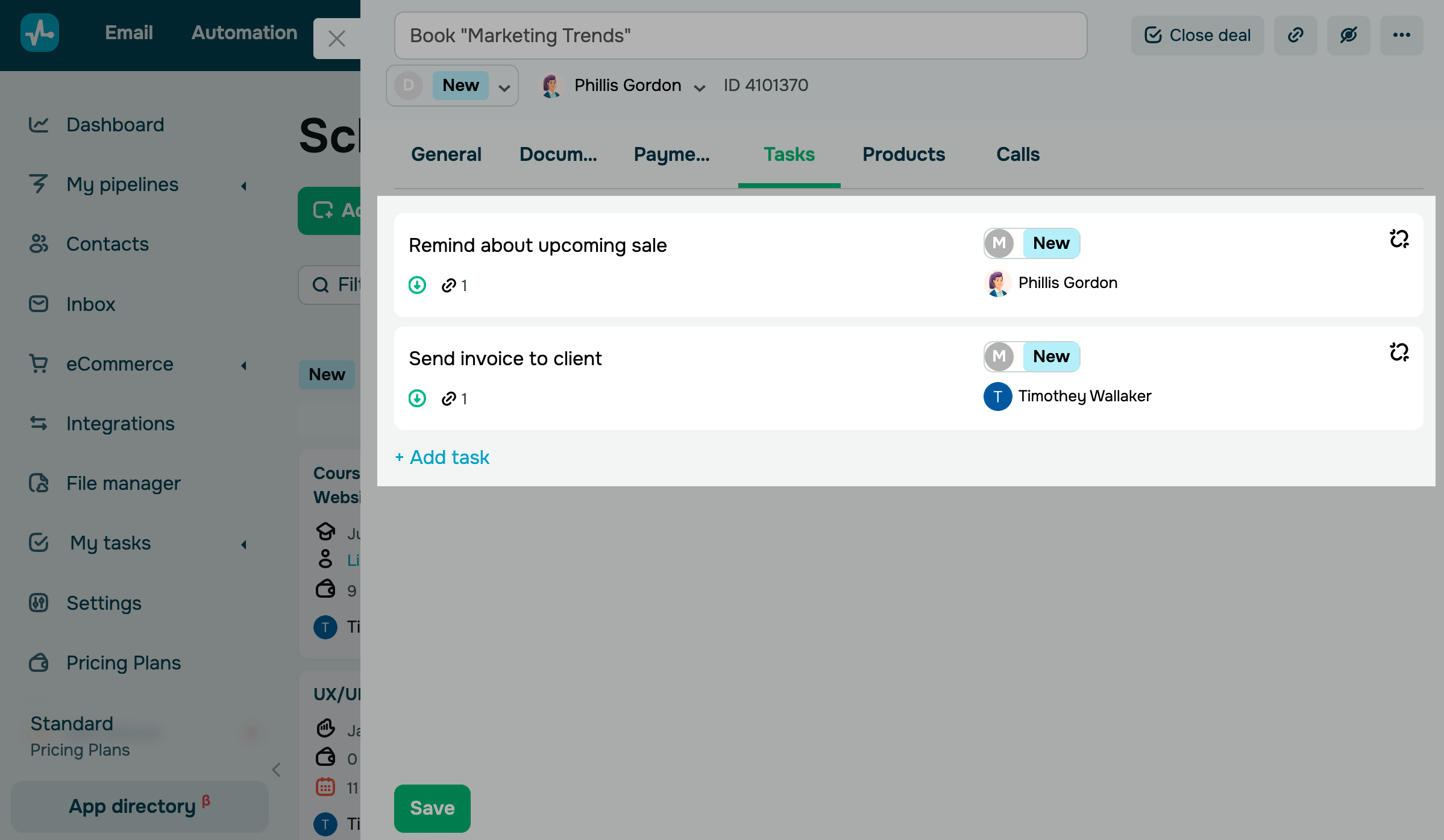
This tab includes information about linked tasks.
In your task, you can view its name, task board status, due date, and assignee.
If you don’t have linked tasks, click Create task.
To edit or view a task, click it.
To unlink a task, click the unlink icon next to its name.
Calls
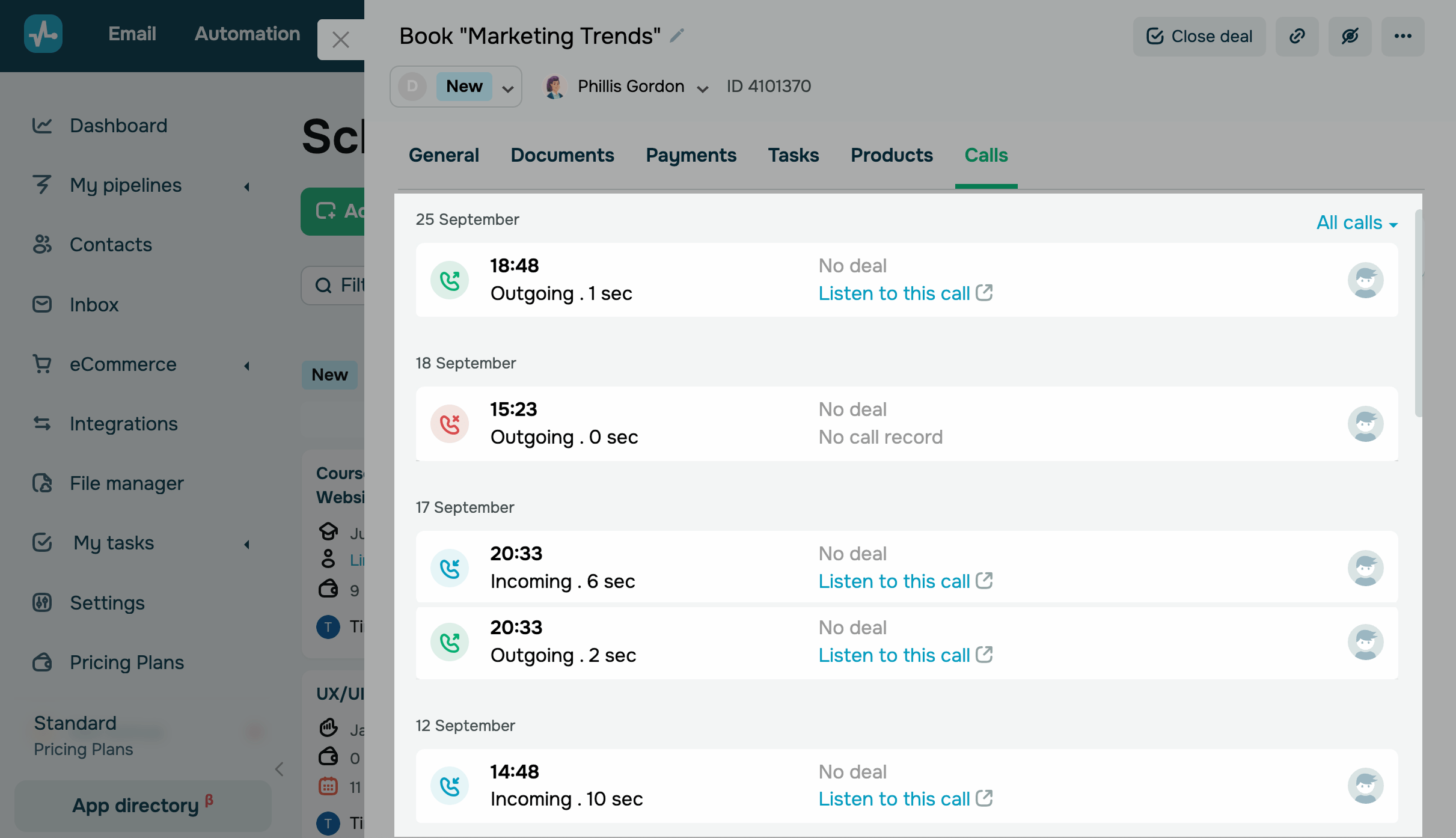
This tab includes client activity data:
- call date and time;
- duration;
- type (incoming, outgoing, missed);
- recording;
- team member who interacted with your client.
Calls are organized using color-coded statuses:
| Incoming (green) | A team member answered an incoming call. |
| Outgoing (blue) | A team member called a client, and the call went through. |
| Missed (red) | An incoming call that no one answered. |
You can filter calls by status: incoming, outgoing, missed, or all. To do this, click the drop-down menu on the right of the tab.
 Last Updated: 28.11.2025





or