Create an email chatbot
An email chatbot automatically replies to the emails that arrive in your connected inbox. It answers common questions instantly based on keywords, and an AI agent handles messages that don’t match a keyword. Complex interactions go to your team members with the full conversation history. This way, support teams, sales reps, online schools, and solo professionals can reply within seconds instead of hours.
An online store, for example, can reply to every email that mentions delivery with its shipping terms and a tracking link. A business coach can send a booking link to anyone who emails them outside of working hours.
Let's talk about how to connect your inbox to the CRM system, turn on automated email replies, and set up your email chatbot.
Benefits and use cases
With an email chatbot, you can:
- reply to emails alongside messages from other communication channels in Chats;
- use an AI agent to answer open-ended questions in a formal email tone;
- answer frequently asked questions, such as about pricing or working hours, with replies triggered by keywords;
- assign tags and save information to variables to segment your audience;
- assign a chat to a team member when it needs a human reply.
Here's how businesses can use an email chatbot:
- A sales team can qualify leads before a team member joins the conversation. To do this, they add an AI Agent element to the Standard reply flow. The agent replies automatically and asks follow-up questions.
- An online store's support team can reply to every delivery question within seconds and handle only the emails that need a personal reply. To do this, they create a trigger with the keyword “delivery” and a flow with a Message element that contains their shipping terms and a link to the tracking page.
- An online school can confirm course enrollment and remind students about payment. To do this, they create a trigger with the keyword “enroll” and a flow with two messages: one with enrollment details and one with a payment reminder sent after a Pause.
Basics
Your email chatbot runs on an inbox connected to the CRM system. Once you connect your inbox and turn on automated replies in its settings, SendPulse creates a chatbot for this inbox. Each inbox with automated replies turned on gets its own chatbot with its own triggers and flows.
When a new email arrives in your inbox, SendPulse saves the sender as a chatbot subscriber and adds the conversation to your chats. If the email contains one of your keywords, the chatbot runs the flow linked to the keyword trigger. If not, it runs the Standard reply flow, where you can add an AI agent. The chatbot sends its reply in the same email thread, with the same subject line as the incoming email.
Email works differently from other chatbot channels, so keep the following in mind before you build your flows:
- Replies are text-only. Email flows don't support buttons, media files, or quick replies, so build your flows around text and links. To continue a flow, add a Pause element or wait for the subscriber's reply.
- Each message in a flow is sent as a separate email reply. If your flow sends multiple messages, your subscribers receive multiple emails in the same thread.
- Chats show the text version of each email, with its subject line above the message. To view the full email, open it in CRM > Inbox.
- Your chatbot audience comes from incoming emails only. You can't import email addresses from a file.
- The chatbot replies only after your inbox syncs with the CRM system, so there may be a short delay.
Requirements
Before you set up your email chatbot, make sure you meet the following requirements:
| Requirement | Description |
| A SendPulse account with access to the Chatbots and CRM sections | You'll need to connect your inbox in the CRM system and build flows in the Chatbots section. |
| A paid CRM plan | Inbox integration requires a paid CRM pricing plan. The number of inboxes you can connect depends on your pricing plan. |
| An email inbox | Gmail or any email client with IMAP and SMTP support. Both options work with inboxes on a company domain.
If your inbox uses your company's domain, add SPF and DKIM records to your domain settings. Without them, your chatbot's replies can land in spam. |
Connect your inbox to the CRM system
To get started, connect the inbox you use for customer communication to the CRM system.
Go to CRM > Inbox and click Connect inbox.
To connect a Gmail inbox, click Log in next to Gmail in the Email client tab, select the inbox you want to connect, and enable synchronization with SendPulse.
To connect an inbox from another email client, enable IMAP access in your email client's settings and generate an access password. Then, go to the IMAP tab and enter your email address, the access password, the IMAP and SMTP server addresses, and ports from your email client's settings.
Read more: Connect your mail inbox to the SendPulse CRM system.
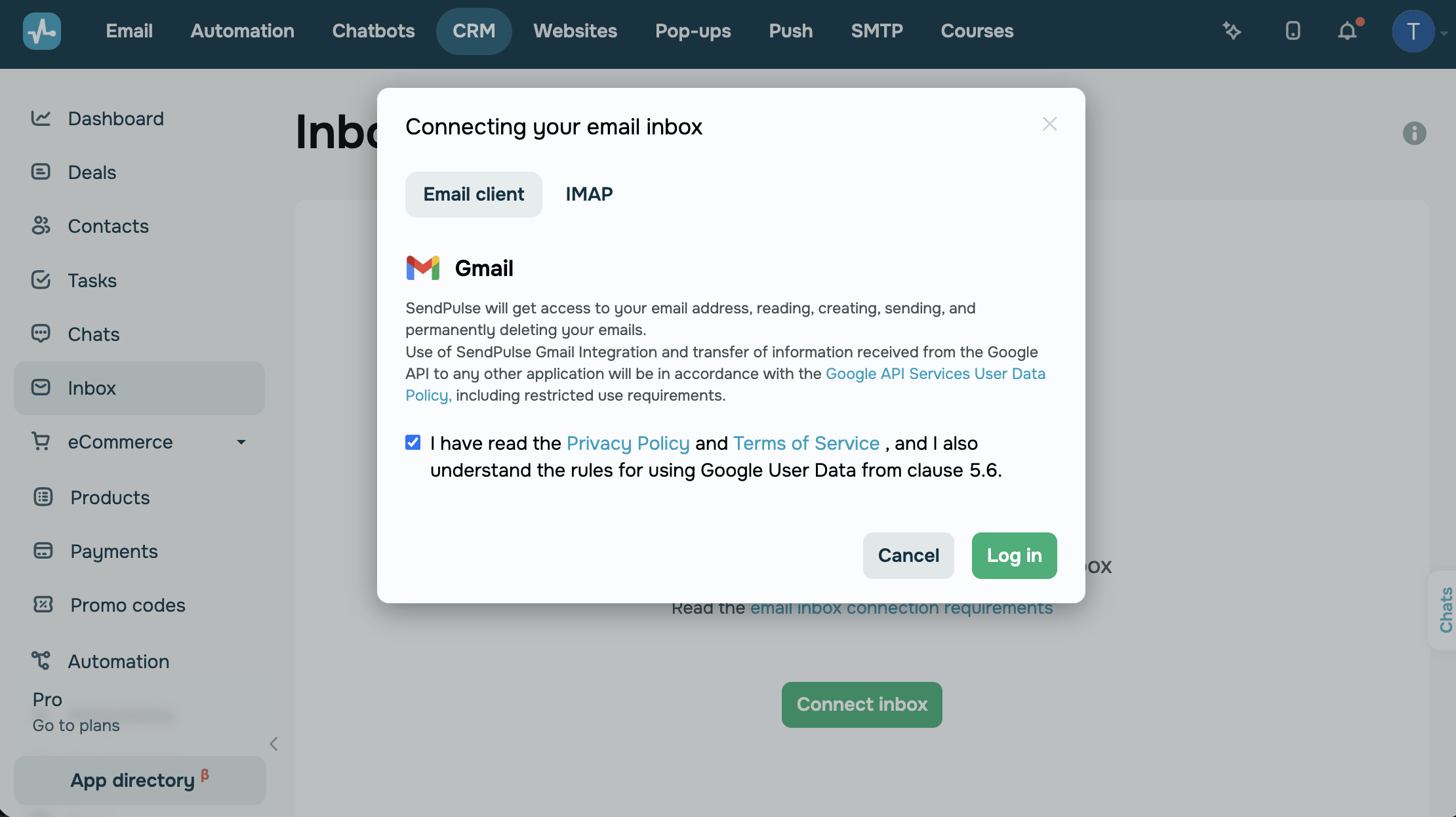
Wait until the synchronization is complete. SendPulse imports your latest emails into the Inbox section, and the inbox settings become available.
Turn on automated email replies
Once your inbox is connected, turn on automation in its settings.
In the Inbox section, click Settings.
In the Automate CRM section, select the Add emails to the "Conversations" tab and automate replies through a chatbot checkbox.
With this option, SendPulse also creates a contact for every email address you receive emails from. This way, you can see who sent each email in your conversations.
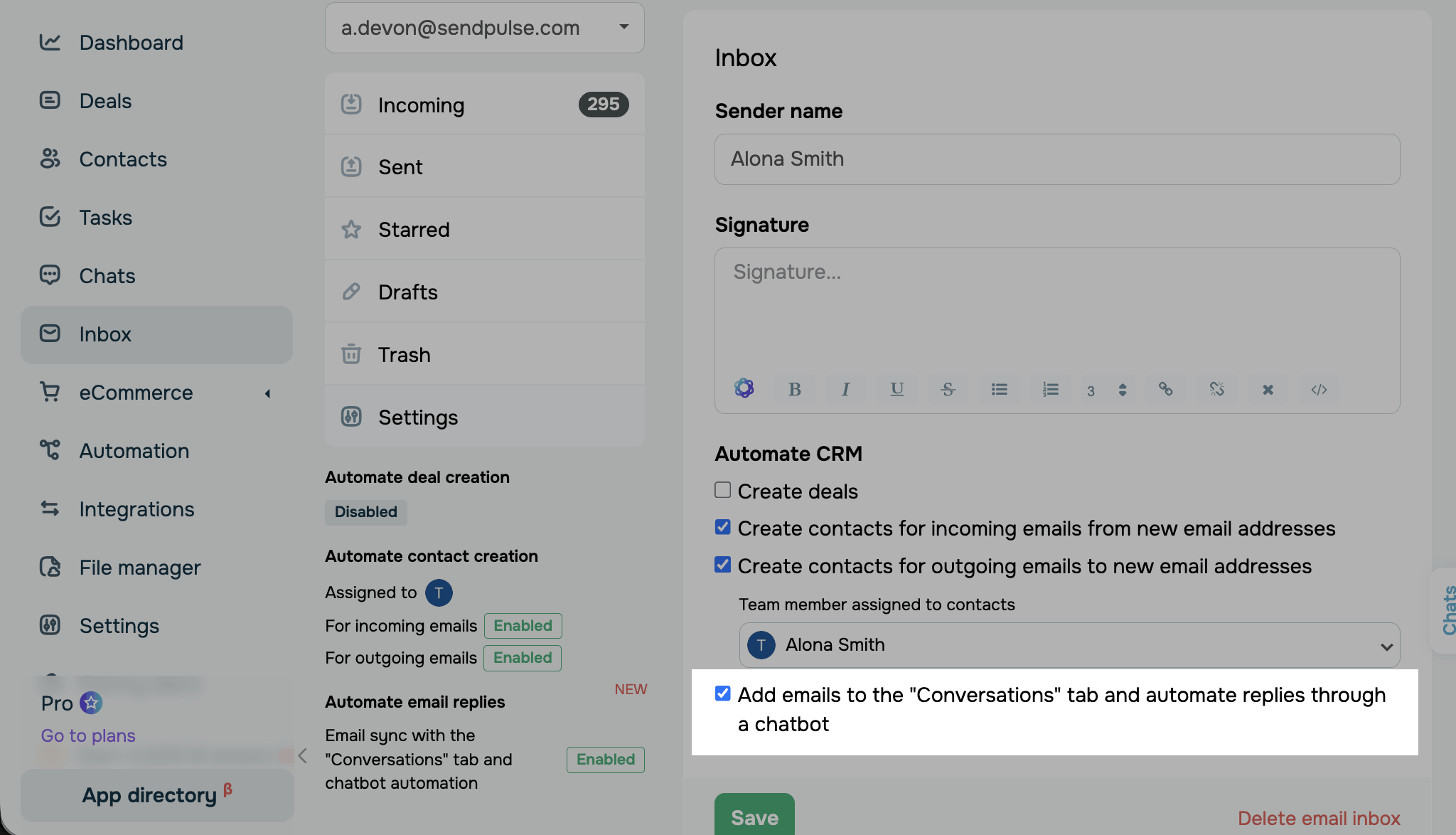
Optionally, in the Sender name and Signature fields, you can enter the name and signature your recipients will see in the emails sent from this inbox.
Click Save. SendPulse then creates an email chatbot and connects it to your inbox.
Set up your chatbot
Once you turn on automated replies, your chatbot appears in the Chatbots section. Its name matches the sender name from your inbox settings.
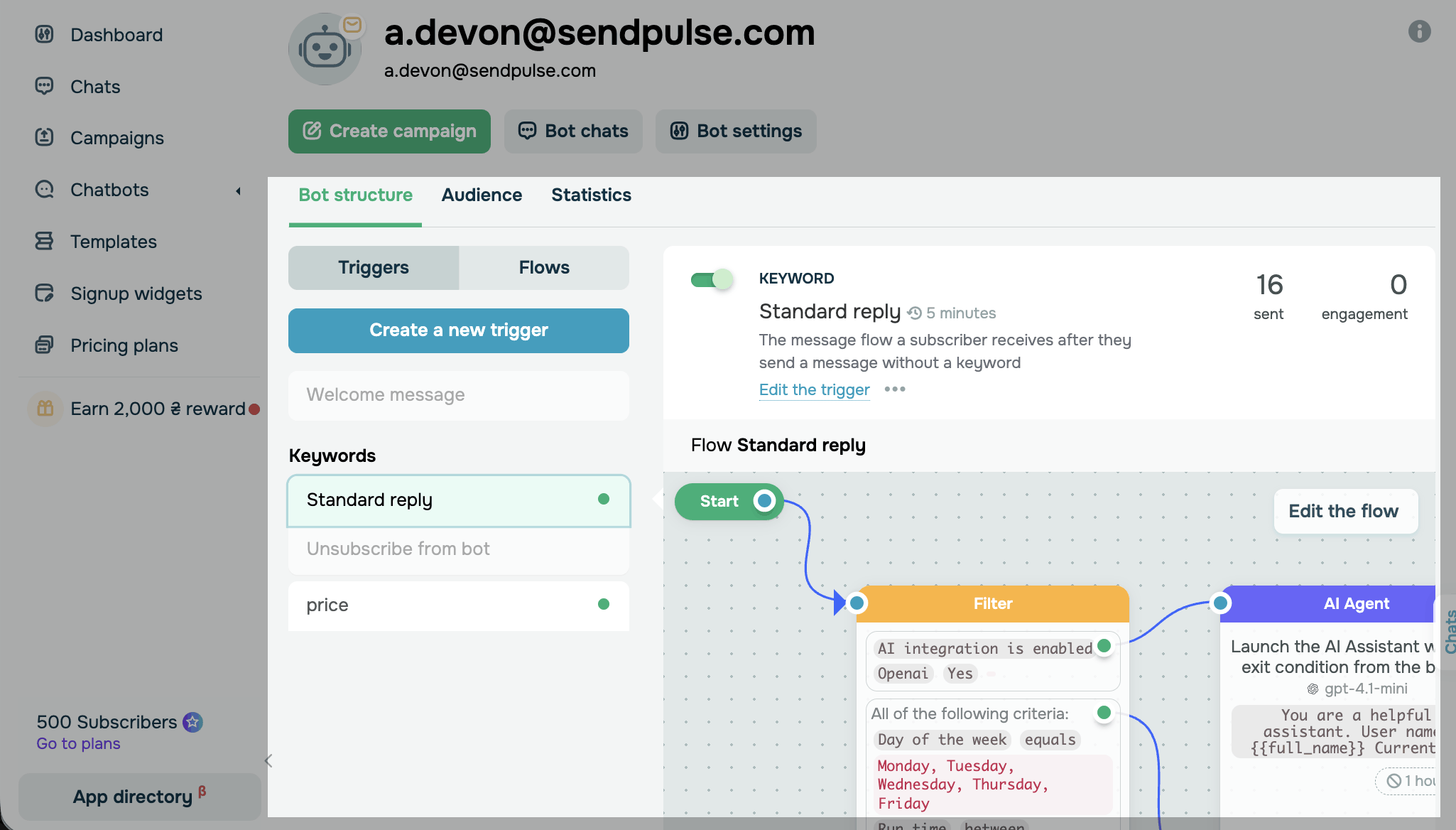
To create automation replies, go to Bot structure. The Standard reply trigger is set up by default. Its flow runs when an incoming email doesn't contain any of your keywords. You can customize the AI Agent element, and it will reply to every email that your keyword triggers don't cover.
You can also create your own triggers using keywords. Your chatbot runs a flow when an incoming email contains one of the keywords. For example, it sends your price list to anyone who mentions "pricing." To share files, price lists, or product catalogs, include links to them in your message.
To view your email conversations, click Bot chats in your chatbot or go to Chatbots > Chats. A team member can take over the conversation at any time.
Read more: Automate email replies, Create a chatbot structure, and Tips on chatbot flow design.
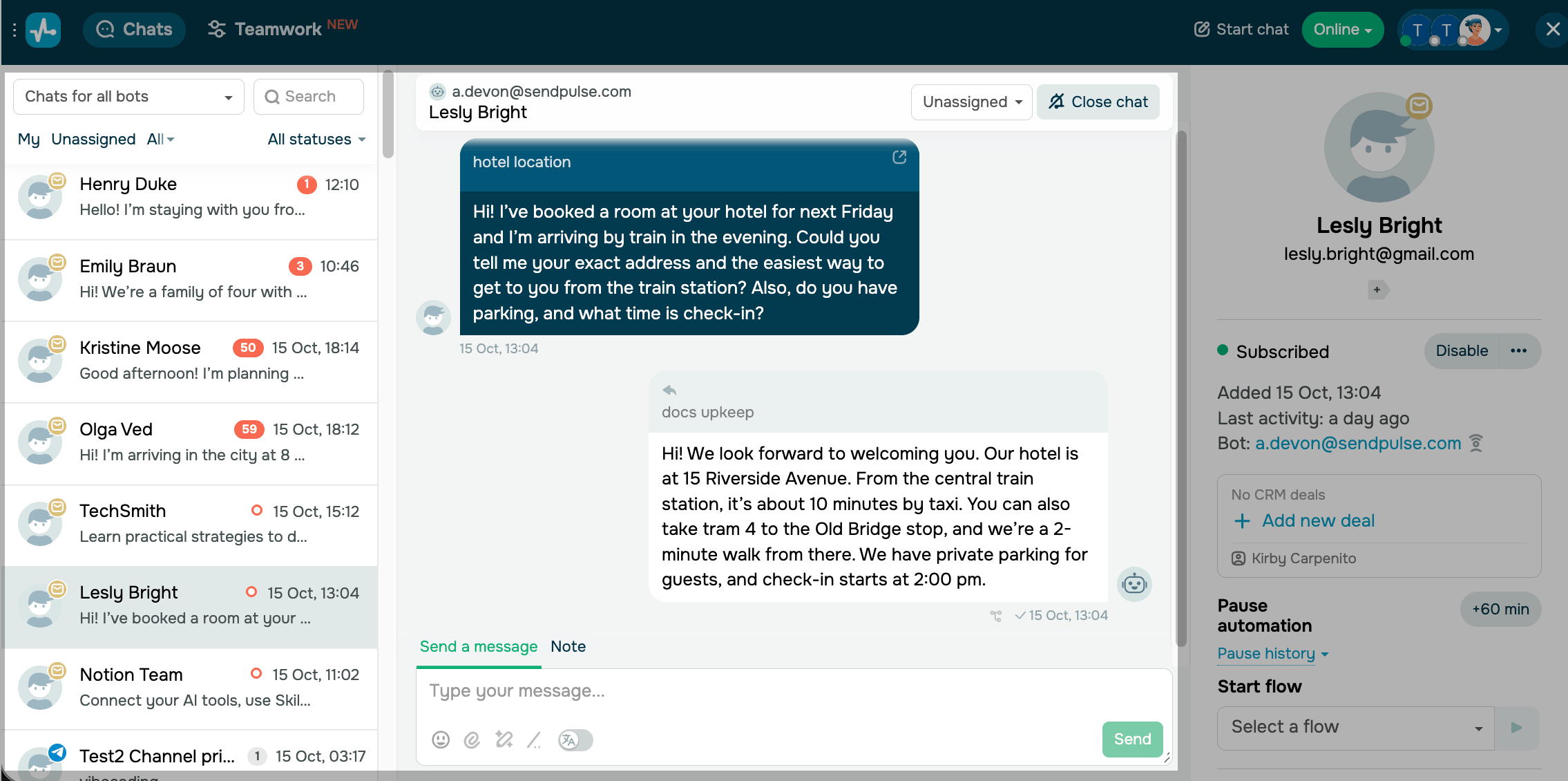
Your chatbot also appears in Chats. There, you can manage and reply to messages from both email and messaging apps in one place.
 Last Updated: 17.10.2026



or