Add notes
You can add notes about a contact or share additional info with your team members. Add information about user preferences, specific requests, feedback, reminders about important dates, or other useful comments.
To add a note, in the lower panel, go to the Note tab. Enter text up to 2000 characters and emoji.
Notes are not sent to users — only you and your team members can see them. Under each note, you can see who added it and when.
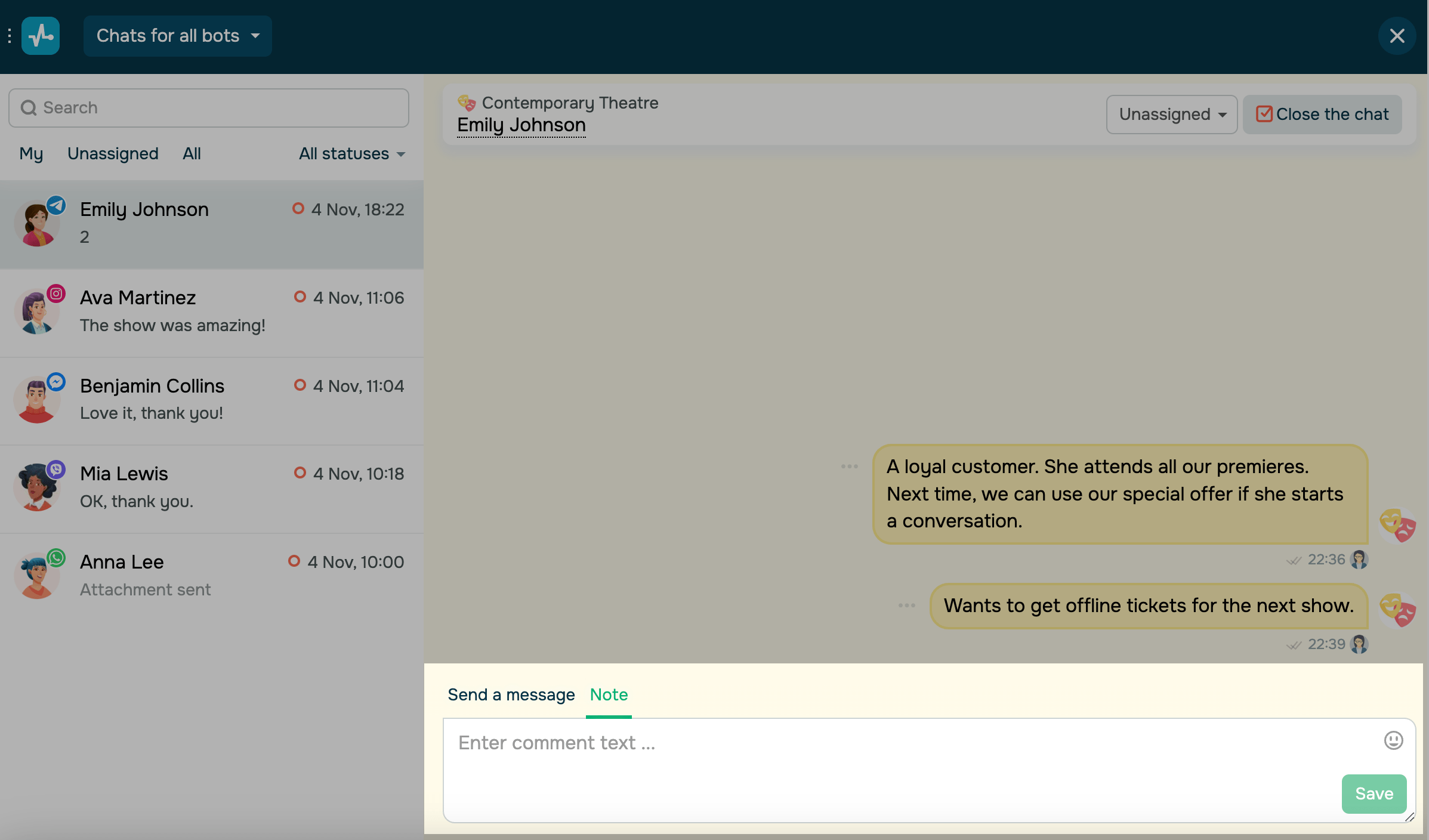
To delete or edit a note, click the three dots to the left of the note, and select a corresponding option.
 Last Updated: 01.07.2025





or