View chats history
To engage with subscribers and monitor your chatbot’s interactions, it's essential to keep track of the full chat history. This helps you follow the context, confirm that your flow runs as intended, and step in manually if something needs your attention.
Suppose a user reports that your chatbot didn’t respond to their question. Your assigned team member can then go over the chat history to understand what happened. They can see whether all flows triggered correctly, if there were any reactions to messages, and whether another team member intervened.
In this article, we will cover the types of information in your chat history and how they vary across different social media platforms.
Chat history overview
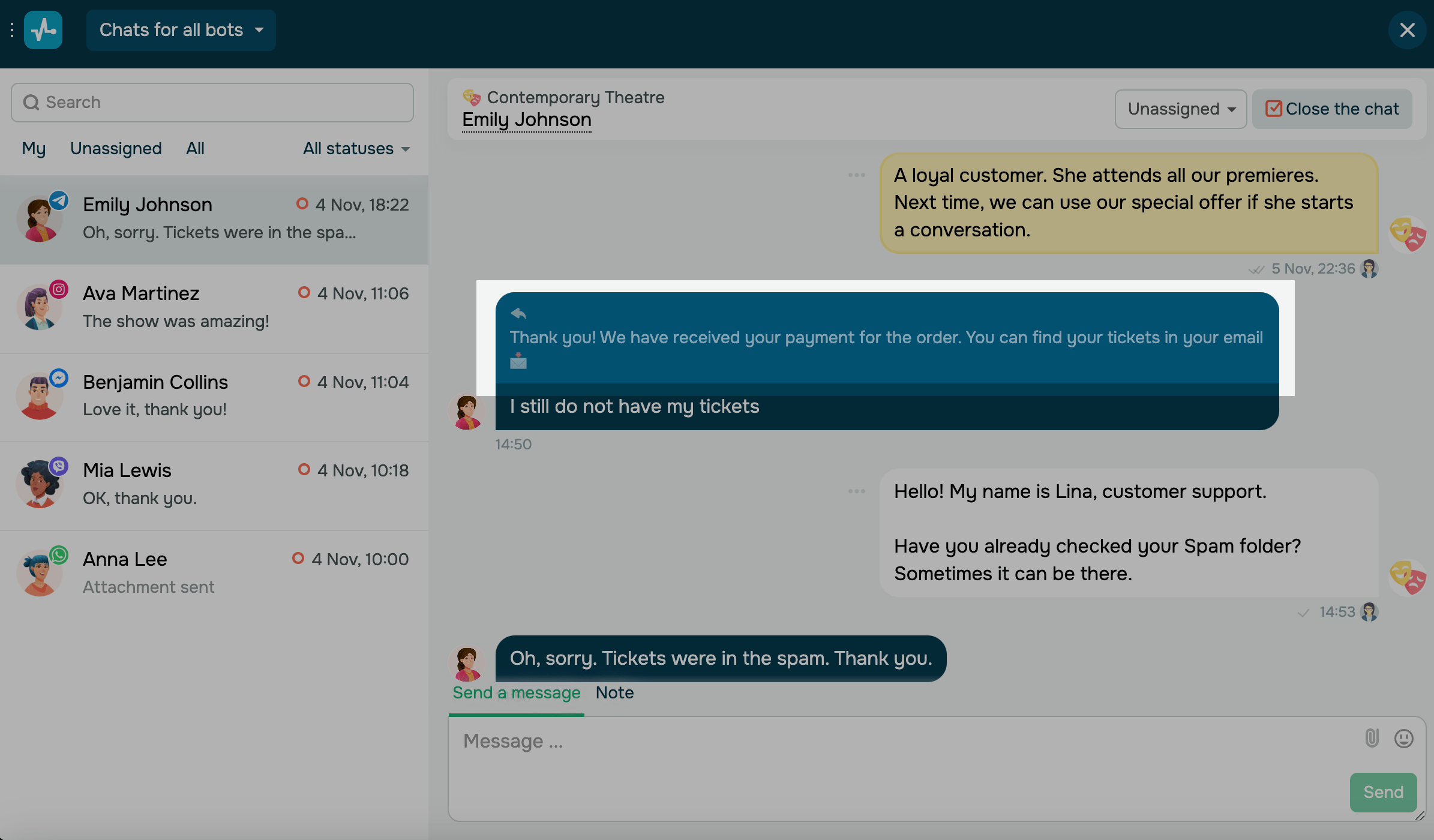
Every chat window shows the full conversation history with a user, including your chatbot's replies. This helps you track chatbot interactions, spot issues in your flow, and read user messages.
Your chat history includes the following:
- User messages: Questions, replies, reactions, and button clicks.
- Chatbot replies: Messages your chatbot sends in reply to user actions. These are labeled with your chatbot’s name.
- Team member replies: Messages sent manually by your team members and labeled with their names.
- Element interactions: Clicks on buttons or other elements that appear as user messages, showing clicked elements.
- Notifications: Depending on the platform, this may include referral sources, story mentions, conversation topics, and more.
Message status
In Instagram, WhatsApp, Facebook chatbots, and live chats, you can track the message status below each message.
| Sent | One gray checkmark. |
| Delivered | Two gray checkmarks. |
| Read | Two blue checkmarks. |
WhatsApp and Telegram chatbots also show the Rejected status and the reason for delivery failure.
The flow icon appears next to the message status, time, and date. To go to the flow element that sent the message, click it.
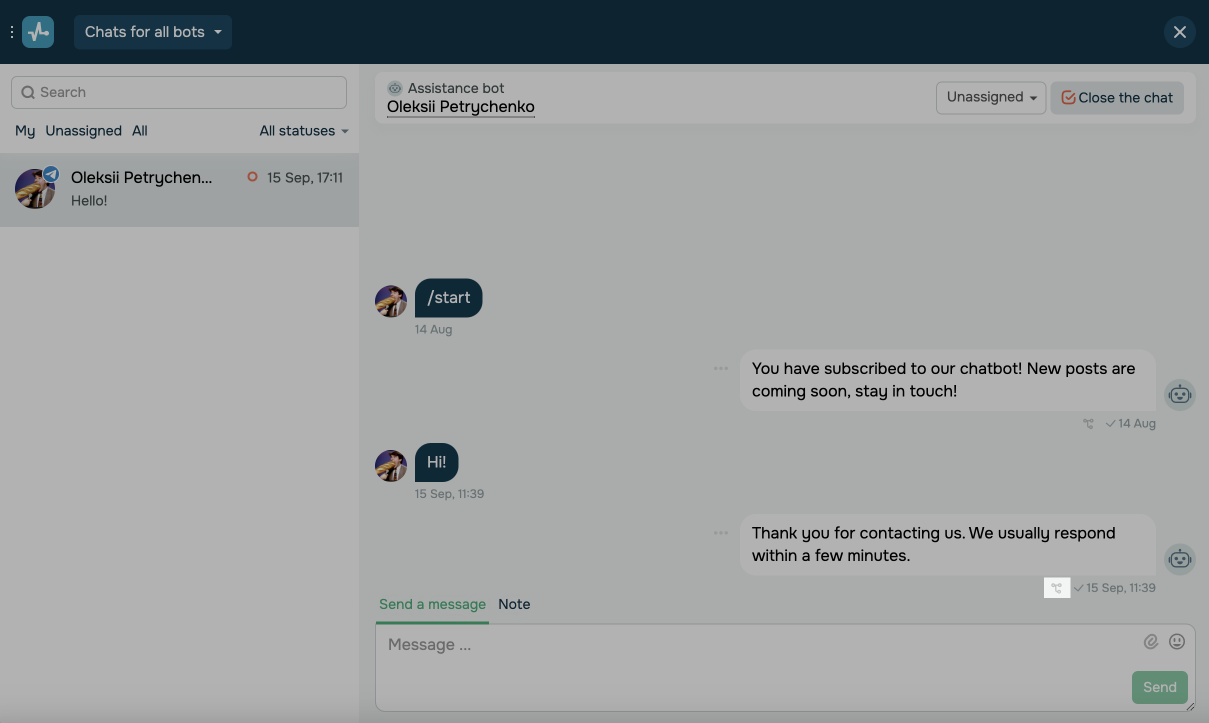
If your chatbot replies to the user in the AI Agent element, that message will be labeled as such.
Platform-specific options
Conversations can include more information and actions based on the social media platform.
| Live chat | Telegram | Viber | ||||
| Subscriber message view: | ||||||
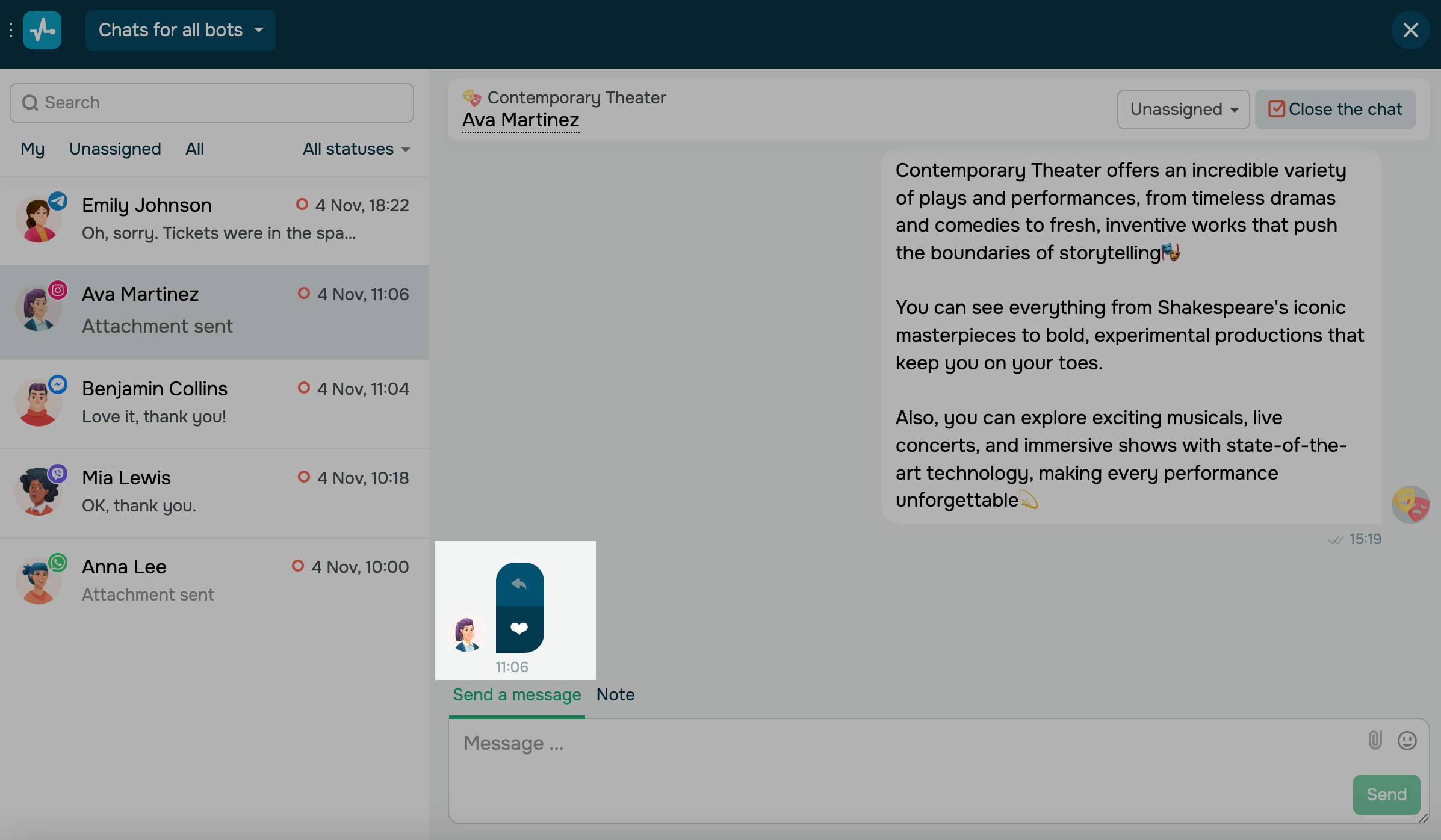
| Reactions | ✓ | ✓ | ✓ | × | ✓ | × |
| The Edited label | × | × | × | × | ✓ | × |
| Ad referral | ✓ | ✓ | ✓ | × | × | × |
| Post comments | ✓ | ✓ | × | × | × | × |
| Quotes | ✓ | ✓ | ✓ | × | ✓ | × |
| WhatsApp Business catalog orders | × | × | ✓ | × | × | × |
| Telegram group chat topic | × | × | × | × | ✓ | × |
| Instagram story mention | × | ✓ | × | × | × | × |
| Manager actions available: | ||||||
| Delete messages | × | × | × | × | Within 48 hours | × |
| Edit messages | × | × | × | × | ✓1 | × |
| React to messages | × | × | ✓2 | × | ✓ | × |
| Quote subscriber messages | × | × | ✓2 | × | ✓ | × |
1 Messages are only editable if they are sent through chats.
2 Available only within the 24-hour support window.
Message source
Messages can also be sent through a third-party application, such as Facebook Business Inbox. To limit messages from other applications, go to their settings and disable automated replies.
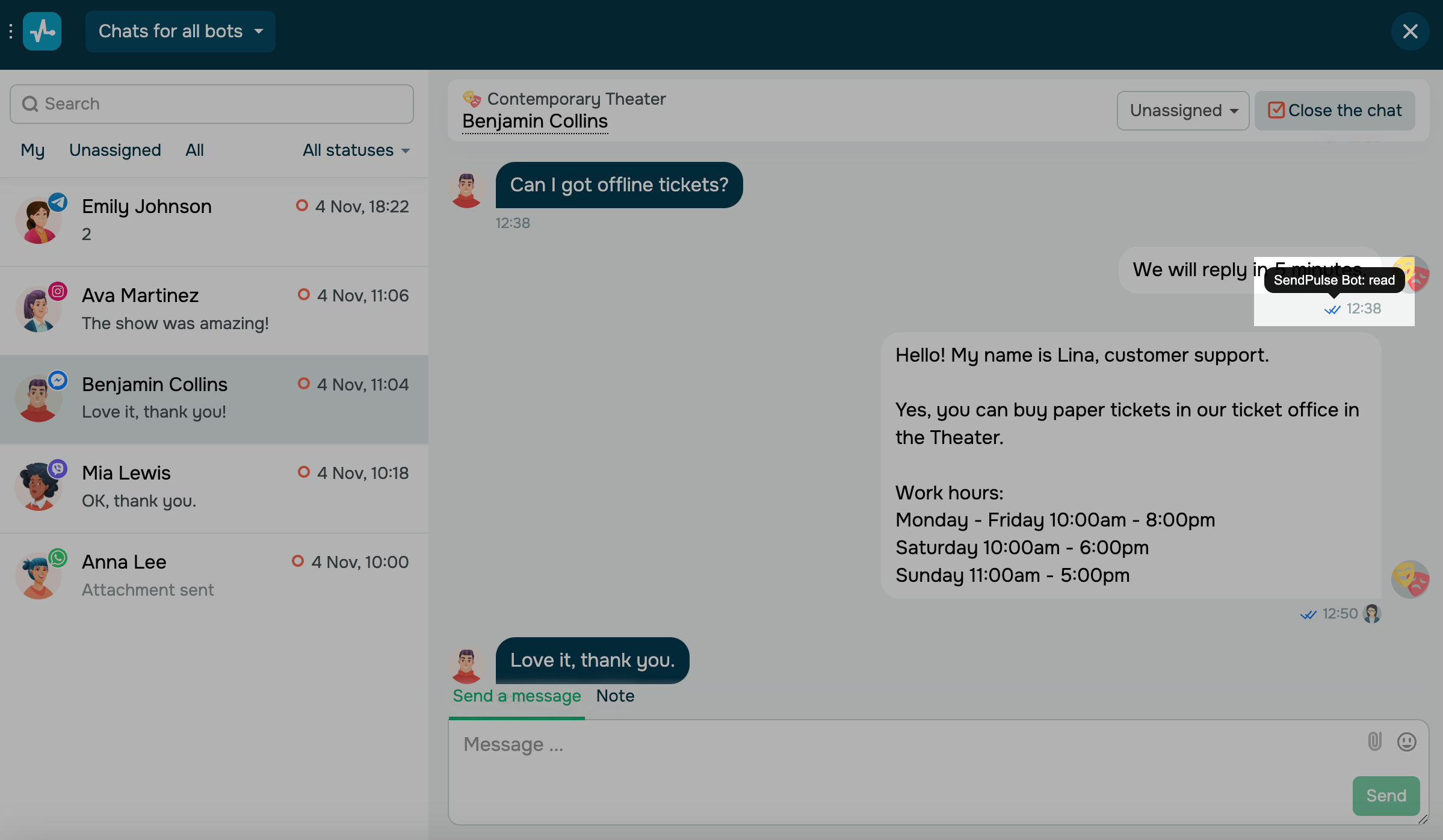
To check who sent messages, open your chat and hover over the message icon.
If a message was sent via SendPulse, you will see the SendPulse Bot status.
The Sent from a third-party app status means the message was sent through another platform. If a team member sends a message, their name and avatar will appear.
 Last Updated: 01.07.2025





or