Manage automated replies
In subscriber cards, you can take manual control of flows and stop your chatbot’s automated messages.
If a user gets stuck in your flow or asks to restart the conversation, your team member can pause running flows, trigger a different flow, or unsubscribe the user from further messages.
On the right of a subscriber card, select an action. In the Start flow list, SendPulse groups flows by folder in the same order as in the Flows tab: system flows first, then your folders, and then flows without a folder in Unsorted.
| Launching an autoflow |
To launch a specific flow for any chatbot subscriber, in the Start flow section select a user and a flow you want to start for them. To find a flow, start typing its name in the search bar. You can launch automated flows from CRM contact cards or any other page using the sidebar chat. |
| Temporarily pausing a bot |
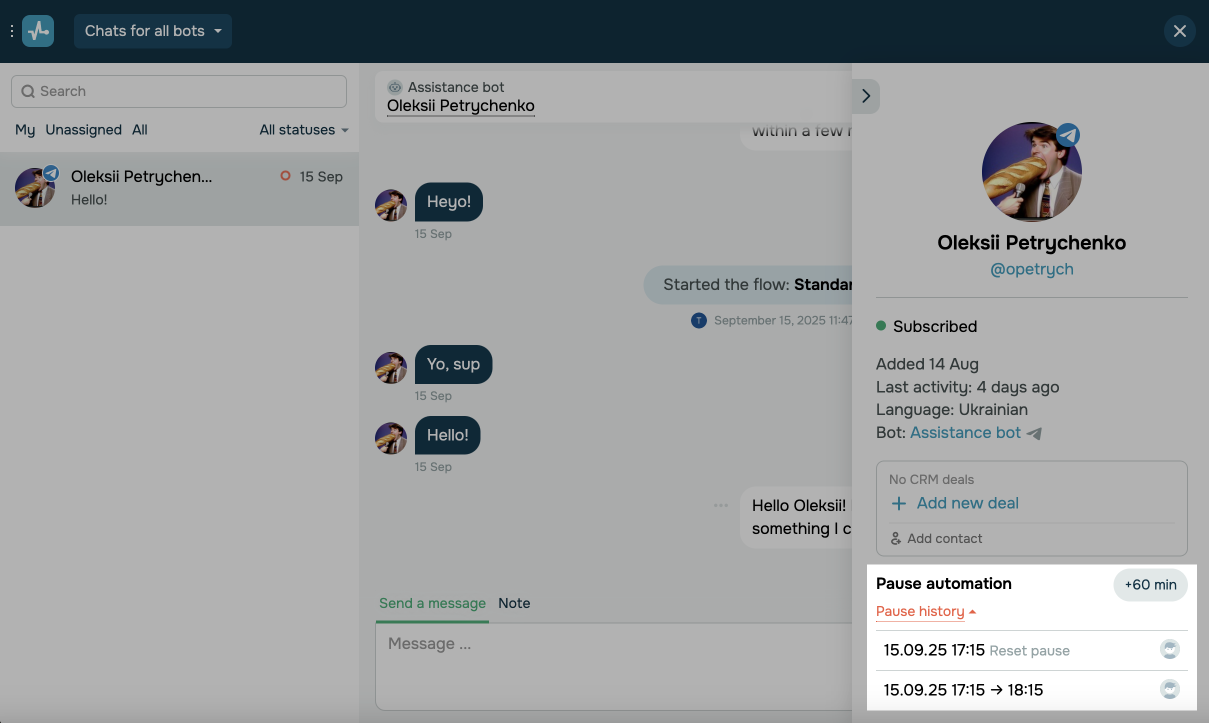
There is also an option to stop messaging your subscribers for 60 minutes in automated flows and bulk campaigns. You can extend the pause if you have replied to a subscriber manually and want to pause your flow for another hour. To do this, click +60 min in the Pause automation section. If you finish communicating with your subscriber sooner, click Continue Autoflows. |
In subscriber cards, you will also see your active flow with queued messages. You can stop the flow and send another one.
This way, you will help users who cannot find the information they need and are confused by your bot scenario.

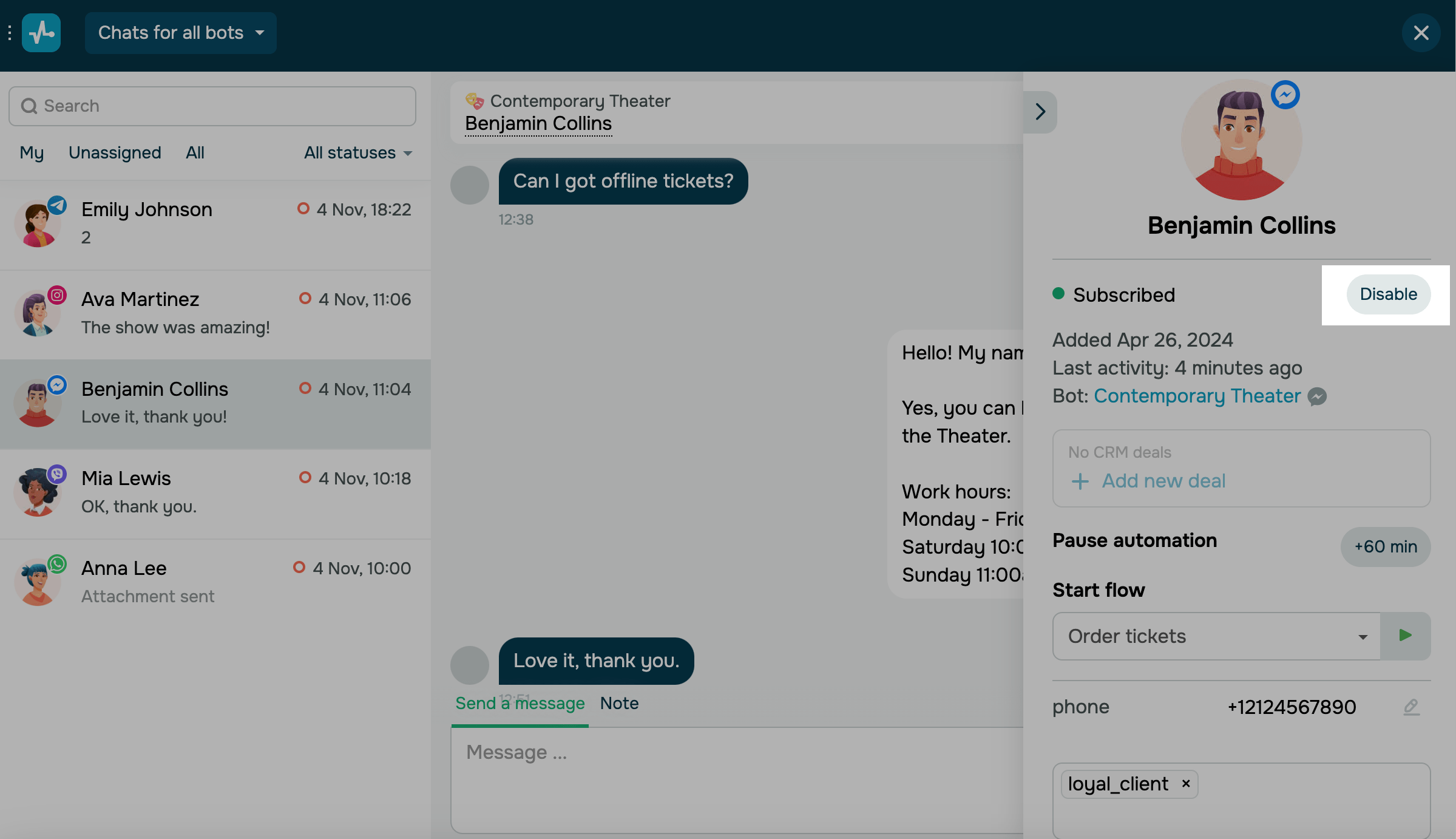
You can also disconnect a subscriber to stop sending them messages from your bot. To do this, click Disable next to your subscriber's status.
To view your automated flow history, expand it below. It shows which team member paused it and when it resumed. This helps you understand how long manual replies took or why a flow didn’t run.
 Last Updated: 01.07.2025





or